
How to Take Screenshots with Selenium WebDriver
Answer
To take screenshots in Selenium WebDriver, use built-in methods like save_screenshot() or getScreenshotAs() to capture the browser’s current view. You can also screenshot specific elements or implement full-page capture using scrolling or external tools for more advanced automation scenarios.
Detailed Explanation
Selenium WebDriver provides native capabilities to capture screenshots during browser automation. This is commonly used in testing, debugging, and data collection workflows where visual validation is required. The simplest approach is capturing the current viewport using methods like driver.save_screenshot("file.png"), which saves the visible portion of the page.
For more granular control, Selenium allows capturing screenshots of specific elements by locating them via selectors and calling the screenshot() method. This is useful for validating UI components or extracting visual data from targeted areas.
However, Selenium has limitations. By default, it only captures what is currently visible in the viewport, meaning full-page screenshots require additional handling such as scrolling and stitching or using third-party libraries.
In modern web scraping environments, screenshots are often part of larger automation pipelines, including headless browsers, CI/CD testing, or AI-driven data extraction. When dealing with protected websites, screenshot capture may be interrupted by CAPTCHA or security challenges, requiring additional handling strategies.
Solutions / Methods
- Capture the current viewport:Use built-in methods like
driver.save_screenshot()orgetScreenshotAs()to save the visible browser content. This is the most straightforward and widely supported approach for debugging and monitoring automation flows. - Capture specific elements or full pages:Use
element.screenshot()for targeted areas or integrate scrolling/stitching techniques (or external libraries) to generate full-page screenshots beyond the viewport limitations. - Handle CAPTCHA and security management interruptions:When screenshots fail due to bot detection systems (e.g., CAPTCHA challenges), integrating automated solving services such as CapSolver can help maintain uninterrupted automation and ensure screenshots are captured reliably even on protected pages.
Best Practice / Tips
- Use descriptive file names and timestamps for better traceability in automation pipelines.
- Run browsers in headless mode for scalable screenshot automation in server environments.
- Combine screenshots with logging and HTML snapshots for comprehensive debugging.
- Implement retry logic when dealing with dynamic content or security protections.
👉 Related:
Use code
FAQwhen signing up at CapSolver to receive an additional 5% bonus on your recharge.
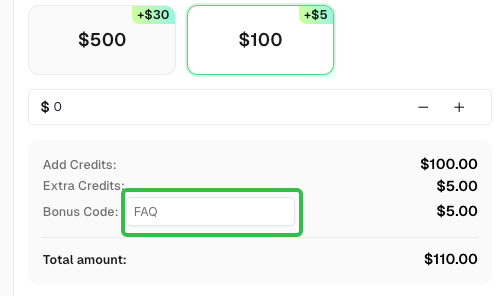
CapSolver FAQ — capsolver.com