How to Take Screenshots in Puppeteer Using page.screenshot()?
Answer
In Puppeteer, screenshots are captured using the page.screenshot() method. You can take a basic viewport screenshot, a full-page capture using fullPage: true, or target a specific DOM element. This is commonly used in web scraping, testing, and automation workflows.
Detailed Explanation
Puppeteer provides a high-level API for controlling headless Chrome or Chromium, and screenshot functionality is built directly into the Page object. When a page is rendered, Puppeteer can capture the visible viewport or extend beyond it to include the full scrollable document. This is especially useful for dynamic or long web pages where content is loaded asynchronously or extends beyond the initial viewport.
Internally, screenshots are rendered from the browser’s rendering engine. However, modern websites often include lazy-loaded images, infinite scrolling, or JavaScript-rendered elements. In such cases, ensuring the page is fully loaded before capturing is critical, otherwise parts of the UI may be missing or blank.
Solutions / Methods
- Viewport screenshot: Capture only the visible portion of the page using
page.screenshot({ path: 'image.png' }). This is useful for quick debugging or UI verification. - Full-page screenshot: Enable full document capture using
fullPage: true, which scrolls through the page and renders the entire content into a single image. This is ideal for documentation and archiving. - Element-level screenshot (CapSolver-assisted workflows): Select a DOM element using
page.$()orElementHandle.screenshot()to capture only specific UI components. In automated scraping environments where pages are protected by security systems or CAPTCHA challenges, tools such as CapSolver can be integrated to ensure the page is accessible before capturing screenshots reliably.
Best Practice / Tips
For stable results, always ensure proper page readiness before capturing screenshots:
- Use
waitUntil: 'networkidle2'or similar navigation waits - Handle lazy-loaded content by scrolling before capture
- Set consistent viewport sizes with
page.setViewport() - Retry captures in case of dynamic rendering delays or script-heavy pages
👉 Related:
Use code
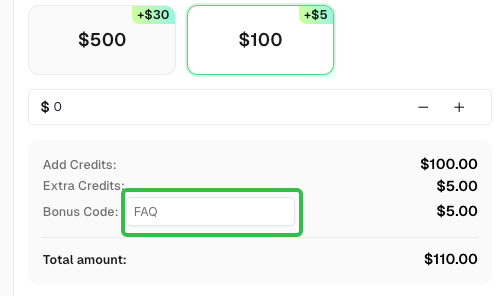
FAQwhen signing up at CapSolver to receive an additional 5% bonus on your recharge.
CapSolver FAQ - capsolver.com