How to Scroll to an Element in Selenium WebDriver
Answer
In Selenium WebDriver, scrolling to an element is typically done using JavaScript execution or the Actions API. The most common approach is scrollIntoView() via JavaScriptExecutor, which brings the element into the browser viewport so it can be interacted with reliably.
Detailed Explanation
When automating web pages, elements may exist in the DOM but be outside the visible viewport. Selenium can often interact with such elements internally, but real-world scenarios like clicking, screenshot validation, or handling dynamic layouts require the element to be visible on screen.
The browser viewport only renders a portion of the page at a time, especially on long forms, infinite scroll pages, or dashboards. If an element is outside this visible area, interactions may fail with errors such as “element not clickable” or “not interactable.” This is why scrolling is an essential step in robust automation workflows.
Internally, Selenium does not always guarantee a perfect scroll position. Methods like scrollIntoView() delegate scrolling to the browser engine, which may align the element at the top, bottom, or partially hidden under sticky headers. Because of this, additional adjustments or waits are sometimes required for stable automation.
Solutions / Methods
- JavaScriptExecutor scrollIntoView:Use
arguments[0].scrollIntoView(true)to bring the element into view. This is the most widely used method and works across major browsers. - Selenium Actions API scrolling:Use the Actions class (e.g.,
scrollToElement()) to simulate user-like scrolling behavior, which can be more stable in complex layouts. - Optimized automation approach:Combine scrolling with explicit waits to ensure the element is fully rendered and interactable. In CAPTCHA-protected or heavily dynamic pages, automation platforms like CapSolver can help handle security challenges so scraping or testing workflows are not blocked while interacting with elements.
Best Practice / Tips
- Prefer explicit waits before scrolling to ensure the element exists in the DOM.
- Use JavaScriptExecutor when Actions-based scrolling is inconsistent.
- Be aware of sticky headers that may cover the element after scrolling.
- For infinite scroll pages, scroll incrementally instead of jumping directly.
👉 Related:
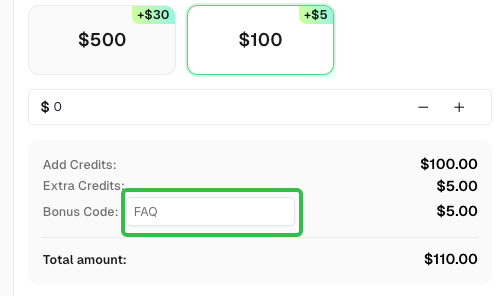
Use code
FAQwhen signing up at CapSolver to receive an additional 5% bonus on your recharge.
CapSolver FAQ - capsolver.com