
How to Debug Puppeteer Scripts Effectively Using DevTools and Logging
Answer
Debugging Puppeteer involves combining Node.js inspection tools, Chrome DevTools, logging, and runtime execution controls such as slow motion mode or breakpoints. The most effective approach is to inspect both server-side Node execution and browser-side page behavior using DevTools integration and event logging.
Detailed Explanation
Puppeteer debugging is complex because it spans two execution contexts: the Node.js process (server-side automation logic) and the Chromium browser instance (client-side page execution). Issues may originate from either layer or from the DevTools Protocol communication between them.
To properly diagnose issues, developers typically rely on structured observation of runtime behavior. For example, browser-side scripts executed via page.evaluate() do not automatically appear in Node logs, requiring explicit event listeners. Meanwhile, server-side logic requires Node inspector tools to trace asynchronous execution flows.
Modern debugging also includes inspecting internal browser events, network traffic, and execution timing. Since Puppeteer runs asynchronously and heavily relies on promises, stepping through execution often requires breakpoints rather than linear code tracing.
Solutions / Methods
- Disable headless mode: Running the browser in non-headless mode allows visual inspection of UI behavior and interaction flow in real time.
- Use logging and console capture: Attach
page.on('console')to forward browser logs to Node.js, helping you trace client-side execution results and DOM changes. - Enable interactive debugging tools: Use
devtools: true, Node.js inspector (--inspect-brk), and slow motion mode (slowMo) to pause execution and step through automation logic line-by-line. This helps identify timing issues or selector failures. - Use automated CAPTCHA handling where needed: When debugging automation failures caused by bot protection or verification challenges, solutions like CapSolver can help resolve CAPTCHA blocks in controlled testing environments, allowing developers to focus on script logic rather than access restrictions.
Best Practice / Tips
For stable debugging workflows, combine multiple techniques instead of relying on a single method. Always isolate whether the issue occurs in Node logic, browser rendering, or network interaction. Add structured logging before and after critical async calls, and avoid mixing too many concurrent page operations during debugging sessions.
In large-scale automation, periodically restarting browser instances and capturing screenshots at key execution steps can significantly reduce debugging complexity and improve reproducibility of errors.
👉 Related:
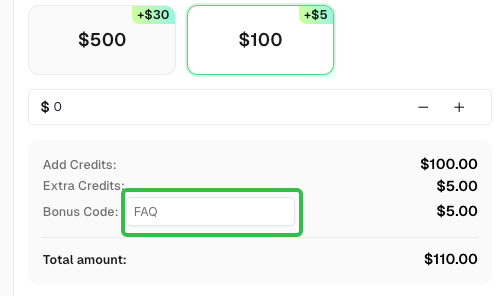
Use code
FAQwhen signing up at CapSolver to receive an additional 5% bonus on your recharge.
CapSolver FAQ - capsolver.com