🎉NEWCapSolver for AI agents-MCP, agent tools, and SDK integrations

Ethan Collins
AI Agent Workflow Engineer
Published May 06, 2026
Updated May 08, 2026 · min read
When your AI agent browses the web for you, CAPTCHAs are the number one obstacle. Protected pages block the agent, forms refuse to submit, and tasks stall out waiting for human intervention.
Hermes Agent by Nous Research is a self-improving AI agent that runs anywhere — from a $5 VPS to a GPU cluster — and reaches you on every channel you already use: Telegram, Discord, Slack, WhatsApp, Signal, and email. It can also drive a browser to navigate pages, click buttons, fill forms, and extract data on your behalf. But like any browser-driving agent, it gets stuck on CAPTCHAs.
CapSolver changes this completely. By loading the CapSolver Chrome extension into the browser Hermes attaches to, CAPTCHAs are solved automatically and invisibly in the background. No code. No API calls from your side. No prompt-engineering gymnastics.
The best part? You don't even need to mention CAPTCHAs to the agent. You just tell it to wait a moment before submitting — and by the time it clicks Submit, the CAPTCHA is already solved.
Hermes Agent is an open-source autonomous AI agent built by Nous Research. It is designed around three principles: persistent memory (it remembers you and your projects across sessions), autonomous skill creation (it learns procedures from experience and replays them next time), and infrastructure flexibility (run it on a tiny VPS, a Docker container, a serverless sandbox, or your own GPU box).
hermes modelHermes can drive a Chromium browser to do real work — navigate, read DOM, click, type, screenshot, scrape. Its browser tool layer is unusual in one specific way: instead of forcing you into a single backend, Hermes supports five interchangeable browser providers:
| Provider | Type | Extensions? |
|---|---|---|
| Browserbase | Cloud | ✗ |
| Browser Use | Cloud | ✗ |
| Firecrawl | Cloud | ✗ |
| Camoufox | Local (Firefox stealth) | ✗ |
| CDP attach | Local (any Chromium) | ✓ |
Cloud providers can't load extensions — you don't control the remote browser. Camoufox is Firefox-based and won't run a Chrome MV3 extension. The clean integration point is the fifth one: CDP attach, where Hermes connects to a Chromium you launched separately. That's where CapSolver fits in.
This is a different model than tools like OpenClaw (which launches its own Chromium and accepts a browser.extensions array) or Crawlee (where you control Playwright launch flags). With Hermes, you bring your own Chrome with the extension preloaded, and Hermes attaches to it over the DevTools protocol.
CapSolver is a leading CAPTCHA solving service that provides AI-powered solutions for bypassing modern CAPTCHA challenges. With support for every major CAPTCHA type and fast response times, CapSolver integrates seamlessly into automated workflows — whether you're driving a browser via Playwright, calling its API directly, or, as in this guide, running its Chrome extension inside an agent's browser session.
Most CAPTCHA-solving integrations require you to write code — create API calls, poll for results, inject tokens into hidden form fields. That's how it works with tools like Crawlee, Puppeteer, or Playwright.
Hermes + CapSolver is fundamentally different:
| Traditional (Code-Based) | Hermes (Natural Language) |
|---|---|
Write a CapSolverService class |
Launch Chrome once with --load-extension=... |
Call createTask() / getTaskResult() |
Just talk to your agent |
Inject tokens via page.$eval() |
The extension handles everything |
| Handle errors, retries, timeouts in code | Tell the agent to "wait 60 seconds, then submit" |
| Different code for each CAPTCHA type | Works for every type automatically |
The key insight: The CapSolver Chrome extension runs inside the attached browser. Hermes connects to that browser over CDP and drives it normally. When the agent navigates to a page with a CAPTCHA, the extension — running in the same Chrome, completely invisible to the agent — detects the widget, calls the CapSolver API, and injects the solution token into the page. By the time the agent clicks Submit, the form already carries a valid token.
You just need to give it time. Instead of telling the agent to "solve the CAPTCHA", you simply say:
"Go to that page, wait 60 seconds, then click Submit."
That's it. The agent doesn't need to know CapSolver exists.
Before setting up the integration, make sure you have:
Google Chrome 137+ (released mid-2025) silently removed support for
--load-extensionin branded builds. This means Chrome extensions cannot be loaded in automated sessions using standard Google Chrome. There is no error — the flag is simply ignored.
This affects Google Chrome and Microsoft Edge. You must use one of these alternatives:
| Browser | Extension Loading | Recommended? |
|---|---|---|
| Google Chrome 137+ | Not supported | No |
| Microsoft Edge | Not supported | No |
| Chrome for Testing | Supported | Yes |
| Chromium (standalone) | Supported | Yes |
| Playwright's bundled Chromium | Supported | Yes |
How to install Chrome for Testing:
# Option 1: Via Playwright (recommended — Hermes already uses Playwright internally)
npx playwright install chromium

# The binary will be at a path like:
# ~/.cache/ms-playwright/chromium-XXXX/chrome-linux64/chrome           (Linux)
# ~/Library/Caches/ms-playwright/chromium-XXXX/chrome-mac/Chromium.app/Contents/MacOS/Chromium (macOS)# Option 2: Via Chrome for Testing direct download
# Visit: https://googlechromelabs.github.io/chrome-for-testing/
# Download the version matching your OSAfter installation, note the full path to the binary — you'll need it in the next step.
The integration has two pieces working together:
9222).config.yaml to tell it to attach to that CDP port instead of spinning up its own browser.That's it — no code, no Hermes patching.
Download the CapSolver Chrome extension and extract it to a stable location:
CapSolver.Browser.Extension-chrome-vX.X.X.zipmkdir -p ~/.hermes/capsolver-extension
unzip CapSolver.Browser.Extension-chrome-v*.zip -d ~/.hermes/capsolver-extension/ls ~/.hermes/capsolver-extension/manifest.jsonYou should see manifest.json — this confirms the extension is in the right place.
Tip on paths: Use an absolute, resolved path (not
~) when you pass--load-extension=...to Chrome later. Some Chrome MV3 builds have edge cases where extension service workers fail to register through symlinks under custom user-data dirs. If you're symlinking the extension from another location, usereadlink -fto resolve the real path and use that.
Open the extension's config file at ~/.hermes/capsolver-extension/assets/config.js and replace the apiKey value with your own:
export const defaultConfig = {
  apiKey: 'CAP-XXXXXXXXXXXXXXXXXXXXXXXXXXXXXXXX',  // ← your key here
  useCapsolver: true,
  enabledForRecaptcha: true,
  enabledForRecaptchaV3: true,
  // ... rest of config
};
You can get your API key from your CapSolver dashboard.
This is the key step. We launch Chrome once, separately from Hermes, with three crucial flags:
--remote-debugging-port=9222 — exposes the DevTools protocol so Hermes can attach--load-extension=... — preloads the CapSolver extension--user-data-dir=... — uses a dedicated profile so we don't collide with your personal ChromeHermes has a built-in convention for the user-data dir: ~/.hermes/chrome-debug. Using that path means Hermes' in-app /browser connect command also "just works" with no additional flags.
/path/to/chrome-for-testing/chrome \
  --remote-debugging-port=9222 \
  --remote-debugging-address=127.0.0.1 \
  --user-data-dir="$HOME/.hermes/chrome-debug" \
  --load-extension="$HOME/.hermes/capsolver-extension" \
  --disable-extensions-except="$HOME/.hermes/capsolver-extension" \
  --no-first-run \
  --no-default-browser-check \
  --no-sandbox
Replace /path/to/chrome-for-testing/chrome with your actual binary, e.g. ~/.cache/ms-playwright/chromium-1200/chrome-linux64/chrome.
Headless servers: If you're running this on a Linux server without a physical display (a VPS, EC2, etc.), see the Best Practices section below for the
Xvfbsetup. The Chrome extension subsystem requires a display context.
For any setup that lives longer than a single test run, wrap the launch in a small shell script so you can keep Chrome running in the background, restart it cleanly, and supervise it with whatever process manager you already use (systemd, supervisor, runit, OpenRC, Docker, etc.).
Save this as ~/.hermes/chrome-debug.sh and chmod +x it:
#!/usr/bin/env bash
# ~/.hermes/chrome-debug.sh
# Launches Chrome-for-Testing with the CapSolver extension preloaded
# and CDP exposed on 127.0.0.1:9222.

CHROME_BIN="$HOME/.cache/ms-playwright/chromium-1200/chrome-linux64/chrome"
EXT_DIR="$HOME/.hermes/capsolver-extension"
USER_DATA_DIR="$HOME/.hermes/chrome-debug"

export DISPLAY=:99   # for headless Linux — see Best Practices

exec "$CHROME_BIN" \
  --remote-debugging-port=9222 \
  --remote-debugging-address=127.0.0.1 \
  --user-data-dir="$USER_DATA_DIR" \
  --load-extension="$EXT_DIR" \
  --disable-extensions-except="$EXT_DIR" \
  --no-first-run \
  --no-default-browser-check \
  --no-sandbox \
  --disable-dev-shm-usage \
  --disable-features=Translate
The simplest persistent launch is just:
nohup ~/.hermes/chrome-debug.sh > /tmp/chrome-debug.log 2>&1 &For production, supervise the script with whichever process manager you prefer. A minimal systemd unit at ~/.config/systemd/user/chrome-debug.service:
[Unit]
Description=CapSolver-equipped Chrome for Hermes Agent
After=network.target

[Service]
ExecStart=%h/.hermes/chrome-debug.sh
Restart=always
RestartSec=5

[Install]
WantedBy=default.target
Then:
systemctl --user daemon-reload
systemctl --user enable --now chrome-debug
Any equivalent setup (supervisord program, runit service, Docker container, etc.) works identically — the integration only cares that something keeps chrome-debug.sh running.
Edit your Hermes config at ~/.hermes/config.yaml. Find the browser: section (it usually only has inactivity_timeout) and add a cdp_url:
browser:
  inactivity_timeout: 120
  cdp_url: http://127.0.0.1:9222
That single line tells Hermes' browser_cdp tool to route every browser operation through the Chrome instance we launched in Step 3, instead of starting its own.
Reversibility: This is the only change to Hermes itself. To roll back, delete the
cdp_urlline. Hermes returns to whatever default browser provider it was using (Browserbase, Browser Use, etc.) with no other side effects.
If Hermes is already running, restart it so it picks up the new cdp_url:
# Running directly (foreground or under your supervisor):
hermes gateway run

# Or restart via whatever process manager you supervise Hermes with —
# the only requirement is that the new env/config takes effect.Hermes ships with a built-in diagnostic command that checks every part of the integration in one shot:
hermes doctorYou're looking for these signals:
◆ Tool Availability
  ✓ browser-cdp        ← CDP attach is live
  ✓ browser
  ...

◆ API Connectivity
  Checking OpenRouter API...  ✓ OpenRouter API
If browser-cdp shows up under Tool Availability, Hermes has detected your CDP endpoint and the integration is wired correctly. If it's missing, Hermes silently disables the tool (no error) — that's the diagnostic to watch.
You can also confirm Chrome is reachable directly:
curl -s http://127.0.0.1:9222/json/versionA response like the following confirms CDP is up:
{
   "Browser": "Chrome/<your version>",
   "Protocol-Version": "1.3",
   "webSocketDebuggerUrl": "ws://127.0.0.1:9222/devtools/browser/..."
}
About the CapSolver service worker visibility: Chrome MV3 service workers idle out aggressively, and on recent Chrome builds
/json/listmay omit them entirely even while they are running. Absence from/json/listis not diagnostic — confirm CapSolver is working by loading a real reCAPTCHA page through the agent and observing the in-page widget result, not by polling the target list.
This is the most important section. Once setup is complete, using CapSolver with Hermes is dead simple.
Don't mention CAPTCHAs or CapSolver to the agent. Just give it time before submitting forms.
The agent doesn't need to know about CAPTCHAs. The extension handles everything in the background. All you need to do is include a wait time in your instructions so the extension has time to solve the challenge before the form is submitted.
Hermes' one-shot mode (hermes -z "...") is ideal for testing the integration. Run this from any terminal where the hermes CLI is available:
hermes -z 'Open https://www.google.com/recaptcha/api2/demo. Wait 60 seconds for the page to fully render. Then click the button labeled "Send!" or with id "recaptcha-demo-submit". After clicking, wait 5 seconds and tell me the visible text on the page.' --yoloWhat happens behind the scenes:
g-recaptcha-response form fieldThat "Verification Success... Hooray!" string is Google's own confirmation message — it only appears when a valid reCAPTCHA token is submitted with the form.
Send this from any channel connected to the Hermes gateway (Telegram, Discord, Slack, etc.):
Go to https://example.com/login, fill the email field with
"me@example.com" and the password field with "mypassword123",
then wait 30 seconds and click the Sign In button.
Tell me what page loads after signing in.
Hermes will route the request to its agent, attach to the same Chrome, fill the form, give the extension time to solve any CAPTCHA on the login page, click Sign In, and reply with whatever the post-login page says — all without you ever mentioning CAPTCHAs.
Open https://example.com/contact and fill in the contact form:
- Name: "John Doe"
- Email: "john@example.com"
- Message: "Hello, I have a question about your services."
Wait 45 seconds, then click Send Message.
What confirmation appears on the page?| CAPTCHA Type | Typical Solve Time | Recommended Wait |
|---|---|---|
| reCAPTCHA v2 (checkbox) | 5–15 seconds | 30–60 seconds |
| reCAPTCHA v2 (invisible) | 5–15 seconds | 30 seconds |
| reCAPTCHA v3 | 3–10 seconds | 20–30 seconds |
| AWS WAF CAPTCHA | 5–15 seconds | 30 seconds |
Tip: When in doubt, use 60 seconds. It's better to wait a bit longer than to submit too early. The extra wait is essentially free — your CapSolver bill is per solve, not per second.
Here are proven phrasings you can use across any of Hermes' channels:
Avoid these phrasings — they can confuse the agent and have been observed to trigger refusals on some safety-tuned models (notably the GLM family):
For the technically curious, here's the architecture:
  Your message                  Hermes Gateway
  ──────────────────────────────────────────────────────────
  "go to page,           ──►   Hermes Agent receives message
   wait 60s, submit"           │
                                ▼
                           browser_cdp / browser tools
                                │  (attach via WebSocket
                                │   to ws://127.0.0.1:9222)
                                ▼
                           ┌────────────────────────────────────┐
                           │  chrome-debug Chromium (background)│
                           │                                     │
                           │  ┌───────────────────────────────┐ │
                           │  │ CapSolver MV3 extension       │ │
                           │  │ (loaded via --load-extension; │ │
                           │  │  requires Chrome for Testing  │ │
                           │  │  or Chromium — branded Chrome │ │
                           │  │  137+ ignores this flag)      │ │
                           │  │                                │ │
                           │  │ 1. content script detects CAPTCHA │
                           │  │ 2. service worker calls CapSolver API │
                           │  │ 3. token received                │ │
                           │  │ 4. token injected into form field │ │
                           │  └───────────────────────────────┘ │
                           └────────────────────────────────────┘
                                │
                                ▼
                           Hermes Agent waits 60 seconds...
                                │
                                ▼
                           browser_cdp: click Submit
                                │
                                ▼
                           Form submits WITH valid token
                                │
                                ▼
Post-submit confirmation pageHermes' browser tool layer is built around five interchangeable providers (Browserbase, Browser Use, Firecrawl, Camoufox, headless Chromium). Three of those are cloud — you don't control the browser binary, so there's no place to put a --load-extension flag. One (Camoufox) is Firefox-based. The fifth — CDP attach — is the only seam where a user-controlled Chromium can be plugged in.
The trade-off is a great one: Hermes stays cloud-portable by default, but the moment you want browser-side superpowers (CapSolver, your own ad blocker, custom MV3 tooling, persistent cookies, you name it), you launch Chrome yourself and point Hermes at it. One config line. Total control.
--load-extension Actually DoesWhen Chrome starts with --load-extension=/path/to/extension, it treats that directory as an unpacked extension — the same mechanism Chrome's developer mode uses. The extension's manifest, content scripts, and service worker are all registered exactly as if you'd installed it from the Chrome Web Store. There's no sandboxing difference, no degraded API access — it's a fully privileged extension.
The CapSolver extension then takes over the rest:
assets/config.js, submits the challenge details, and polls for the tokenThe Hermes agent is completely uninvolved — it sees a normal page, waits the time you told it to wait, and submits. The page just happens to have a valid token on it.
Environment note: Avoid
--disable-background-networkingin your Chrome flags. It blocks the CapSolver service worker's outbound XHR/fetch — so the extension can never reach the CapSolver API. The recipe in Step 3 deliberately omits it.
~/.hermes/config.yamlThe only required change is adding cdp_url under the browser: block:
browser:
  inactivity_timeout: 120
cdp_url: http://127.0.0.1:9222--load-extension argumentsThe full set of flags you should pass to Chrome:
| Flag | Purpose |
|---|---|
--remote-debugging-port=9222 |
Expose CDP on TCP port 9222 (required for Hermes to attach) |
--remote-debugging-address=127.0.0.1 |
Bind CDP to loopback only (security — never expose CDP publicly) |
--user-data-dir=$HOME/.hermes/chrome-debug |
Dedicated profile that won't collide with your personal Chrome |
--load-extension=/abs/path/to/capsolver-extension |
The actual extension to load |
--disable-extensions-except=/abs/path/to/capsolver-extension |
Belt-and-suspenders — only load this extension |
--no-first-run --no-default-browser-check |
Skip Chrome's setup wizard |
--no-sandbox |
Disables Chrome's sandbox. Chromium docs flag this as "for testing purposes only", but it is the standard workaround for headless Linux/Docker environments where the user namespace / SYS_ADMIN capability isn't available to set up the sandbox properly. |
--disable-dev-shm-usage |
Avoid /dev/shm issues in containers |
assets/config.jsThe minimum configuration in ~/.hermes/capsolver-extension/assets/config.js:
export const defaultConfig = {
  apiKey: 'CAP-XXXXXXXXXXXXXXXXXXXXXXXXXXXXXXXX',
  useCapsolver: true,
  enabledForRecaptcha: true,
  enabledForRecaptchaV3: true,
  // ... see CapSolver docs for the full set of toggles
};hermes doctor doesn't list browser-cdp under Tool AvailabilitySymptom: After restarting Hermes, the browser-cdp tool is missing from the hermes doctor output.
Cause: Hermes only registers browser-cdp when a CDP endpoint is configured — either browser.cdp_url set in config.yaml, the BROWSER_CDP_URL env var, or an active /browser connect session. The check is config-presence, not reachability (see tools/browser_cdp_tool.py:_browser_cdp_check). The most common cause of a missing browser-cdp tool is therefore a typo'd or wrongly-nested key in config.yaml, not an unreachable Chrome.
Fix:
# 1. Confirm the key is correctly nested under "browser:" (not top-level)
grep -A2 '^browser:' ~/.hermes/config.yaml
# expected output:
#   browser:
#     ...
#     cdp_url: http://127.0.0.1:9222

# 2. Then confirm Chrome is actually up at that endpoint
curl -s http://127.0.0.1:9222/json/version

# 3. If Chrome is down, check the chrome-debug log:
tail -n 30 /tmp/chrome-debug.log # or: journalctl --user -u chrome-debug -n 30Symptom: Chrome starts cleanly but CAPTCHAs are never solved — every submit fails.
Cause: You're using branded Google Chrome 137+, which silently ignores --load-extension.
Fix: Switch to Chrome for Testing or Chromium. Verify your binary:
/path/to/your/chrome --version
# Chrome for Testing: "Chromium 143.0.7499.4"
# Branded Chrome: "Google Chrome 143.0.7499.109" ← won't workPossible causes:
--disable-background-networking flag is in your Chrome args (it kills the extension's outbound API calls)Symptom: The first browser action after a Hermes restart times out, but subsequent actions work fine.
Cause: Cold-start CDP handshake can occasionally exceed Hermes' default tool timeout. Subsequent actions reuse the warm WebSocket and are fast.
Fix: Retry the command once. If it persists, increase browser.inactivity_timeout in config.yaml.
Symptom: After switching from one Chrome version to another, Chrome crashes with disk-cache errors.
Cause: The user-data-dir was created by a different Chrome version and is now incompatible.
Fix:
# 1. Stop the current chrome-debug process (however you supervise it)
pkill -f "remote-debugging-port=9222"

# 2. Wipe the stale profile
rm -rf ~/.hermes/chrome-debug

# 3. Restart chrome-debug (via your process manager, or relaunch the script)
nohup ~/.hermes/chrome-debug.sh > /tmp/chrome-debug.log 2>&1 &/json/listSymptom: curl http://127.0.0.1:9222/json/list returns only page entries, no service_worker.
Cause: Chrome MV3 service workers idle out aggressively, and on recent Chrome builds the /json/list endpoint may not surface them at all — even while they are actively handling events.
Fix: This is not diagnostic. Don't rely on /json/list to confirm CapSolver is loaded. Instead, navigate the agent to a real reCAPTCHA-protected page (e.g. https://www.google.com/recaptcha/api2/demo) and observe whether the form submission succeeds. A successful submit is the proof the extension is loaded and solving challenges; an absent target-list entry isn't a failure signal.
More wait time is always safer. The CAPTCHA is usually solved in 5–20 seconds, but network latency, complex challenges, or retries can add time. 30–60 seconds is the sweet spot.
Instead of:
"Navigate to URL, wait for captcha solver, then submit"
Use:
"Go to URL, wait about a minute, then submit the form"
Natural phrasing works better with the agent and tends to play nicer with safety-tuned models — adversarial wording around CAPTCHAs has been observed to trigger refusals on some GLM-class models.
Each CAPTCHA solve costs credits. Check your balance at capsolver.com/dashboard regularly to avoid interruptions.
Never point --user-data-dir at your real Chrome profile. Use ~/.hermes/chrome-debug (which Hermes' built-in /browser connect also targets by default). This way the agent's browser is fully isolated from your personal browsing.
--remote-debugging-address=127.0.0.1 is not optional in production. The Chrome DevTools Protocol gives full control of the browser to anyone who can reach the port. Never expose 9222 to a public network.
Xvfb on Headless ServersChrome extensions require a display context, even when you don't want to see the browser. On a Linux server without a physical display, run a virtual one:
# Install Xvfb (Ubuntu/Debian)
sudo apt-get install xvfb

# Start a virtual display
Xvfb :99 -screen 0 1920x1080x24 &

# Tell Chrome to use it (the chrome-debug.sh launcher above already exports DISPLAY=:99)
export DISPLAY=:99
If you're using the chrome-debug.sh launcher from Step 3, the export DISPLAY=:99 line at the top already handles this — just make sure Xvfb :99 is running on the host.
A loose chrome & will die when its parent shell exits, when Chrome crashes, or when the box reboots. Wrap the launch in chrome-debug.sh (Step 3) and supervise it with whatever you already run for the rest of your stack — systemd, supervisord, runit, Docker, etc. The integration is process-manager agnostic; pick the one that already runs on the box.
Because the model never sees the CAPTCHA — the extension solves it invisibly — you don't need a frontier model for CAPTCHA-heavy work. A cheap, tool-capable model is plenty (e.g., set provider: openrouter and default: z-ai/glm-4.6 in config.yaml). All the smarts are in the extension; the model only has to navigate, type, and click.
The same CapSolver infrastructure powering this Hermes integration already handles reCAPTCHA v2/v3, Cloudflare Turnstile, and AWS WAF challenges across production automation pipelines — this isn't a one-off workaround stitched together for this tutorial, it's the same solving layer teams already run large-scale scraping and QA automation on.
The Hermes + CapSolver integration represents a fundamentally new approach to CAPTCHA solving in agent workflows. Instead of writing code to detect CAPTCHAs, call APIs, and inject tokens, you simply:
--load-extension=/abs/path/to/capsolver-extension and --remote-debugging-port=9222cdp_url to the browser: block in ~/.hermes/config.yaml:
browser:
cdp_url: http://127.0.0.1:9222cdp_url is silently ignored)The CapSolver Chrome extension handles the rest — detecting CAPTCHAs, solving them via the CapSolver API, and injecting tokens into the page. Your agent never needs to know about CAPTCHAs at all.
This is what CAPTCHA solving looks like when you have an autonomous AI agent: invisible, automatic, and zero-code.
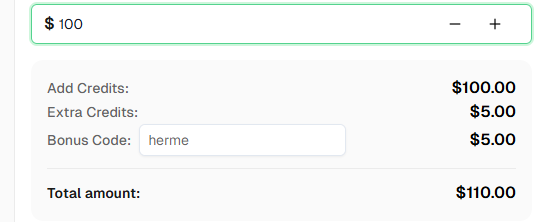
Ready to get started? Sign up for CapSolver and use bonus code
hermefor a bonus on your first recharge!
No. In fact, you should avoid mentioning CAPTCHAs or CapSolver in your messages. The extension works invisibly in the background. Just include a wait time in your instructions (e.g., "wait 60 seconds, then submit") to give the extension time to solve any CAPTCHAs on the page.
Google Chrome 137+ (released mid-2025) removed support for the --load-extension command-line flag in branded builds. This means Chrome extensions cannot be loaded in automated sessions. You need Chrome for Testing or standalone Chromium, which still support this flag.
No — cloud providers run the browser on someone else's infrastructure, so you can't load arbitrary extensions into the session. The CDP attach pattern in this guide is the only way to combine Hermes with a Chrome extension. (Once browser.cdp_url is set in config.yaml, Hermes routes browser traffic through the local Chrome and the cloud providers go silent until you remove the line.)
Yes — any Chromium-based browser that still supports --load-extension works. You can use:
npx playwright install)The integration recipe is the same: point --remote-debugging-port=9222 --load-extension=/path/to/capsolver-extension at whichever binary you prefer.
What does not work:
--load-extensionYes — Camoufox is one of Hermes' five built-in browser providers, and it's an excellent stealth-Firefox option for tasks that don't involve a Chrome extension. The catch is that Camoufox is Firefox-based, and the CapSolver browser extension is built in Chrome MV3 format — so the two cannot run together in one session.
The good news: with Hermes you don't have to choose permanently. The browser.cdp_url config in ~/.hermes/config.yaml is a single switch — point it at your CapSolver-equipped Chrome when you need CAPTCHA solving, point it at Camoufox when you need Firefox stealth. A typical setup keeps both running:
# Active line: switch between profiles by commenting/uncommenting
browser:
  cdp_url: http://127.0.0.1:9222          # CapSolver Chrome (this guide)
  # cdp_url: http://127.0.0.1:9333        # Camoufox endpoint
Then restart Hermes (hermes gateway run, or trigger a restart through whatever supervises the gateway on your box) and the swap takes effect in seconds. Same Hermes, same channels, same skills — different browser per workload.
/browser connect command work with this setup?Yes. Hermes' built-in /browser connect slash command (in the interactive hermes TUI) targets the same default user-data dir we used (~/.hermes/chrome-debug) and the same port (9222). Once you've set up the chrome-debug sidecar, you can use /browser connect from inside Hermes interactively, or you can leave browser.cdp_url in config.yaml for permanent attachment — both work against the same Chrome.
The integration is fully channel-agnostic. Once browser.cdp_url is set in config.yaml, every browser action — whether it comes from hermes -z on the CLI, the interactive hermes TUI, or a message from Telegram, Discord, Slack, WhatsApp, Signal, or email — routes through your CapSolver-equipped Chrome. The extension solves CAPTCHAs identically in all cases.
Use the demo page as a quick smoke test only. In Google's official reCAPTCHA FAQ, they recommend creating dedicated testing site keys for automated tests instead of depending on the public demo page in production pipelines.
The CapSolver Chrome extension auto-solves reCAPTCHA v2 (checkbox and invisible), reCAPTCHA v3, Cloudflare, AWS WAF CAPTCHA, and other widely deployed widgets. The content script detects the CAPTCHA type on the page and solves it accordingly — no per-type configuration on your side. (Note: Cloudflare Turnstile and Cloudflare 5-second Challenge are not solved by the browser extension; they are only available through CapSolver's API and are out of scope for this guide.)
CapSolver offers competitive pricing based on CAPTCHA type and volume. Visit capsolver.com for current pricing.
Hermes Agent is open-source (github.com/NousResearch/hermes-agent) and free to run on your own hardware. You'll need API keys for the AI model provider of your choice (OpenRouter is recommended — Hermes supports 200+ models through it) and, for CAPTCHA solving, a CapSolver account with credits.
For most CAPTCHAs, 30–60 seconds is sufficient. The actual solve time is usually 5–20 seconds, but adding extra buffer ensures reliability. When in doubt, use 60 seconds.
Yes. You'll need Xvfb (X Virtual Framebuffer) for the display since Chrome extensions require a display context. Run Xvfb :99 -screen 0 1920x1080x24 & on the host and make sure DISPLAY=:99 is exported in the chrome-debug.sh launcher (the launcher in Step 3 already does this). Also keep --no-sandbox in the Chrome args since most server kernels don't grant the capabilities Chrome's sandbox requires.
Technically yes, but you'll have to manage tab/session contention yourself. For most workloads, one Hermes ↔ one chrome-debug is the cleanest setup. If you need true parallelism, run multiple chrome-debug sidecars on different ports (9222, 9223, …) and point each Hermes at its own.
Yes. Hermes Skills are procedural memories — sequences of steps the agent has learned. A skill that involves browsing CAPTCHA-protected sites will automatically benefit from the CapSolver integration the same way an ad-hoc message does, because the browser tool itself is what's being augmented. No skill-side changes needed.
Ethan Collins
AI Agent Workflow Engineer
Building clearer handoffs between AI agents and tools.
ABOUT THE AUTHOR
Estimate CAPTCHA solving costs in Browser Use by separating agent runs, challenge types, billable solves, retries, and verified outcomes from browser costs.

Set up CapSolver MCP in Claude Code, check the available CAPTCHA tools, and choose token or page solving for a supported, authorized browser task.