
🎉NEWCapSolver for AI agents-MCP, agent tools, and SDK integrations

Ethan Collins
AI Agent Workflow Engineer
Published Jun 19, 2024
Updated Jun 19, 2024 · min read
Imagine that you can easily get all the data you need from the Internet without having to manually browse the web or copy and paste. That's the beauty of web scraping. Whether you are a data analyst, market researcher, or developer, web scraping opens up a whole new world of automated data collection.
In this data-driven era, information is power. However, manually extracting information from hundreds or even thousands of web pages is not only time-consuming, but also error-prone. Fortunately, Web scraping provides an efficient and accurate solution that allows you to automate the process of extracting the data you need from the Internet, thus greatly improving efficiency and data quality.
Web scraping is a technique for automatically extracting information from web pages by writing programmes. This technology has a wide range of applications in many fields, including data analysis, market research, competitive intelligence, content aggregation, and more. With Web scraping, you can collect and consolidate data from a large number of web pages in a short period of time, rather than relying on manual operations.
And which, by using tools such as Selenium, can simulate the operation of the user's browser, bypassing some of the anti-crawler mechanisms, so as to complete the Web scraping task more efficiently.
Redeem Your CapSolver Bonus Code
Boost your automation budget instantly!
Use bonus code CAPN when topping up your CapSolver account to get an extra 5% bonus on every recharge — with no limits.
Redeem it now in your CapSolver Dashboard
.
Let's take ScrapingClub as an example and use selenium to complete exercise one.
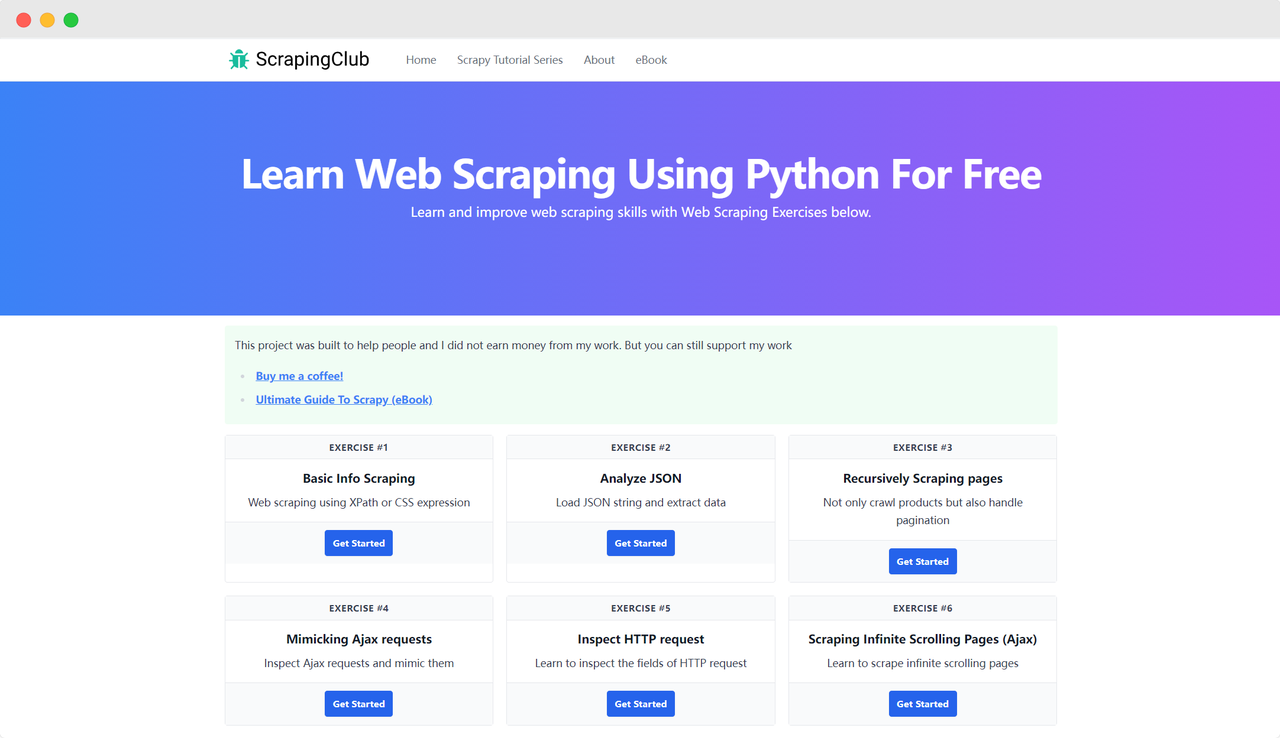
First, you need to ensure that Python is installed on your local machine. You can check the Python version by entering the following command in your terminal:
python --versionMake sure the Python version is greater than 3. If it is not installed or the version is too low, please download the latest version from the Python official website. Next, you need to install the selenium library using the following command:
pip install seleniumfrom selenium import webdriverUsing Selenium to drive Google Chrome to access a page is not complicated. After initializing the Chrome Options object, you can use the get() method to access the target page:
import time
from selenium import webdriver

chrome_options = webdriver.ChromeOptions()
driver = webdriver.Chrome(options=chrome_options)
driver.get('https://scrapingclub.com/')

time.sleep(5)
driver.quit()Chrome Options can add many startup parameters that help improve the efficiency of data retrieval. You can view the complete list of parameters on the official website: List of Chromium Command Line Switches. Some commonly used parameters are listed in the table below:
| Parameter | Purpose |
|---|---|
| --user-agent="" | Set the User-Agent in the request header |
| --window-size=xxx,xxx | Set the browser resolution |
| --start-maximized | Run with maximized resolution |
| --headless | Run in headless mode |
| --incognito | Run in incognito mode |
| --disable-gpu | Disable GPU hardware acceleration |
import time
from selenium import webdriver

chrome_options = webdriver.ChromeOptions()
chrome_options.add_argument('--headless')
driver = webdriver.Chrome(options=chrome_options)
driver.get('https://scrapingclub.com/')

time.sleep(5)
driver.quit()A necessary step in scraping data is to find the corresponding HTML elements in the DOM. Selenium provides two main methods to locate elements on the page:
find_element: Finds a single element that meets the criteria.find_elements: Finds all elements that meet the criteria.Both methods support eight different ways to locate HTML elements:
| Method | Meaning | HTML Example | Selenium Example |
|---|---|---|---|
| By.ID | Locate by element ID | <form id="loginForm">...</form> |
driver.find_element(By.ID, 'loginForm') |
| By.NAME | Locate by element name | <input name="username" type="text" /> |
driver.find_element(By.NAME, 'username') |
| By.XPATH | Locate by XPath | <p><code>My code</code></p> |
driver.find_element(By.XPATH, "//p/code") |
| By.LINK_TEXT | Locate hyperlink by text | <a href="continue.html">Continue</a> |
driver.find_element(By.LINK_TEXT, 'Continue') |
| By.PARTIAL_LINK_TEXT | Locate hyperlink by partial text | <a href="continue.html">Continue</a> |
driver.find_element(By.PARTIAL_LINK_TEXT, 'Conti') |
| By.TAG_NAME | Locate by tag name | <h1>Welcome</h1> |
driver.find_element(By.TAG_NAME, 'h1') |
| By.CLASS_NAME | Locate by class name | <p class="content">Welcome</p> |
driver.find_element(By.CLASS_NAME, 'content') |
| By.CSS_SELECTOR | Locate by CSS selector | <p class="content">Welcome</p> |
driver.find_element(By.CSS_SELECTOR, 'p.content') |
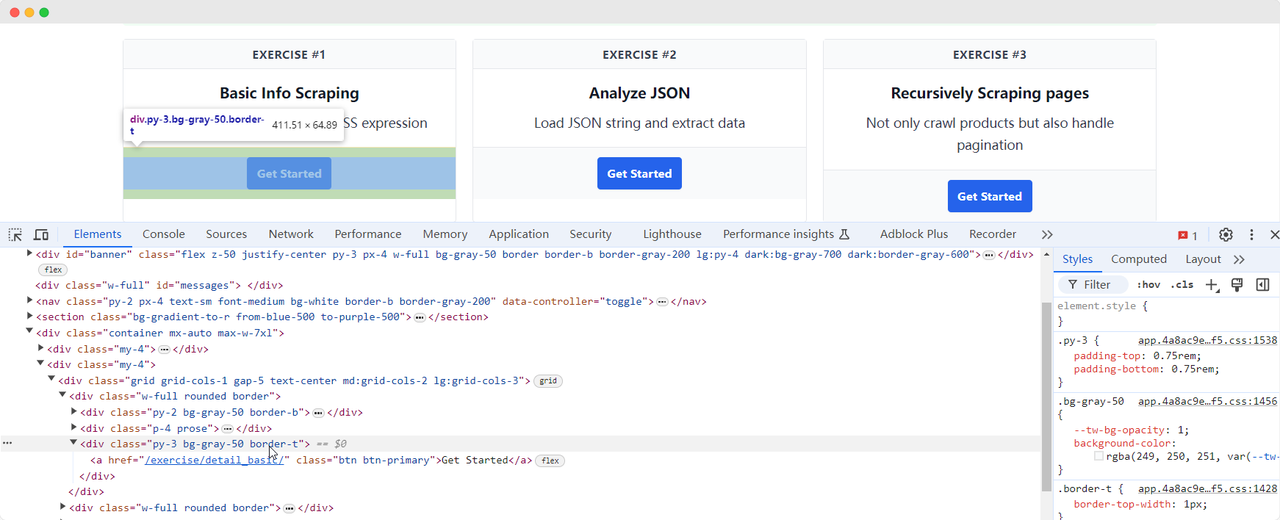
Let's return to the ScrapingClub page and write the following code to find the "Get Started" button element for exercise one:
import time
from selenium import webdriver
from selenium.webdriver.common.by import By


chrome_options = webdriver.ChromeOptions()
driver = webdriver.Chrome(options=chrome_options)
driver.get('https://scrapingclub.com/')
get_started_button = driver.find_element(By.XPATH, "//div[@class='w-full rounded border'][1]/div[3]")

time.sleep(5)
driver.quit()Once we have found the "Get Started" button element, we need to click the button to enter the next page. This involves element interaction. Selenium provides several methods to simulate actions:
click(): Click the element;clear(): Clear the content of the element;send_keys(*value: str): Simulate keyboard input;submit(): Submit a form;screenshot(filename): Save a screenshot of the page.For more interactions, refer to the official documentation: WebDriver API. Let's continue to improve the ScrapingClub exercise code by adding click interaction:
import time
from selenium import webdriver
from selenium.webdriver.common.by import By

chrome_options = webdriver.ChromeOptions()
driver = webdriver.Chrome(options=chrome_options)
driver.get('https://scrapingclub.com/')
get_started_button = driver.find_element(By.XPATH, "//div[@class='w-full rounded border'][1]/div[3]")
get_started_button.click()

time.sleep(5)
driver.quit()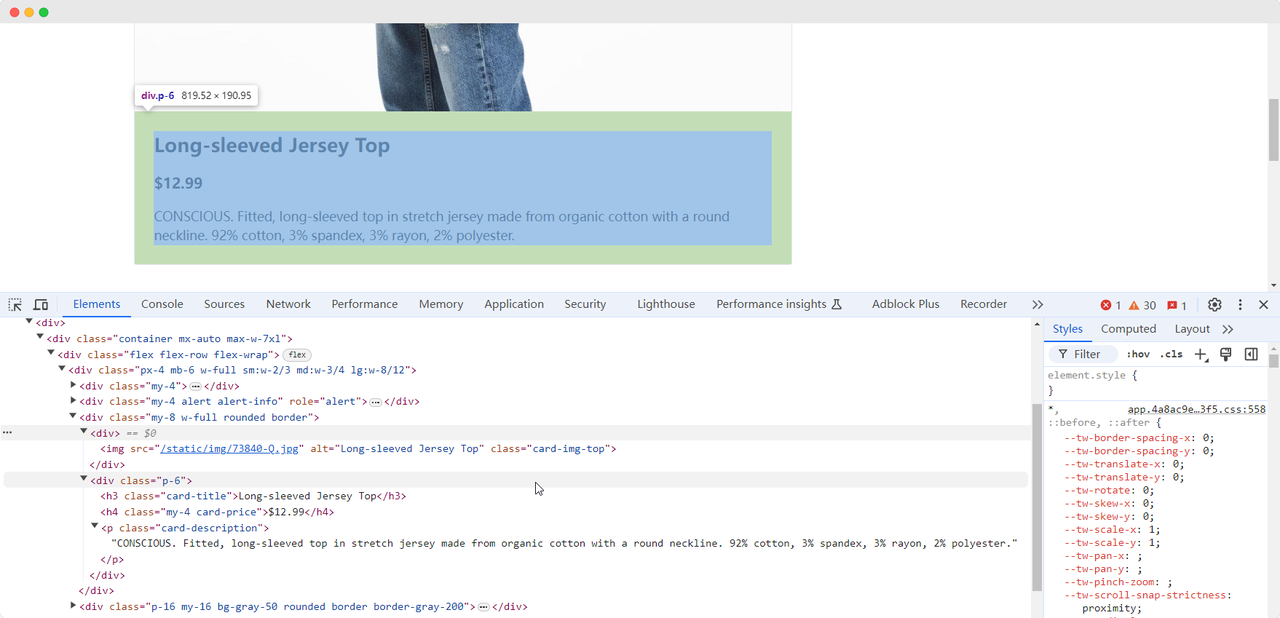
When we arrive at the first exercise page, we need to collect the product's image, name, price, and description information. We can use different methods to find these elements and extract them:
from selenium import webdriver
from selenium.webdriver.common.by import By

chrome_options = webdriver.ChromeOptions()
driver = webdriver.Chrome(options=chrome_options)
driver.get('https://scrapingclub.com/')
get_started_button = driver.find_element(By.XPATH, "//div[@class='w-full rounded border'][1]/div[3]")
get_started_button.click()

product_name = driver.find_element(By.CLASS_NAME, 'card-title').text
product_image = driver.find_element(By.CSS_SELECTOR, '.card-img-top').get_attribute('src')
product_price = driver.find_element(By.XPATH, '//h4').text
product_description = driver.find_element(By.CSS_SELECTOR, '.card-description').text

print(f'Product name: {product_name}')
print(f'Product image: {product_image}')
print(f'Product price: {product_price}')
print(f'Product description: {product_description}')

driver.quit()
The code will output the following content:
Product name: Long-sleeved Jersey Top
Product image: https://scrapingclub.com/static/img/73840-Q.jpg
Product price: $12.99
Product description: CONSCIOUS. Fitted, long-sleeved top in stretch jersey made from organic cotton with a round neckline. 92% cotton, 3% spandex, 3% rayon, 2% polyester.Sometimes, due to network issues or other reasons, elements may not have loaded yet when Selenium finishes running, which can cause some data collection to fail. To solve this problem, we can set it to wait until a certain element is fully loaded before proceeding with data extraction. Here is an example code:
from selenium import webdriver
from selenium.webdriver.common.by import By
from selenium.webdriver.support.ui import WebDriverWait
from selenium.webdriver.support import expected_conditions as EC

chrome_options = webdriver.ChromeOptions()
driver = webdriver.Chrome(options=chrome_options)
driver.get('https://scrapingclub.com/')
get_started_button = driver.find_element(By.XPATH, "//div[@class='w-full rounded border'][1]/div[3]")
get_started_button.click()

# waiting for the product image elements to load completely
wait = WebDriverWait(driver, 10)
wait.until(EC.presence_of_element_located((By.CSS_SELECTOR, '.card-img-top')))

product_name = driver.find_element(By.CLASS_NAME, 'card-title').text
product_image = driver.find_element(By.CSS_SELECTOR, '.card-img-top').get_attribute('src')
product_price = driver.find_element(By.XPATH, '//h4').text
product_description = driver.find_element(By.CSS_SELECTOR, '.card-description').text

print(f'Product name: {product_name}')
print(f'Product image: {product_image}')
print(f'Product price: {product_price}')
print(f'Product description: {product_description}')

driver.quit()The ScrapingClub exercise is easy to complete. However, in actual data collection scenarios, obtaining data is not so easy because some websites employ anti-scraping techniques that may detect your script as a bot and block the collection. The most common situation is captcha challenges
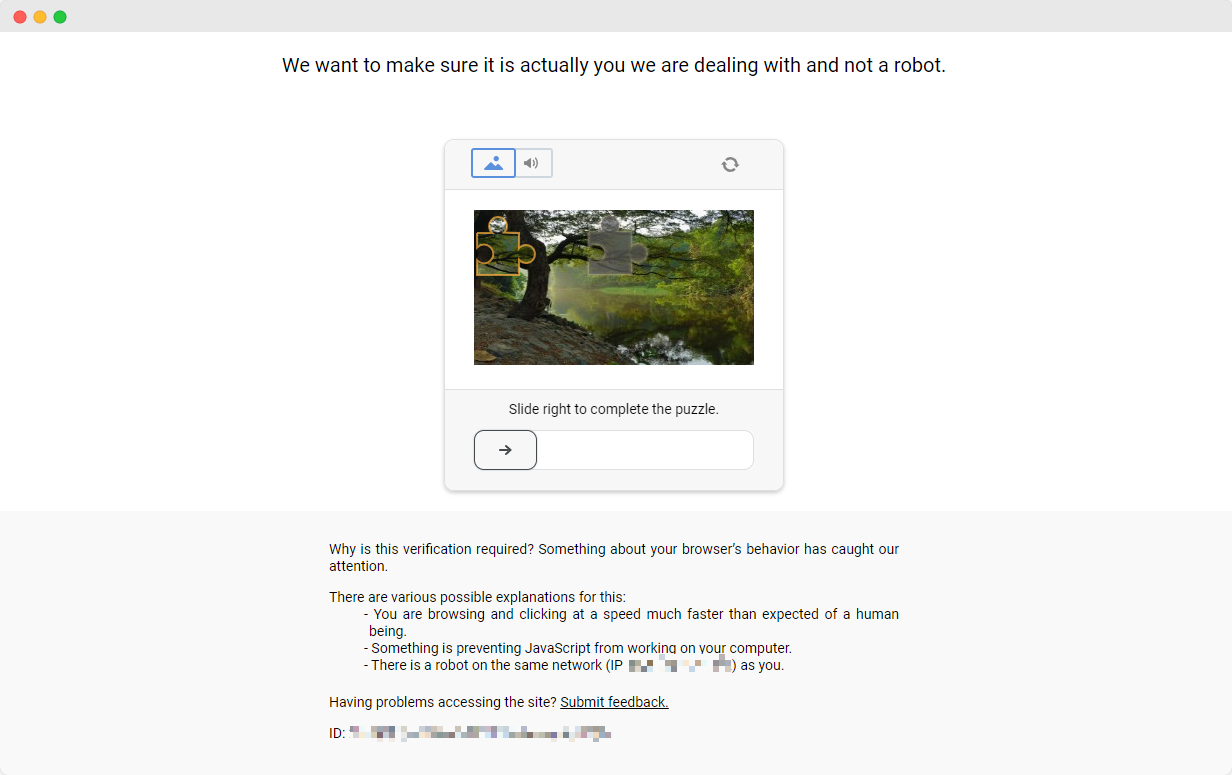
Solving these captcha challenges requires extensive experience in machine learning, reverse engineering, and browser fingerprint countermeasures, which can take a lot of time. Fortunately, now you don't have to do all this work yourself. CapSolver provides a complete solution to help you easily bypass all challenges. CapSolver offers browser extensions that can automatically solve captcha challenges while using Selenium to collect data. Additionally, they provide API methods to solve captchas and obtain tokens, all of which can be completed in just a few seconds. Refer to the CapSolver Documentation for more information.
From extracting product details to navigating through complex anti-scraping measures, web scraping with Selenium opens doors to a vast realm of automated data collection. As we navigate the web's ever-evolving landscape, tools like CapSolver pave the way for smoother data extraction, making once-formidable challenges a thing of the past. So, whether you're a data enthusiast or a seasoned developer, harnessing these technologies not only enhances efficiency but also unlocks a world where data-driven insights are just a scrape away
Web scraping is used to automatically extract information from web pages. It allows developers, analysts, and businesses to collect product data, prices, articles, images, reviews, and other online information in bulk without manual copying, greatly improving efficiency and data accuracy.
Requests and BeautifulSoup work well for static web pages, but many modern websites use JavaScript to load content. Selenium simulates a real browser, allowing you to scrape dynamic pages, click buttons, scroll, interact with elements, and bypass simple anti-scraping measures—making it ideal for complex scenarios.
Yes. Selenium can perform interactions like clicking buttons, typing text, navigating pages, and managing cookies or sessions, making it suitable for scraping pages behind login forms or user workflows.
CAPTCHAs are a common anti-bot mechanism that can stop Selenium scripts. Instead of solving them manually, you can integrate solutions such as CapSolver, which provides automatic CAPTCHA solving via API or browser extension to keep the scraping process uninterrupted.
Ethan Collins
AI Agent Workflow Engineer
Building clearer handoffs between AI agents and tools.
ABOUT THE AUTHOR
Learn scalable Rust web scraping architecture with reqwest, scraper, async scraping, headless browser scraping, proxy rotation, and compliant CAPTCHA handling.

Learn the best techniques to scrape job listings without getting blocked. Master Indeed scraping, Google Jobs API, and web scraping API with CapSolver.