
🎉NEWCapSolver for AI agents-MCP, agent tools, and SDK integrations

Ethan Collins
AI Agent Workflow Engineer
Published Feb 17, 2026
Updated Feb 26, 2026 · min read
When your AI assistant automates web tasks, CAPTCHAs are the number one blocker. Protected pages won't submit, login flows stall, and the whole automation loop grinds to a halt waiting for a human.
Nanobot is an ultra-lightweight personal AI assistant framework you can run on your own hardware. It connects to the channels you already use — WhatsApp, Telegram, Discord, Slack, Email, and more — and comes with a built-in exec tool that lets the agent write and run scripts autonomously.
CapSolver provides an AI-powered CAPTCHA solving API. By combining Nanobot's script execution capabilities with CapSolver's REST API, your agent can detect CAPTCHAs, solve them, inject tokens, and submit forms — all without human intervention.
The best part? You just tell the agent what you want done in plain language. It writes a Playwright script, extracts the sitekey, calls CapSolver, injects the token, and submits the form — all autonomously.
Nanobot is a personal AI assistant framework in ~3,500 lines of core Python code. It's designed to be lightweight, extensible, and self-hosted.
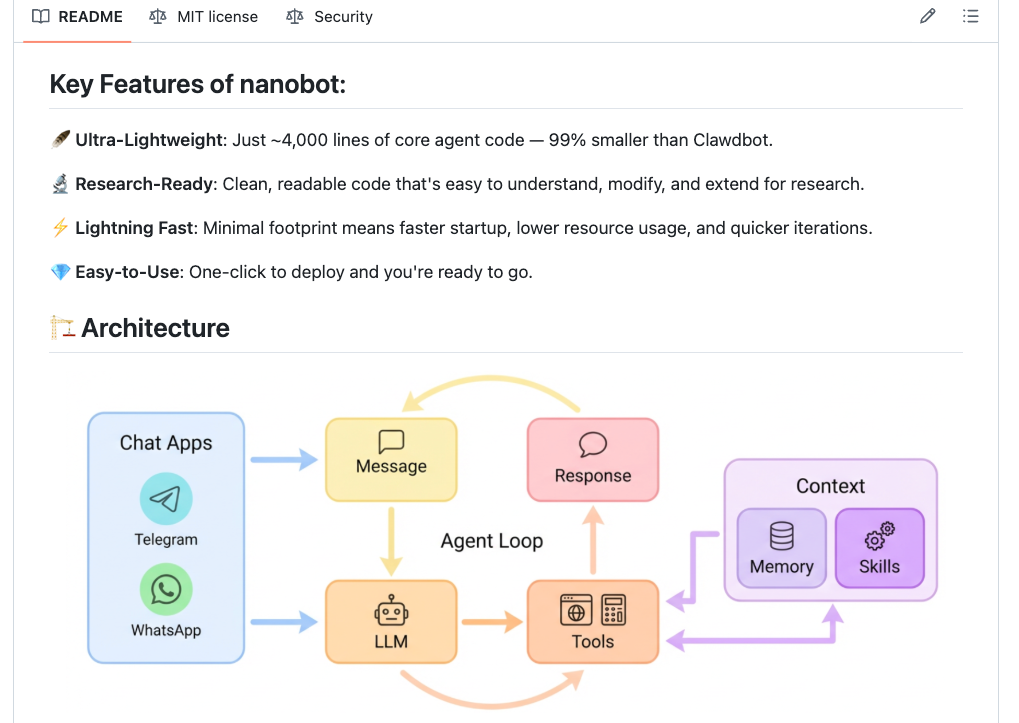
Nanobot's exec tool is what makes browser automation possible. The agent can run any shell command, including Node.js scripts that control a headless browser. When you ask the agent to interact with a web page, it:
exec toolThink of it as giving your AI assistant full command-line access — it can install tools, write scripts, and execute them, all from a natural language instruction.
CapSolver is a leading CAPTCHA solving service that provides AI-powered solutions for bypassing various CAPTCHA challenges. With support for multiple CAPTCHA types and fast response times, CapSolver integrates seamlessly into automated workflows.
Most CAPTCHA-solving integrations fall into two camps: code-level API integration where you write a dedicated service class, or browser extension where a Chrome extension handles everything invisibly. Nanobot takes a third approach: agent-driven API integration.
The AI agent itself orchestrates the entire solve flow autonomously — writing a Playwright script, extracting the sitekey, calling the CapSolver API, and injecting the solution token — all through scripts it writes and executes on the fly.
| Browser Extension Approach | Nanobot's Agent-Driven Approach |
|---|---|
| Requires Chrome extension installed | No extension needed — just an API key |
| Needs a compatible Chrome build | Works with any headless browser |
| Extension detects CAPTCHAs automatically | Agent extracts sitekey from page DOM |
| Extension calls API in the background | Agent calls CapSolver REST API directly |
| Requires a display (Xvfb on servers) | Runs fully headless, no display needed |
The key insight: Nanobot's agent doesn't need a browser extension because it can programmatically call the CapSolver API, extract the sitekey from the page DOM, and inject the solution token — all through Playwright scripts it executes via the exec tool. This works in fully headless environments without any display setup.
Note: The examples below are tested on Ubuntu 22.04 / 24.04. Commands use
aptandbash— adjust for your distro if needed.
Before setting up the integration, make sure you have:
sudo apt install python3 python3-pip python3-venv)pip install nanobot-ai or pip install -e ".[dev]")# Install from PyPI
pip install nanobot-ai
# Or install from source for development
git clone https://github.com/HKUDS/nanobot.git
cd nanobot
pip install -e ".[dev]"
# Initialize config and workspace
nanobot onboardAdd your CapSolver API key as an environment variable:
export CAPSOLVER_API_KEY="CAP-XXXXXXXXXXXXXXXXXXXXXXXXXXXXXXXX"You can get your API key from your CapSolver dashboard.
For persistent configuration, add it to your shell profile (~/.bashrc or ~/.zshrc).
Install Playwright and its system dependencies on Ubuntu:
# Install Playwright browser dependencies (Ubuntu)
sudo apt install -y libnss3 libatk-bridge2.0-0 libdrm2 libxcomposite1 \
  libxdamage1 libxrandr2 libgbm1 libpango-1.0-0 libasound2t64

# Install Playwright in your nanobot workspace
cd ~/.nanobot/workspace
npm init -y
npm install playwright
npx playwright install chromium# Start channel services (Telegram, Discord, etc.)
nanobot gateway
# Or for interactive testing
nanobot agentSend a test message to your agent through any connected channel:
What tools do you have available?The agent should list exec among its tools — this is what it uses to run browser automation scripts.
Nanobot includes a built-in capsolver skill that is always loaded into the agent's system prompt. This means on every message, the agent already has the correct CapSolver API docs, task types, code patterns, and execution instructions in its context — it never has to guess or look them up.
Skills are markdown files at nanobot/skills/{name}/SKILL.md with YAML frontmatter. When always: true is set in the metadata, the full skill content is injected into the agent's system prompt automatically. The agent doesn't need to call read_file — it just knows.
nanobot/skills/capsolver/SKILL.md)To install the skill, create the file nanobot/skills/capsolver/SKILL.md with this content:
---
name: capsolver
description: "Solve CAPTCHAs using the CapSolver REST API with Playwright. Supports reCAPTCHA v2, reCAPTCHA v3, and Cloudflare Turnstile. Use when automating form submissions or page interactions that encounter CAPTCHA challenges."
metadata: {"nanobot":{"emoji":"🔓","always":true,"requires":{"bins":["node"],"env":["CAPSOLVER_API_KEY"]}}}
---

# CapSolver

## IMPORTANT: Execution Required

When a user asks you to solve a CAPTCHA, you MUST immediately call a tool. Do NOT respond with text like "Running..." or "I'll start..." or "I've started the automation...".

Your FIRST action must be one of:
1. Call `write_file` to save a Node.js script, then call `exec` to run it
2. Call `spawn` with a detailed task description for background execution

If you respond with only text and no tool call, the user will see nothing happen. Always execute.

## API Endpoints

- **Create task**: `POST https://api.capsolver.com/createTask`
- **Get result**: `POST https://api.capsolver.com/getTaskResult`

## Task Types

| CAPTCHA | Task Type | Sitekey Location |
|---|---|---|
| reCAPTCHA v2 | `ReCaptchaV2TaskProxyLess` | `data-sitekey` attribute |
| reCAPTCHA v3 | `ReCaptchaV3TaskProxyLess` | `grecaptcha.execute` call or page source |
| Cloudflare Turnstile | `AntiTurnstileTaskProxyLess` | `data-sitekey` on Turnstile div |

Enterprise variants: `ReCaptchaV2EnterpriseTaskProxyLess`, `ReCaptchaV3EnterpriseTaskProxyLess`.

## Workflow

1. Navigate to the page with Playwright (headless Chromium)
2. Extract the sitekey from the DOM (`[data-sitekey]` attribute)
3. Call `createTask` with the sitekey and page URL
4. Poll `getTaskResult` every 2 seconds until `status: "ready"`
5. Inject the token into the page (hidden form field)
6. Submit the form

## Core Code Pattern

```javascript
const CAPSOLVER_API_KEY = process.env.CAPSOLVER_API_KEY;

// Step 1: Create task
const createRes = await fetch('https://api.capsolver.com/createTask', {
  method: 'POST',
  headers: { 'Content-Type': 'application/json' },
  body: JSON.stringify({
    clientKey: CAPSOLVER_API_KEY,
    task: {
      type: 'ReCaptchaV2TaskProxyLess',  // or ReCaptchaV3TaskProxyLess, AntiTurnstileTaskProxyLess
      websiteURL: pageUrl,
      websiteKey: siteKey
    }
  })
});
const { taskId } = await createRes.json();

// Step 2: Poll for result
let token;
while (true) {
  await new Promise(r => setTimeout(r, 2000));
  const res = await fetch('https://api.capsolver.com/getTaskResult', {
    method: 'POST',
    headers: { 'Content-Type': 'application/json' },
    body: JSON.stringify({ clientKey: CAPSOLVER_API_KEY, taskId })
  });
  const result = await res.json();
  if (result.status === 'ready') { token = result.solution.gRecaptchaResponse || result.solution.token; break; }
  if (result.status === 'failed') throw new Error('Solve failed');
}

// Step 3: Inject token (reCAPTCHA)
await page.evaluate((t) => {
  document.querySelectorAll('textarea[name="g-recaptcha-response"]')
    .forEach(el => { el.value = t; el.innerHTML = t; });
}, token);
```

For Turnstile, the token field is typically `input[name="cf-turnstile-response"]` and the solution is in `result.solution.token`.

## Full API Reference

See `{baseDir}/references/api.md` for complete parameter docs, optional fields, and example responses for all task types.
Key points:
always: true flag ensures this skill is loaded into every conversation — the agent always has the API docs in contextrequires field checks that node is installed and CAPSOLVER_API_KEY is setreferences/api.md)The skill also bundles a complete API reference that the agent can read on demand for detailed parameter docs. Here's what it covers:
Required parameters: type, websiteURL, websiteKey
Optional parameters: isInvisible (Boolean), pageAction (String), recaptchaDataSValue (String), enterprisePayload (Object), apiDomain (String)
{
  "clientKey": "YOUR_API_KEY",
  "task": {
    "type": "ReCaptchaV2TaskProxyLess",
    "websiteURL": "https://www.google.com/recaptcha/api2/demo",
    "websiteKey": "6Le-wvkSAAAAAPBMRTvw0Q4Muexq9bi0DJwx_mJ-",
    "isInvisible": false
  }
}
Response token: solution.gRecaptchaResponse → inject into textarea[name="g-recaptcha-response"]
Required parameters: type, websiteURL, websiteKey
Optional parameters: pageAction (String — from grecaptcha.execute(key, {action: "..."}), common values: login, submit, homepage), enterprisePayload (Object), apiDomain (String)
{
  "clientKey": "YOUR_API_KEY",
  "task": {
    "type": "ReCaptchaV3TaskProxyLess",
    "websiteURL": "https://www.example.com",
    "websiteKey": "6Le-wvkSAAAAAPBMRTvw0Q4Muexq9bi0DJwx_kl-",
    "pageAction": "login"
  }
}
Response token: solution.gRecaptchaResponse → inject into textarea[name="g-recaptcha-response"]
Required parameters: type (AntiTurnstileTaskProxyLess), websiteURL, websiteKey
Optional parameters: metadata.action (String — from data-action attribute), metadata.cdata (String — from data-cdata attribute)
{
  "clientKey": "YOUR_API_KEY",
  "task": {
    "type": "AntiTurnstileTaskProxyLess",
    "websiteURL": "https://www.example.com",
    "websiteKey": "0x4XXXXXXXXXXXXXXXXX",
    "metadata": {
      "action": "login",
      "cdata": "0000-1111-2222-3333-example-cdata"
    }
  }
}
Response token: solution.token → inject into input[name="cf-turnstile-response"]
| CAPTCHA Type | Solve Time |
|---|---|
| reCAPTCHA v2 | 1-10 seconds |
| reCAPTCHA v3 | 1-10 seconds |
| Cloudflare Turnstile | 1-20 seconds |
When you ask Nanobot to interact with a CAPTCHA-protected page, here's what happens behind the scenes:
  Your message                    Nanobot Agent
  ────────────────────────────────────────────────────
  "Go to that page,          ──►  Agent receives message
   fill the form,                 │
   solve the captcha,             ▼
   and submit it"            Agent writes automation script
                                  │
                                  ▼
                             exec tool runs the script
                             ┌─────────────────────────────────┐
                             │  Headless Chromium               │
                             │                                  │
                             │  1. Navigate to target page      │
                             │  2. Extract sitekey from DOM     │
                             │     (data-sitekey attribute)     │
                             │                                  │
                             │  3. Call CapSolver REST API:     │
                             │     POST /createTask             │
                             │     POST /getTaskResult (poll)   │
                             │                                  │
                             │  4. Inject token into hidden     │
                             │     textarea/input fields        │
                             │                                  │
                             │  5. Click Submit                 │
                             │  6. Verify success               │
                             │  7. Take screenshots             │
                             └─────────────────────────────────┘
                                  │
                                  ▼
                             Agent reads output + screenshots
                                  │
                                  ▼
                             "Form submitted successfully!
                              The page shows: Verification
                              Success... Hooray!"
The core of the integration is two API calls:
1. Create a task — Send the CAPTCHA sitekey and page URL to CapSolver:
const response = await fetch('https://api.capsolver.com/createTask', {
  method: 'POST',
  headers: { 'Content-Type': 'application/json' },
  body: JSON.stringify({
    clientKey: CAPSOLVER_API_KEY,
    task: {
      type: 'ReCaptchaV2TaskProxyLess',
      websiteURL: pageUrl,
      websiteKey: siteKey
    }
  })
});
2. Poll for the result — Check every 2 seconds until CapSolver returns the solved token:
const result = await fetch('https://api.capsolver.com/getTaskResult', {
  method: 'POST',
  headers: { 'Content-Type': 'application/json' },
  body: JSON.stringify({
    clientKey: CAPSOLVER_API_KEY,
    taskId: taskId
  })
});
// result.solution.gRecaptchaResponse contains the token
3. Inject the token — Set it in the hidden form field that reCAPTCHA expects:
await page.evaluate((token) => {
  const textarea = document.querySelector('textarea[name="g-recaptcha-response"]');
  if (textarea) {
    textarea.value = token;
    textarea.innerHTML = token;
  }
}, captchaToken);Here's the actual script Nanobot's agent generated and executed to solve reCAPTCHA on the Google demo page. The agent wrote this via write_file, then ran it with exec — all autonomously from a single Discord message:
const { chromium } = require('playwright');
const https = require('https');

const CAPSOLVER_API_KEY = process.env.CAPSOLVER_API_KEY;
const PAGE_URL = 'https://www.google.com/recaptcha/api2/demo';

function httpsPost(url, data) {
  return new Promise((resolve, reject) => {
    const req = https.request(url, {
      method: 'POST',
      headers: { 'Content-Type': 'application/json' }
    }, (res) => {
      let body = '';
      res.on('data', chunk => body += chunk);
      res.on('end', () => resolve(JSON.parse(body)));
    });
    req.on('error', reject);
    req.write(JSON.stringify(data));
    req.end();
  });
}

async function solveRecaptcha(siteKey, pageUrl) {
  console.log('Creating Capsolver task...');

  const createRes = await httpsPost('https://api.capsolver.com/createTask', {
    clientKey: CAPSOLVER_API_KEY,
    task: {
      type: 'ReCaptchaV2TaskProxyLess',
      websiteURL: pageUrl,
      websiteKey: siteKey
    }
  });

  const { taskId } = createRes;
  console.log(`Task ID: ${taskId}`);

  let token;
  while (true) {
    await new Promise(r => setTimeout(r, 2000));

    const res = await httpsPost('https://api.capsolver.com/getTaskResult', {
      clientKey: CAPSOLVER_API_KEY,
      taskId
    });

    if (res.status === 'ready') {
      token = res.solution.gRecaptchaResponse;
      console.log(`Token received! Length: ${token.length}`);
      break;
    }
    if (res.status === 'failed') {
      throw new Error('Capsolver task failed');
    }
  }

  if (!token) throw new Error('Failed to get token');
  return token;
}

async function main() {
  const browser = await chromium.launch({ headless: true });
  const page = await browser.newPage();

  console.log('Navigating to page...');
  await page.goto(PAGE_URL, { waitUntil: 'domcontentloaded', timeout: 30000 });

  console.log('Extracting sitekey...');
  const siteKey = await page.locator('[data-sitekey]').getAttribute('data-sitekey');
  console.log(`Sitekey: ${siteKey}`);

  console.log('Solving reCAPTCHA with Capsolver...');
  const token = await solveRecaptcha(siteKey, PAGE_URL);

  console.log('Injecting token...');
  await page.evaluate((t) => {
    document.querySelectorAll('textarea[name="g-recaptcha-response"]')
      .forEach(el => { el.value = t; el.innerHTML = t; });
  }, token);

  console.log('Submitting form...');
  await page.locator('input[type="submit"]').click();

  console.log('Waiting for result...');
  await page.waitForTimeout(3000);

  const successText = await page.textContent('body');
  if (successText.includes('Success') || successText.includes('Verification')) {
    console.log('\n✅ SUCCESS! reCAPTCHA solved and form submitted successfully!');
    console.log('Success message:', successText.slice(0, 200));
  } else {
    console.log('\n❌ Result unclear. Page content:', successText.slice(0, 300));
  }

  await page.screenshot({ path: 'recaptcha_result.png' });
  console.log('Screenshot saved to recaptcha_result.png');

  await browser.close();
}

main().catch(console.error);
Run it:
CAPSOLVER_API_KEY=CAP-XXX node solve_recaptcha.jsOnce the setup is complete, using CapSolver with Nanobot is as simple as sending a message.
Send this to your agent via Telegram, Discord, WhatsApp, or any connected channel:
Go to https://www.google.com/recaptcha/api2/demo and solve
the reCAPTCHA using the CapSolver API, then submit the form
and tell me if it succeeded.
What happens:
createTask API with the sitekeygetTaskResult every 2 seconds until the token is ready (~18 seconds)g-recaptcha-response fieldGo to https://example.com/login, fill in the email with
"me@example.com" and password with "mypassword", detect and
solve any CAPTCHA on the page, then click Sign In and tell me
what happens.Open https://example.com/contact, fill in the name, email, and
message fields, solve the CAPTCHA, submit the form, and tell me
the confirmation message.Because Nanobot's agent has:
exec tool — runs any shell command, including Node.js scriptsweb_fetch tool — fetches page content to understand page structurecapsolver skill — always loaded into the agent's context (see The Built-in CapSolver Skill above), includes task types, code patterns, API reference, and execution instructions that ensure the agent writes and runs scripts rather than just describing what it would doOne challenge with LLM-powered agents is that some models respond with text like "Running the automation now..." without actually calling any tools. The user sees a message that sounds like progress, but nothing is happening behind the scenes.
Nanobot solves this with a hallucination retry mechanism built into the agent loop. When the LLM responds with text on its first iteration and that text contains action phrases like "running now", "I've started", or "executing now" — but made zero tool calls — Nanobot detects this and automatically sends a correction prompt:
"You described starting a task but didn't call any tools. The user cannot see your progress unless you use tools like exec, write_file, or spawn. Please call the appropriate tool now."
The LLM then retries and calls the actual tool (e.g., spawn to launch a background automation task). This happens transparently — the user just sees results arrive a few seconds later.
This is a general nanobot feature that improves reliability for all tool-use tasks, not just CAPTCHA solving. Combined with the capsolver skill's explicit execution instructions, it ensures the agent always takes action rather than just describing what it would do.
To enable the hallucination retry and other reliability improvements, apply these three changes to your Nanobot installation:
1. Hallucination Retry (nanobot/agent/loop.py)
In the _process_message method, replace the else branch that handles no-tool-call responses:
            else:
                # No tool calls — but check if the LLM hallucinated action
                if iteration == 1 and self._seems_like_hallucinated_action(response.content):
                    logger.warning("LLM described action without tool calls — retrying with correction")
                    messages.append({"role": "assistant", "content": response.content})
                    messages.append({
                        "role": "user",
                        "content": (
                            "[System: You described starting a task but didn't call any tools. "
                            "The user cannot see your progress unless you use tools like exec, "
                            "write_file, or spawn. Please call the appropriate tool now to "
                            "actually perform the task.]"
                        ),
                    })
                    continue
                final_content = response.content
                break
And add this detection method to the AgentLoop class:
    @staticmethod
    def _seems_like_hallucinated_action(content: str | None) -> bool:
        """Detect if the LLM described starting an action without calling tools."""
        if not content:
            return False
        lower = content.lower()
        phrases = [
            "running now", "i've started", "i'll start", "starting the",
            "i've begun", "i'll begin", "executing now", "i'm working on",
            "let me run", "running the", "i've kicked off", "launched the",
            "i've initiated", "working on it",
        ]
        return any(phrase in lower for phrase in phrases)
2. Skills in Subagents (nanobot/agent/subagent.py)
Without this change, subagents spawned via the spawn tool don't have the capsolver skill in their context. Add the import and inject always-loaded skills into the subagent prompt:
# Add import
from nanobot.agent.skills import SkillsLoader

# In __init__, add:
self._skills = SkillsLoader(workspace)

# At the end of _build_subagent_prompt(), before return:
        always_skills = self._skills.get_always_skills()
        if always_skills:
            skills_content = self._skills.load_skills_for_context(always_skills)
            if skills_content:
                prompt += f"\n\n## Reference Documentation\n\n{skills_content}"
        return prompt
3. Exec Timeout (nanobot/config/schema.py)
Browser automation scripts need more than the default 60 seconds — CapSolver polling alone can take 20+ seconds. Increase the timeout:
class ExecToolConfig(BaseModel):
    """Shell exec tool configuration."""
    timeout: int = 120  # was 60
After applying these changes, restart Nanobot (pm2 restart nanobot or re-run the service).
We tested the integration on Google's reCAPTCHA v2 demo page. Here are the actual results from our demo run:
| Metric | Value |
|---|---|
| Agent thinking + script generation | ~10 seconds |
| Script execution (total) | ~34 seconds |
Page load (domcontentloaded) |
~2 seconds |
| Sitekey extraction | < 1 second |
| CAPTCHA solve (CapSolver API) | ~20 seconds |
| Token injection + form submit | ~3 seconds |
| Success verification + screenshot | ~3 seconds |
| End-to-end (message → response) | ~45 seconds |
| Result | Verification Success |
The agent saved a final screenshot (recaptcha_result.png) showing the success page after form submission.
Playwright isn't installed in the workspace. Run:
cd ~/.nanobot/workspace && npm install playwright && npx playwright install chromiumIf Chromium fails to launch with errors about missing shared libraries, install the system dependencies:
sudo apt install -y libnss3 libatk-bridge2.0-0 libdrm2 libxcomposite1 \
libxdamage1 libxrandr2 libgbm1 libpango-1.0-0 libasound2t64ready or failed — if it hangs, check your API key and balanceThe script extracts the sitekey from the data-sitekey attribute on the reCAPTCHA DOM element. If no element with data-sitekey is found, the page may embed the key differently — the agent can write a modified script to extract it from iframe URLs or page source as needed.
Add these flags to the Playwright launch options:
chromium.launch({
  headless: true,
  args: ['--no-sandbox', '--disable-setuid-sandbox', '--disable-dev-shm-usage']
});Make sure the CAPSOLVER_API_KEY environment variable is set before starting Nanobot. The agent checks for it at script runtime.
Don't hardcode the key in scripts. Use process.env.CAPSOLVER_API_KEY so the agent can pick it up automatically.
Nanobot's API-based approach works in fully headless environments — no Xvfb or virtual display needed. This is a significant advantage over extension-based approaches.
Each CAPTCHA solve costs credits. Check your balance at capsolver.com/dashboard regularly.
CAPTCHA providers evolve. Keep Playwright and Chromium updated to avoid detection issues:
cd ~/.nanobot/workspace && npm update playwright && npx playwright install chromiumThe Nanobot + CapSolver integration takes a fundamentally different approach from extension-based CAPTCHA solving. Instead of loading a Chrome extension, the AI agent itself orchestrates the entire solve flow:
data-sitekey attributeThis gives you:
Ready to get started? Sign up for CapSolver and use bonus code NANOBOT for an extra 6% bonus on your first recharge!
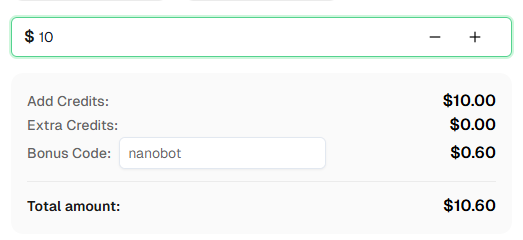
Nanobot uses the CapSolver REST API directly. The agent writes and executes scripts that call createTask and getTaskResult to obtain solution tokens, then injects them into the page DOM. No browser extension is needed.
No. Unlike extension-based approaches that require Chrome for Testing (since branded Chrome 137+ disabled extension loading), Nanobot works with any Chromium build — including Playwright's bundled Chromium, standard Chromium packages, or even headless Chrome.
CapSolver supports reCAPTCHA v2 (checkbox and invisible), reCAPTCHA v3, Cloudflare Turnstile, AWS WAF CAPTCHA, and more. We tested the Nanobot integration with reCAPTCHA v2 using the ReCaptchaV2TaskProxyLess task type. For other CAPTCHA types, the agent can write a script using the appropriate CapSolver task type — see the CapSolver documentation for the full list.
Yes — and this is where Nanobot's approach shines. Since there's no browser extension involved, you don't need Xvfb or a virtual display. Playwright runs in fully headless mode out of the box.
CapSolver offers competitive pricing based on CAPTCHA type and volume. Visit capsolver.com for current pricing.
Nanobot is open-source and free to run on your own hardware. You'll need API keys for the AI model provider of your choice and, for CAPTCHA solving, a CapSolver account with credits.
In our test with reCAPTCHA v2, the CapSolver API returned the solution in ~20 seconds. The agent polls every 2 seconds and continues as soon as the token is ready. Total script execution time (navigate + solve + inject + submit) was ~34 seconds, and the full end-to-end time from message to response was ~45 seconds including the agent writing the script.
Ethan Collins
AI Agent Workflow Engineer
Building clearer handoffs between AI agents and tools.
ABOUT THE AUTHOR
Learn scalable Rust web scraping architecture with reqwest, scraper, async scraping, headless browser scraping, proxy rotation, and compliant CAPTCHA handling.

Learn the best techniques to scrape job listings without getting blocked. Master Indeed scraping, Google Jobs API, and web scraping API with CapSolver.