🎉NEWCapSolver for AI agents-MCP, agent tools, and SDK integrations

Ethan Collins
AI Agent Workflow Engineer
Published Feb 03, 2026
Updated Feb 04, 2026 · min read
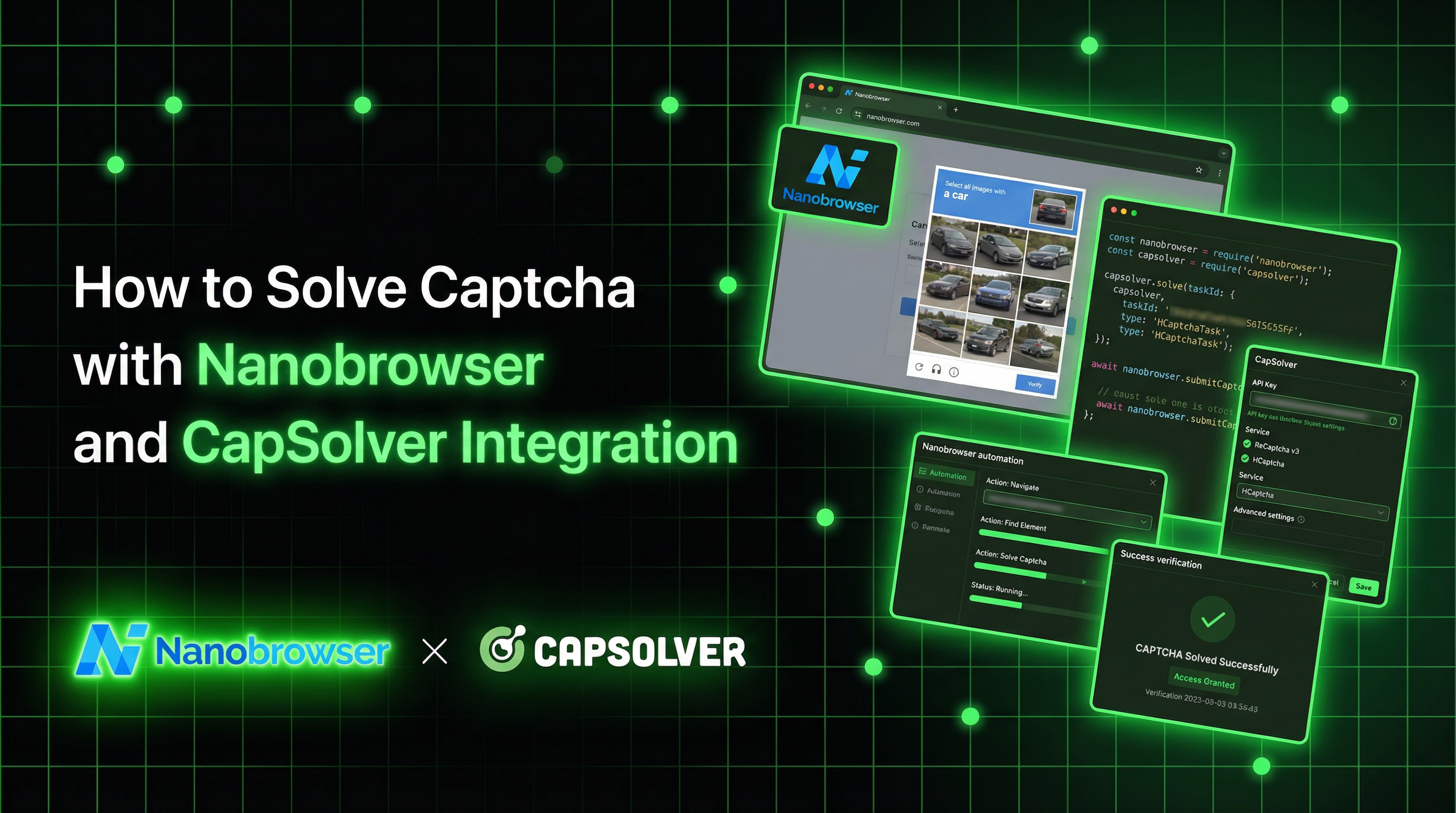
AI-powered browser automation has transformed how we interact with the web. Nanobrowser represents the cutting edge of this technology—an open-source Chrome extension that uses multi-agent AI systems to automate complex web tasks through natural language instructions.
However, even the most sophisticated AI agents encounter a common obstacle: CAPTCHA challenges. When your Nanobrowser agent navigates to a protected page, a reCAPTCHA or Cloudflare Turnstile can halt the entire workflow.
CapSolver provides the perfect complement to Nanobrowser's AI capabilities. By combining these tools, your autonomous agents can navigate through CAPTCHA-protected websites seamlessly, enabling truly hands-free web automation.
Nanobrowser is an open-source Chrome extension for AI-powered web automation. It serves as a free alternative to OpenAI Operator, enabling users to automate browser tasks through natural language instructions without subscription fees.
Nanobrowser's power comes from its multi-agent architecture:
| Agent | Role |
|---|---|
| Planner | Analyzes tasks, creates execution strategies, and self-corrects when obstacles arise |
| Navigator | Handles page interactions, element identification, and browser operations |
| Validator | Ensures actions completed successfully and validates results |
CapSolver is a leading CAPTCHA solving service that provides AI-powered solutions for bypassing various CAPTCHA challenges. With support for multiple CAPTCHA types and lightning-fast response times, CapSolver integrates seamlessly into automated workflows.
When building AI-powered automations that interact with protected websites, CAPTCHA challenges become a significant barrier. Here's why the integration matters:
| Use Case | Challenge | Solution |
|---|---|---|
| Data extraction | reCAPTCHA blocks automated access | CapSolver auto-solves while Nanobrowser extracts |
| Form automation | Turnstile prevents submission | CapSolver handles Turnstile, agent submits form |
| Price monitoring | Bot protection on e-commerce | Combined stealth + CAPTCHA solving |
Alternatively, install from GitHub releases:
chrome://extensions/chrome://extensions/The simplest integration approach is running both extensions simultaneously. The CapSolver extension automatically detects and solves CAPTCHAs on any page your Nanobrowser agent visits.
Configure the CapSolver extension with your API key:
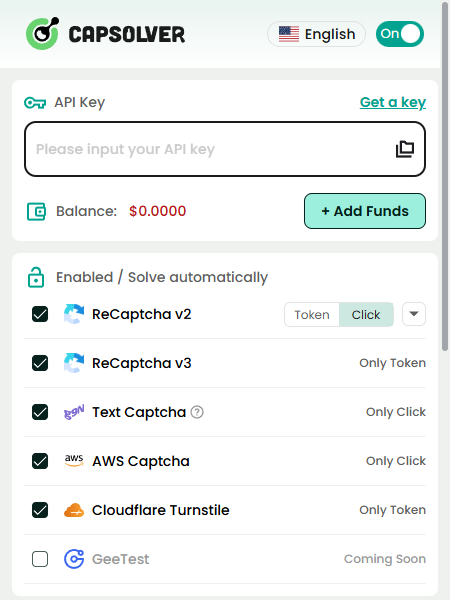
This requires no special prompting—the extension handles CAPTCHAs transparently.
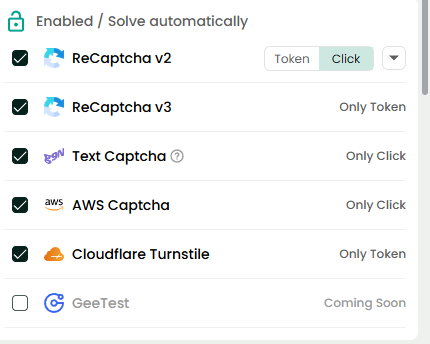
Create or modify the CapSolver extension's configuration file:
---

## Task Prompt Templates

### Template 1: E-commerce Data Extraction
Task: Extract product information from an e-commerce site with bot protection
Target URL: https://shop.example.com/category/electronics
Instructions:
Expected output format:
{
    "products": [
        {
            "name": "...",
            "price": "...",
            "originalPrice": "...",
            "rating": "...",
            "reviews": "...",
            "inStock": true/false
        }
    ],
    "totalPages": 5,
    "captchasSolved": 0
}Task: Submit a contact form on a protected page
Target: https://example.com/contact
Form Data:
- Name: John Doe
- Email: john.doe@example.com
- Subject: Product Inquiry
- Message: I would like to learn more about your enterprise solutions.
Instructions:
1. Navigate to the contact page
2. Wait for any CAPTCHA to be solved automatically
3. Fill in all form fields with the provided data
4. Before clicking submit:
- Verify a reCAPTCHA is present
- Wait for CapSolver to generate a valid token
- Confirm the CAPTCHA shows as solved (green checkmark)
5. Click the submit button
6. Wait for confirmation message
7. Report success or any errors
Note: If the form requires a CAPTCHA and it's not being solved,
wait an additional 30 seconds before retrying.Task: Automate login to a protected dashboard
Target: https://dashboard.example.com/login
Credentials:
- Username: provided_user
- Password: [wait for secure input]
Instructions:
1. Navigate to the login page
2. Handle any initial Cloudflare challenge:
- Wait for Turnstile to be solved
- Confirm page is fully loaded
3. Enter the username
4. Enter the password when provided
5. If reCAPTCHA is present:
- Wait for CapSolver to solve it
- Verify green checkmark appears
6. Click the login button
7. Handle any post-login CAPTCHAs
8. Confirm successful login by checking for dashboard elements
9. Report login status and any issues encountered
Timeout: 120 seconds total
CAPTCHA timeout: 60 seconds per challengeAlways include waiting instructions in your prompts:
If a CAPTCHA appears, wait up to 60 seconds for the CapSolver
extension to solve it before proceeding or reporting an error.Some workflows encounter multiple CAPTCHAs. Prepare your agents:
This workflow may encounter multiple CAPTCHA challenges:
- Initial page load (Cloudflare)
- Search results page (reCAPTCHA)
- Individual item pages (Turnstile)

For each CAPTCHA encountered, allow up to 45 seconds for auto-solve
before continuing to the next step.If a CAPTCHA is not solved within the timeout:
1. Refresh the page and try again
2. If it fails a second time, skip this item and continue
3. Log the failed URL for manual reviewBetween actions, add natural delays:
- After page navigation: 2-3 seconds
- After CAPTCHA solve: 1-2 seconds
- Between form fields: 0.5-1 second
This helps avoid triggering additional bot detection.Check CapSolver Extension
Verify CAPTCHA Type Support
Extension Conflicts
Increase Wait Times
Check LLM Response
Add Post-Solve Delay
After the CAPTCHA is solved, wait 3 seconds for the page to fully reload.Check for JavaScript Redirects
The combination of Nanobrowser and CapSolver creates a powerful toolkit for AI-powered web automation:
Whether you're building data extraction pipelines, automating repetitive tasks, or creating intelligent web agents, this combination provides the reliability and capability needed for production use.
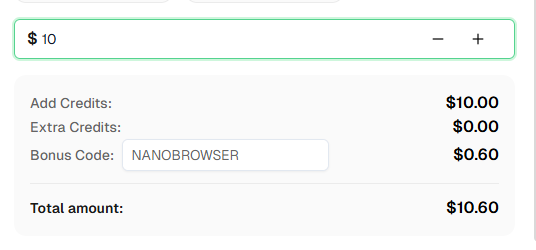
Ready to get started? Sign up for CapSolver and use bonus code NANOBROWSER for an extra 6% bonus on your first recharge!
Nanobrowser is an open-source Chrome extension for AI-powered web automation. It uses a multi-agent system (Planner, Navigator, Validator) to execute complex web tasks through natural language instructions. It's a free alternative to OpenAI Operator.
The integration works by running both extensions simultaneously in Chrome. The CapSolver extension automatically detects and solves CAPTCHAs on any page that Nanobrowser's agents visit, requiring no special configuration.
CapSolver supports reCAPTCHA v2 (image and invisible), reCAPTCHA v3, Cloudflare Turnstile, GeeTest, AWS WAF, and many more CAPTCHA types.
For basic workflows, no—the CapSolver extension works automatically. For complex workflows with multiple CAPTCHAs or specific timing requirements, adding explicit CAPTCHA handling instructions in your prompts improves reliability.
No, Nanobrowser is a Chrome extension that requires a visible browser window. It's designed for interactive automation where you can observe the agents working.
Nanobrowser is free and open-source. CapSolver charges based on CAPTCHA type and volume. Visit capsolver.com for current pricing. Use code NANOBROWSER for a 6% bonus.
Nanobrowser supports OpenAI, Anthropic (Claude), Google Gemini, Ollama (local models), Groq, Cerebras, and any OpenAI-compatible API endpoint.
The CapSolver extension shows a notification when a CAPTCHA is solved. In Nanobrowser, the agent will report page state changes—you'll see the workflow continue after the CAPTCHA disappears.
Include fallback instructions in your prompts: retry the page, skip the item, or report the failure for manual review. The CapSolver extension also supports automatic retries via configuration.
Ethan Collins
AI Agent Workflow Engineer
Building clearer handoffs between AI agents and tools.
ABOUT THE AUTHOR
Learn scalable Rust web scraping architecture with reqwest, scraper, async scraping, headless browser scraping, proxy rotation, and compliant CAPTCHA handling.

Learn the best techniques to scrape job listings without getting blocked. Master Indeed scraping, Google Jobs API, and web scraping API with CapSolver.