🎉NEWCapSolver for AI agents-MCP, agent tools, and SDK integrations

Ethan Collins
AI Agent Workflow Engineer
Published Mar 24, 2026
Updated Mar 26, 2026 · min read
AI-powered web browsing agents are transforming how we interact with the internet. They can navigate pages, fill forms, extract data, and complete multi-step workflows — all from a simple text instruction. But there's one obstacle that stops every agent in its tracks: CAPTCHAs.
OpenBrowser is an autonomous web browsing framework that gives AI models like GPT-4o, Claude, and Gemini direct control of a real browser. It's powerful, but the moment it hits a CAPTCHA-protected page, the agent stalls.
CapSolver eliminates this problem entirely. By loading the CapSolver Chrome extension into OpenBrowser's launch profile, CAPTCHAs are detected and solved automatically in the background — no API plumbing, no token injection code, no changes to your agent logic.
The best part? Your AI agent never needs to know CAPTCHAs exist. The extension handles detection, solving, and token injection at the browser level. By the time the agent clicks Submit, the CAPTCHA is already solved.
OpenBrowser is an AI autonomous web browsing framework built on TypeScript and Playwright. It gives large language models direct, sandboxed control of a real Chromium browser — turning any LLM into a web-capable agent.
OpenBrowser gives AI models eyes and hands on the web. But CAPTCHAs remain a blind spot. The agent can see the page, read the form fields, and click buttons — but it cannot solve a reCAPTCHA challenge or a Turnstile widget. That's where CapSolver comes in.
CapSolver is a leading CAPTCHA solving service that provides AI-powered solutions for bypassing various CAPTCHA challenges. With support for multiple CAPTCHA types and fast response times, CapSolver integrates seamlessly into automated workflows.
Most CAPTCHA-solving integrations require you to write code — create API calls, poll for results, inject tokens into hidden form fields. That's how it works with tools like Crawlee, Puppeteer, or Playwright.
OpenBrowser + CapSolver is fundamentally different:
| Traditional (Code-Based) | OpenBrowser (Extension-Based) |
|---|---|
Write a CapSolverService class |
Add the extension plus one explicit Chrome allowlist arg |
Call createTask() / getTaskResult() |
Extension handles the full lifecycle |
Inject tokens via page.$eval() |
Tokens injected automatically at browser level |
| Handle errors, retries, timeouts in code | Extension retries internally |
| Different code for each CAPTCHA type | Works for all types automatically |
| Tightly coupled to your agent logic | Zero coupling — agent is CAPTCHA-unaware |
The key insight: The CapSolver Chrome extension runs inside OpenBrowser's Playwright browser context. When the agent navigates to a page with a CAPTCHA, the extension detects it, solves it in the background, and injects the token — all before the agent tries to submit the form.
You just need to give it time. Instead of writing CAPTCHA-handling code, you add a short wait to your agent flow:
// The agent waits, then submits — CapSolver handles the rest
await page.waitForTimeout(30_000);
await page.click('button[type="submit"]');
That's it. No CAPTCHA logic. No API calls. No token injection.
Before setting up the integration, make sure you have:
npm install openbrowser or cloned from GitHub)Google Chrome 137+ (released mid-2025) silently removed support for
--load-extensionin branded builds. This means Chrome extensions cannot be loaded in automated sessions using standard Google Chrome. There is no error — the flag is simply ignored.
This affects Google Chrome and Microsoft Edge. You must use one of these alternatives:
| Browser | Extension Loading | Recommended? |
|---|---|---|
| Google Chrome 137+ | Not supported | No |
| Microsoft Edge | Not supported | No |
| Chrome for Testing | Supported | Yes |
| Chromium (standalone) | Supported | Yes |
| Playwright's bundled Chromium | Supported | Yes |
How to install Chrome for Testing:
# Option 1: Via Playwright (recommended — OpenBrowser already uses Playwright)
npx playwright install chromium

# The binary will be at a path like:
# ~/.cache/ms-playwright/chromium-XXXX/chrome-linux64/chrome  (Linux)
# ~/Library/Caches/ms-playwright/chromium-XXXX/chrome-mac/Chromium.app/Contents/MacOS/Chromium (macOS)# Option 2: Via Chrome for Testing direct download
# Visit: https://googlechromelabs.github.io/chrome-for-testing/
# Download the version matching your OSAfter installation, note the full path to the binary — you'll need it for the launch profile.
If you haven't already, install OpenBrowser:
npm install openbrowserOr clone the repository for the latest features:
git clone https://github.com/ntegrals/openbrowser.git
cd openbrowser
npm installDownload the CapSolver Chrome extension and extract it to a known directory:
CapSolver.Browser.Extension-chrome-vX.X.X.zipmkdir -p ~/.openbrowser/capsolver-extension
unzip CapSolver.Browser.Extension-chrome-v*.zip -d ~/.openbrowser/capsolver-extension/ls ~/.openbrowser/capsolver-extension/manifest.jsonYou should see manifest.json — this confirms the extension is in the right place.
Open the extension's config file at ~/.openbrowser/capsolver-extension/assets/config.js and replace the apiKey value with your own:
export const defaultConfig = {
  apiKey: 'CAP-XXXXXXXXXXXXXXXXXXXXXXXXXXXXXXXX',  // your key here
  useCapsolver: true,
  // ... rest of config
};
You can get your API key from your CapSolver dashboard.
This is where OpenBrowser shines. Use the LaunchProfile builder to load the CapSolver extension into the browser:
import { LaunchProfile, OpenBrowser } from 'openbrowser';

const profile = new LaunchProfile()
  .addExtension('/home/user/.openbrowser/capsolver-extension')
  .extraArgs('--disable-extensions-except=/home/user/.openbrowser/capsolver-extension')
  .headless(false)    // Required — MV3 extensions need a headed browser
  .stealthMode();     // Reduces bot detection fingerprints
Why
headless(false)? Chrome's MV3 (Manifest V3) extensions, including CapSolver, require a headed browser context. The service worker that powers the extension does not load in headless mode. On a server without a display, use Xvfb (see Step 7).Important: If you pass custom Chrome flags anywhere else in your setup, do not include
--disable-background-networking. The CapSolver extension's service worker needs outbound network access.
import { LaunchProfile, OpenBrowser } from 'openbrowser';

const profile = new LaunchProfile()
  .addExtension('/home/user/.openbrowser/capsolver-extension')
  .extraArgs('--disable-extensions-except=/home/user/.openbrowser/capsolver-extension')
  .headless(false)
  .stealthMode();

const browser = await OpenBrowser.launch(profile);

// Navigate to a CAPTCHA-protected page
await browser.goto('https://example.com/protected-form');

// Wait for CapSolver to detect and solve the CAPTCHA
await browser.page.waitForTimeout(30_000);

// Submit the form — the CAPTCHA token is already injected
await browser.page.click('button[type="submit"]');

// Read the destination page or confirmation element
const result = await browser.page.textContent('body');
console.log(result); // e.g. whatever confirmation text the site returns

await browser.close();The real power of OpenBrowser is letting an AI model control the browser. Here's how to wire it up with CapSolver:
import { LaunchProfile, OpenBrowser, Agent } from 'openbrowser';

const profile = new LaunchProfile()
  .addExtension('/home/user/.openbrowser/capsolver-extension')
  .extraArgs('--disable-extensions-except=/home/user/.openbrowser/capsolver-extension')
  .headless(false)
  .stealthMode();

const browser = await OpenBrowser.launch(profile);

// Create an agent with your preferred model
const agent = new Agent({
  browser,
  model: 'gpt-4o',  // or 'claude-sonnet-4-20250514', 'gemini-pro', etc.
});

// Give the agent a task — no mention of CAPTCHAs needed
await agent.run(`
  Go to https://example.com/contact,
  fill in the contact form with:
    Name: "Jane Smith"
    Email: "jane@example.com"
    Message: "I'd like to learn more about your enterprise plan."
  Wait 30 seconds for the page to fully load,
  then click Submit.
  Tell me what confirmation message appears.
`);

await browser.close();
Notice that the agent instructions say "wait 30 seconds for the page to fully load" — a natural phrasing that gives CapSolver time to solve any CAPTCHA on the page without the AI ever knowing about it.
Since MV3 extensions require a headed browser, you need a virtual display on servers without a monitor:
# Install Xvfb
sudo apt-get install -y xvfb

# Start a virtual display
Xvfb :99 -screen 0 1280x720x24 &

# Set DISPLAY before running your script
export DISPLAY=:99
Then run your OpenBrowser script normally. The browser will render to the virtual display, and extensions will load correctly.
For the technically curious, here's the full flow when CapSolver is loaded into OpenBrowser:
  Your Script / AI Agent
  ──────────────────────────────────────────────────
  LaunchProfile                   OpenBrowser
    .addExtension(path)   ──►  Adds --load-extension flag
    .extraArgs(...)             Adds --disable-extensions-except
    .headless(false)            to Playwright launch args
    .stealthMode()               │
                                 ▼
                            Playwright launches Chromium
                            ┌───────────────────────────────┐
                            │  Chromium Process              │
                            │                                │
                            │  1. Extension service worker   │
                            │     activates (background.js)  │
                            │                                │
                            │  2. Content scripts injected   │
                            │     into every page            │
                            └───────────────────────────────┘
                                 │
                                 ▼
                            Agent navigates to target URL
                            ┌───────────────────────────────┐
                            │  Page with CAPTCHA widget      │
                            │                                │
                            │  CapSolver Extension:          │
                            │  1. Content script detects     │
                            │     CAPTCHA on the page        │
                            │  2. Service worker calls       │
                            │     CapSolver API              │
                            │  3. Token received             │
                            │  4. Token injected into        │
                            │     hidden form field          │
                            └───────────────────────────────┘
                                 │
                                 ▼
                            Agent waits (30-60 seconds)...
                                 │
                                 ▼
                            Agent clicks Submit
                                 │
                                 ▼
                            Form submits WITH valid token
                                 │
                                 ▼
Site-specific confirmation pageaddExtension() Works.addExtension(path) generates --load-extension=/path/to/extension. For this integration, you also need to allowlist the unpacked extension explicitly with .extraArgs('--disable-extensions-except=/path/to/extension'). This is the same Chrome developer-extension mechanism OpenBrowser exposes through its launch profile.
--load-extension=/path/to/capsolver-extension--disable-extensions-except=/path/to/capsolver-extensionIf Chrome extension loading is problematic — or you want explicit control over the CAPTCHA-solving flow — you can use the CapSolver REST API directly with OpenBrowser's Playwright instance.
import { LaunchProfile, OpenBrowser } from 'openbrowser';

const CAPSOLVER_API_KEY = process.env.CAPSOLVER_API_KEY!;

async function solveCaptchaViaAPI(
  pageUrl: string,
  siteKey: string
): Promise<string> {
  const createRes = await fetch("https://api.capsolver.com/createTask", {
    method: "POST",
    headers: { "Content-Type": "application/json" },
    body: JSON.stringify({
      clientKey: CAPSOLVER_API_KEY,
      task: {
        type: "ReCaptchaV2TaskProxyLess",
        websiteURL: pageUrl,
        websiteKey: siteKey,
      },
    }),
  });
  const { taskId, errorDescription } = await createRes.json();
  if (!taskId) throw new Error(`createTask failed: ${errorDescription}`);

  for (let i = 0; i < 40; i++) {
    await new Promise((r) => setTimeout(r, 3000));
    const resultRes = await fetch("https://api.capsolver.com/getTaskResult", {
      method: "POST",
      headers: { "Content-Type": "application/json" },
      body: JSON.stringify({ clientKey: CAPSOLVER_API_KEY, taskId }),
    });
    const result = await resultRes.json();
    if (result.status === "ready") {
      return result.solution.gRecaptchaResponse;
    }
  }
  throw new Error("Solve timeout");
}

// Launch without extension — no special Chrome flags needed
const profile = new LaunchProfile()
  .headless(false)
  .stealthMode();

const browser = await OpenBrowser.launch(profile);
const page = browser.page;

await page.goto("https://example.com/protected-page");

// Detect sitekey
const siteKey = await page.evaluate(() => {
  const el = document.querySelector(".g-recaptcha[data-sitekey]");
  return el?.getAttribute("data-sitekey") ?? "";
});
console.log("Sitekey:", siteKey);

// Solve via API
const token = await solveCaptchaViaAPI(page.url(), siteKey);
console.log("Token received, length:", token.length);

// Inject token
await page.evaluate((t) => {
  const textarea = document.querySelector(
    'textarea[name="g-recaptcha-response"]'
  ) as HTMLTextAreaElement;
  if (textarea) textarea.value = t;
}, token);

// Submit
await page.click("#recaptcha-demo-submit");
await page.waitForLoadState("networkidle");

const body = await page.textContent("body");
console.log(
  body?.includes("Verification Success")
    ? "CAPTCHA solved via API!"
    : body?.slice(0, 200)
);

await browser.close();| Extension | API | |
|---|---|---|
| Setup | Configure extension + Chrome flags | Just an API key |
| Chrome version | Needs Chrome for Testing (137+ caveat) | Works with any Chrome |
| Detection | Automatic (content script) | Manual (query DOM) |
| Token injection | Automatic | Manual (evaluate JS) |
| Headless | Requires headed mode (MV3) | Works in headless too |
| Best for | Persistent automation | One-off solves, headless environments |
Symptom: The browser launches but CAPTCHAs are not being solved. No extension-related entries appear in chrome://extensions.
Cause: You're using branded Google Chrome 137+ which silently ignores --load-extension.
Fix: Switch to Chrome for Testing or Playwright's bundled Chromium. If you need to specify a custom executable:
const profile = new LaunchProfile()
  .addExtension('/path/to/capsolver-extension')
  .extraArgs('--disable-extensions-except=/path/to/capsolver-extension')
  .executablePath('/path/to/chrome-for-testing/chrome')
  .headless(false)
  .stealthMode();
Verify your Chrome version:
/path/to/your/chrome --version
# Chrome for Testing: "Chromium 143.0.7499.4"
# Branded Chrome: "Google Chrome 143.0.7499.109"Symptom: Extension loads in headed mode but not in headless mode.
Cause: Chrome's MV3 (Manifest V3) extensions require a headed browser context. The service worker does not initialize in --headless or --headless=new modes.
Fix: Always use .headless(false) in your LaunchProfile. On servers, use Xvfb to provide a virtual display:
Xvfb :99 -screen 0 1280x720x24 &
export DISPLAY=:99Possible causes:
assets/config.js in your extension directory--disable-background-networking to Chrome args, remove it. The extension needs network access to call the CapSolver API.Symptom: Pages detect the browser as automated even with .stealthMode() enabled.
Fix: Make sure you're using Playwright's bundled Chromium or Chrome for Testing. Some stealth patches are Chromium-version-specific. Also ensure you're not passing conflicting Chrome flags that override stealth settings.
More wait time is always safer. The CAPTCHA is usually solved in 5-20 seconds, but network latency, complex challenges, or retries can add time. 30-60 seconds is the sweet spot.
| CAPTCHA Type | Typical Solve Time | Recommended Wait |
|---|---|---|
| reCAPTCHA v2 (checkbox) | 5-15 seconds | 30-60 seconds |
| reCAPTCHA v2 (invisible) | 5-15 seconds | 30 seconds |
| reCAPTCHA v3 | 3-10 seconds | 20-30 seconds |
| Cloudflare Turnstile | 3-10 seconds | 20-30 seconds |
When giving instructions to AI agents via OpenBrowser, keep your phrasing natural and avoid mentioning CAPTCHAs:
Good:
"Go to the page, wait about a minute for everything to load, then submit the form."
Avoid:
"Wait for the CAPTCHA to be solved, then submit."
Natural phrasing works better with LLMs and avoids triggering safety refusals. The AI doesn't need to know about CAPTCHAs — the extension handles everything invisibly.
For sites using reCAPTCHA v3 or invisible reCAPTCHA v2, make sure token mode is enabled in the extension config (assets/config.js). Token mode ensures the extension solves the challenge and injects the token without requiring any visible interaction.
Each CAPTCHA solve costs credits. Check your balance at capsolver.com/dashboard regularly to avoid interruptions.
stealthMode() for ProductionAlways enable .stealthMode() in your LaunchProfile for production use. This applies fingerprint evasion techniques that reduce the chance of the browser being flagged as automated — which in turn reduces the likelihood of encountering aggressive CAPTCHAs.
const profile = new LaunchProfile()
  .addExtension('/path/to/capsolver-extension')
  .extraArgs('--disable-extensions-except=/path/to/capsolver-extension')
  .headless(false)
.stealthMode(); // Always enable in productionDISPLAY for Headless ServersChrome extensions require a display, even on headless servers. Use Xvfb to create a virtual display:
# Install Xvfb
sudo apt-get install -y xvfb

# Start a virtual display
Xvfb :99 -screen 0 1280x720x24 &

# Set DISPLAY for your OpenBrowser script
export DISPLAY=:99The OpenBrowser + CapSolver integration represents the cleanest possible approach to CAPTCHA solving in AI browser automation. Instead of writing CAPTCHA detection logic, managing API calls, polling for results, and injecting tokens — you simply:
.addExtension('/path/to/capsolver-extension') plus .extraArgs('--disable-extensions-except=/path/to/capsolver-extension')headless(false) and use Xvfb on servers--disable-background-networking overrideNo changes to your agent logic. No CAPTCHA-specific code. No coupling between your AI model and the solving service. The extension operates at the browser level, completely invisible to the agent.
This is what CAPTCHA solving looks like when it's truly automated: invisible, zero-code, and model-agnostic.
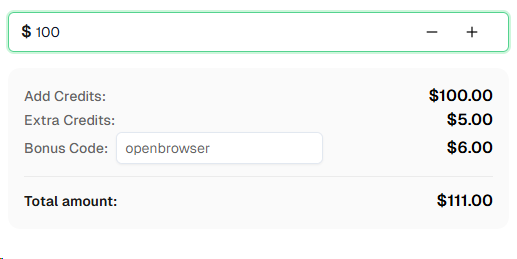
Ready to get started? Sign up for CapSolver and use bonus code OPENBROWSER for an extra 6% bonus on your first recharge!
No. The CapSolver extension works entirely at the browser level — your AI agent (GPT-4o, Claude, Gemini, etc.) never needs to know about CAPTCHAs. Just include a reasonable wait time in your agent instructions (e.g., "wait 30 seconds for the page to fully load") to give the extension time to solve any challenges.
Google Chrome 137+ (released mid-2025) removed support for the --load-extension command-line flag in branded builds. This means Chrome extensions cannot be loaded in automated sessions. You need Chrome for Testing or standalone Chromium, which still support this flag. Since OpenBrowser uses Playwright under the hood, the simplest option is npx playwright install chromium.
Not directly. Chrome's MV3 (Manifest V3) extensions require a headed browser context — the service worker does not initialize in headless mode. On servers without a display, use Xvfb to create a virtual display (Xvfb :99 & and export DISPLAY=:99). The browser renders to the virtual display, and extensions load normally.
CapSolver supports reCAPTCHA v2 (checkbox and invisible), reCAPTCHA v3, reCAPTCHA Enterprise, Cloudflare Turnstile, Cloudflare 5-second Challenge, AWS WAF CAPTCHA, and more. The Chrome extension automatically detects the CAPTCHA type and solves it accordingly.
CapSolver offers competitive pricing based on CAPTCHA type and volume. Visit capsolver.com for current pricing. Use bonus code OPENBROWSER for an extra 6% on your first recharge.
Yes. Since CapSolver operates at the browser level via a Chrome extension, it works identically regardless of which AI model powers your OpenBrowser agent — GPT-4o, Claude, Gemini, or any other supported model. The model never interacts with the CAPTCHA-solving process.
Ethan Collins
AI Agent Workflow Engineer
Building clearer handoffs between AI agents and tools.
ABOUT THE AUTHOR
Discover how AI agents transform web scraping and competitive intelligence. Learn about automated data collection, anti-bot challenges, and CAPTCHA solutions for scalable workflows.

Discover the key differences between AI agent vs chatbot. Learn how agentic AI outperforms traditional AI in automation, decision-making, and complex workflows.