🎉NEWCapSolver for AI agents-MCP, agent tools, and SDK integrations

Ethan Collins
AI Agent Workflow Engineer
Published Mar 18, 2026
Updated Mar 20, 2026 · min read
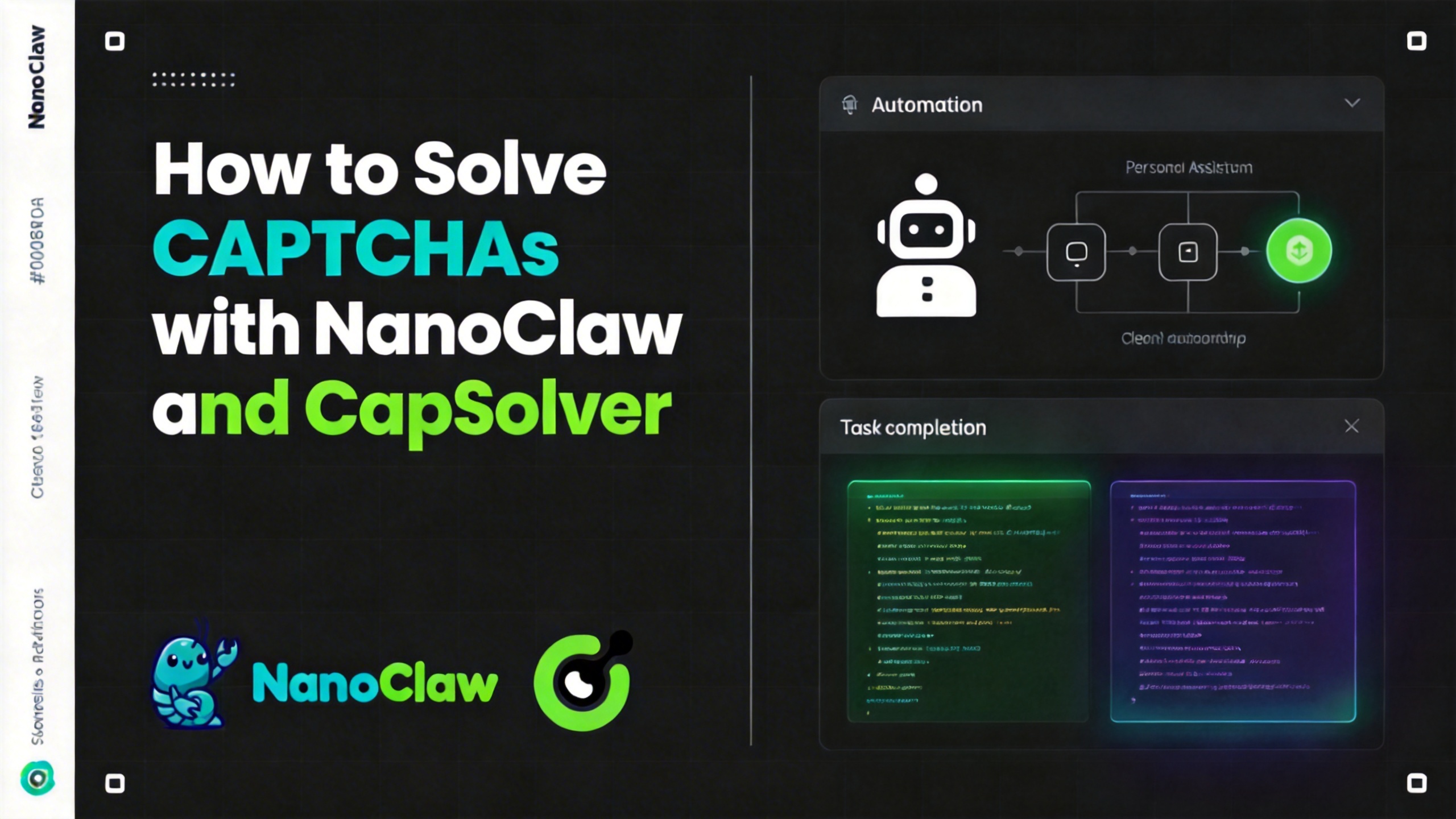
When your AI assistant browses the web inside a secure container, CAPTCHAs are still the number one obstacle. Protected pages block the agent, forms can't be submitted, and tasks stall out waiting for human intervention — even when the agent is sandboxed.
NanoClaw is a lightweight AI assistant framework that runs Claude agents in isolated Linux containers. Each agent gets its own filesystem, its own browser, and its own tools — completely separated from the host and from other agents. But like any browser automation, CAPTCHAs stop it cold.
CapSolver changes this completely. By loading the CapSolver Chrome extension into the container's Chromium browser, CAPTCHAs are solved automatically and invisibly in the background. No code. No API calls from your side. No changes to how you talk to your AI assistant.
The best part? You don't even need to mention CAPTCHAs to the AI. You just tell it to wait a moment before submitting — and by the time it clicks Submit, the CAPTCHA is already solved.
And because NanoClaw runs each agent in its own container, every agent gets its own isolated browser with its own CapSolver instance — no conflicts, no shared state, no interference between agents.
NanoClaw is a lightweight AI assistant framework designed for security and simplicity. It runs Claude agents in isolated Linux containers — giving each agent true OS-level isolation rather than application-level permission checks.
agent-browser tool for web automationEach NanoClaw container ships with Debian Chromium and the agent-browser CLI tool. The agent can:
Think of it as giving each AI agent its own isolated browser window inside a locked-down sandbox.
CapSolver is a leading CAPTCHA solving service that provides AI-powered solutions for bypassing various CAPTCHA challenges. With support for multiple CAPTCHA types and fast response times, CapSolver integrates seamlessly into automated workflows.
Most CAPTCHA-solving integrations require you to write code — create API calls, poll for results, inject tokens into hidden form fields. That's how it works with tools like Crawlee, Puppeteer, or Playwright.
NanoClaw + CapSolver is fundamentally different:
| Traditional (Code-Based) | NanoClaw (Natural Language) |
|---|---|
Write a CapSolverService class |
Mount an extension into the container |
Call createTask() / getTaskResult() |
Just talk to your AI |
Inject tokens via page.$eval() |
The extension handles everything |
| Handle errors, retries, timeouts in code | Tell the AI to "wait 70 seconds, then submit" |
| Different code for each CAPTCHA type | Works for all types automatically |
| Shared browser state across tasks | Each agent gets its own isolated browser |
The key insight: The CapSolver Chrome extension runs inside the container's Chromium browser. When the agent navigates to a page with a CAPTCHA, the extension detects it, solves it in the background, and injects the token — all before the agent even tries to submit the form.
You just need to give it time. Instead of telling the AI "solve the CAPTCHA", you simply say:
"Go to that page, wait 70 seconds, then click Submit."
That's it. The AI doesn't need to know about CapSolver at all.
Because NanoClaw runs each agent in its own container, you get a unique benefit: every agent has its own Chromium instance with its own CapSolver extension. This means:
Before setting up the integration, make sure you have:
Good news: NanoClaw containers use Debian Chromium (via
apt-get install chromium), which is unbranded and fully supports the--load-extensionflag. Unlike branded Google Chrome 137+, which silently removed extension loading support in mid-2025, Debian Chromium works out of the box.
You don't need to install Chrome for Testing, Playwright's bundled Chromium, or any alternative browser. The Chromium already in your container is all you need.
Download the CapSolver Chrome extension to your NanoClaw project directory:
CapSolver.Browser.Extension-chrome-vX.X.X.zipmkdir -p assets/capsolver-extension
unzip CapSolver.Browser.Extension-chrome-v*.zip -d assets/capsolver-extension/ls assets/capsolver-extension/manifest.jsonYou should see manifest.json — this confirms the extension is in the right place.
Open the extension's config file at assets/capsolver-extension/assets/config.js and replace the apiKey value with your own:
export const defaultConfig = {
  apiKey: 'CAP-XXXXXXXXXXXXXXXXXXXXXXXXXXXXXXXX',  // ← your key here
  useCapsolver: true,
  // ... rest of config
};
You can get your API key from your CapSolver dashboard.
NanoClaw runs agents in Docker containers. The extension directory needs to be available inside the container at /opt/capsolver-extension.
Option A: Auto-mount via container runner (recommended)
Place the extension at assets/capsolver-extension/ in your NanoClaw project directory. Then add a volume mount in src/container-runner.ts:
// Mount capsolver extension if present
const capsolverPath = path.join(process.cwd(), 'assets', 'capsolver-extension');
if (fs.existsSync(capsolverPath)) {
  mounts.push({
    hostPath: capsolverPath,
    containerPath: '/opt/capsolver-extension',
    readonly: true,
  });
}
Option B: Bake into the container image
Add to your container/Dockerfile:
# Add CapSolver extension
COPY ../assets/capsolver-extension/ /opt/capsolver-extension/
Then rebuild the container image.
NanoClaw uses the agent-browser CLI tool for browser automation inside containers. It supports loading Chrome extensions via environment variables.
Add these environment variables to the container in src/container-runner.ts:
if (fs.existsSync(capsolverPath)) {
  args.push('-e', 'AGENT_BROWSER_EXTENSIONS=/opt/capsolver-extension');
  args.push('-e', 'DISPLAY=:99');
  args.push('-e', 'AGENT_BROWSER_ARGS=--no-sandbox,--disable-gpu,--disable-blink-features=AutomationControlled,--disable-background-timer-throttling');
  args.push('-e', 'AGENT_BROWSER_HEADED=true');
}| Environment Variable | Purpose |
|---|---|
AGENT_BROWSER_EXTENSIONS |
Path to the CapSolver extension inside the container |
DISPLAY |
Virtual display for Xvfb (extensions need a display context) |
AGENT_BROWSER_ARGS |
Chrome flags: no sandbox, anti-detection, prevent extension throttling |
AGENT_BROWSER_HEADED |
Run in headed mode (extensions work more reliably) |
Chrome extensions require a display, even in containers. Add xvfb to your container/Dockerfile and auto-start it in the entrypoint:
# Add xvfb to the apt-get install list
RUN apt-get update && apt-get install -y \
    chromium \
    xvfb \
    # ... other dependencies
    && rm -rf /var/lib/apt/lists/*

# Make Xvfb runnable by non-root user
RUN chmod u+s /usr/bin/Xvfb

# Create session directory (agent-browser needs this)
RUN mkdir -p /home/node/.claude/session-env && chown -R node:node /home/node/.claude
Update the entrypoint to start Xvfb automatically:
#!/bin/bash
set -e
# Start Xvfb for browser extensions
if [ -n "$DISPLAY" ]; then
  Xvfb $DISPLAY -screen 0 1280x720x24 &
  sleep 0.5
fi
# ... rest of entrypoint# Restart NanoClaw to pick up the changes
npm run dev
# or if running as a service:
pm2 restart nanoclawSend a test message to your NanoClaw agent via any connected channel (Discord, WhatsApp, Telegram):
Go to https://www.google.com/recaptcha/api2/demo, wait 70 seconds,
then click Submit and tell me what text appears on the page.
If CapSolver is working, the agent should report: "Verification Success... Hooray!"
This is the most important section. Once setup is complete, using CapSolver with NanoClaw is dead simple.
Don't mention CAPTCHAs or CapSolver to the AI. Just give it time before submitting forms.
The AI agent doesn't need to know about CAPTCHAs. The extension handles everything in the background. All you need to do is include a wait time in your instructions so the extension has time to solve the challenge before the form is submitted.
Send this to your NanoClaw agent (via Discord, WhatsApp, Telegram, or any channel):
Go to https://example.com, wait 70 seconds,
then click Submit and tell me what text appears on the page.
What happens behind the scenes:
Go to https://example.com/login, fill in the email field with
"me@example.com" and the password with "mypassword123",
then wait 30 seconds and click the Sign In button.
Tell me what page loads after signing in.Open https://example.com/contact, fill in the contact form:
- Name: "John Doe"
- Email: "john@example.com"
- Message: "Hello, I have a question about your services."
Wait 45 seconds, then click Send Message. What confirmation appears?| CAPTCHA Type | Typical Solve Time | Recommended Wait |
|---|---|---|
| reCAPTCHA v2 (checkbox) | 10-30 seconds | 60-70 seconds |
| reCAPTCHA v2 (invisible) | 5-15 seconds | 45 seconds |
| reCAPTCHA v3 | 3-10 seconds | 30 seconds |
| Cloudflare Turnstile | 3-10 seconds | 30 seconds |
Tip: When in doubt, use 70 seconds. It's better to wait a bit longer than to submit too early. The extra wait doesn't affect the result. In our testing, 60 seconds was borderline for reCAPTCHA v2 — 70 seconds worked reliably.
Here are proven phrasings you can use:
Avoid these — they can confuse the AI or trigger refusals:
For the technically curious, here's what happens when the CapSolver extension is loaded inside a NanoClaw container:
  Your message                    NanoClaw Server
  ───────────────────────────────────────────────────
  "go to page,          ──►  Message router receives message
   wait 60s, submit"         │
                              ▼
                         Container spawned for agent
                         ┌─────────────────────────────────┐
                         │  Isolated Docker Container       │
                         │                                  │
                         │  Claude Agent (via Agent SDK)    │
                         │       │                          │
                         │       ▼                          │
                         │  agent-browser: navigate to URL  │
                         │       │                          │
                         │       ▼                          │
                         │  Chromium + CapSolver Extension  │
                         │  ┌───────────────────────────┐   │
                         │  │ Page with reCAPTCHA       │   │
                         │  │                           │   │
                         │  │ CapSolver Extension:      │   │
                         │  │ 1. Content script detects │   │
                         │  │    reCAPTCHA on the page  │   │
                         │  │ 2. Service worker calls   │   │
                         │  │    CapSolver API          │   │
                         │  │ 3. Token received         │   │
                         │  │ 4. Token injected into    │   │
                         │  │    hidden form field      │   │
                         │  └───────────────────────────┘   │
                         │       │                          │
                         │       ▼                          │
                         │  Agent waits 70 seconds...       │
                         │       │                          │
                         │       ▼                          │
                         │  agent-browser: click Submit     │
                         │       │                          │
                         │       ▼                          │
                         │  "Verification Success!"         │
                         └─────────────────────────────────┘
                              │
                              ▼
Response sent back via Discord/WhatsApp/etc.NanoClaw uses the agent-browser CLI tool, which supports loading Chrome extensions via the AGENT_BROWSER_EXTENSIONS environment variable. When this variable is set, agent-browser automatically passes --load-extension to Chromium.
AGENT_BROWSER_EXTENSIONS=/opt/capsolver-extension setagent-browser open <url> — Chromium launches with the extension loadedBecause NanoClaw uses Debian Chromium (not branded Google Chrome), the --load-extension flag works reliably without any workarounds. And because agent-browser handles the flag internally, you don't need to manage Chrome launch arguments yourself.
Symptom: The agent navigates and submits but CAPTCHAs are not solved.
Possible causes:
ls /opt/capsolver-extension/manifest.json inside the containerAGENT_BROWSER_EXTENSIONS env var is set to /opt/capsolver-extension in the containerDISPLAY=:99Symptom: Agent reports "can't create session directory at /home/node/.claude/session-env"
Cause: The agent-browser tool needs a writable session directory. If the host-mounted .claude directory doesn't contain it, the tool fails.
Fix: Ensure the directory exists in both the Dockerfile and on the host:
# In the Dockerfile:
RUN mkdir -p /home/node/.claude/session-env && chown -R node:node /home/node/.claude

# On the host (for the mounted volume):
mkdir -p data/sessions/main/.claude/session-env
chmod -R 777 data/sessions/main/.claudePossible causes:
Symptom: Chromium crashes or extensions don't work inside the container.
Fix: Ensure Xvfb is running before Chromium starts:
Xvfb :99 -screen 0 1280x720x24 &
export DISPLAY=:99
Add these to the container's entrypoint script so they run automatically.
In addition to the Chrome extension approach, NanoClaw supports a second integration method using CapSolver Skills — a Python CLI tool that solves CAPTCHAs via the CapSolver API directly.
Instead of the extension solving CAPTCHAs invisibly in the background, the agent explicitly:
python3 /opt/capsolver-skills/scripts/solver.pyClone the capsolver-skills repo into your NanoClaw project:
git clone https://github.com/capsolver/capsolver-skills.git assets/capsolver-skillsAdd python3 and dependencies to your container/Dockerfile:
RUN apt-get update && apt-get install -y python3 python3-pip \
    && pip3 install --break-system-packages requests python-dotenv
Mount the skills directory and pass the API key in src/container-runner.ts:
// Mount capsolver-skills
const capsolverSkillsPath = path.join(process.cwd(), 'assets', 'capsolver-skills');
if (fs.existsSync(capsolverSkillsPath)) {
  mounts.push({
    hostPath: capsolverSkillsPath,
    containerPath: '/opt/capsolver-skills',
    readonly: true,
  });
}

// Pass API key
args.push('-e', `API_KEY=${capsolverApiKey}`);
Set CAPSOLVER_API_KEY in your .env file:
CAPSOLVER_API_KEY=CAP-XXXXXXXXXXXXXXXXXXXXXXXXXXXXXXXX@OpenCrawl Go to https://www.google.com/recaptcha/api2/demo,
use the capsolver skill to solve the reCAPTCHA,
then click Submit and tell me the result.The CapSolver Skills solver supports all major CAPTCHA types via CLI:
| Command | CAPTCHA Type |
|---|---|
ReCaptchaV2TaskProxyLess |
reCAPTCHA v2 |
ReCaptchaV3TaskProxyLess |
reCAPTCHA v3 |
AntiTurnstileTaskProxyLess |
Cloudflare Turnstile |
AntiCloudflareTask |
Cloudflare Challenge |
AntiAwsWafTaskProxyLess |
AWS WAF |
GeeTestTaskProxyLess |
GeeTest v3/v4 |
DatadomeSliderTask |
DataDome |
| Chrome Extension | CapSolver Skills | |
|---|---|---|
| How it works | Invisible, automatic | Explicit API calls |
| Agent awareness | Agent doesn't know about CAPTCHAs | Agent actively solves CAPTCHAs |
| Setup complexity | Mount extension + set env vars | Mount Python scripts + install deps |
| Speed | Depends on wait time | Direct — no waiting needed |
| Flexibility | Handles any CAPTCHA automatically | Fine-grained control per CAPTCHA type |
| Best for | Simple "browse and submit" tasks | Complex workflows needing token injection |
Tip: You can use both methods simultaneously. The extension handles CAPTCHAs automatically in the background, while the Skills solver gives the agent explicit control when needed.
More wait time is always safer. The CAPTCHA is usually solved in 10-30 seconds, but network latency, complex challenges, or retries can add time. 60-70 seconds is the sweet spot.
Instead of:
"Navigate to URL, wait for captcha solver, then submit"
Use:
"Go to URL, wait about a minute, then submit the form"
Natural phrasing works better with the AI and avoids triggering safety refusals.
Each CAPTCHA solve costs credits. Check your balance at capsolver.com/dashboard regularly to avoid interruptions.
Volume mounting the extension (rather than baking it into the image) makes it easy to update the extension without rebuilding your container image. Just download the new version and restart NanoClaw.
The NanoClaw + CapSolver integration brings CAPTCHA solving to containerized AI agents — two ways:
Both approaches are verified and working. Use the extension for simple "browse and submit" workflows, and CapSolver Skills when you need fine-grained control.
And thanks to NanoClaw's container architecture, every agent gets its own isolated browser and CapSolver instance — no conflicts, no shared state, true multi-agent CAPTCHA solving.
This is what CAPTCHA solving looks like when you have a containerized AI assistant: invisible, automatic, isolated, and zero-code.
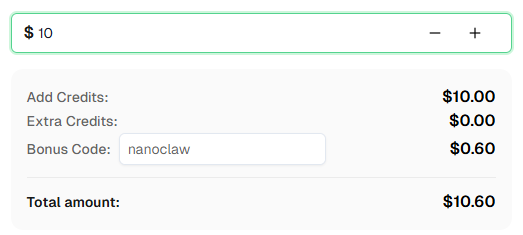
Ready to get started? Sign up for CapSolver and use bonus code NANOCLAW for an extra 6% bonus on your first recharge!
No. In fact, you should avoid mentioning CAPTCHAs or CapSolver in your messages. The extension works invisibly in the background. Just include a wait time in your instructions (e.g., "wait 70 seconds, then submit") to give the extension time to solve any CAPTCHAs on the page.
NanoClaw containers use Debian Chromium installed via apt-get, which is unbranded. Unlike Google Chrome 137+ (which silently removed --load-extension support in mid-2025), Debian Chromium fully supports extension loading. No workarounds needed.
CapSolver supports reCAPTCHA v2 (checkbox and invisible), reCAPTCHA v3, Cloudflare Turnstile, AWS WAF CAPTCHA, and more. The Chrome extension automatically detects the CAPTCHA type and solves it accordingly.
CapSolver offers competitive pricing based on CAPTCHA type and volume. Visit capsolver.com for current pricing. Use bonus code NANOCLAW for an extra 6% on your first recharge.
NanoClaw is open-source (MIT license) and free to run on your own hardware. You'll need an API key for the AI model — either an Anthropic API key directly, or an OpenRouter API key (which gives you access to Claude and other models through a single account). For CAPTCHA solving, you'll need a CapSolver account with credits.
For most CAPTCHAs, 60-70 seconds is sufficient. The actual solve time is usually 10-30 seconds, but adding extra buffer ensures reliability. When in doubt, use 70 seconds — in our testing, 60 seconds was borderline for reCAPTCHA v2.
Each NanoClaw agent runs in its own Docker container with its own Chromium browser and CapSolver extension instance. This means multiple agents can solve CAPTCHAs simultaneously without conflicts — no shared cookies, no shared browser state, no interference. If one agent's browser session has issues, it doesn't affect any other agent.
Yes. You'll need Xvfb (X Virtual Framebuffer) for the display since Chrome extensions require a display context. Set DISPLAY=:99 and run Xvfb :99 in the background inside the container.
Ethan Collins
AI Agent Workflow Engineer
Building clearer handoffs between AI agents and tools.
ABOUT THE AUTHOR
Discover how AI agents transform web scraping and competitive intelligence. Learn about automated data collection, anti-bot challenges, and CAPTCHA solutions for scalable workflows.

Discover the key differences between AI agent vs chatbot. Learn how agentic AI outperforms traditional AI in automation, decision-making, and complex workflows.