
How to Download Files Using Puppeteer in Headless Browser Automation
FAQ
How to Download Files Using Puppeteer in Headless Browser Automation
Answer
To download files in Puppeteer, you must explicitly enable Chrome’s download behavior via the DevTools Protocol and define a download directory. After configuring this setting, navigate to the target page and trigger the download action (such as clicking a button or requesting a file URL).
Detailed Explanation
Puppeteer does not handle file downloads automatically in headless mode by default because Chromium disables traditional download prompts in automated environments. This means files triggered by user interaction (like clicking a download button) will not be saved unless download behavior is explicitly configured.
Internally, Puppeteer relies on the Chrome DevTools Protocol (CDP) to control browser behavior. By sending a Page.setDownloadBehavior command, you instruct the browser to allow downloads and specify where files should be stored locally. Without this configuration, downloads may silently fail or never start, especially in headless execution environments commonly used in web scraping and automation pipelines.
Another common challenge is that many modern websites generate download links dynamically via JavaScript. In such cases, automation must wait for the UI to fully render before triggering click events. Additionally, authentication cookies or session headers may be required before the download becomes available.
Solutions / Methods
- Set a download directory: Use Node.js
path.resolve()to define a stable local folder where downloaded files will be saved. - Enable download behavior via CDP: Use Puppeteer’s DevTools Protocol call (
Page.setDownloadBehavior) to allow file downloads in headless mode. - Trigger download after page interaction: Navigate to the page and simulate user actions like clicking a download button. In complex scraping environments with security protections, solutions like CapSolver can help ensure stable access before download workflows are executed.
Best Practice / Tips
For reliable automation, avoid closing the browser immediately after triggering a download. Instead, wait for file creation in the target directory or monitor network responses. In headless environments, consider adding retry logic and ensuring stable session persistence when dealing with authenticated downloads or dynamic content.
👉 Related:
Use code
FAQwhen signing up at CapSolver to receive an additional 5% bonus on your recharge.
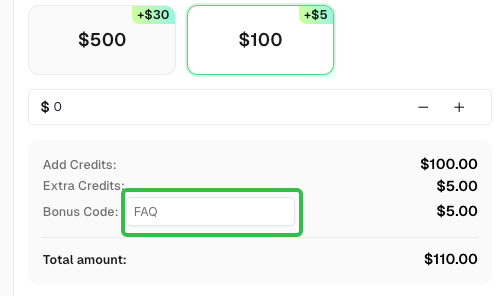
CapSolver FAQ - capsolver.com