
🎉NEWCapSolver for AI agents-MCP, agent tools, and SDK integrations

Khadija Santos
AI Agent & MCP Engineer
Published Oct 21, 2026
Updated Oct 21, 2026 · min read
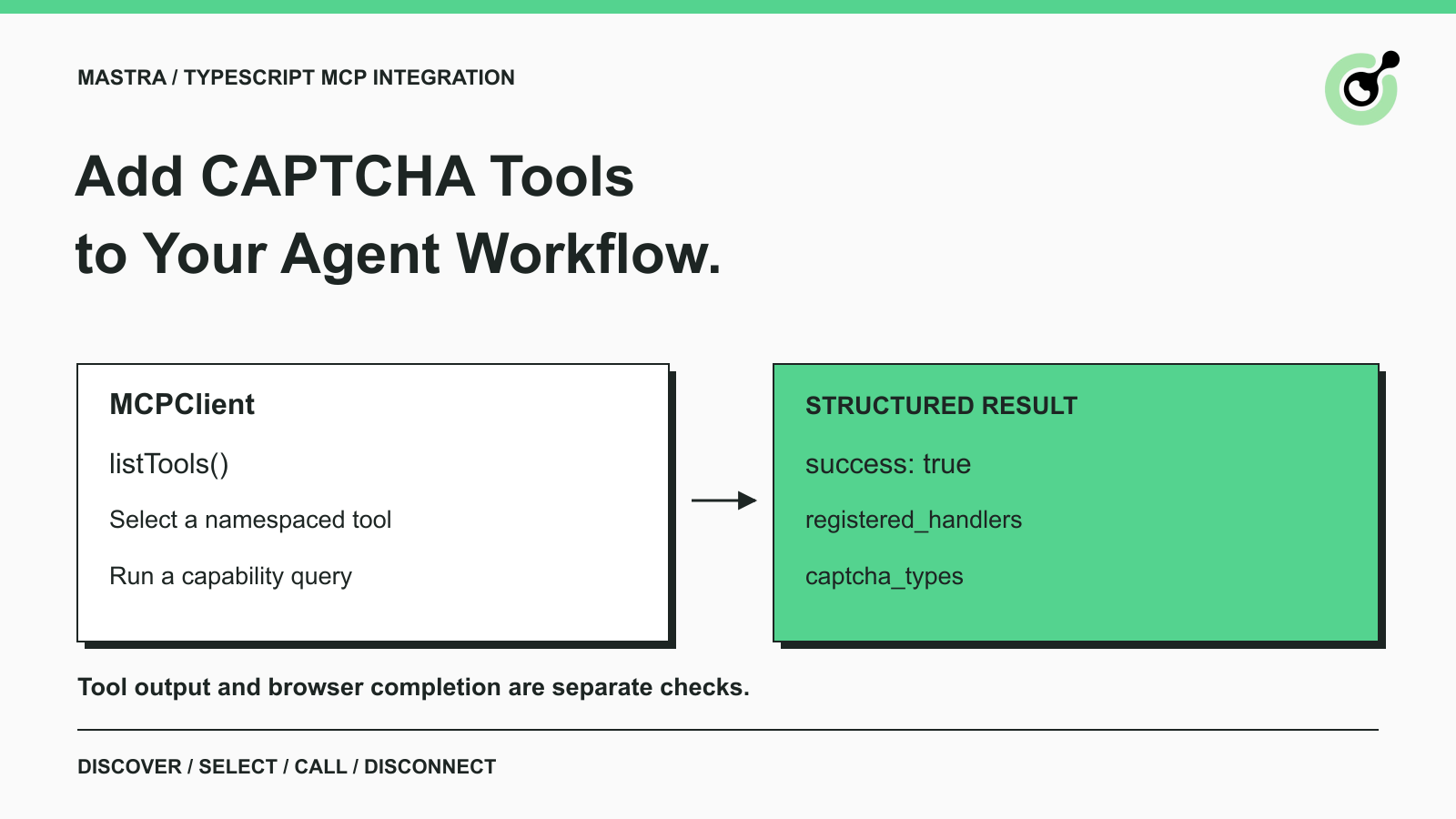
MCPClient can launch a local CAPTCHA solver process and discover its tools over stdio.listTools() returns namespaced tools, such as capsolver_get_supported_captchas for the example server key.Mastra CAPTCHA solver integration gives a TypeScript application a defined tool boundary for a verification checkpoint. A browser workflow may already know what to do before and after a challenge, while the agent needs a supported way to request the challenge operation. MCP connects that capability without requiring another wrapper around the solver's underlying API.
CapSolver provides the local server in this example. The guide uses the real Mastra client to discover its tools and execute a supported-types query. It then explains how to attach an appropriate subset to an agent and preserve the distinction between a tool response and a completed web task. The example is a local integration check, with no third-party website or paid CAPTCHA required.
The CAPTCHA tool fits at a known challenge step within an authorized application workflow. Mastra coordinates the tools exposed to an agent; the solver performs a specific operation; your browser or application code owns the steps that use its result.
Consider a QA service running an owner-controlled form test. The test has prepared its data and reached a supported challenge. A solver operation can provide the relevant answer, but the test must still submit the form correctly and check the expected confirmation. An agent should not report success merely because it received a nonempty tool response.
The Mastra project provides the framework, while its MCP connection guide describes the client interface used here. This is a direct MCP connection. It does not imply that the solver is a native provider in every Mastra product or hosted integration catalog.
Prepare a local Node.js project and a Python environment so each part has an explicit dependency set. The example was executed with Node.js 24.16.0, Python 3.12.14, @mastra/mcp 2.4.1, and capsolver-mcp 0.1.3. The selected Mastra package requires Node.js 22.13.0 or newer; using the tested Node.js 24 runtime avoids an older-runtime mismatch.
Run these steps in a fresh project directory on macOS or Linux:
npm init -y
npm install @mastra/mcp@2.4.1
python3 -m venv py
py/bin/python -m pip install capsolver-mcp==0.1.3
The .mjs file below uses Node's ES module support. The server path is resolved relative to the directory from which you run the script, so execute it from the project root containing py. If your Python environment lives elsewhere, change the path rather than relying on whichever Python happens to come first on the shell PATH.
No model credential is needed for this direct tool check. Model-driven responses need the model provider's authentication. Paid CAPTCHA operations require the appropriate solver account credentials and task parameters. This separation lets you diagnose installation problems before introducing model behavior, browser state, or account charges.
Connect MCPClient to the installed Python process, discover the tools, and execute the capability query. Save the following as mastra-check.mjs in the project directory:
import { MCPClient } from '@mastra/mcp';
import { resolve } from 'node:path';

const client = new MCPClient({
  id: 'captcha-setup-check',
  servers: {
    capsolver: {
      command: resolve('py/bin/python'),
      args: ['-m', 'capsolver_mcp'],
      env: { CAPSOLVER_API_KEY: process.env.CAPSOLVER_API_KEY || '' },
    },
  },
});

try {
  const tools = await client.listTools();
  console.log('TOOLS', Object.keys(tools));
  const capabilityTool = tools.capsolver_get_supported_captchas;
  if (!capabilityTool) throw new Error('Capability tool was not discovered');
  const result = await capabilityTool.execute({});
  console.log('CAPABILITIES', JSON.stringify(result, null, 2));
} finally {
  await client.disconnect();
  console.log('DISCONNECTED');
}
This adapter combines the official CapSolver MCP launch interface with Mastra's client. The script was executed against the installed packages, including the capability call and disconnect. It does not construct a fake server response or submit a challenge.
Run it from the same project directory:
node mastra-check.mjsThe tested list contained capsolver_solve_captcha, capsolver_detect_captchas, capsolver_solve_on_page, capsolver_get_balance, and capsolver_get_supported_captchas. The capability call returned this structured result:
{
  "success": true,
  "registered_handlers": ["recaptcha", "cloudflare"],
  "captcha_types": ["reCaptchaV2", "reCaptchaV3", "cloudflare"]
}
The result describes the installed package's registered handlers and type values. It does not mean every product listed on the CapSolver website is available through this package version. The script also printed DISCONNECTED after closing the client. Your run may include additional server diagnostic lines around these values.
Mastra namespaces the flattened tool list with the configured server key. Here, capsolver is the server key and get_supported_captchas is the remote tool name, producing capsolver_get_supported_captchas in the returned object.
Use the returned key rather than guessing it from a display label. Renaming the server entry changes the key your code expects. When moving a working configuration into a larger application, inspect the discovered tools again before reusing a lookup or an agent instruction that names one.
The MCPClient reference documents discovery and connection lifecycle. Keep the package version alongside your setup notes. Copy method names from the reference for your installed version rather than combining a current client with an older tutorial's calls.
Choose the tool subset based on the work the agent may perform. A setup assistant may need only the capability query. A workflow that already extracts task parameters may need token-oriented solving. A page-oriented workflow has different browser dependencies and session requirements.
For a real Mastra agent, construct the tools object from the relevant discovered entries and supply it through the agent's documented tools configuration. Keep the MCP connection alive for as long as the agent can invoke its tools. This standalone script disconnects immediately because its only job is one query; copying that lifecycle unchanged into a long-running agent would close the connection too soon.
The direct query makes the transport and data visible without asking a model to choose a tool. After it passes, test agent selection separately with normal model credentials and your application's permission rules. A successful direct query should help isolate the next test, not replace it.
Redeem Your CapSolver Bonus Code
Boost your automation budget instantly!
Use bonus code CAP26 when topping up your CapSolver account to get an extra 5% bonus on every recharge — with no limits.
Redeem it now in your CapSolver Dashboard
Connect the tool result to the component that owns the approved browser task. Token-oriented and page-oriented results need different handling, so decide which interface the application will use before adding an agent prompt around it.
If your code already knows the supported CAPTCHA type and its required parameters, a solving tool can receive that structured input. Browser code remains responsible for applying the result through the documented integration path and observing the application's next state. A successful tool call does not substitute for those checks.
For the server's browser-based tools, install their documented dependencies and confirm how the session is created. A service launched through a local command is a separate process. It does not automatically inherit another browser's open tab, form state, or authenticated session. The core SDK is a different surface to evaluate when your program needs to work directly with a page object it already controls.
A QA record can capture the stage reached, selected tool, tool result, and final application assertion. These fields answer different questions. A connection failure concerns integration; a task error concerns the solver request; an absent confirmation state concerns the application workflow. Preserve those distinctions in logs and user-facing status messages.
Handle the failed stage before allowing an agent to repeat the entire workflow. Most initial integration failures have a small set of practical checks:
| Symptom | First check |
|---|---|
| Python process cannot start | Confirm the interpreter path and installed package. |
| Expected tool is absent | Inspect configuration, discovery results, and versions. |
| Namespaced lookup is undefined | Compare the lookup with Object.keys(tools) and the server key. |
| Query works but a paid operation fails | Check the account key and task requirements. |
| Tool returns a result but the web task is incomplete | Inspect the browser handoff and final assertion. |
An API call can succeed at one layer while the larger user task remains unfinished. Report the result actually observed. “Tool connection established” is useful during setup; “form submitted” requires an observed form outcome.
Keep retries bounded for actual challenge operations. Avoid creating a new paid task merely to diagnose configuration. The working capability query offers a cheaper way to isolate the local connection. The official MCP installation guide also helps when the server command cannot be located.
Preserve package versions, the configured server key, the operation name, and whether the process started successfully. These details help another developer reproduce the failure without receiving an account key or the entire browser session. For this example, a missing namespace and a server startup failure require different fixes even if both initially appear as a missing tool.
When a task moves between workers, keep its application record separate from the lifetime of this diagnostic client. Do not let an agent turn a missing local object into a new paid request automatically. The application should decide whether a previous operation is still relevant before allowing another attempt.
Keep the first integration focused on one permitted workflow and a narrow tool set. This example proves the client can discover the real service, execute a non-solving capability query, receive structured data, and disconnect. It does not claim a model chose the right tool or that a paid CAPTCHA and browser task completed.
From that foundation, connect the challenge operation your application needs and add its acceptance test. CapSolver supplies the solver capability; the Mastra application determines when it is appropriate and what counts as completed work. Prepare credentials in your CapSolver dashboard before that separate end-to-end test.
Q: Can I test the connection without an LLM API key?
Yes. The example calls a discovered tool directly through Mastra's MCP client. It does not ask a language model to generate a response or select a tool.
Q: Is the capability query a real CAPTCHA solve?
No. It returns registered handler and CAPTCHA type information from the installed service. It does not validate a paid solve or a browser page's state.
Q: Why is the tool called capsolver_get_supported_captchas?
The prefix comes from the capsolver server key. Mastra adds that namespace to the remote tool name in the flattened list.
Q: Should every discovered tool be available to my agent?
No. Select the capabilities required for its assigned job, then test selection and execution against your application's permissions and workflow.
Q: When should I call disconnect?
Disconnect when no further calls are needed through the client. A one-shot diagnostic can close in finally; a running agent needs the connection throughout its tool use.
Q: Does this prove my production browser workflow will work?
No. It verifies the local client-server integration and query. Production still needs valid credentials, supported task parameters, suitable browser state, and an end-to-end application check.
Khadija Santos
AI Agent & MCP Engineer
Develops and maintains CapSolver’s MCP tooling, from implementation and package releases to AI agent integrations.
ABOUT THE AUTHOR
Add a CAPTCHA inspection tool to Haystack, read reCAPTCHA parameters with the official SDK, and verify the connection before a separate solving step.
Add CAPTCHA solver tools to Goose with a local MCP extension. Configure Python, inspect tool discovery, and troubleshoot the setup before a solving task.