
🎉NEWCapSolver for AI agents-MCP, agent tools, and SDK integrations

Emma Foster
Machine Learning Engineer
Published Oct 22, 2026
Updated Oct 22, 2026 · min read
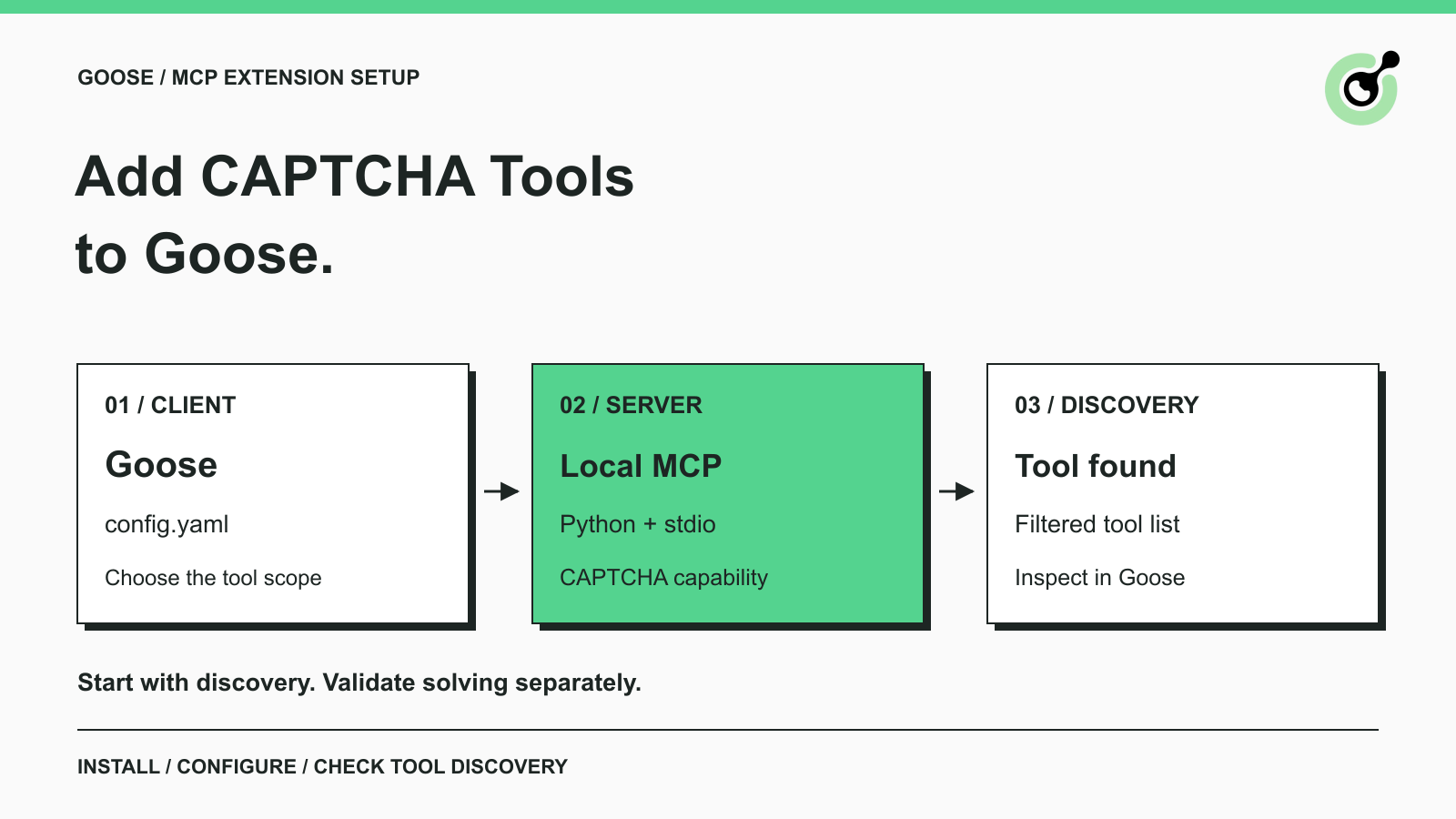
get_supported_captchas as the only available tool, then inspect Goose's tool menu to confirm the connection.capsolver__get_supported_captchas when the extension is named capsolver.Goose is an open-source AI agent for developers that can work with external tools through MCP extensions. A Goose CAPTCHA solver extension adds a specific capability: access to the solver's documented operations from the agent you already use. This is useful when you are adding CAPTCHA handling to an authorized browser task and need to establish that Goose can actually find the required tools.
CapSolver supplies the MCP server used below. The guide concentrates on installation, Goose configuration, and a connection check that does not submit a CAPTCHA. It also explains what you must add before using solving tools. You can complete the setup without writing a custom MCP server or a framework adapter.
The Goose CAPTCHA extension exposes the official server's tools through Goose's existing MCP support. Goose remains the agent client; the Python process supplies the CAPTCHA operations. The Goose extension guide supports custom MCP servers even when they are not listed in its extension directory.
This distinction matters if you already have a browser tool connected. A browser tool controls its own browser session, while a solver tool performs the operation described by its input schema. Installing the solver does not automatically attach it to an open Chrome tab or transfer the page state from another extension.
The official MCP tool reference distinguishes token-oriented solving from URL-based browser tools. Choose the interface that matches your existing workflow. For this first setup, use the supported-types query: it checks the server's advertised capabilities without creating a paid challenge task.
Prepare an installed Goose CLI and a separate Python environment for the MCP server. Use Python 3.10 or newer; the pinned MCP package requires it. The setup below was checked with Goose 1.55.0, Python 3.12.14, capsolver-mcp 0.1.3, and capsolver-core 0.1.1 on macOS. These versions identify the tested combination; they are not a promise that every later release behaves identically.
If Goose is new to you, use its official installation instructions for your operating system and configure a model provider. The tool-permission inspection used later expects Goose to have a provider and model selected. A provider configuration is separate from a CapSolver account key.
In a fresh project directory on macOS or Linux, run:
python3 -m venv py
py/bin/python -m pip install capsolver-core==0.1.1 capsolver-mcp==0.1.3
py/bin/python -c 'import sys; print(sys.executable)'
Keep the interpreter path printed by the last command. Goose will launch that interpreter directly, so the server can use the packages you just installed. This avoids a common failure in which the terminal uses a virtual environment but the agent launches a different Python installation.
The basic installation is enough for the connection check in this article. The server's browser-based tools have additional dependencies; installing the base package alone does not prepare Chromium. There is no need to install a browser merely to inspect the supported-types tool.
Run the following command to locate your Goose configuration:
goose infoUse the configuration path shown by your installation. The default location and any configured path override can differ, so checking the running CLI is more reliable than assuming a location. Preserve your existing provider settings and other extensions when editing the file.
Add the server under the existing extensions mapping in Goose's YAML configuration. Do not paste a second top-level extensions key into a file that already contains one.
Replace the sample interpreter path below with the absolute path printed during installation. This is a configuration template; the path is the only local-machine value you must substitute for the initial discovery check.
extensions:
  capsolver:
    name: capsolver
    type: stdio
    enabled: true
    cmd: /absolute/path/to/project/py/bin/python
    args: ["-m", "capsolver_mcp"]
    envs:
      CAPSOLVER_API_KEY: ""
    env_keys: []
    timeout: 60
    available_tools: ["get_supported_captchas"]
The empty account key is intentional for this initial check. The supported-types tool does not require a paid solving request. An empty value is not a usable credential for paid operations.
The Goose configuration reference documents stdio, cmd, args, and available_tools. Here, stdio means Goose starts the local process and exchanges MCP messages through its standard input and output. You do not need to expose a network port.
The available_tools entry makes only get_supported_captchas available from this extension. In Goose, an empty list means all tools, so deleting the name while leaving [] broadens the available tool set.
Keep the initial filter narrow while confirming that the interpreter and server launch correctly. Once you have a working connection, adjust the list to the specific operation your workflow needs. Use the remote tool names from the official reference rather than guessing from a label in another client.
The timeout is expressed in seconds. The example's 60-second value is a configuration choice for the setup check, not a measured CAPTCHA solving time or a service guarantee.
Verify discovery through Goose's tool-permission menu before asking the agent to perform a browser task. Run:
goose configureSelect goose settings → Tool Permission → capsolver. Goose connects to the configured extension and presents its tools. With the filter above, the menu should contain capsolver__get_supported_captchas, described as listing the CAPTCHA types supported by the instance.
That namespaced entry appeared in the real Goose connection check for this guide. The double underscore separates the configured extension name from the server's tool name. The YAML filter uses get_supported_captchas; the Goose menu displays capsolver__get_supported_captchas.
You can cancel at the tool-selection menu after inspecting the entry. Viewing the discovered tool does not require changing its permission. Goose's tool-permission controls let you decide separately how an agent may invoke it.
If the tool is missing, fix discovery before adding a long prompt or a target URL. A model cannot call a tool that the client has not loaded. Also restart or reconnect after changing extension settings; a configuration saved for new sessions may not alter the tools in an existing conversation.
Redeem Your CapSolver Bonus Code
Boost your automation budget instantly!
Use bonus code CAP26 when topping up your CapSolver account to get an extra 5% bonus on every recharge — with no limits.
Redeem it now in your CapSolver Dashboard
Move to a CAPTCHA task only after choosing the operation and preparing its documented inputs. The connection check establishes that Goose can load the real MCP server and discover the filtered tool. It does not test model selection, paid solving, or page completion.
With a working model provider, a useful next request is: “Use the CAPTCHA extension's supported-types tool and summarize its returned capabilities. Do not submit a solving task.” This is a suggested follow-up prompt, not a claim that a model-driven call was executed for this guide. Inspect the tool invocation and its returned data instead of accepting a conversational answer alone.
For a token-oriented workflow, enable solve_captcha when you are ready to supply the supported CAPTCHA type and required site parameters. Configure a valid account key through the extension's environment settings, and retain the normal approval controls for tool calls. Keep real credentials out of shared configuration examples and source control.
For detect_captchas or solve_on_page, follow the browser-extra and Chromium installation steps in the official tool reference first. These operations accept a page URL; they do not automatically reuse the browser session owned by a different Goose extension. That session boundary is especially important for a page whose form state has already changed.
The core SDK's page interface is a separate integration surface to examine when your application must work with a page object it already controls. Choose based on that concrete requirement rather than assuming all MCP browser tools share a tab.
An API call and a completed application action are separate outcomes. When you eventually test an authorized CAPTCHA workflow, check the solver response and then the expected page result. Keep this article's setup check separate from that application acceptance test.
Fix setup problems at the failing step: interpreter launch, package import, tool discovery, or the later task call. The following checks usually make the failure easier to locate.
| Symptom | What to check |
|---|---|
| Goose cannot launch the process | Replace the sample cmd path with the actual virtual-environment interpreter. |
Python reports that capsolver_mcp is missing |
Confirm that installation used the same Python environment as cmd. |
| Only the supported-types tool appears | This is expected with the example's available_tools filter. |
| A changed configuration has no effect | Confirm the path with goose info, then reconnect or start a new session. |
| Discovery works but a solving request fails | Check the account key, selected tool, task parameters, and tool-specific dependencies. |
Do not replace a working local stdio configuration with an arbitrary HTTP endpoint to address an import error. The launch command and package environment are the relevant checks. The official registry installation walkthrough provides additional context for locating and launching the supported package.
When asking for help, record the Goose version, Python version, package versions, and the stage that failed. A redacted launch path and error message are more useful than a screenshot containing an API key. Avoid resubmitting paid tasks simply to determine whether the extension is installed.
Keep the next step focused on the CAPTCHA operation your application actually needs. A visible tool entry gives you a verified starting point; it does not replace a test with the correct inputs, credentials, browser state, and final application assertion.
Use CapSolver for that specific solver step and keep Goose's role clear: discover the tool, request the permitted operation, and inspect its result. Prepare your account through the CapSolver dashboard when you are ready for a separate solving test on a workflow you own or are authorized to operate.
Q: Can I add this server if it is absent from Goose's extension directory?
Yes. Goose supports custom MCP extensions. The local stdio configuration points Goose at the official installed Python server.
Q: Is a CapSolver key required for the discovery check?
No. The example loads the supported-types tool with an empty key. Paid CAPTCHA operations need a valid account key and their required task inputs.
Q: Why does Goose show a double underscore in the tool name?
Goose prefixes the remote tool with the extension name. In this configuration, capsolver and get_supported_captchas produce capsolver__get_supported_captchas.
Q: Why are the solving tools missing?
The example deliberately selects only get_supported_captchas. Update available_tools to the required documented tool names when you are ready to test those operations.
Q: Will this extension take over my existing browser tab?
No automatic handoff is established by this configuration. Check the chosen tool's inputs and browser-session behavior before combining it with another browser extension or application.
Q: Does seeing the tool prove that CAPTCHA solving works?
No. It verifies the client-server connection and discovery. A paid solve and the application result need separate tests with valid credentials and the correct workflow inputs.
Emma Foster
Machine Learning Engineer
Where machine learning meets practical AI tooling.
ABOUT THE AUTHOR
Add a CAPTCHA inspection tool to Haystack, read reCAPTCHA parameters with the official SDK, and verify the connection before a separate solving step.

Connect Mastra to a CAPTCHA solver with MCPClient, inspect namespaced tools, run a capability check, and define the next step for an authorized agent workflow.
