
🎉NEWCapSolver for AI agents-MCP, agent tools, and SDK integrations

Khadija Santos
AI Agent & MCP Engineer
Published Oct 22, 2026
Updated Oct 22, 2026 · min read
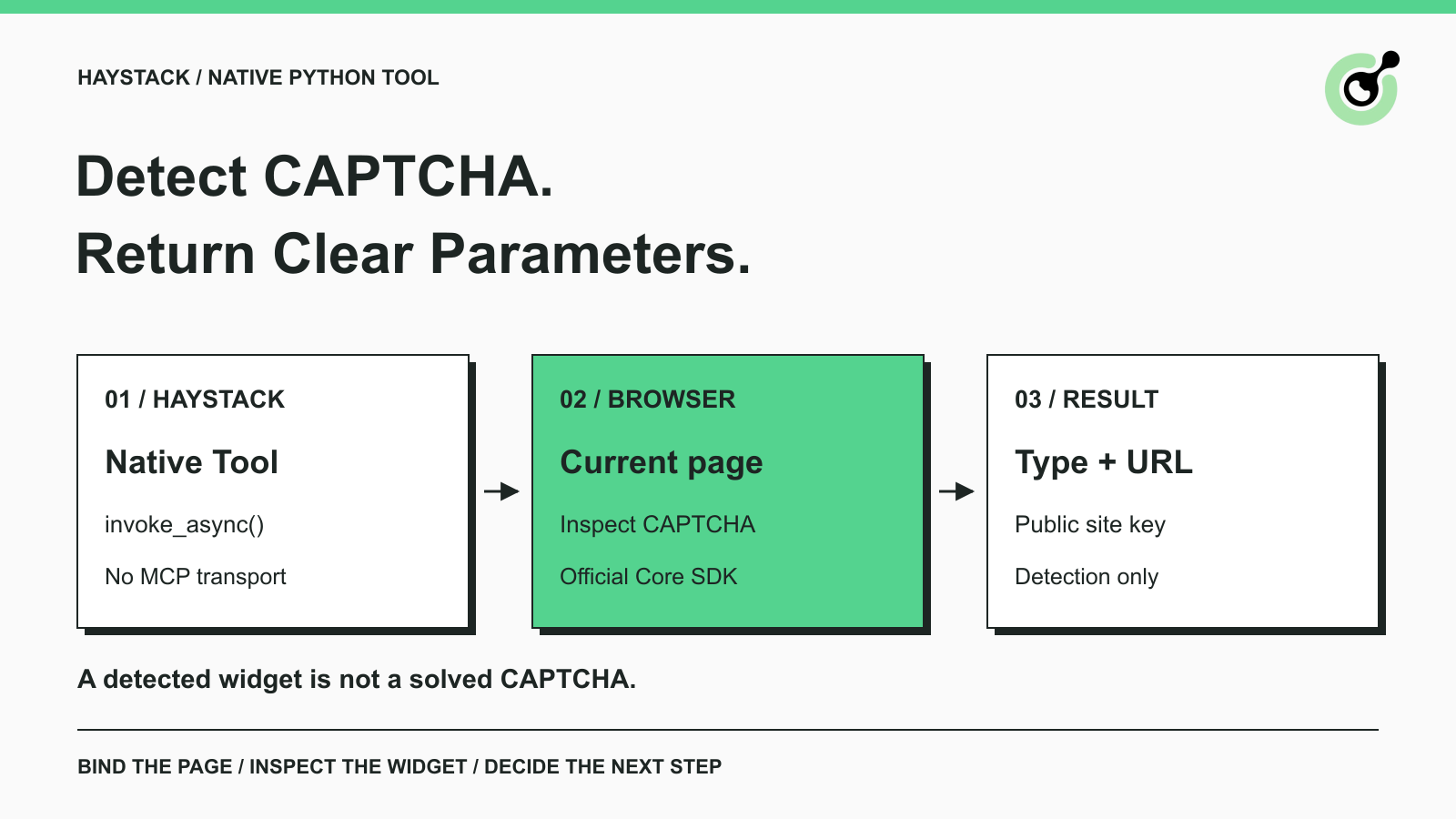
A browser-based agent needs useful information when a CAPTCHA interrupts its work. A page title or screenshot alone may not tell the agent which CAPTCHA family is present or which parameters the next step needs. Returning a small structured result gives the application a clear decision point before it requests a solution.
Haystack is a Python framework for building AI applications, retrieval pipelines, and agents. Its native tools can wrap functions used by those applications. This guide connects a Haystack tool to CapSolver for a specific task: inspect the current browser page and return CAPTCHA parameters. The example uses a development page and makes no paid solving request. It gives you a working inspection component to place before a separately authorized solving step.
The CAPTCHA inspection tool belongs between the browser action that reaches a verification checkpoint and the code that decides how to handle that checkpoint. The browser still owns navigation and the current page. Haystack provides the tool interface; the Core SDK reads supported CAPTCHA information.
For example, a team testing its own form can let the browser reach the form, invoke the inspection tool, and examine the returned type and site key. The test harness can then choose its approved test-key path or a separately configured solver check. It should not treat the CAPTCHA widget itself as the form's business content.
This is a developer integration using Haystack's documented Tool abstraction, rather than a claim of a dedicated Haystack plugin. The tool has a narrow purpose and does not need an LLM to run. Calling it directly is useful before adding model-driven tool selection.
You need Python, the Haystack package, the CapSolver Core SDK with its Playwright dependency, and Chromium installed for Playwright. The example below was run with Python 3.12, haystack-ai 3.4.0, capsolver-core 0.1.1, and Playwright 1.64.0. These are tested versions, not a claim that they are the newest available releases.
The browser must be able to load Google's public reCAPTCHA script. The local page uses Google's documented development site key; it is not a production key and must not be deployed as one. Google's reCAPTCHA testing guidance explains the distinction between test keys and production verification.
No CapSolver API key or model-provider key is needed for this inspection-only example. A later solving operation requires a valid CapSolver account key. A later LLM-driven Haystack Agent requires its own configured model provider. Those are separate prerequisites, so do not troubleshoot missing model credentials by changing the CAPTCHA parameters.
Create a virtual environment and install the packages in that environment. Run the Chromium installation through the same Python interpreter to keep the browser dependency aligned with Playwright.
python3 -m venv .venv
.venv/bin/python -m pip install "haystack-ai==3.4.0" "capsolver-core[playwright]==0.1.1" "playwright==1.64.0"
.venv/bin/python -m playwright install chromium
The commands above use a POSIX-style environment path. If your operating system uses a different virtual-environment layout, use that environment's Python executable. The Playwright Python installation guide covers its browser installation requirements.
The tool wraps get_captcha_info(page) from the official Core SDK. The page is captured by the function, so the tool has no navigation argument. Its JSON parameter schema accepts no input fields.
Save the following as haystack_captcha_inspection.py. The local HTML response is supplied by Playwright routing; it is a development fixture, not a remotely hosted application. The reCAPTCHA script itself loads from Google. The program reads parameters without clicking the widget or submitting a form.
import asyncio
import json

from capsolver_core import create_capsolver
from haystack.tools import Tool
from playwright.async_api import async_playwright

TEST_PAGE = """<!doctype html><html><body>
<div id="captcha" class="g-recaptcha"
     data-sitekey="6LeIxAcTAAAAAJcZVRqyHh71UMIEGNQ_MXjiZKhI"></div>
<script src="https://www.google.com/recaptcha/api.js" async defer></script>
</body></html>"""


async def main():
    async with async_playwright() as pw:
        browser = await pw.chromium.launch()
        try:
            page = await browser.new_page()
            await page.route("http://127.0.0.1:8765/", lambda route: route.fulfill(
                status=200, content_type="text/html", body=TEST_PAGE))
            await page.goto("http://127.0.0.1:8765/")
            await page.wait_for_function(
                "() => window.___grecaptcha_cfg && "
                "Object.keys(window.___grecaptcha_cfg.clients || {}).length > 0")
            async with create_capsolver() as cap:
                async def inspect_captcha():
                    infos = await cap.get_captcha_info(page)
                    return {"captchas": [
                        {"type": info.type.value,
                         "website_url": info.website_url,
                         "website_key": info.website_key}
                        for info in infos
                    ]}

                captcha_tool = Tool(
                    name="inspect_current_page_captcha",
                    description="Read CAPTCHA types and public parameters from the current approved page; does not solve or submit.",
                    parameters={"type": "object", "properties": {},
                                "additionalProperties": False},
                    async_function=inspect_captcha,
                )
                result = await captcha_tool.invoke_async()
                print(json.dumps(result, indent=2))
        finally:
            await browser.close()


if __name__ == "__main__":
    asyncio.run(main())
The async_function argument matters because the SDK and Playwright operations are asynchronous. Haystack's Tool API reference documents invoke_async() for this path. Putting a coroutine into a synchronous-only call path can fail before any CAPTCHA inspection occurs.
The context managers and finally block close the SDK and browser resources. Keep that cleanup when adapting the example to a longer-running application; otherwise a failed page load can leave browser processes behind.
Redeem Your CapSolver Bonus Code
Boost your automation budget instantly!
Use bonus code CAP26 when topping up your CapSolver account to get an extra 5% bonus on every recharge — with no limits.
Redeem it now in your CapSolver Dashboard
Running the script invokes the Haystack tool directly and prints its returned dictionary. In the example, that dictionary contains a captchas list with one reCAPTCHA v2 entry.
.venv/bin/python haystack_captcha_inspection.pyThe local run returned type equal to reCaptchaV2, website_url equal to http://127.0.0.1:8765/, and the public test site key configured in the HTML. These fields were read through the real SDK and browser, not filled into a mocked tool response.
The result is deliberately small. The complete SDK descriptor can include additional fields, but an agent should receive only what it needs for its next decision. A site key is a public widget identifier; it is not the CapSolver account key or the site's private verification secret.
This run establishes that Haystack can invoke the async function, the browser can load the development widget, and the Core SDK can read its parameters. It does not establish model tool selection, production CAPTCHA detection on every site, successful token generation, or acceptance by a website's backend. Those require their own checks with the actual application.
Keep the same Tool object and page binding when adding the capability to your Haystack Agent. Haystack's Agent accepts tools through its documented tools configuration. Register this object alongside the tools your application already uses, while keeping its browser page alive for the duration of the call.
In an existing browser workflow, replace the local fixture setup with the page your application has already opened and is authorized to inspect. Keep browser navigation outside this tool. That makes the page selection explicit and prevents a model-generated URL from silently changing the target of the inspection.
Name and describe the tool accurately. The description in the example says that it reads CAPTCHA information and does not solve or submit. A description such as “finish verification” would promise more than the function performs and could encourage the agent to report success too early.
A useful application decision is: if the result contains a recognized widget with the required parameters, offer the appropriate next step; if it is empty or incomplete, collect more evidence or request human review. Do not add an unconditional loop that keeps inspecting the same incomplete page.
The inspection result is an input to a solver decision, not a CAPTCHA solution. The Core SDK documents solve(info) for token solving and solve_on_page(page) for the broader browser workflow. They have different effects from get_captcha_info(page) and require separate configuration and authorization.
For this guide, keep the inspection tool read-only in purpose. If you later add a solving tool, let your application validate the detected type and current page, supply the account credential outside model-visible arguments, and apply the budget and approval rules appropriate to that workflow. Return a clear result that distinguishes a token from a completed application action.
A returned token still needs the relevant application handling. The site's own verification and form result determine whether the intended operation succeeded. Neither a non-empty captchas list nor a successful Haystack tool invocation is evidence that the application accepted a CAPTCHA response.
Troubleshooting should identify which layer failed: package installation, browser startup, widget loading, SDK inspection, or tool invocation. Change the layer supported by the error rather than replacing several components at once.
Install Chromium with the Playwright command from the active virtual environment. A successful pip install installs the Python package but does not by itself prove that the matching browser binary is available.
Check whether the browser loaded the Google script and whether the test page created the widget. The wait in this example looks for initialized widget clients. A network failure can occur before the SDK has anything to inspect; retrying the solver would not address that failure.
An empty result means this inspection found no supported descriptors on that page at that moment. It does not prove that the page has no verification mechanism. Check page timing, the page object you passed, and the actual widget. The CAPTCHA parameter inspection guide provides a complementary way to inspect the browser state.
Check that the same Tool object is registered, that the agent's model supports the intended tool workflow, and that the browser session is still open. Keep the successful direct invocation as a separate checkpoint so a model configuration problem does not get misreported as a CAPTCHA API failure.
A small CAPTCHA inspection tool gives a Haystack application a concrete checkpoint before solving. Start with the tested development page, preserve the async call and cleanup, then attach the tool to the page your existing workflow controls. Expand its responsibilities only when each additional operation has a clear input, verified behavior, and observable result.
Use CapSolver for the supported CAPTCHA step in a workflow you are authorized to run. Keep the browser, solver result, and application outcome as separate checks so that a successful tool call does not hide a failed task.
Q: Does this integration require MCP?
No. The example uses a native Haystack Tool and the Python Core SDK in the same application. It does not start an MCP server.
Q: Do I need an LLM API key to run the script?
No. The script invokes the Tool directly. A model-provider credential becomes relevant when you add an LLM-driven agent around that tool.
Q: Does the example solve the test CAPTCHA?
No. It loads the widget and reads public parameters. It neither requests a solver token nor submits the form.
Q: Can the same approach inspect an existing Playwright page?
Yes. Bind the tool to the existing authorized page and keep that page alive during invocation. The supported descriptor fields depend on what the SDK can detect on that page.
Q: Why use a tool with no arguments?
The function already knows the current approved page. An empty input schema keeps navigation and page selection under the application's control.
Q: Does an empty result mean the page is safe to process as normal content?
No. Inspect the page state before continuing. An empty detection result can also reflect timing, an unsupported mechanism, or incomplete widget initialization.
Khadija Santos
AI Agent & MCP Engineer
Develops and maintains CapSolver’s MCP tooling, from implementation and package releases to AI agent integrations.
ABOUT THE AUTHOR
Add CAPTCHA solver tools to Goose with a local MCP extension. Configure Python, inspect tool discovery, and troubleshoot the setup before a solving task.

Connect Mastra to a CAPTCHA solver with MCPClient, inspect namespaced tools, run a capability check, and define the next step for an authorized agent workflow.
