
🎉NEWCapSolver for AI agents-MCP, agent tools, and SDK integrations

Emma Foster
Machine Learning Engineer
Published Oct 20, 2026
Updated Oct 20, 2026 · min read
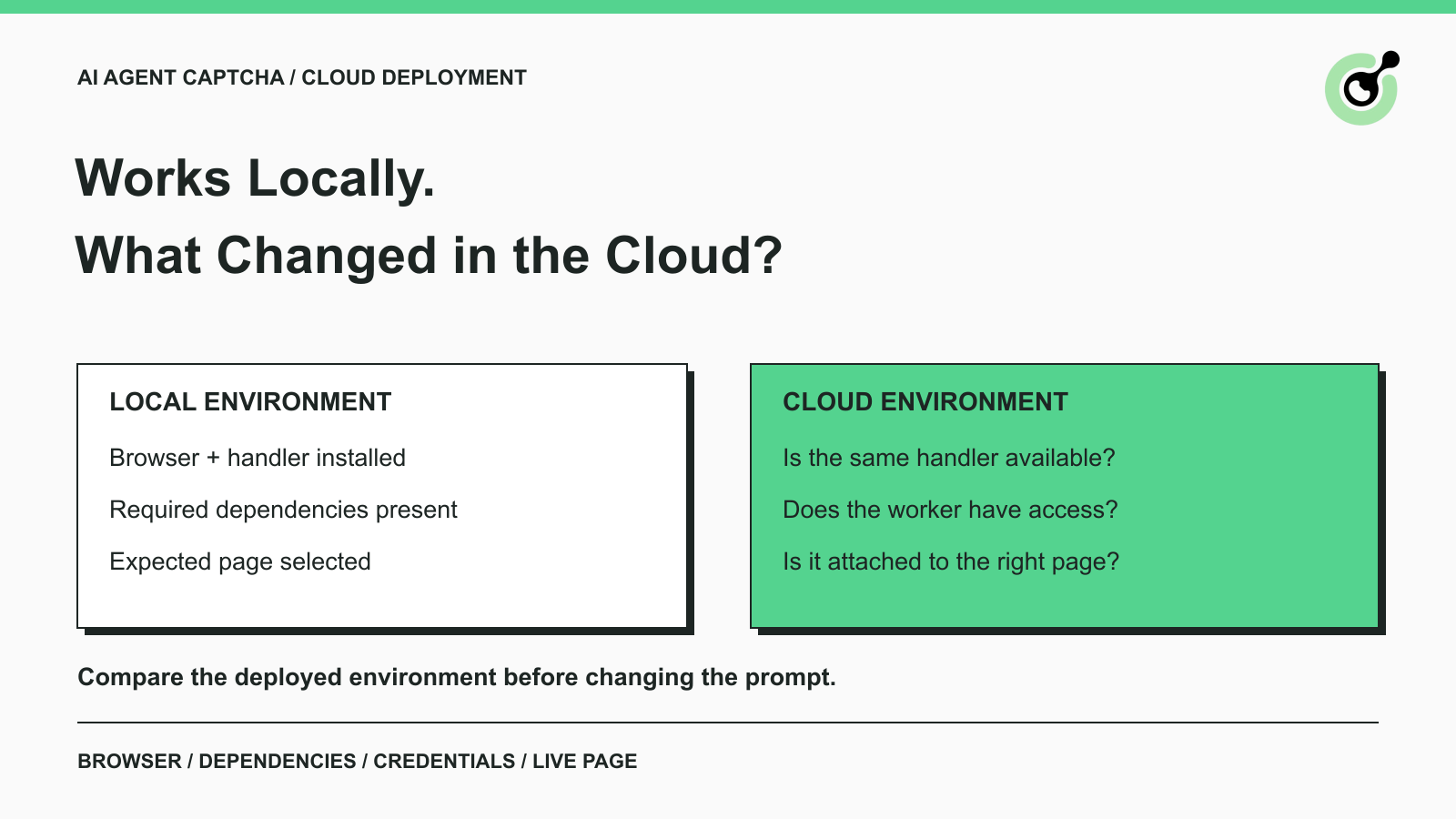
Your AI agent handles a CAPTCHA on a development machine, then stops at the same step after deployment. The model may be unchanged. The missing piece can be much simpler: the cloud image lacks a dependency, the browser has no extension, or the worker cannot read the configured API key.
CapSolver provides several CAPTCHA integration paths, and moving an agent to the cloud can change which path is actually running. This guide compares a working local run with a failing deployment. It is intended for an existing authorized workflow, rather than a new framework integration. The goal is to find a reproducible environment difference without adding more tools or rebuilding the agent.
The fastest starting point is a side-by-side record of the browser, solver handler, credentials, and page used by each run.
“Local” can describe the agent process while its browser is hosted remotely. “Cloud” can describe your own virtual machine, a container, or a managed browser service. These arrangements expose different controls, so name the actual components instead of relying on the label.
For the last successful local run and one failing cloud run, record:
| Component | What to compare |
|---|---|
| Browser | Executable or managed service, version, launch mode, and session identifier |
| CAPTCHA handler | Extension, direct API, Core SDK, agent tool, or managed browser feature |
| Runtime | Installed package versions and optional dependencies |
| Credentials | Whether the executing process receives the intended secret version |
| Network | Which component must reach the solving API, proxy, and target page |
| Page | Final URL, selected tab, challenge type, and navigation timing |
This is a comparison of configuration and observations, not a request to export an entire browser profile. Redact tokens, passwords, cookies, and private page content.
Use the same small, permitted browser task for both observations where possible. If the target URL, task, or application state differs, record that difference too. Otherwise, a page change can be mistaken for a deployment regression.
The cloud browser needs its own functioning CAPTCHA handler, even when your desktop browser already has one.
A common development setup combines a manually installed extension with an agent that controls the same browser. A clean deployment does not inherit that extension installation. Confirm which browser the worker creates or connects to, then inspect its extension or tool configuration through the supported management interface.
The CapSolver extension introduction describes its setup and settings. Verify that the intended version is present, enabled for the relevant page, and configured with the account details required by that interface. A successful extension setup on a different browser profile is not evidence about the cloud session.
Follow the browser automation library's current extension requirements.
Playwright's extension documentation specifies Chromium with a persistent context and recommends its bundled Chromium for side-loading. It also documents a Chromium channel that supports extensions in headless mode. Therefore, “extensions cannot run headless” is not a reliable general diagnosis.
A headless browser runs without a visible interface. The relevant questions are which executable and launch configuration you use, and whether that combination supports the extension. Switching every cloud job to a visible browser will not fix a missing extension package or incorrect browser connection.
Check the deployment's actual launch options and browser installation against the current official example. Preserve that known configuration during the diagnostic run.
Use the provider's documented extension or CAPTCHA feature rather than assuming desktop installation steps apply remotely.
The provider may expose an extension-upload mechanism, built-in solving, or a browser connection without those controls. Confirm the supported path for the specific service and account configuration. Do not assume every hosted browser includes automatic CAPTCHA handling, and do not add a second handler without understanding the first.
The existing Browser Use local and cloud guide explains that framework's choices. The diagnostic principle here applies more broadly: identify the handler actually present in the browser used by the failing run.
A deployed package can support token requests while lacking the browser-dependent methods your local code expects.
The CapSolver Core SDK documentation distinguishes token mode from browser-facing operations. It states that the optional Playwright dependency is needed for browser methods such as detection and page handling. Compare the deployment manifest and installed packages with the successful environment instead of checking only that a package named CapSolver exists.
If the failure is an import or missing-dependency error, resolve that before investigating the CAPTCHA itself. If the method runs but reports no challenge, inspect the selected page and timing before assuming the cloud environment changed the challenge type.
For agent tools, check that the tool is registered in the deployed worker. A local tool registration in a notebook or development process does not automatically configure a newly started service. Compare the exposed tool names with the official agent-tools reference, and keep your installed version consistent with the example you use.
This check does not require introducing a new adapter. First establish whether the intended handler is available and receives the arguments your existing integration expects.
Redeem Your CapSolver Bonus Code
Boost your automation budget instantly!
Use bonus code CAP26 when topping up your CapSolver account to get an extra 5% bonus on every recharge — with no limits.
Redeem it now in your CapSolver Dashboard
The process invoking the solver must have the correct credentials and permission to reach the service.
A developer shell, application container, and background worker can receive different environment variables. Check the secret's presence through the runtime's supported configuration or diagnostics, without printing its value. Confirm that the worker was restarted or redeployed after a configuration change if your platform requires that step.
Inspect the actual error. CapSolver's error reference distinguishes account-key, balance, task-data, and service errors. A request that never reaches the API is a separate network problem. Installing more browser packages will not correct a missing account key or a denied outbound connection.
If the workflow uses a proxy, identify where it is configured. The browser's proxy, the solver task's proxy, and a network proxy used by your API client serve different connections. Compare them only where the task documentation requires it; do not assume one setting propagates to all three.
For a container or remote worker, also check what a local address means. An endpoint on localhost refers to the caller's own environment. A browser service running on your laptop is not reachable as that same local endpoint from another machine. Use the deployment's supported private connection arrangement instead of exposing a browser-debugging endpoint publicly.
The solver must operate on the live page where the challenge exists, rather than a stale tab or a newly created blank context.
Remote browser connection code can attach successfully without selecting the page your agent is using. Record the current page URL and browser session before invoking the handler. Check them again when it returns, especially if the agent can navigate, open new tabs, or restart the browser while waiting.
Playwright's BrowserType API reference describes its browser connection methods, including the Chromium-only CDP path and its lower fidelity compared with the Playwright protocol connection. Treat those connection paths as documented choices with different limits. Do not assume a local launch and an arbitrary remote attachment expose identical behavior.
Pause unrelated agent actions while inspecting one challenge. A refresh or context replacement can make a late result refer to an earlier page state.
Suppose a hypothetical cloud worker opens a second tab for a screenshot, then passes that tab to the CAPTCHA handler. The API key, model, and package can all be correct while detection fails. The decisive evidence is the page the handler received. Changing the prompt to “try harder” would not repair the tab selection.
A second hypothetical deployment starts a fresh browser for every tool call. The solve step and the next application step then run in separate sessions. The repair is to preserve the intended browser ownership through that operation, using the integration's supported connection lifecycle.
These examples describe possible configuration mistakes, not measured incidents or claims about every agent framework.
A cloud deployment can add queueing or browser-startup time, so compare timestamps at the failing step before extending the entire task.
Separate browser startup, page loading, solver submission, solver completion, and the next application action. A missing extension cannot be fixed by a longer pause. A result returned after the page was replaced needs a fresh context assessment rather than automatic reuse.
For reCAPTCHA specifically, Google's server verification documentation says response tokens are valid for two minutes and can be verified only once. That is a property of the documented reCAPTCHA response token, not a universal lifetime for all CAPTCHA solutions or browser sessions.
Keep the workflow's next action close to the point at which a usable result becomes available. If the task was cancelled or the page changed, stop the old operation and inspect the current state before starting another authorized attempt. Avoid letting multiple workers act on the same challenge.
A corrected deployment should complete the same permitted application operation that succeeded locally.
Return to the environment comparison and change only the demonstrated mismatch: an omitted dependency, an absent extension, a missing secret, or an incorrect browser attachment. Repeat one small task and inspect the final page or application confirmation.
Keep a short record of the corrected configuration and observed result. Include the failing and working deployment versions so a later image rebuild does not quietly reintroduce the problem. If the issue persists, the general AI agent CAPTCHA troubleshooting guide provides a broader failure map.
Use CapSolver where a supported CAPTCHA handler is needed, then let the application result determine whether the agent finished. The practical fix is often a small deployment correction once the actual browser and executing process are identified.
Q: Why does CAPTCHA handling work on my laptop but fail in a container?
The container may lack the local extension, browser installation, optional dependencies, credentials, or network access. Compare the effective environment and first failing step before changing the agent logic.
Q: Do CAPTCHA extensions always require a visible browser?
No. Playwright documents a Chromium configuration that supports extensions in headless mode. Compatibility depends on the executable, launch configuration, and hosting service, so check those specifics.
Q: Does installing the Core SDK provide browser detection automatically?
The documented browser-dependent methods require the optional Playwright dependency. A token-only setup does not provide an equivalent browser environment.
Q: Can a successful solver response still leave the cloud agent stuck?
Yes. The page may have changed, the handler may be attached to another tab, or the application may not have accepted the result. Inspect the current page and the intended final action separately.
Q: Should I switch models when this happens after deployment?
Check the deployment difference first. A missing extension, unavailable tool, or incorrect browser connection will remain a problem even if the language model changes.
Emma Foster
Machine Learning Engineer
Where machine learning meets practical AI tooling.
ABOUT THE AUTHOR
Estimate CAPTCHA solving costs in Browser Use by separating agent runs, challenge types, billable solves, retries, and verified outcomes from browser costs.

Set up CapSolver MCP in Claude Code, check the available CAPTCHA tools, and choose token or page solving for a supported, authorized browser task.
