🎉NEWCapSolver for AI agents-MCP, agent tools, and SDK integrations

Ethan Collins
AI Agent Workflow Engineer
Published Mar 10, 2026
Updated Mar 20, 2026 · min read
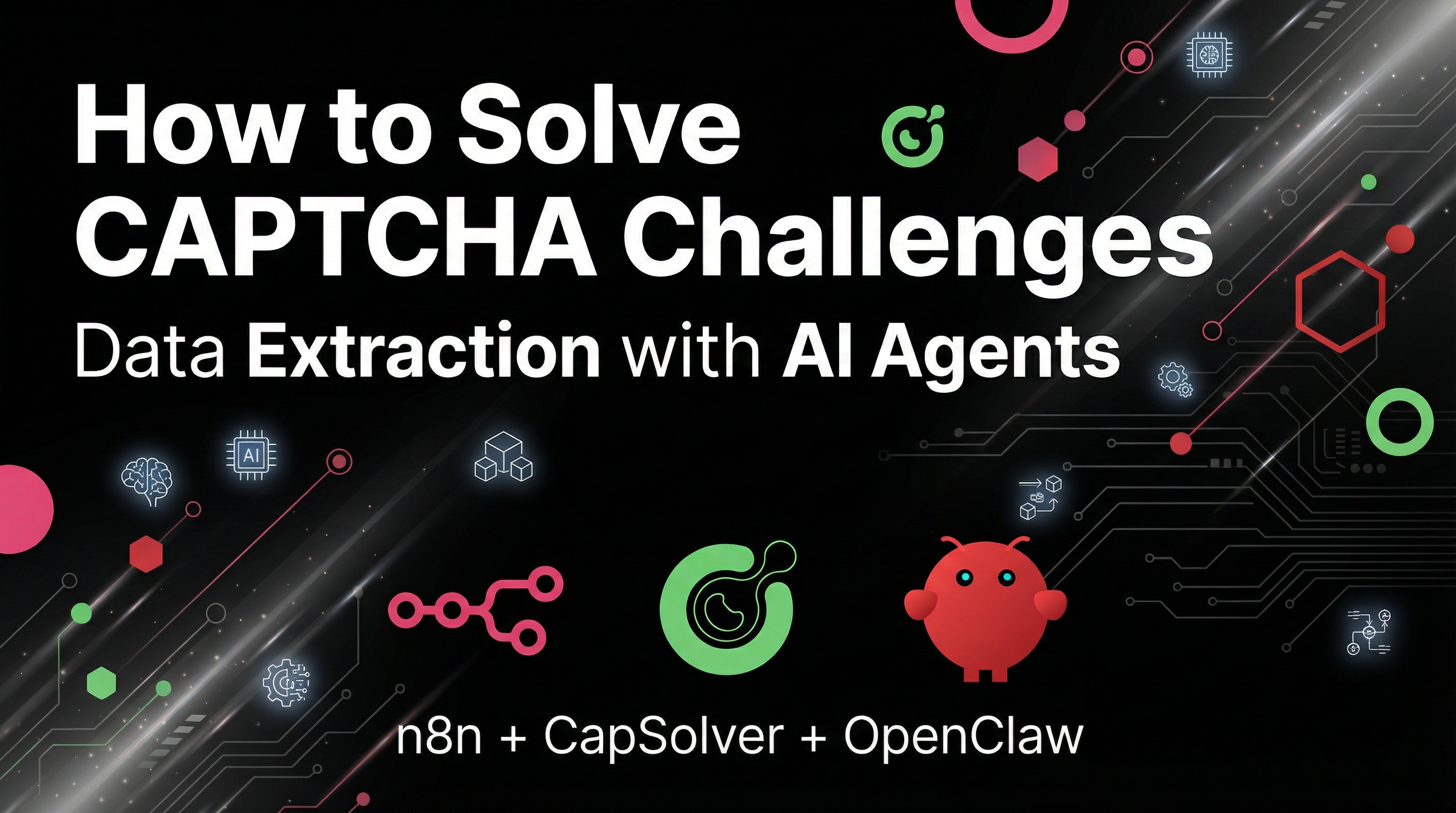
Enable your AI assistant to trigger automated, server-side data extraction — no browser injection, no code.
When your AI Agent navigates the web, CAPTCHAs are the primary obstacle. Protected pages block the agent, forms cannot be submitted, and tasks stall, awaiting human intervention. This significantly limits the efficiency and autonomy of AI Agents in automated data scraping and information processing.
To address this core issue, we offer two powerful solutions combining OpenClaw and CapSolver:
Approach 1 — Browser Extension Integration
Load the CapSolver Chrome extension into OpenClaw's browser environment. The extension invisibly detects and solves CAPTCHAs client-side, without n8n's involvement, allowing the AI Agent to seamlessly bypass verification while navigating pages. (See our full guide on the extension approach)
Approach 2 — Server-side n8n Automation Pipeline (Focus of this Guide)
OpenClaw triggers a single webhook request, and n8n then solves the CAPTCHA via the CapSolver API, submits the form, and returns clean page content to your AI Agent. In this process, the AI Agent never directly handles CAPTCHA verification.
What you'll build:
A server-side CAPTCHA automation pipeline that OpenClaw triggers via webhook. n8n will leverage CapSolver to solve the CAPTCHA, submit the form, and return processed page content to your AI Agent, ensuring smooth execution of data extraction tasks.
Before you begin, ensure you have the following environment and tools:
openclaw gateway start)CapSolver is available as an official integration in n8n, requiring no additional community node installation. You can find it directly in the node panel when building your workflows. To enable the CapSolver node to authenticate with your account, you need to create a credential in n8n.
Open your n8n canvas, click + to add a node, and search for CapSolver. This node handles task creation, polling, and token retrieval in a single unit.
Steps to add your credentials:
Important: Every CapSolver node in your workflows will reference this credential. You only need to create it once — all your CAPTCHA-solving workflows will share the same credential. Furthermore, CapSolver officially provides a rich GitHub Skill repository, where you can explore more integrations and use cases related to CapSolver, further expanding your AI Agent capabilities.
Everything below is an example. The URLs, field names, CAPTCHA types, success conditions, response structure — all of it is specific to the demo site used here. Your real target will be different. Treat each node config as a starting point, not a finished setup.
pageText from the response.Webhook ──► Solve CAPTCHA ──► Submit Token ──► Success? ──► Extract Result ──► Respond to Webhook
└─► Mark Failed ────┘Create a new workflow called “OpenClaw/Capsolver/n8n Scraper” with the following nodes:
openclaw/scrapeReCaptchaV2TaskProxylesshttps://example.com/protected-pageYOUR_SITE_KEY (find it in the page source — look for data-sitekey)Using reCAPTCHA v3? Switch Task Type to
ReCaptchaV3TaskProxylessand add a Page Action field (e.g.,login,submit,homepage). This is required for v3 — it's the action name the site registers with Google. You'll find it in the page source near thegrecaptcha.execute(...)call.Keep in mind that each CAPTCHA type has its own set of parameters — some fields that are optional in v2 become required in v3, and v3 may expose fields that don't exist in v2 at all (like
minScore). Always check the CapSolver docs for the exact parameters required by your Task Type.
This node calls the CapSolver API, waits for the solve (typically 5–20 seconds), and returns the token in $json.data.solution.gRecaptchaResponse.
https://example.com/protected-pageg-recaptcha-response = ={{ $json.data.solution.gRecaptchaResponse }}This submits the form with the solved token, exactly as a browser would.
Heads up: How the token is submitted varies by site. Most forms expect it in the request body as
g-recaptcha-response, but some sites send it as a JSON field, a custom header, or even a cookie or different name. Use your browser's DevTools (Network tab) to inspect what a real submission looks like and mirror that in your HTTP Request node.
$json.data contains "recaptcha-success"Both branches set a single field:
pageText = {{ $json.data }}The success and failure branches both pass pageText — the caller can inspect the HTML to determine the outcome.
Adapt this to your page: How you parse and use the response data depends entirely on what you want and what the target site returns. Some pages return JSON, others return HTML, some redirect on success. You may want to extract a specific field, parse a table, check for a session cookie, or strip the HTML entirely. The success condition (
"recaptcha-success") is also just an example — your site will have its own indicator. These nodes are a starting point; expect to customize them for your use case.
This node passes { pageText, savedAt } to the webhook response and optionally persists the result to storage.
Note: n8n's Code node runs in a sandboxed VM that blocks Node.js built-ins like
require(\'fs\'). Use an Execute Command node instead to write to disk, or replace this node entirely with any n8n integration that fits your stack.
Option A — Local JSON File (Execute Command Node):
Use two nodes chained together:
Node 7a — Prepare Data (Code node):
const item = $input.first().json;
const now = new Date();
const savedAt = now.toISOString();
const data = { pageText: item.pageText || \'\', savedAt };
const encoded = Buffer.from(JSON.stringify(data)).toString(\'base64\');
const cmd = \'python3 /path/to/save-result.py \' + encoded;
return [{ json: { cmd, pageText: data.pageText, savedAt } }];
Node 7b — Save Result (Execute Command node):
={{ $json.cmd }}Where save-result.py reads the base64 argument and appends to a local JSON file.
Option B — Any n8n-Supported Storage:
n8n has native nodes for virtually every storage system. Replace Node 7 with any of these:
| Storage | n8n Node |
|---|---|
| Google Sheets | Append a row with pageText + timestamp |
| Airtable | Create a record |
| Notion | Create a database entry |
| PostgreSQL / MySQL | INSERT into a table |
| AWS S3 / Cloudflare R2 | Upload a JSON file |
| Slack / Telegram | Post the result to a channel |
Just connect the node between Edit Fields and Respond to Webhook, and configure it to store $json.pageText and a timestamp.
={{ JSON.stringify($json) }}Activate the workflow once it's built. The webhook path will be live at:
POST http://127.0.0.1:3005/webhook/openclaw/scrapeCopy the JSON below and import it into n8n via Menu → Import from JSON. After importing, select your CapSolver credential in the Solve CAPTCHA node.
{
  "nodes": [
    {
      "parameters": {
        "content": "## OpenClaw CAPTCHA Automation Pipeline\n\n### How it works\n\n1. Initiates the process with a webhook trigger.\n2. Attempts to solve CAPTCHA using a specialized service.\n3. Submits the CAPTCHA token for validation.\n4. Evaluates whether the token submission was successful.\n5. Sets the result and responds back via the webhook.\n\n### Setup steps\n\n- [ ] Configure the webhook trigger with the desired endpoint URL.\n- [ ] Set up CAPTCHA solving service credentials.\n- [ ] Ensure HTTP request configurations are valid for token submission.\n- [ ] Customize the success and failure response messages.\n\n### Customization\n\nYou can customize the success and failure conditions and responses in the 'Success?' node.",
        "width": 480,
        "height": 656
      },
      "type": "n8n-nodes-base.stickyNote",
      "typeVersion": 1,
      "position": [
        -1312,
        -352
      ],
      "id": "de683912-ba9c-4879-9a8e-38190c4b236c",
      "name": "Sticky Note"
    },
    {
      "parameters": {
        "content": "## Initialization and CAPTCHA solving\n\nStarts with a webhook trigger and solves the CAPTCHA using an external service.",
        "width": 800,
        "height": 272,
        "color": 7
      },
      "type": "n8n-nodes-base.stickyNote",
      "typeVersion": 1,
      "position": [
        -752,
        -208
      ],
      "id": "41705a72-53ba-4c61-951b-251f7f35f422",
      "name": "Sticky Note1"
    },
    {
      "parameters": {
        "content": "## Token submission\n\nSubmits the solved CAPTCHA token for validation and checks the outcome.",
        "width": 496,
        "height": 304,
        "color": 7
      },
      "type": "n8n-nodes-base.stickyNote",
      "typeVersion": 1,
      "position": [
        160,
        -224
      ],
      "id": "260fdb86-71a7-46dc-9b41-1abd4ae08b79",
      "name": "Sticky Note2"
    },
    {
      "parameters": {
        "content": "## Result handling and response\n\nHandles both success and failure outcomes and sends a response back through the webhook.",
        "width": 496,
        "height": 480,
        "color": 7
      },
      "type": "n8n-nodes-base.stickyNote",
      "typeVersion": 1,
      "position": [
        768,
        -352
      ],
      "id": "e17032fd-3901-4c2a-aeea-4088c9f79bd4",
      "name": "Sticky Note3"
    },
    {
      "parameters": {
        "httpMethod": "POST",
        "path": "openclaw/scrape",
        "responseMode": "responseNode",
        "options": {}
      },
      "type": "n8n-nodes-base.webhook",
      "typeVersion": 2.1,
      "position": [
        -704,
        -96
      ],
      "id": "oc-909",
      "name": "Webhook Trigger",
      "webhookId": "oc-909-webhook",
      "onError": "continueRegularOutput"
    },
    {
      "parameters": {
        "websiteURL": "={{ $json.body.websiteURL || 'https://example.com/protected-page' }}",
        "websiteKey": "={{ $json.body.websiteKey || 'YOUR_SITE_KEY_HERE' }}",
        "optional": {}
      },
      "type": "n8n-nodes-capsolver.capSolver",
      "typeVersion": 1,
      "position": [
        -96,
        -96
      ],
      "id": "oc-910",
      "name": "Solve CAPTCHA [Webhook]",
      "credentials": {
        "capSolverApi": {
          "id": "BeBFMAsySMsMGeE9",
          "name": "CapSolver account"
        }
      }
    },
    {
      "parameters": {
        "method": "POST",
        "url": "={{ $('Webhook Trigger').item.json.body.targetURL || 'https://example.com/protected-page' }}",
        "sendHeaders": true,
        "headerParameters": {
          "parameters": [
            {
              "name": "user-agent",
              "value": "Mozilla/5.0 (Windows NT 10.0; Win64; x64) AppleWebKit/537.36 (KHTML, like Gecko) Chrome/125.0.0.0 Safari/537.36"
            },
            {
              "name": "content-type",
              "value": "application/x-www-form-urlencoded"
            }
          ]
        },
        "sendBody": true,
        "contentType": "form-urlencoded",
        "bodyParameters": {
          "parameters": [
            {
              "name": "g-recaptcha-response",
              "value": "={{ $json.data.solution.gRecaptchaResponse }}"
            }
          ]
        },
        "options": {
          "response": {
            "response": {}
          }
        }
      },
      "type": "n8n-nodes-base.httpRequest",
      "typeVersion": 4.3,
      "position": [
        208,
        -96
      ],
      "id": "oc-911",
      "name": "Submit Token [Webhook]"
    },
    {
      "parameters": {
        "conditions": {
          "options": {
            "caseSensitive": false,
            "leftValue": "",
            "typeValidation": "loose",
            "version": 2
          },
          "conditions": [
            {
              "id": "if-2",
              "leftValue": "={{ String($json.data || $json || '').includes($('Webhook Trigger').item.json.body.successMarker || 'recaptcha-success') }}",
              "operator": {
                "type": "boolean",
                "operation": "true",
                "singleValue": true
              }
            }
          ],
          "combinator": "and"
        },
        "options": {}
      },
      "type": "n8n-nodes-base.if",
      "typeVersion": 2.2,
      "position": [
        512,
        -96
      ],
      "id": "oc-912",
      "name": "Success? [Webhook]"
    },
    {
      "parameters": {
        "assignments": {
          "assignments": [
            {
              "id": "ws1",
              "name": "success",
              "value": "true",
              "type": "boolean"
            },
            {
              "id": "ws2",
              "name": "pageText",
              "value": "={{ $json.data || $json }}",
              "type": "string"
            },
            {
              "id": "ws3",
              "name": "savedAt",
              "value": "={{ new Date().toISOString() }}",
              "type": "string"
            }
          ]
        },
        "options": {}
      },
      "type": "n8n-nodes-base.set",
      "typeVersion": 3.4,
      "position": [
        816,
        -224
      ],
      "id": "oc-913",
      "name": "Extract Result [Webhook]"
    },
    {
      "parameters": {
        "assignments": {
          "assignments": [
            {
              "id": "wf1",
              "name": "success",
              "value": "false",
              "type": "boolean"
            },
            {
              "id": "wf2",
              "name": "pageText",
              "value": "={{ $json.data || $json }}",
              "type": "string"
            },
            {
              "id": "wf3",
              "name": "error",
              "value": "Response did not contain success marker",
              "type": "string"
            },
            {
              "id": "wf4",
              "name": "savedAt",
              "value": "={{ new Date().toISOString() }}",
              "type": "string"
            }
          ]
        },
        "options": {}
      },
      "type": "n8n-nodes-base.set",
      "typeVersion": 3.4,
      "position": [
        816,
        -48
      ],
      "id": "oc-914",
      "name": "Mark Failed [Webhook]"
    },
    {
      "parameters": {
        "respondWith": "json",
        "responseBody": "={{ JSON.stringify($json) }}",
        "options": {}
      },
      "type": "n8n-nodes-base.respondToWebhook",
      "typeVersion": 1.5,
      "position": [
        1120,
        -96
      ],
      "id": "oc-917",
      "name": "Respond to Webhook"
    }
  ],
  "connections": {
    "Webhook Trigger": {
      "main": [
        [
          {
            "node": "Solve CAPTCHA [Webhook]",
            "type": "main",
            "index": 0
          }
        ]
      ]
    },
    "Solve CAPTCHA [Webhook]": {
      "main": [
        [
          {
            "node": "Submit Token [Webhook]",
            "type": "main",
            "index": 0
          }
        ]
      ]
    },
    "Submit Token [Webhook]": {
      "main": [
        [
          {
            "node": "Success? [Webhook]",
            "type": "main",
            "index": 0
          }
        ]
      ]
    },
    "Success? [Webhook]": {
      "main": [
        [
          {
            "node": "Extract Result [Webhook]",
            "type": "main",
            "index": 0
          }
        ],
        [
          {
            "node": "Mark Failed [Webhook]",
            "type": "main",
            "index": 0
          }
        ]
      ]
    },
    "Extract Result [Webhook]": {
      "main": [
        [
          {
            "node": "Respond to Webhook",
            "type": "main",
            "index": 0
          }
        ]
      ]
    },
    "Mark Failed [Webhook]": {
      "main": [
        [
          {
            "node": "Respond to Webhook",
            "type": "main",
            "index": 0
          }
        ]
      ]
    }
  },
  "pinData": {},
  "meta": {
    "instanceId": "962ff0267b713be0344b866fa54daae28de8ed2144e2e6867da355dae193ea1f"
  }
}To connect OpenClaw to this workflow, create a trigger script and register it.
Create the trigger script:
cat > ~/.openclaw/scripts/extract-data << \'EOF\'
#!/usr/bin/env bash
curl -s -X POST http://127.0.0.1:3005/webhook/openclaw/scrape
EOF
chmod +x ~/.openclaw/scripts/extract-data
This is the only thing OpenClaw runs. No arguments, no site key, no URL — the workflow knows what to scrape.
How OpenClaw gets the data: The script waits for n8n to finish (CapSolver solve + form submission), then receives
{ pageText, savedAt }directly in the Webhook response. No file reading involved — the data comes back synchronously over HTTP. The response shape is just what this workflow returns — if you need different fields (e.g., a parsed price, a login status, a structured JSON object), modify the Edit Fields and Save Result nodes to return whatever your use case requires.
Register the command in TOOLS.md:
Open ~/.openclaw/workspace/TOOLS.md and add the following entry so OpenClaw knows about the command:
### extract-data

Run: `/root/.openclaw/scripts/extract-data`
Returns fresh `{ pageText, savedAt }` from the live pipeline. Return the `pageText` field from the JSON response.Trigger from OpenClaw — send this command to your AI Agent (via Discord, Telegram, WhatsApp, or any channel):
extract dataOpenClaw runs the extract-data script, which fires the webhook and waits. n8n solves the CAPTCHA, submits the form, and returns { pageText, savedAt } directly in the HTTP response. OpenClaw receives and summarizes the result — typically within 10–40 seconds.
Test from the terminal:
curl -s -X POST http://127.0.0.1:3005/webhook/openclaw/scrapeThis guide's workflow is built for a specific demo site. For your actual target, every part of the pipeline may require adjustment. Here's what to look at:
Not all sites use reCAPTCHA v2. Change the CapSolver node's Task Type to match what the target uses:
| What you see on the site | n8n Node Operation |
|---|---|
| "I'm not a robot" checkbox | reCAPTCHA v2 |
| Invisible reCAPTCHA (auto-fires) | reCAPTCHA v2 |
| reCAPTCHA v3 score | reCAPTCHA v3 |
| Cloudflare Turnstile widget | Cloudflare Turnstile |
| Cloudflare Challenge (5s page) | Cloudflare Challenge |
| GeeTest puzzle (v3) | GeeTest V3 |
| GeeTest puzzle (v4) | GeeTest V4 |
| DataDome bot protection | DataDome |
| AWS WAF CAPTCHA | AWS WAF |
| MTCaptcha | MTCaptcha |
Also update Website URL and Website Key to match your target. You can find the site key in the page source (look for the data-sitekey attribute, or the CapSolver browser extension auto-detects it).
This is the part that varies the most between sites. The demo site uses a simple form POST with the token in a body field. Your target might be different:
As a form field (most common)
POST /submit
Content-Type: application/x-www-form-urlencoded

g-recaptcha-response=TOKEN&other_field=value
In a JSON body
POST /api/login
Content-Type: application/json

{ "username": "...", "password": "...", "captchaToken": "TOKEN" }
In a header
POST /api/action
X-Captcha-Token: TOKEN
As a cookie
POST /submit
Cookie: cf_clearance=TOKEN
In the URL as a query parameter
GET /search?q=query&token=TOKENInspect the network tab in your browser's dev tools when you manually solve the CAPTCHA on your target site. Look for the request that fires immediately after the solve — that shows you exactly where the token goes.
Once you know how the token is submitted, configure the HTTP Request node accordingly:
The workflow currently passes the full HTML of the response as pageText. Depending on your use case, you may want to post-process it:
Some targets require more than one request:
Chain multiple HTTP Request nodes in n8n to handle this. Pass values between nodes using $json expressions.
{"success": false, "error": "Failed to reach n8n scraper. Is the OpenClaw CAPTCHA Scraper workflow active?"}Check: Is n8n running? Is the workflow activated? Open n8n and verify the workflow is Active (green toggle).
Possible causes:
~/.n8n/credentialspageText is Empty or Contains an Error Pageg-recaptcha-response field name — some sites use a different field namefullResponse: true in the HTTP Request node to see the status code| Node | Type | Key Config |
|---|---|---|
| Webhook | n8n-nodes-base.webhook |
POST, path: openclaw/scrape, responseMode: responseNode |
| Scrape site | n8n-nodes-capsolver.capSolver |
Task: ReCaptchaV2TaskProxyless |
| HTTP Request | n8n-nodes-base.httpRequest |
POST to target URL with token in body |
| If | n8n-nodes-base.if |
Check $json.data contains "recaptcha-success" |
| Edit Fields | n8n-nodes-base.set |
pageText = $json.data |
| Save Result | n8n-nodes-base.executeCommand or any storage node |
Persist result (file, DB, Sheets, etc.) |
| Respond to Webhook | n8n-nodes-base.respondToWebhook |
JSON, continueOnFail: true |
| CAPTCHA | n8n Node Operation |
|---|---|
| reCAPTCHA v2 (checkbox) | reCAPTCHA v2 |
| reCAPTCHA v2 (invisible) | reCAPTCHA v2 |
| reCAPTCHA v3 | reCAPTCHA v3 |
| Cloudflare Turnstile | Cloudflare Turnstile |
| Cloudflare Challenge | Cloudflare Challenge |
| GeeTest V3 | GeeTest V3 |
| GeeTest V4 | GeeTest V4 |
| DataDome | DataDome |
| AWS WAF | AWS WAF |
| MTCaptcha | MTCaptcha |
The OpenClaw + n8n + CapSolver pipeline provides a production-grade data extraction setup that:
The AI Agent simply issues an "extract data" command and receives clean page content. CapSolver handles the difficult part, n8n orchestrates the flow, and OpenClaw serves as the interface.
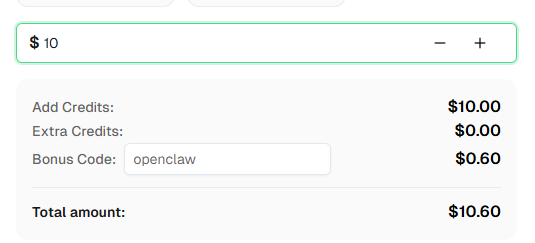
Ready to get started? Sign up for CapSolver and use bonus code OPENCLAW for an extra 6% bonus on your first recharge!
No. OpenClaw simply runs a script that fires an HTTP request. n8n handles everything else. Your AI Agent has no knowledge of CAPTCHAs — it just triggers a job and reads the result.
Yes, but you'll likely need to adjust more than just the URL. Every site submits the CAPTCHA token differently — some use form fields, some JSON bodies, some headers or cookies. See the "Adapting the Workflow to Your Target Site" section above for a full breakdown of what to check and change.
Change the CapSolver node's Task Type to AntiTurnstileTaskProxyless. Then inspect your target's network requests to find where the Turnstile token gets submitted — it's often in a hidden form field called cf-turnstile-response, but some implementations pass it in a JSON body, a header, or a cookie instead.
That depends on your storage choice. With a local JSON file, you can keep as many as you like. With Google Sheets or a database, every run appends a row indefinitely. Configure the Save Result node to match your retention needs.
Yes — the webhook endpoint is just an HTTP POST. Anything that can make an HTTP request can trigger it:
curl -s -X POST http://127.0.0.1:3005/webhook/openclaw/scrapeEach run costs one CapSolver credit for the CAPTCHA solve. reCAPTCHA v2 is among the cheapest types. Check current pricing at capsolver.com.
OpenClaw is open-source and free to self-host. You'll need API credits for your AI model provider and CapSolver for CAPTCHA solving.
Ethan Collins
AI Agent Workflow Engineer
Building clearer handoffs between AI agents and tools.
ABOUT THE AUTHOR
Discover how AI agents transform web scraping and competitive intelligence. Learn about automated data collection, anti-bot challenges, and CAPTCHA solutions for scalable workflows.
Discover the key differences between AI agent vs chatbot. Learn how agentic AI outperforms traditional AI in automation, decision-making, and complex workflows.