🎉NEWCapSolver for AI agents-MCP, agent tools, and SDK integrations

Ethan Collins
AI Agent Workflow Engineer
Published Mar 17, 2026
Updated Mar 18, 2026 · min read
When your AI agent hits a CAPTCHA wall, the entire workflow breaks. Navigation stops, forms can't be submitted, and data extraction fails — all because of a challenge designed to block automated access. Vercel Agent Browser is a fast, native Rust CLI for headless browser automation built specifically for AI agents. It features accessibility-first element selection, semantic locators, and a snapshot-ref workflow optimized for LLMs. But like any browser automation tool, it gets stuck on CAPTCHAs.
CapSolver changes this completely. By loading the CapSolver Chrome extension into Agent Browser using the built-in --extension flag, CAPTCHAs are resolved automatically and invisibly in the background. No manual solving. No complex API orchestration. Your CLI commands keep running as if the CAPTCHA was never there.
The best part? Agent Browser supports extensions in both headed and headless mode — unlike Playwright, which requires headed mode for extensions. This means your production pipelines, CI/CD workflows, and serverless deployments all work with zero display requirements. Your agent focuses on what it does best — navigating pages, extracting data, and automating workflows — while CapSolver handles CAPTCHAs silently.
Vercel Agent Browser is a headless browser automation CLI built in Rust for maximum performance. Developed by Vercel Labs, it provides a command-line interface that controls Chrome without requiring Playwright or Node.js for the browser daemon. Its accessibility-first design uses semantic locators and snapshot refs — making it the ideal tool for AI agents that need to interact with web pages.
--headless=new.--json.Agent Browser operates on any page — including authenticated content, dynamic SPAs, and CAPTCHA-protected sites — making it ideal for AI agent workflows, data collection, and automated testing.
CapSolver is a leading AI-powered CAPTCHA solving service that automatically resolves diverse CAPTCHA challenges. With fast response times and broad compatibility, CapSolver integrates seamlessly into automated workflows.
Most CAPTCHA-solving integrations require you to write boilerplate code: create tasks, poll for results, inject tokens into hidden fields. That's the standard approach with raw Playwright or Puppeteer scripts.
Agent Browser + CapSolver takes a fundamentally different approach:
| Traditional (Code-Based) | Agent Browser + CapSolver Extension |
|---|---|
| Write a CapSolver service class | Add --extension flag to your command |
Call createTask() / getTaskResult() |
Extension handles everything automatically |
| Inject tokens via JavaScript evaluation | Token injection is invisible |
| Handle errors, retries, timeouts in code | Extension manages retries internally |
| Different code for each CAPTCHA type | Works for all types automatically |
| Headed mode required for extensions | Works in both headed AND headless mode |
The key insight: The CapSolver extension runs inside Agent Browser's Chrome instance. When Agent Browser navigates to a page with a CAPTCHA, the extension detects it, solves it in the background, and injects the token — all before your next command executes. Your automation stays clean, focused, and CAPTCHA-free.
Before setting up the integration, make sure you have:
npm install -g agent-browser)Note: Unlike Playwright-based tools, Agent Browser supports extensions in both headed and headless mode. No Xvfb or virtual display required on servers.
npm install -g agent-browser
agent-browser install  # Download Chrome from Chrome for Testing (first time only)
Alternative installation methods:
# macOS via Homebrew
brew install agent-browser
agent-browser install

# Via Cargo (Rust)
cargo install agent-browser
agent-browser install
On Linux, include system dependencies:
agent-browser install --with-depsDownload the CapSolver Chrome extension and extract it to a dedicated directory:
CapSolver.Browser.Extension-chrome-v1.17.0.zipmkdir -p ~/capsolver-extension
unzip CapSolver.Browser.Extension-chrome-v*.zip -d ~/capsolver-extension/ls ~/capsolver-extension/manifest.jsonYou should see manifest.json — this confirms the extension is in the right place.
Open the extension config file at ~/capsolver-extension/assets/config.js and replace the apiKey value with your own:
export const defaultConfig = {
  apiKey: 'CAP-XXXXXXXXXXXXXXXXXXXXXXXXXXXXXXXX', // ← your key here
  useCapsolver: true,
  // ... rest of the config
};
You can get your API key from your CapSolver dashboard.
Loading the extension is a single flag — --extension:
agent-browser --extension ~/capsolver-extension open https://example.com/protected-pageThat's it. The CapSolver extension is now active inside the browser and will auto-solve any CAPTCHA it encounters.
For headed mode (to visually see the browser):
agent-browser --extension ~/capsolver-extension --headed open https://example.com/protected-pageIn headed mode, navigate to chrome://extensions to see the CapSolver extension listed and enabled:
agent-browser --extension ~/capsolver-extension --headed open chrome://extensionsIn headless mode, check the browser console for CapSolver log messages:
agent-browser --extension ~/capsolver-extension open https://example.com
agent-browser consoleOnce setup is complete, using CapSolver with Agent Browser is straightforward — just add the --extension flag and a wait command.
Don't write CAPTCHA-specific logic. Just add a wait after navigating to CAPTCHA-protected pages, and let the extension do its work.
# Navigate to the page with CapSolver extension loaded
agent-browser --extension ~/capsolver-extension open https://example.com/contact

# Get a snapshot to discover form elements
agent-browser snapshot -i
# Output:
# - textbox "Name" [ref=e1]
# - textbox "Email" [ref=e2]
# - textbox "Message" [ref=e3]
# - button "Submit" [ref=e4]

# Fill in the form
agent-browser fill @e1 "John Doe"
agent-browser fill @e2 "john@example.com"
agent-browser fill @e3 "Hello, I have a question about your services."

# Wait for CapSolver to resolve the CAPTCHA
agent-browser wait 30000

# Submit — the CAPTCHA token is already injected
agent-browser click @e4# Navigate to login page
agent-browser --extension ~/capsolver-extension open https://example.com/login
# Get interactive elements
agent-browser snapshot -i
# Fill credentials
agent-browser find label "Email" fill "me@example.com"
agent-browser find label "Password" fill "mypassword123"
# Wait for Turnstile to be resolved
agent-browser wait 20000
# Click login — Turnstile already handled
agent-browser find role button click --name "Log in"# Navigate to protected page
agent-browser --extension ~/capsolver-extension open https://example.com/data
# Wait for any CAPTCHA challenge to clear
agent-browser wait 30000
# Extract page content using snapshot
agent-browser snapshot --json
# Or get specific element text
agent-browser get text "body"Agent Browser supports command chaining for efficient automation:
# Open, wait for CAPTCHA, fill form, and submit — all in one line
agent-browser --extension ~/capsolver-extension open https://example.com/contact && \
  agent-browser wait 30000 && \
  agent-browser snapshot -i && \
  agent-browser fill @e1 "John Doe" && \
  agent-browser fill @e2 "john@example.com" && \
agent-browser click @e3For AI agent pipelines, use --json for machine-readable output:
#!/bin/bash
EXTENSION=~/capsolver-extension

# Open page with extension
agent-browser --extension "$EXTENSION" open https://example.com/protected

# Wait for CAPTCHA to resolve
agent-browser wait 30000

# Get snapshot as JSON for AI processing
SNAPSHOT=$(agent-browser snapshot -i --json)

# Parse refs and interact
agent-browser click @e2
agent-browser get text "body" --json| CAPTCHA Type | Typical Solve Time | Recommended Wait |
|---|---|---|
| reCAPTCHA v2 (checkbox) | 5-15 seconds | 30-60 seconds |
| reCAPTCHA v2 (invisible) | 5-15 seconds | 30 seconds |
| reCAPTCHA v3 | 3-10 seconds | 20-30 seconds |
| Cloudflare Turnstile | 3-10 seconds | 20-30 seconds |
Tip: When in doubt, use 30 seconds. It's better to wait a bit longer than to submit too early. The extra time doesn't affect the result.
Here's what happens when Agent Browser runs with the CapSolver extension loaded:
Your Agent Browser Commands
───────────────────────────────────────────────────
agent-browser --extension       ──►  Chrome launches with extension
  ~/capsolver-extension
  open https://...
                                           │
                                           ▼
                               ┌─────────────────────────────┐
                               │  Page with CAPTCHA widget     │
                               │                               │
                               │  CapSolver Extension:         │
                               │  1. Content script detects    │
                               │     CAPTCHA on the page       │
                               │  2. Service worker calls      │
                               │     CapSolver API             │
                               │  3. Token received            │
                               │  4. Token injected into       │
                               │     hidden form field         │
                               └─────────────────────────────┘
                                           │
                                           ▼
agent-browser wait 30000         Extension resolves CAPTCHA...
                                           │
                                           ▼
agent-browser snapshot -i        Agent Browser reads elements
agent-browser click @e2          Form submits WITH valid token
                                           │
                                           ▼
"Verification successful!"When Agent Browser launches Chrome with the --extension flag:
--headless=new in headless mode, which supports Manifest V3 extensions)Here's a complete setup with all configuration options for the Agent Browser + CapSolver integration:
agent-browser \
  --extension ~/capsolver-extension \
  --headed \
  --session-name my-session \
  --profile ./browser-data \
open https://example.com# Set extension path as environment variable (avoids repeating --extension)
export AGENT_BROWSER_EXTENSIONS=~/capsolver-extension
# Now every command automatically loads the extension
agent-browser open https://example.com
agent-browser wait 30000
agent-browser snapshot -iagent-browser.json)Create an agent-browser.json in your project directory for persistent defaults:
{
  "extension": ["~/capsolver-extension"],
  "sessionName": "my-project",
  "headed": false
}| Option | Description |
|---|---|
--extension <path> |
Path to unpacked CapSolver extension directory containing manifest.json. Repeatable for multiple extensions. |
--headed |
Show browser window for visual debugging. Extensions work in both modes. |
--session-name <name> |
Auto-save/restore cookies and localStorage across browser restarts. |
--profile <path> |
Persistent browser profile directory (cookies, IndexedDB, cache). |
AGENT_BROWSER_EXTENSIONS |
Environment variable alternative to --extension flag. Comma-separated paths for multiple extensions. |
The CapSolver API key is configured directly in the extension's assets/config.js file (see Step 3 above).
Symptom: CAPTCHAs aren't being solved automatically.
Possible causes:
manifest.json exists in the specified directorySolution: Verify the path and check that the extension loads:
# Verify manifest exists
ls ~/capsolver-extension/manifest.json

# Test in headed mode to visually confirm
agent-browser --extension ~/capsolver-extension --headed open chrome://extensionsPossible causes:
Debug with console logs:
agent-browser --extension ~/capsolver-extension open https://example.com
agent-browser wait 30000
agent-browser console # Check for CapSolver messagesSymptom: agent-browser can't find a Chrome executable.
Solution: Run the install command to download Chrome for Testing:
agent-browser installOr point to a custom Chrome executable:
agent-browser --executable-path /path/to/chrome open https://example.comYou can load multiple extensions by repeating the --extension flag:
agent-browser \
  --extension ~/capsolver-extension \
  --extension ~/another-extension \
open https://example.comUse the AGENT_BROWSER_EXTENSIONS environment variable. Set it once in your shell profile or CI config, and every agent-browser command automatically loads CapSolver without repeating the flag.
Always use generous wait times. More wait time is always safer. The CAPTCHA typically resolves in 5-20 seconds, but network latency, complex challenges, or retries can add time. 30-60 seconds is the sweet spot.
Keep your automation scripts clean. Don't add CAPTCHA-specific logic to your commands. The extension handles everything — your scripts should focus purely on navigation, interaction, and data extraction.
Monitor your CapSolver balance. Each CAPTCHA resolution costs credits. Check your balance at capsolver.com/dashboard regularly to avoid interruptions.
Use session persistence for repeat visits. Use --session-name or --profile to preserve cookies across runs. This can reduce CAPTCHA frequency since the site may recognize returning sessions.
Leverage headless mode in production. Unlike Playwright, Agent Browser supports extensions in headless mode. No need for Xvfb or virtual displays on servers — just run your commands directly.
The Vercel Agent Browser + CapSolver integration brings invisible CAPTCHA solving to the fastest, most AI-optimized browser automation CLI available. Instead of writing complex CAPTCHA-handling code, you simply:
--extension ~/capsolver-extension to your Agent Browser commandsThe CapSolver Chrome extension handles the rest — detecting CAPTCHAs, solving them via the CapSolver API, and injecting tokens into the page. Your Agent Browser commands never need to know about CAPTCHAs at all.
And unlike Playwright-based solutions that require headed mode and virtual displays, Agent Browser supports extensions in headless mode out of the box — making it the simplest path to CAPTCHA-free automation in production.
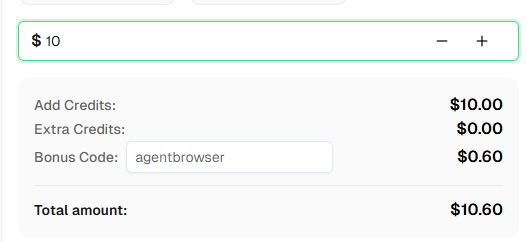
Ready to get started? Sign up for CapSolver and use the bonus code AGENTBROWSER to get an extra 6% on your first top-up!
No. The CapSolver extension works entirely in the background within Agent Browser's Chrome instance. Just add an agent-browser wait 30000 before submitting forms, and the extension handles detection, solving, and token injection automatically.
Yes! This is a major advantage over Playwright-based solutions. Agent Browser uses Chrome's --headless=new mode, which supports Manifest V3 extensions. No Xvfb or virtual display required.
No. Agent Browser is a standalone Rust binary. You only need Node.js for the npm install step. The browser daemon runs natively without any JavaScript runtime.
CapSolver supports reCAPTCHA v2 (checkbox and invisible), reCAPTCHA v3, Cloudflare Turnstile, AWS WAF CAPTCHA, and more. The extension automatically detects the CAPTCHA type and resolves it accordingly.
CapSolver offers competitive pricing based on CAPTCHA type and volume. Visit capsolver.com for current pricing.
Yes. Agent Browser is open source under the Apache 2.0 license. The CLI and all features are free to use. Visit the GitHub repository for more details.
For most CAPTCHAs, 30-60 seconds is sufficient. The actual solve time is typically 5-20 seconds, but adding extra buffer ensures reliability. When in doubt, use 30 seconds via agent-browser wait 30000.
Absolutely. Agent Browser was built specifically for AI agents (there are some choices to compare ). Use --json for machine-readable output, the snapshot-ref workflow for deterministic element selection, and command chaining for efficient multi-step automation. The CapSolver extension runs transparently alongside your agent's commands.
Ethan Collins
AI Agent Workflow Engineer
Building clearer handoffs between AI agents and tools.
ABOUT THE AUTHOR
Discover how AI agents transform web scraping and competitive intelligence. Learn about automated data collection, anti-bot challenges, and CAPTCHA solutions for scalable workflows.

Discover the key differences between AI agent vs chatbot. Learn how agentic AI outperforms traditional AI in automation, decision-making, and complex workflows.