
🎉NEWCapSolver for AI agents-MCP, agent tools, and SDK integrations

Khadija Santos
AI Agent & MCP Engineer
Published Nov 12, 2026
Updated Nov 12, 2026 · min read
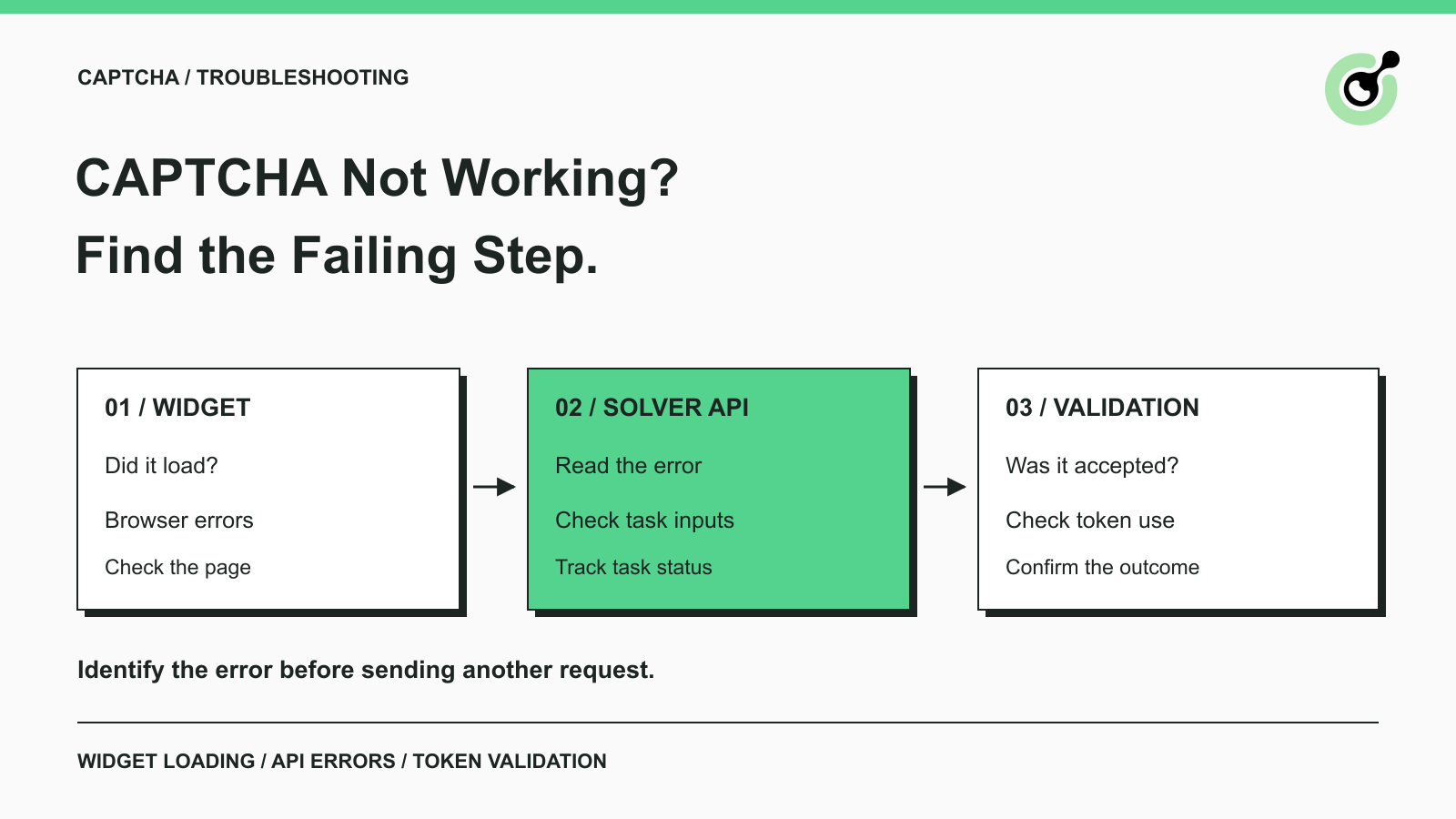
A CAPTCHA is not working, but the symptom can mean several things. The widget may never load. A checkbox may complete and then reset. An automation script may receive an API error, or receive a token while the form still refuses to continue. Repeatedly refreshing the page does not identify which step failed.
This guide helps developers and support teams locate that step in an authorized browser or API workflow. CapSolver provides solving tasks for supported challenges; the browser and protected application still have their own responsibilities. Use the checks below to collect a useful error report, correct a documented integration problem, and verify the original task after the change.
A CAPTCHA can fail before a challenge appears, while a solver processes a request, during token validation, or after validation when the application continues.
Identify the last step you can actually confirm. The CAPTCHA glossary explains the verification concept, but troubleshooting requires more specific evidence than the word CAPTCHA. Record the challenge family, visible message, approximate time, and whether the issue occurs during manual use or an authorized automated workflow.
| What you observe | First check | What to avoid assuming |
|---|---|---|
| Blank widget or endless loading | Browser console, failed script requests, and the widget's own error | That the solver API has already failed |
| Solver request rejected | HTTP status and documented API error fields | That refreshing the webpage corrects an account or task error |
| Task still processing | Existing task ID, result retrieval, and your observation deadline | That another task must be created immediately |
| Token returned but verification rejected | Token age, reuse, expected integration, and available validation response | That receiving a token guarantees acceptance |
| Verification passes but the form fails | Application response and expected completion assertion | That the CAPTCHA is necessarily the remaining problem |
If you only visit the website, collect the visible error and contact its operator when a configuration problem persists. Backend secrets, hostname settings, and server-side validation belong to the application owner. An automation client cannot establish those settings from the appearance of a widget alone.
A widget-loading problem should be investigated in the browser before sending more solving requests.
For a website you operate, reproduce the issue once and inspect the browser's console and network panel. Look for a failed CAPTCHA script request, a widget initialization error, or a policy message that names a blocked resource. Preserve the actual error and the affected page path. A spinner without an error message is a symptom, not a diagnosis.
Cloudflare documents an error callback for Turnstile widgets. Capturing the supplied error code gives the website team a specific starting point. The callback reports a widget error; it is not a CapSolver API response and should not be interpreted through a solver's error-code table.
A comparison in another supported browser profile can help isolate a local condition. Record what changed, and test one variable at a time. If the same failure occurs across controlled sessions, investigate the site's integration or network evidence instead of repeatedly clearing every browser setting.
When the console names a content policy problem on your own site, review the CAPTCHA vendor's documented requirements with the website team. Avoid broadly disabling browser or site security as a troubleshooting shortcut. The useful result is a specific blocked dependency or configuration mismatch that the owner can correct.
Before changing solver code, also confirm which challenge the page actually uses. Our guide to identifying the reCAPTCHA version on a website explains why the reCAPTCHA name alone is insufficient to select an integration.
A rejected solver request should be diagnosed from its HTTP response and documented error fields.
In CapSolver's API error reference, an error response uses errorId, errorCode, and errorDescription. Keep the description in a redacted diagnostic record because it can identify the invalid field. Do not replace every API failure with a generic CAPTCHA failure message.
Check the category before deciding what to do next:
The account credential authorizes your solver request; the website's public key identifies its CAPTCHA integration. They are different inputs. Check the selected task's documentation rather than moving values between fields until a request is accepted.
For example, the Turnstile task guide documents AntiTurnstileTaskProxyLess and its required websiteURL and websiteKey. That request shape is specific to Turnstile. A reCAPTCHA or image-recognition task has its own contract and cannot be inferred by changing a label in the same payload.
Redeem Your CapSolver Bonus Code
Boost your automation budget instantly!
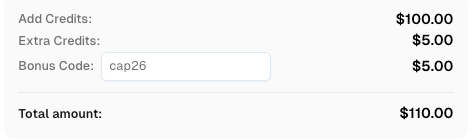
Use bonus code CAP26 when topping up your CapSolver account to get an extra 5% bonus on every recharge — with no limits.
Redeem it now in your CapSolver Dashboard
A pending task has not yet produced a terminal outcome, so keep its identity and check the documented result flow.
The createTask API returns a task ID for asynchronous work, while supported synchronous tasks can return a result directly. If your selected task requires polling, use the existing ID with getTaskResult. A task ID confirms creation, not a completed solve.
Record the request time and define a workflow deadline. When the deadline is reached, report the attempt as unresolved at that point or as the actual terminal error if one was received. Do not silently mark it successful, and do not create an unlimited series of new tasks while the original job waits.
If a network interruption prevents you from receiving a creation response, keep that uncertainty visible. The client may not know whether a task was created. Investigate the transport failure and use a bounded retry policy; do not claim that no task exists merely because your local request timed out.
A returned token can still be rejected if the application's verification step does not accept it.
Start with timestamps and the validation response available to the application owner. Google's reCAPTCHA verification reference specifies a two-minute, single-use response token. Cloudflare's Turnstile server-side validation reference specifies a 300-second lifetime and single use. Do not apply one vendor's lifetime to every CAPTCHA type.
Check whether the script waits after receiving the token, submits twice, or refreshes the page before continuing. Those observations can guide an investigation, but they do not prove the cause by themselves. Match them to the actual validation outcome when you have access to it.
For an owned application, inspect its expected hostname, action where applicable, and current verification configuration according to the vendor's guide. Keep secret keys on the backend. For a third-party workflow, report only the browser outcome you can observe; do not claim to have seen a private validation response.
An accepted verification step is followed by the application's own work. A test form may still reject a missing field, or the requested operation may return an application error. Check the final confirmation or expected output before marking the workflow complete.
If verification succeeded but the application failed, preserve both outcomes. Requesting another CAPTCHA token without inspecting the later error can hide the actual defect and add unnecessary attempts.
A useful support report identifies the failing step and supplies enough redacted evidence to reproduce it.
Include the challenge type, task type when used, timestamp and timezone, exact error code, and a task ID if one was returned. Describe what the workflow expected and what it actually observed. For browser problems, add a screenshot or relevant console message after removing personal page content.
State whether the problem affects one page, one deployment, or several authorized test cases. Include the last known working configuration and the recent change, if known. Token received, form submission rejected is a more actionable report than solver down.
Exclude API keys, raw tokens, cookies, passwords, and unnecessary user data. The OWASP logging guidance provides a useful basis for protecting diagnostic records. Share restricted identifiers only through the appropriate support channel.
Fix the first failing step, repeat a small authorized test, and verify the original application result. CapSolver fits the supported solving step; your application remains responsible for current inputs, bounded retries, and a confirmed outcome. Keep the exact error visible so the next failure has a clear starting point.
Q: Why is my CAPTCHA not loading?
A loading failure can involve a browser request, widget initialization, or site configuration. Inspect the visible widget error and failed requests before changing solver settings. If you do not operate the site, provide the error to its support team.
Q: Why does CAPTCHA fail even after I complete it?
The application may reject the token or fail during a later operation. Check the actual validation response where available and the final application message. A completed visual challenge does not identify which later step failed.
Q: Does a successful solver response guarantee form submission?
No. The solver result, the website's validation, and the final application action are separate outcomes. Confirm each stage your authorized workflow can observe.
Q: Should I retry every CAPTCHA API error?
No. Correct repeatable configuration, credential, or balance errors before retrying. Use a bounded retry policy for conditions where another attempt is appropriate, and preserve the original error.
Q: Can one task type solve every CAPTCHA?
No. Select a task documented for the actual challenge and provide its required current inputs. A valid-looking request for a different challenge does not establish compatibility.
Khadija Santos
AI Agent & MCP Engineer
Develops and maintains CapSolver’s MCP tooling, from implementation and package releases to AI agent integrations.
ABOUT THE AUTHOR
Compare CAPTCHA solver accuracy and speed using accepted results, latency percentiles, fresh trials, and clear retry rules for an authorized test workload.

Review ImageToTextTask image encoding, API errors, and recognized text handling in an existing CAPTCHA recognition client.