🎉NEWCapSolver for AI agents-MCP, agent tools, and SDK integrations

Adélia Cruz
MCP Integration Engineer
Published Apr 15, 2026
Updated Apr 15, 2026 · min read
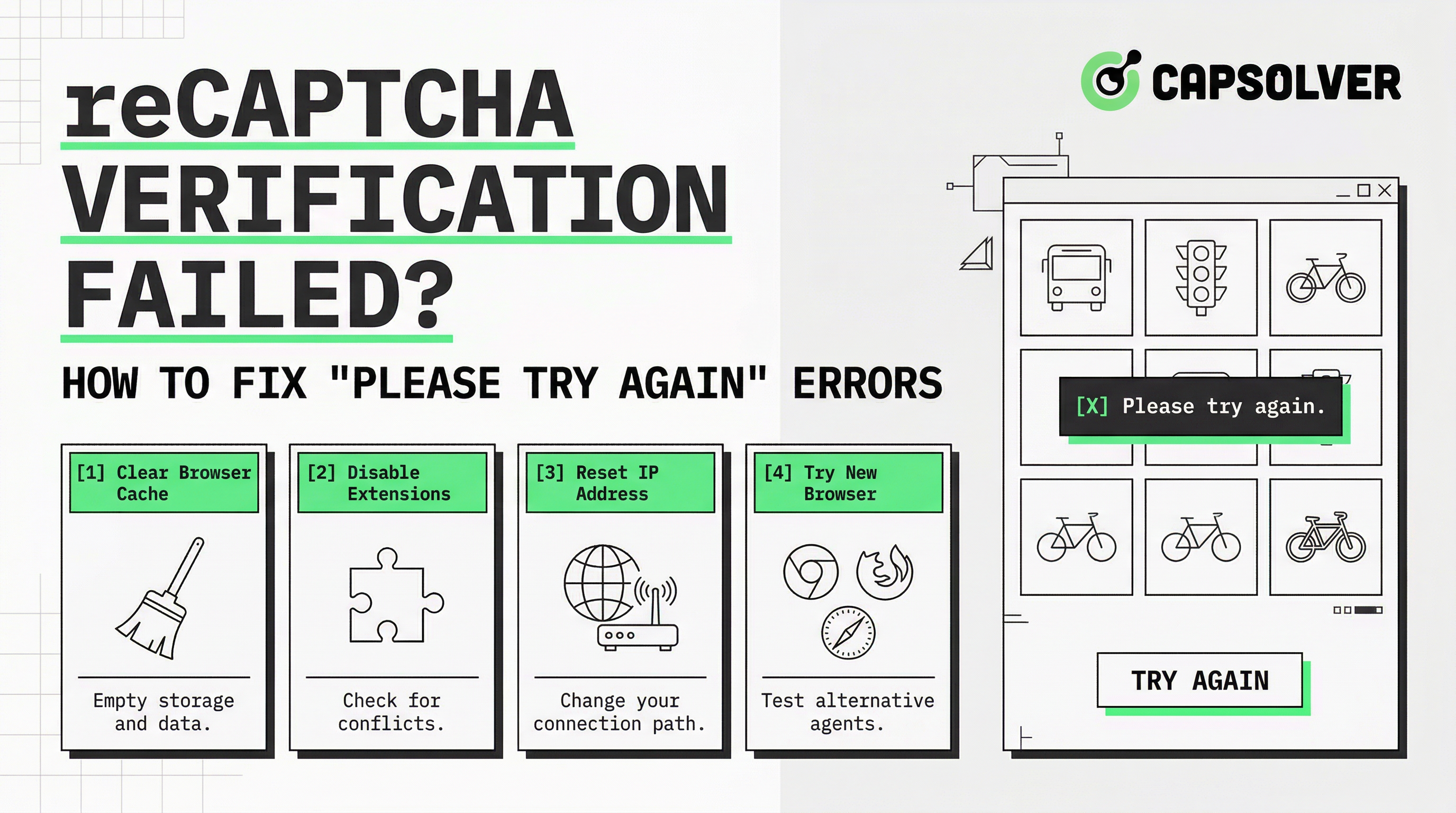
A reCAPTCHA verification failed message stops users in their tracks — mid-form, mid-login, or mid-checkout. The error is triggered by Google's risk analysis engine when it cannot confirm a request is human. For end users, the fix is usually a browser setting. For developers building scrapers, RPA tools, or automated testing pipelines, the problem runs deeper. This guide covers both scenarios. You will find the root causes of google reCAPTCHA verification failed errors, a clear step-by-step manual fix process, and a developer-focused walkthrough for handling reCAPTCHA programmatically using the CapSolver API — with real code you can run today.
reCAPTCHA is a Google security service that protects websites from automated abuse. It comes in three main versions:
| Version | How It Works | User Interaction |
|---|---|---|
| reCAPTCHA v2 | Checkbox challenge + image puzzles | Visible checkbox or image grid |
| reCAPTCHA v3 | Background scoring (0.0–1.0) | None — fully invisible |
| reCAPTCHA Enterprise | Advanced risk signals + custom thresholds | Configurable |
When the service cannot confirm a request is legitimate, it returns a reCAPTCHA verification failed response. This can happen on the client side (browser issues) or the server side (key mismatch, score too low, token expired).
Understanding which layer the failure originates from is the first step toward fixing it. A score below the threshold in v3, for example, will produce a google reCAPTCHA verification failed result even if the user completed the challenge correctly. You can read more about how scoring works in this guide on reCAPTCHA v3 score thresholds and what they mean.
These are the most frequent reasons a reCAPTCHA verification failed error appears:
Each of these causes a distinct failure mode. The fix depends on which one applies to your situation.
Follow these steps in order. Each one targets a specific cause of the reCAPTCHA verification failed error.
Purpose: Remove stale session data that interferes with the reCAPTCHA widget.
Action:
Notes: Restart the browser completely after clearing. Do not just close the tab.
Purpose: reCAPTCHA cannot load without JavaScript. This is a hard requirement.
Action:
about:config in the address bar → search javascript.enabled → set to true.Notes: If you use a script-blocking extension (NoScript, uMatrix), whitelist google.com and gstatic.com.
Purpose: Many ad blockers flag reCAPTCHA scripts as trackers and silently drop them.
Action: Temporarily disable all browser extensions, reload the page, and test the form again.
Notes: If the error disappears, re-enable extensions one by one to identify the culprit. Add recaptcha.net and gstatic.com to your allowlist.
Purpose: A site key registered for example.com will produce a reCAPTCHA verification failed error on staging.example.com.
Action:
Notes: After updating keys, redeploy your frontend code. Cached HTML may still reference old keys.
Purpose: VPNs and corporate firewalls can block requests to www.google.com/recaptcha and www.gstatic.com.
Action: Disconnect from any VPN, switch to a different network (e.g., mobile hotspot), and retry.
Notes: If the error only occurs on a corporate network, ask your IT team to whitelist *.google.com and *.gstatic.com.
Purpose: Token validation is time-sensitive. A clock more than a few minutes off will cause token rejection.
Action:
sudo timedatectl set-ntp trueNotes: This is a rare cause but worth checking if all other steps fail.
Manual fixes work for end users. Developers running automated scripts face a different problem: their code triggers reCAPTCHA by design, and the google reCAPTCHA verification failed response blocks the entire workflow.
The correct approach is to integrate a CAPTCHA solving API that handles the challenge programmatically and returns a valid token your script can submit. CapSolver supports reCAPTCHA v2, v3, and Enterprise with response times as low as 0.2 seconds.
pip install requestsNo additional SDK is required. The CapSolver API uses standard HTTP requests.
The following code uses the official CapSolver task type ReCaptchaV2TaskProxyLess for reCAPTCHA v2 challenges. See the full reCAPTCHA v2 solving guide for proxy-based variants and additional parameters.
import requests
import time

API_KEY = "YOUR_CAPSOLVER_API_KEY"
WEBSITE_URL = "https://example.com"
WEBSITE_KEY = "YOUR_RECAPTCHA_SITE_KEY"

def create_task():
    payload = {
        "clientKey": API_KEY,
        "task": {
            "type": "ReCaptchaV2TaskProxyLess",
            "websiteURL": WEBSITE_URL,
            "websiteKey": WEBSITE_KEY
        }
    }
    response = requests.post(
        "https://api.capsolver.com/createTask",
        json=payload
    )
    return response.json().get("taskId")

def get_task_result(task_id):
    payload = {
        "clientKey": API_KEY,
        "taskId": task_id
    }
    while True:
        response = requests.post(
            "https://api.capsolver.com/getTaskResult",
            json=payload
        )
        result = response.json()
        if result.get("status") == "ready":
            return result["solution"]["gRecaptchaResponse"]
        elif result.get("status") == "failed":
            raise Exception("Task failed: " + str(result.get("errorDescription")))
        time.sleep(3)

task_id = create_task()
token = get_task_result(task_id)
print("Solved token:", token)
# Submit `token` as the value of `g-recaptcha-response` in your form POSTWhen a site uses reCAPTCHA v3, a low score is the most common cause of a reCAPTCHA verification failed result. Use task type ReCaptchaV3TaskProxyLess and pass the correct pageAction to match what the target page expects.
import requests
import time

API_KEY = "YOUR_CAPSOLVER_API_KEY"
WEBSITE_URL = "https://example.com"
WEBSITE_KEY = "YOUR_RECAPTCHA_V3_SITE_KEY"
PAGE_ACTION = "submit"   # match the action string used on the target page

def create_v3_task():
    payload = {
        "clientKey": API_KEY,
        "task": {
            "type": "ReCaptchaV3TaskProxyLess",
            "websiteURL": WEBSITE_URL,
            "websiteKey": WEBSITE_KEY,
            "pageAction": PAGE_ACTION
        }
    }
    response = requests.post(
        "https://api.capsolver.com/createTask",
        json=payload
    )
    return response.json().get("taskId")

def get_task_result(task_id):
    payload = {
        "clientKey": API_KEY,
        "taskId": task_id
    }
    while True:
        response = requests.post(
            "https://api.capsolver.com/getTaskResult",
            json=payload
        )
        result = response.json()
        if result.get("status") == "ready":
            return result["solution"]["gRecaptchaResponse"]
        elif result.get("status") == "failed":
            raise Exception("Task failed: " + str(result.get("errorDescription")))
        time.sleep(3)

task_id = create_v3_task()
token = get_task_result(task_id)
print("Solved v3 token:", token)
# Submit `token` as the value of `g-recaptcha-response` in your form POSTReCaptchaV2TaskProxyLess for v2 checkbox challenges and ReCaptchaV3TaskProxyLess for invisible v3 scoring. Mixing them up will always return a reCAPTCHA verification failed error.ReCaptchaV2Task or ReCaptchaV3Task (without the ProxyLess suffix) and supply your own proxy details in the task payload. This routes the solving request through your target IP.pageAction lowers the returned score and triggers a google reCAPTCHA verification failed result on the server side. Inspect the page source or network requests to find the exact action string.createTask calls and poll results concurrently.For browser-based automation (Puppeteer, Playwright, Selenium), the CapSolver browser extension can handle reCAPTCHA challenges automatically without modifying your scraping logic.
Redeem Your CapSolver Bonus Code
Boost your automation budget instantly!
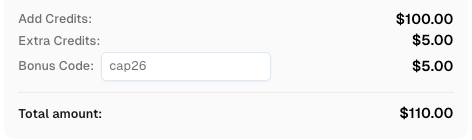
Use bonus code CAP26 when topping up your CapSolver account to get an extra 5% bonus on every recharge — with no limits.
Redeem it now in your CapSolver Dashboard
| Symptom | Likely Cause | Fix |
|---|---|---|
| Widget never loads | JavaScript blocked or ad blocker active | Enable JS, disable extensions |
| "Please try again" after checkbox | Browser cache / cookie conflict | Clear cache and cookies, restart browser |
| Error on form submit only | Expired token (>120 seconds) | Re-trigger the widget just before submit |
| Works on one domain, fails on another | Site key domain mismatch | Add domain to reCAPTCHA Admin Console |
| Fails only on VPN / corporate network | Firewall blocking Google endpoints | Whitelist *.google.com, *.gstatic.com |
| v3 always returns low score | Automated behavior pattern detected | Use CapSolver API with correct pageAction |
invalid-input-secret server error |
Wrong secret key in backend | Update secret key in server-side validation |
timeout-or-duplicate server error |
Token reused or submitted too late | Generate a fresh token per submission |
| Criteria | Manual Fix | CapSolver API Fix |
|---|---|---|
| Who it suits | End users, site owners | Developers, automation engineers |
| Time to fix | 5–15 minutes | Minutes to integrate, then fully automated |
| Reliability | Depends on user environment | Consistent — 99.99% uptime |
| Handles token expiry | User must re-trigger manually | Handled in code with retry logic |
| Works in headless environments | No | Yes |
| Supports v2, v3, Enterprise | Partial (manual interaction) | Full support across all versions |
| Cost | Free | Pay-per-use from $6 top-up |
A reCAPTCHA verification failed error has a clear cause in almost every case. For regular users, the fix is usually a browser setting — clear the cache, enable JavaScript, or disable an extension. For developers, the root cause is often a key mismatch, an expired token, or a low v3 score triggered by automated behavior patterns.
If your workflow regularly encounters reCAPTCHA challenges, handling them manually is not sustainable. CapSolver provides a reliable, AI-powered API that resolves reCAPTCHA verification failed errors programmatically — supporting v2, v3, and Enterprise — so your automation keeps running without interruption. You can get started at capsolver.com with a minimum $6 top-up and no monthly commitment.
Q1: Why does reCAPTCHA verification failed appear even after I complete the checkbox?
The checkbox is only one signal. reCAPTCHA also evaluates your browser environment, IP reputation, and interaction patterns. If any of these look suspicious, the service returns a reCAPTCHA verification failed result regardless of the checkbox. Clearing your cache and disabling VPNs usually resolves this.
Q2: How long is a reCAPTCHA token valid?
A reCAPTCHA token is valid for approximately 120 seconds from the moment it is generated. Submitting a form after that window produces a google reCAPTCHA verification failed error on the server side. Always trigger the widget as close to the form submission as possible.
Q3: Can the same reCAPTCHA token be used twice?
No. Each token is single-use. Submitting the same token a second time returns a timeout-or-duplicate error, which is treated as a reCAPTCHA verification failed response. Generate a new token for every submission.
Q4: Why does reCAPTCHA v3 fail in my automated script even with a valid token?
reCAPTCHA v3 scores behavior, not just token validity. A headless browser with no mouse movement, no scroll history, and a datacenter IP will receive a low score (often below 0.5), causing the site to reject the request. Using the CapSolver API with the correct pageAction parameter returns a token with a score that passes standard thresholds.
Q5: Is using a CAPTCHA solving API compliant with terms of service?
This depends on the target site's terms of service and your use case. CapSolver is designed for legitimate use cases such as automated testing, accessibility tooling, and aggregating publicly available data. Always review the terms of service of any site you interact with programmatically and ensure your use is compliant. For reference, Google's reCAPTCHA support documentation outlines the intended use of the service, and web accessibility guidelines provide context for alternative access needs.
Adélia Cruz
MCP Integration Engineer
Making CapSolver tools accessible through MCP.
ABOUT THE AUTHOR
Understand reCAPTCHA v3 score range (0.0 to 1.0), its meaning, and how to improve your score. Learn how to handle low scores and optimize user experience.

Facing "reCAPTCHA Invalid Site Key" or "invalid reCAPTCHA token" errors? Discover common causes, step-by-step fixes, and troubleshooting tips to resolve reCAPTCHA verification failed issues. Learn how to fix reCAPTCHA verification failed please try again.