
🎉NEWCapSolver for AI agents-MCP, agent tools, and SDK integrations

Emma Foster
Machine Learning Engineer
Published Nov 20, 2026
Updated Nov 20, 2026 · min read
A CAPTCHA workflow can pass while you watch the browser and fail when it runs unattended. The visible difference makes browser mode an obvious suspect, but several other things may have changed: the executable, profile, viewport, timing, or image being submitted. Switching modes without controlling those variables produces a weak diagnosis.
This guide explains how to compare the two modes around a real solver operation. The worked test used CapSolver to recognize an image on an owned local page, then submitted the returned answer to that page's server. The purpose is to show a useful test design and its acceptance checks. It is not a test against a third-party website or a claim that one mode defeats browser detection.
A headless browser runs without a visible browser window, while headed mode displays the browser interface.
That distinction describes the execution mode. It does not determine whether the page contains an image challenge, a token-based widget, or another verification step. Identify the actual challenge before choosing the corresponding solver operation.
Chrome's headless implementation documentation explains that modern Chrome shares code between its headless and headful modes. Old claims that headless Chrome is necessarily an entirely separate browser implementation need version-specific checking.
Automation tooling can still select different executables. The Playwright browser guide distinguishes its regular Chromium channel from the separate headless shell. Record what the test launches, rather than assuming that a Boolean setting is the only difference between two runs.
Headed mode is useful for observing a failure, while headless mode is useful for unattended execution once the workflow has meaningful assertions.
| Testing need | Headed mode | Headless mode |
|---|---|---|
| Watch the challenge appear | Visible window makes the sequence easier to inspect | Capture screenshots and logs at the relevant stages |
| Repeat an owned acceptance test | Useful during development and diagnosis | Suitable for unattended repeated checks |
| Confirm the solver result was applied | Watch the interaction and assert the result | Assert the same result; a missing window is not an exemption |
| Compare a failure between modes | Keep settings and browser build aligned | Keep settings and browser build aligned |
Do not choose headed mode simply because one run happened to pass. First determine whether the same challenge, session conditions, and submission logic were used. Likewise, a passing headless test does not prove that every production page will behave identically.
A useful comparison changes browser mode while holding the relevant workflow inputs constant.
Record the automation package version, browser version, selected channel, viewport, locale, and whether each run uses a fresh context. Keep page navigation and assertion logic the same. Avoid adding debugging delays to just one mode, because that would also change the timing being tested.
Our comparison used Playwright 1.60.0 and Chrome for Testing 148.0.7778.96. Both modes selected the Chromium channel explicitly, with a 1280 × 720 viewport and an en-US locale. The only launch setting varied was the documented headless option. Playwright's browser launch reference defines that option and the channel selection.
Those are the versions and settings of this run, not prescribed versions for every deployment. Use a supported environment and record its exact versions when repeating the comparison.
The owned fixture displayed one numeric image and validated the submitted answer on its local server. A cookie connected the page visit to that server-side check. Each submission consumed the challenge, so the test loaded a fresh page before the next attempt.
The fixed image lets you ask whether two browser modes produced the same solver input. It is intentionally simple and should not be mistaken for a production CAPTCHA implementation or representative challenge distribution.
For your own test, use a staging form or fixture your team controls. Keep the expected answer in the test server or test data, outside the browser automation's recognition path. The runner should obtain the answer from the solver, not from the expected-value variable.
Keep the solver credential in the process making the API request. The browser needs the challenge page, not your paid API key. Store sanitized request metadata and results for diagnosis, without logging credentials or copying unrelated page data into a solver task.
Redeem Your CapSolver Bonus Code
Boost your automation budget instantly!
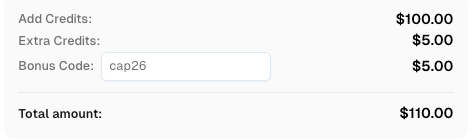
Use bonus code CAP26 when topping up your CapSolver account to get an extra 5% bonus on every recharge — with no limits.
Redeem it now in your CapSolver Dashboard
The comparison should identify which stage fails, instead of recording a single undifferentiated pass or fail.
Navigate to the owned page, wait for the challenge image to load, and capture the image element. Check the capture's dimensions and contents before sending it to the service.
Save a hash of the exact PNG bytes submitted. If the hashes differ between modes, inspect the images: one may be clipped, scaled differently, or captured before loading. A difference in solver output cannot be attributed to browser mode alone when the service received different images.
In this test, the image-element captures matched byte for byte across all four final runs. That observation removes one source of ambiguity for this fixture. It does not establish identical rendering for every web page.
The test sent each image to the documented ImageToTextTask API using its Base64 image body. This task returns the recognition result directly; the runner checked the API error field and required a nonempty text result before continuing.
Keep task type and optional settings unchanged between modes. Also distinguish a network failure from a service error or an unexpected response shape. A successful HTTP response alone is not sufficient evidence that a usable answer exists.
This stage is a real remote API operation. The local page and its challenge are controlled test data; the solver response is not mocked. That distinction makes the test useful for checking the connection between browser capture, service request, and form handling.
Use the solver's returned text in the form associated with the current challenge. Then inspect the server's validation response or another explicit application result. A button click completing without an exception is not enough.
The owned server returned an acceptance value, and the test required the page to display Accepted. Each run also submitted a deliberately wrong answer first and required Rejected. A fresh challenge was loaded before the real solver request, because the fixture consumed each submission.
That negative check helps demonstrate that the positive path is meaningful. If both the wrong answer and the solver answer are accepted, the fixture cannot distinguish a working solver flow from a form that ignores the CAPTCHA field.
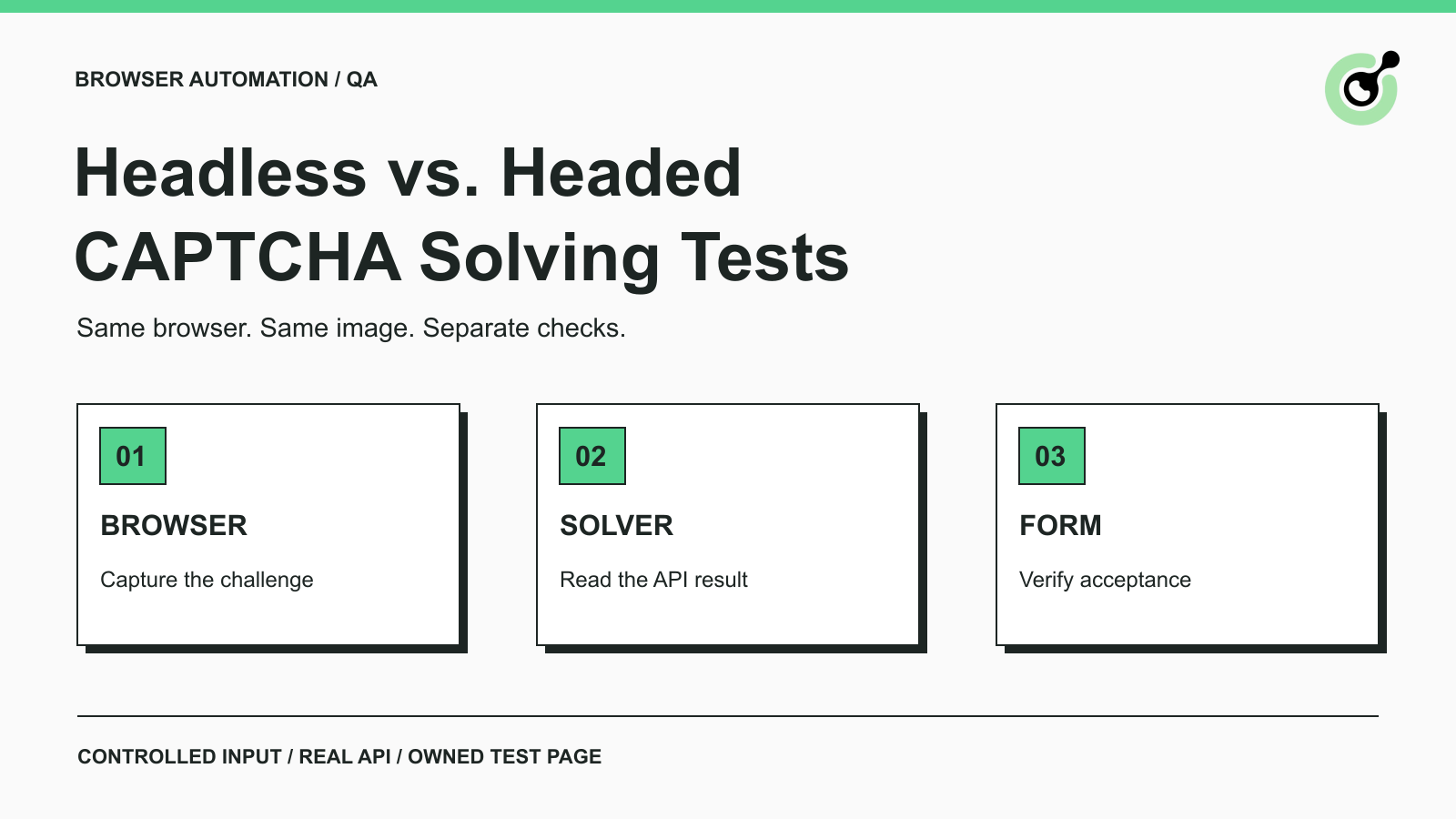
Both browser modes completed the final controlled image workflow, with the same captured image and explicit positive and negative assertions.
The final order was headless, headed, headed, headless. Each run started a fresh browser context. Two headless runs and two headed runs returned usable text and reached the server's accepted state. Each of the four wrong-answer checks reached the rejected state.
The captured PNG had the same SHA-256 hash in every final run. The result therefore supports a narrow conclusion: with this browser build, fixed image, task request, and owned form, the implemented flow worked in both modes.
The test preparation also exposed an image limitation. An earlier fixture rendered with Pillow's default font did not pass an exact-answer check. The final comparison used an explicitly selected Arial font. The earlier failure is not included as a success and is a reason to retain the original input when investigating recognition problems.
Four runs on a repeated image cannot estimate general recognition accuracy. They also cannot establish that headless is faster, that headed reduces challenges, or that either setting changes a production website's access decisions. The result is an integration check, not a performance ranking.
A useful diagnosis starts with the earliest observable difference between the passing and failing runs.
If the challenge image differs, investigate capture and rendering first. If the image matches but the API request fails, inspect the service error and request settings. If a usable answer is returned but the form rejects it, inspect the current challenge, submission timing, cookie association, and application validation.
Preserve both runs before editing the test. Changing the viewport, adding a delay, switching browser channel, and refreshing the session simultaneously may produce a passing run, but it will not show which change mattered.
Avoid assuming that a CAPTCHA failure is always a recognition problem. The broader explanation of why browser automation gets detected or blocked covers other classes of signals. This comparison keeps a narrower focus: whether the browser-to-solver-to-form sequence works under controlled conditions.
The same separation of stages helps with widget-based workflows, but the image-test result cannot be transferred to a different CAPTCHA family.
For reCAPTCHA or Turnstile, use the current task documentation to identify the required parameters and the expected result. The application must still validate its intended action. An image recognition success does not demonstrate a widget token flow, and changing a browser launch option does not supply missing task context.
For CI, run the same assertions with the recorded package and browser versions. A headed run also needs a working graphical session; if a Linux runner uses a virtual display, document that environment as another test condition. A virtual-display run was not part of this comparison.
Browser extensions are another separate condition. The test here used a Python API request and no extension. Verify extension loading and behavior with the exact browser build instead of inferring support from the result of an API-only test.
Use headed mode to observe the workflow and headless mode to repeat it with explicit checks. Compare the same input and verify the application's response before drawing conclusions. CapSolver can supply the result for a documented challenge task; the test should show exactly where that result enters the workflow and how acceptance is confirmed.
Q: Can CAPTCHA solving work in headless mode?
Yes. The controlled image workflow in this article completed in headless mode using a real API request. That result applies to the tested fixture and environment; it does not guarantee that another challenge type or production website will behave the same way.
Q: Is headed mode more accurate than headless mode?
This comparison does not establish an accuracy difference. Both modes submitted identical image bytes in the final run set. A broader accuracy claim would require representative challenges, a larger sample, and consistent acceptance criteria.
Q: Why does a CAPTCHA test pass headed and fail headless?
The cause may be a changed browser build, input capture, timing, session state, or application behavior. Compare the earliest differing evidence rather than treating browser mode as the proven cause. Keep the rest of the workflow fixed while testing a change.
Q: Does an API success response mean the CAPTCHA workflow passed?
No. The service must return a usable result, and the application must accept the subsequent action. This test checked both the returned text and the owned server's acceptance response, with a wrong-answer check to verify rejection behavior.
Q: Were reCAPTCHA, Turnstile, extensions, or a virtual display tested?
No. The executed comparison used a fixed numeric image, the ImageToTextTask API, and a local form in headless and headed Chromium-channel runs on macOS. Those other environments need their own tests.
Emma Foster
Machine Learning Engineer
Where machine learning meets practical AI tooling.
ABOUT THE AUTHOR
Learn how to integrate a CAPTCHA solver into Laravel with its HTTP client, protect your API key, recognize image text, and handle API errors safely.
Add a CAPTCHA solver to Cypress with a Node task, keep API keys outside browser code, and verify an owned image-CAPTCHA form with a tested JavaScript example.