🎉NEWCapSolver for AI agents-MCP, agent tools, and SDK integrations

Rajinder Singh
Deep Learning Researcher
Published Jun 12, 2026
Updated Jun 12, 2026 · min read
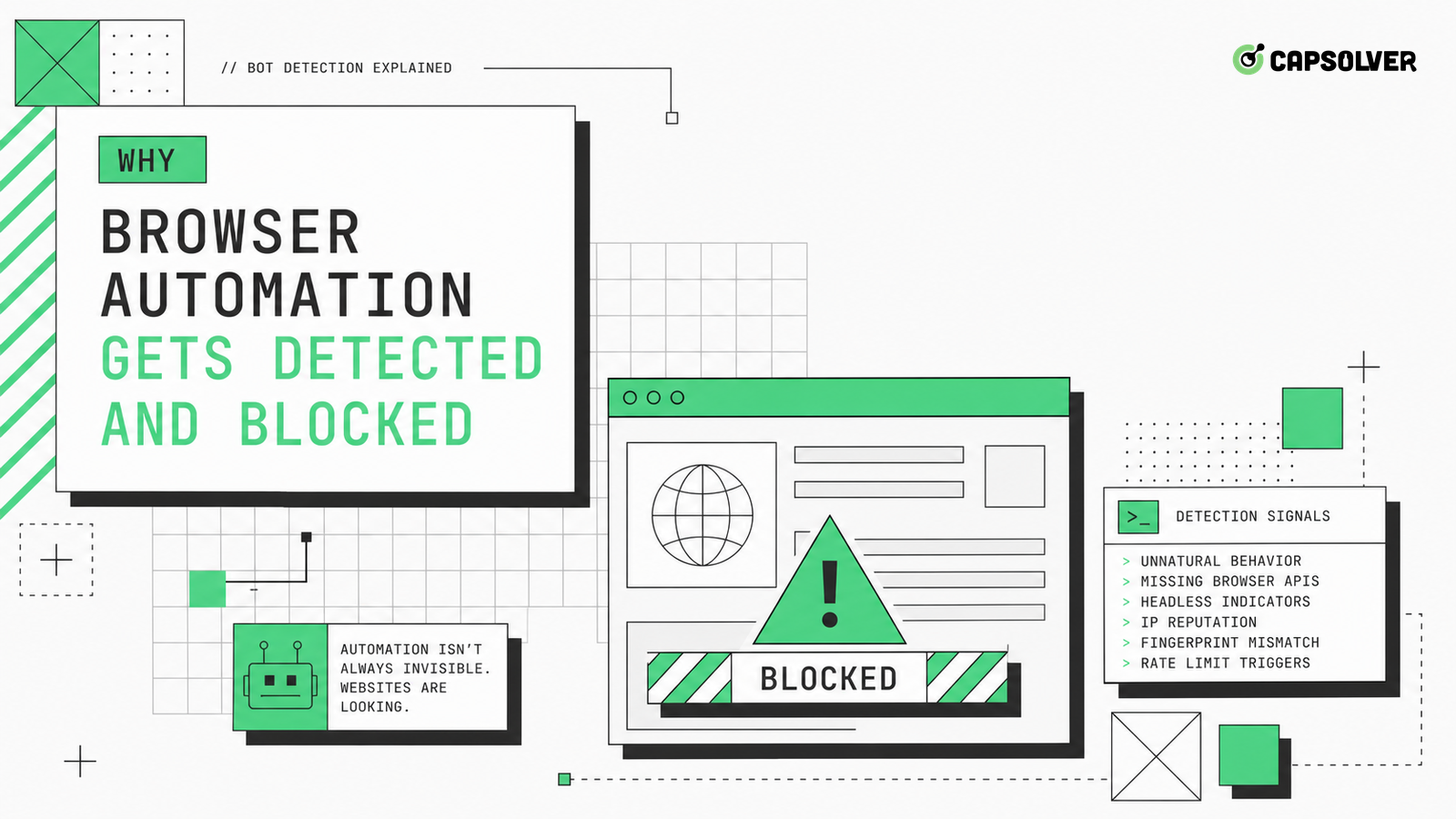
Browser automation is detected when the whole environment stops looking coherent. A site may evaluate browser surfaces, loaded scripts, storage history, event timing, network route, and account behavior before showing a challenge or refusal. CapSolver can help authorized teams handle supported CAPTCHA steps, but it cannot repair a browser profile that contradicts itself. When browser automation gets detected and blocked, compare a manual baseline, headed automation, headless automation, and production egress with the same URL path. Record client hints, cookies, local storage, console errors, blocked assets, timing, status codes, and final page state. The fix is rarely one flag; it is a coherent browser, session, and network story.
Browser fingerprinting is not one field. It can include user agent, client hints, screen geometry, canvas behavior, fonts, timezone, language, media devices, permissions, WebGL, TLS characteristics, and timing. The browser fingerprinting guidance frames fingerprinting as a collection of identifying surfaces, which is exactly how automation should be diagnosed. When browser automation gets detected and blocked, do not chase one suspicious property while ignoring the rest of the profile.
Start with coherence. A mobile user agent with a desktop viewport, a U.S. timezone with an unrelated proxy region, or a browser version that does not match available client hints can raise risk. A clean manual session is the reference. Export the manual browser's non-sensitive environment facts, then compare the automated context. CapSolver's headless browser definition gives teams a shared term for one important variable, but headless mode is only part of the signal set.
Keep the analysis responsible. Fingerprint review should be used to make owned QA, monitoring, and permitted automation stable, not to access restricted systems. If the target denies access by policy, the correct answer is to stop.
Headless differences are real, but unfair tests exaggerate them. The Chrome Headless mode page explains headless operation as a browser mode, not a separate toy browser. Still, sites can compare rendering, permissions, timing, and automation surfaces across modes. The right test holds everything else constant: same browser version, same proxy route, same account, same storage state, same viewport, same locale, and same target path.
Capture traces from four runs: manual headed, automated headed, automated headless, and production headless. Compare screenshots, console errors, network failures, script load order, status codes, and time between actions. If only production fails, the route or account policy may matter more than headless mode. If only headless fails, inspect browser-exposed surfaces and action timing. If both automated modes fail, the framework behavior, planner loop, or storage handling may be the cause.
The WebDriver browser automation model is useful because it defines a standard automation interface that browsers and tools build around. The lesson is not that automation is always rejected. The lesson is that browser automation gets detected and blocked when the full behavior differs from the expected user and session pattern.
Storage mistakes create many false detection signals. A user who has accepted cookies, logged in, set locale, and visited a workflow before does not look like a fresh anonymous browser on every task. If automation starts from a blank context for each page, it may force the site to repeat consent flows, load onboarding scripts, and request extra validation. If it reuses one context across unrelated accounts, it may carry conflicting identifiers.
Design storage state by workflow. A QA login flow can use a saved state created through an approved manual or automated setup. A public monitoring task may use a clean state but should still preserve cookies during one run. Never mix accounts in one context. The HTTP cookie behavior baseline helps explain why cookies carry scope, lifetime, and security attributes that agents should not casually discard.
CapSolver's user agent vocabulary is also relevant because storage and user agent should evolve together. A sudden browser identity change with old cookies can look unnatural. When browser automation gets detected and blocked after a release, inspect storage migration and cookie reuse before assuming the challenge provider changed.
Redeem Your CapSolver Bonus Code
Boost your automation budget instantly!
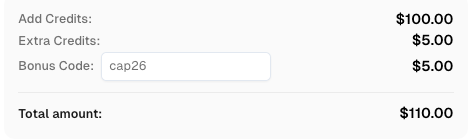
Use bonus code CAP26 when topping up your CapSolver account to get an extra 5% bonus on every recharge — with no limits.
Redeem it now in your CapSolver Dashboard
Screenshots do not show every missing signal. Browser automation can block third-party scripts through routing rules, content security policy errors, ad-blocking defaults, failed service workers, missing web workers, or network interception code. A page may render enough HTML for the agent to act while risk-control scripts fail silently. That mismatch can cause a later challenge, a form rejection, or a 403.
Log script failures and runtime gaps. Capture console errors, request failures, CSP reports, worker registration, iframe loads, and resource timing. If the site expects a worker or iframe to run before an action, the agent should wait for that environment to settle. CapSolver's web workers entry gives a useful vocabulary for one class of background execution that plain DOM inspection can miss.
Action timing matters too. Perfectly uniform pauses, instant scroll-to-click transitions, and repeated selector attempts can produce a machine-like pattern. Add deterministic waits for real readiness, but do not add random noise as a substitute for understanding. The goal is to make the permitted workflow accurate and observable, not to hide bad behavior.
Challenge handling belongs after the browser resembles the permitted manual baseline. If scripts fail, cookies reset, or headless mode changes the flow, adding a CAPTCHA service will only move the failure. First prove that the page loads required assets, the session is coherent, the planner does not loop, and the network route is allowed for the task.
When a supported CAPTCHA still appears in an authorized workflow, CapSolver can be placed at the challenge boundary. The integration should not conceal detection signals from operators. The browser tool should report challenge type, page URL, status code, route, storage state age, and final server response. That record helps teams know whether browser automation gets detected and blocked less often after the fix or whether the issue merely shifts to another path.
Compliance is part of the design. Use automation only for owned properties, contracted QA, or public data workflows with permitted access. Respect site terms, privacy duties, account rules, and published access preferences. If a site refuses access, do not convert that refusal into an endless browser experiment.
A four-way baseline separates browser environment issues from workflow issues. Run the same path manually, with headed automation, with headless automation, and with production automation settings. Keep the account, route, viewport, locale, and task goal constant. If only production fails, inspect route and deployment differences. If headless fails while headed passes, inspect browser mode, timing, fonts, plugins, and storage. If all automated modes fail, inspect the action plan and target policy.
The baseline should record signals rather than opinions. Capture loaded scripts, cookie count, local storage keys, console errors, request failures, redirect chains, and challenge timing. Avoid collecting sensitive page data. This method helps explain why browser automation gets detected and blocked without assuming one magic fingerprint flag. It also gives product teams a reproducible test that can be rerun after browser, proxy, or prompt changes.
Planner noise can look like browser detection. A model may scroll erratically, click the same element twice, abandon a partially loaded page, or submit a form before reading validation feedback. Those behaviors create timing and interaction patterns that infrastructure changes cannot fix. Before rotating routes or changing browser builds, review the action log for repeated selectors, short intervals, unexpected reloads, and decisions made without fresh observations.
Give the planner tighter tool contracts. Require a page-state summary before sensitive actions. Limit repeated clicks. Make uncertain states return needs_review rather than another navigation command. Store the reason for each action in a short field. When browser automation gets detected and blocked, this record shows whether the browser environment was suspicious or whether the agent behaved in a way no normal user would. The latter is a planning problem, not a proxy problem.
Storage state changes the browser story. A fresh profile has no cookies, no local storage, no service worker history, and no previous consent state. A reused profile may carry stale tokens, old experiments, or account flags. Neither is automatically better. The useful approach is to make storage state explicit and comparable across runs.
Record storage age, cookie count, consent status, service worker presence, and authentication class without storing private values. Then compare detection outcomes across fresh and persistent contexts. If a persistent context fixes the issue, the target path may expect continuity. If a persistent context worsens the issue, the account or stored state may already be flagged. This gives a practical explanation for why browser automation gets detected and blocked without treating every signal as a fingerprint mystery.
Third-party script failures can change how a page judges the browser. Consent managers, analytics, risk scripts, widget loaders, and authentication helpers may all affect the path. If automation blocks those scripts by accident, the site can see an incomplete visitor environment. If the scripts load too slowly, the agent may act before the page has finished its own validation.
Record failed script requests, blocked domains, content security errors, and late-loading widgets. Then compare them with a manual baseline. This check often explains why browser automation gets detected and blocked without requiring speculative changes to the browser fingerprint.
Browser automation gets detected and blocked when browser, storage, script, timing, account, and network signals no longer tell a coherent story. Compare fair baselines, preserve the right state, load required scripts, and make the agent stop on refusal states. After parity is proven, challenge handling can be added as one observable step.
For authorized workflows that still encounter supported CAPTCHA validation, evaluate that step with CapSolver while keeping the underlying browser signals visible.
No. Headless mode can matter, but route quality, cookies, scripts, timing, account state, and planner loops can create the same result.
Use a manual run and an automated headed run with the same account, route, browser version, viewport, locale, and storage state.
Only if it corrects a real mismatch. A user agent change that conflicts with client hints, cookies, or browser version can make the profile worse.
The first page may pass, but repeated timing patterns, storage changes, search loops, or failed scripts can raise risk later in the session.
CapSolver fits at supported CAPTCHA challenges in authorized workflows after the browser context, route, and session are already stable.
Rajinder Singh
Deep Learning Researcher
Making CAPTCHA solving more reliable in automated workflows.
ABOUT THE AUTHOR
Find CapSolver MCP in the Official MCP Registry, install version 0.1.3 with uvx or pip, configure a local client, and verify the stdio tools.

Add CAPTCHA tools to Pydantic AI using the official CapSolver adapter, test tool execution locally, and handle typed inputs and structured solver results.