

🎉NEWCapSolver for AI agents-MCP, agent tools, and SDK integrations

Lucas Mitchell
Automation Engineer
Published Oct 26, 2026
Updated Oct 27, 2026 · min read
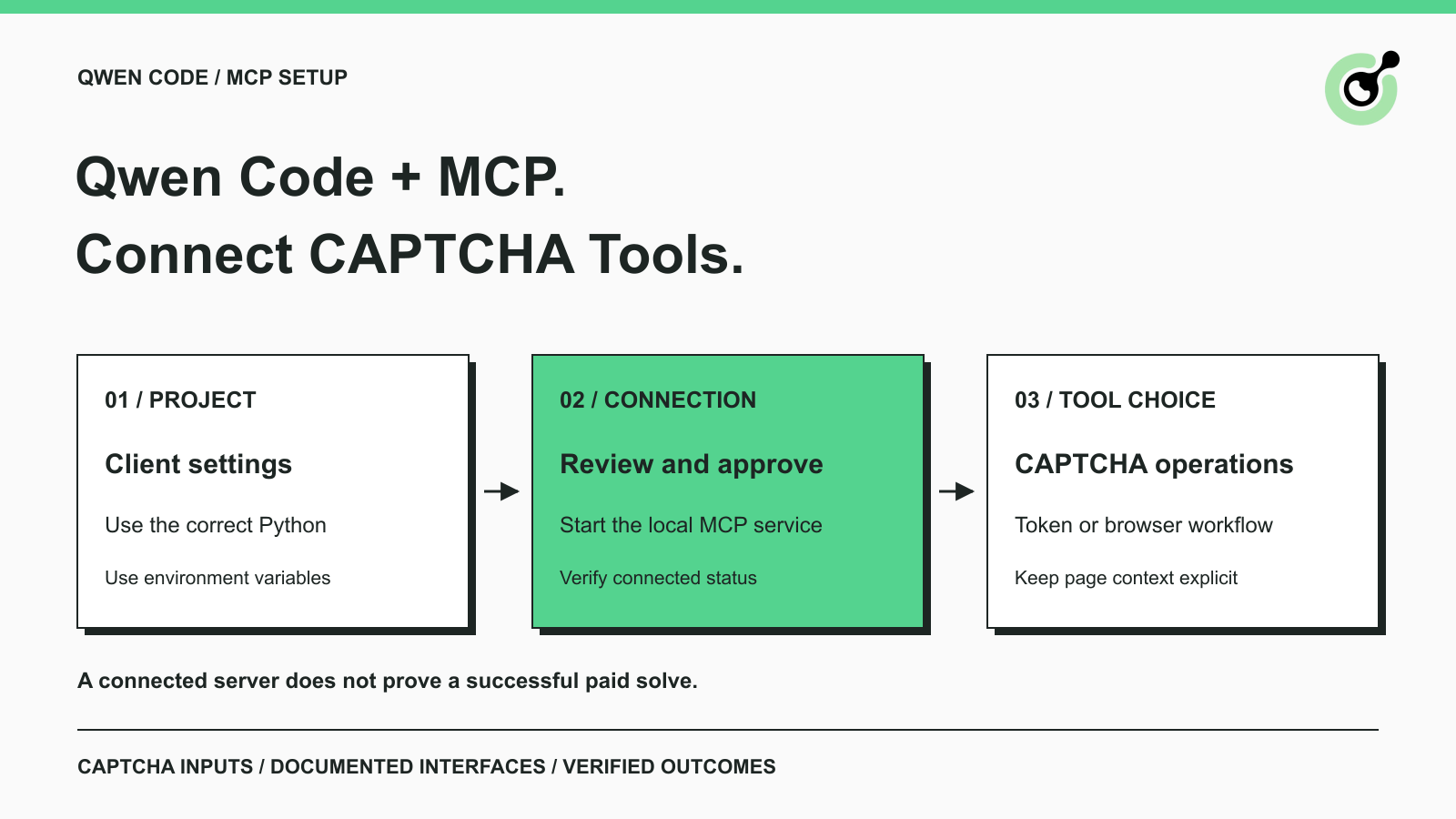
.qwen/settings.json, using the Python executable from the environment where the packages are installed.qwen mcp list to check the connection.Qwen Code is an open-source coding agent that runs in a terminal. Developers can use it to work on application code and invoke connected tools. When an authorized browser workflow reaches a CAPTCHA, a coding model alone does not supply a CAPTCHA solution. A solver needs the relevant challenge inputs and a clear place to return its result.
CapSolver exposes those capabilities through its official MCP service. This guide connects that service to Qwen Code, checks that the client can reach it, and explains how to choose an appropriate tool. The connection example does not require a model to improvise Python code or invent an API payload.
The integration gives Qwen Code access to a separate service that implements CAPTCHA-related tools. Qwen Code remains the client that discovers tools and requests actions; the service handles the documented solver operations.
The official Qwen Code project describes the product as a terminal coding agent. MCP extends that environment with capabilities supplied by servers. Installing a CAPTCHA server does not turn every coding task into a browser task, and ordinary code editing does not need a solver.
A useful case is a developer checking a permitted browser workflow whose next step is blocked by a CAPTCHA. The developer can inspect the challenge, select a supported operation, and keep the result associated with that page. This is narrower than asking the agent to make an entire website accessible.
If MCP is new to your workflow, the distinction between a client and an API call matters: a tool description advertises an operation, while an actual invocation performs it. Connection status describes availability, not successful execution of every advertised operation.
Prepare Qwen Code and a Python environment containing the official server before editing the project configuration.
The connection described here uses Qwen Code 0.26.1 with capsolver-core 0.1.1 and capsolver-mcp 0.1.3. Qwen Code's package requires Node.js 22 or newer. Follow its official installation instructions if the qwen command is not already available.
Install the solver packages in the Python environment you intend Qwen Code to launch:
python -m pip install capsolver-core==0.1.1 capsolver-mcp==0.1.3The official MCP installation guide also describes the browser extra and Chromium installation. Those dependencies are required for browser-based detection and page solving. They are separate from establishing the stdio connection.
A valid CapSolver API key and sufficient account balance are prerequisites for paid solving. Model access in Qwen Code is another separate prerequisite for conversational tool use. The connection check below tests server startup and connection only; it does not submit a paid solve or run a model-driven task.
Keep the account key in the environment used to start Qwen Code. Do not paste the real value into a tracked project configuration or into an article, issue, screenshot, or shared transcript.
Add a capsolver entry to the mcpServers object in .qwen/settings.json at the project root.
Qwen Code documents both project configuration and environment-variable substitution in its MCP setup reference. Merge the entry into existing settings instead of replacing other servers or project preferences.
{
  "mcpServers": {
    "capsolver": {
      "command": "/absolute/path/to/venv/bin/python",
      "args": ["-m", "capsolver_mcp"],
      "env": {
        "CAPSOLVER_API_KEY": "${CAPSOLVER_API_KEY}"
      },
      "trust": false
    }
  }
}
Replace the executable path with the actual Python path inside your installed environment. An absolute path prevents a terminal, editor, or service launcher from finding a different Python installation through its own search path. Preserve the virtual-environment path itself; resolving a symlink to the base interpreter can select an interpreter without the installed packages.
The placeholder is an environment-variable reference, not an API key. The variable must exist in the process environment when Qwen Code starts. A key set in one terminal does not automatically become available to a client started elsewhere.
This configuration uses stdio: Qwen Code starts the Python module as a local process. It does not need a public HTTP endpoint, an exposed port, or the CMS MCP credentials used by a content publishing workflow.
Redeem Your CapSolver Bonus Code
Boost your automation budget instantly!
Use bonus code CAP26 when topping up your CapSolver account to get an extra 5% bonus on every recharge — with no limits.
Redeem it now in your CapSolver Dashboard
Approve the reviewed project server, then check its connection from the same project directory.
qwen mcp approve capsolver
qwen mcp list
For the tested client version, an unapproved project entry appears as pending approval. After approval, the server can connect. The expected useful signal is that the capsolver entry is connected; the line also identifies the executable and transport.
Approval and trust serve different purposes. Approving a reviewed server lets it connect. Keeping trust false retains the normal tool-call confirmation behavior. Do not change that setting merely to hide a setup problem.
If the connection fails, check the executable path first, then confirm that the same Python environment can import the installed packages. Check that the configuration is in the project you actually opened. Qwen's settings reference explains configuration sources; a duplicate entry elsewhere can complicate troubleshooting.
A successful connection with no solving key still does not establish account access. A connection check and a billable operation exercise different parts of the system.
Choose a tool according to the information and browser state already available in your workflow.
The official service exposes get_supported_captchas, get_balance, detect_captchas, solve_captcha, and solve_on_page. Start with the supported-type listing when you need to confirm the installed service's capability names. Check balance separately when diagnosing account readiness.
Use solve_captcha when the workflow already has the documented CAPTCHA type and site parameters. Its result still needs to be consumed by the application that requested it. For token-based tasks, receiving a token does not itself submit a form or prove that the website accepted the request.
Use browser tools only with their documented browser setup. detect_captchas inspects a page URL. solve_on_page combines detection, solving, and fill-back within the service's browser workflow. Neither name promises access to a tab that belongs to another MCP server.
For an initial conversational check, ask Qwen Code to list the supported CAPTCHA types through the configured server. For an authorized page task, state the page and the permitted operation precisely, and review the selected tool and arguments before execution. Avoid an open-ended instruction to keep trying until a site permits access.
The browser handoff must preserve the context required by the task. A URL alone may not reproduce a page that was reached through earlier interactions.
If your existing browser automation controls a live page, decide whether you need a token for that workflow or an SDK integration with that page. Do not assume that adding two MCP servers merges their sessions, cookies, tabs, or JavaScript state.
The Core SDK integration guide describes direct browser integration. That may be the appropriate route when the application needs to retain an existing page object. The token-versus-cookie explanation also helps distinguish the artifact returned by a solver from the broader state of a browser session.
Before calling a workflow complete, check the application outcome. Was the expected form accepted? Did the permitted page continue to the intended state? A connected server, a detected widget, and an accepted application request are different milestones.
Connect the official service, inspect the tools, and start with one bounded operation that matches the CAPTCHA in your workflow. CapSolver can supply the documented solving step while Qwen Code remains responsible for choosing and invoking tools within the task you approved.
Q: Does Qwen Code include a CAPTCHA solver by default?
No. This guide adds the official CapSolver MCP service as a separate tool provider. Qwen Code's model and the solver account are separate components.
Q: Why does the server show pending approval?
A project MCP entry may require approval before Qwen Code connects. Review its command and environment configuration, then use the approval command supported by your installed client version.
Q: Can I test the connection without paying for a CAPTCHA?
Yes. Server connection can be checked separately from paid solving. A connected status does not verify your account balance, paid task execution, or a website's acceptance of a solution.
Q: Does the service use my other MCP browser tab?
Do not assume that it does. Separate servers have separate browser workflows unless a documented integration explicitly connects them. Choose token mode or direct SDK integration when you need to preserve an existing page.
Q: Why are browser tools unavailable after installation?
Check the browser extra and Chromium prerequisites in the official MCP guide. Also inspect any client-side tool filters and whether the expected server entry is connected.
Q: Can this setup handle every CAPTCHA on every page?
No. Use the current supported-type list and task references, and limit operations to pages and workflows you are allowed to automate. An advertised tool is not a guarantee of success on an arbitrary page.
Lucas Mitchell
Automation Engineer
Helping browser automation recover and continue.
ABOUT THE AUTHOR
Add a CAPTCHA inspection tool to Haystack, read reCAPTCHA parameters with the official SDK, and verify the connection before a separate solving step.

Add CAPTCHA solver tools to Goose with a local MCP extension. Configure Python, inspect tool discovery, and troubleshoot the setup before a solving task.