
🎉NEWCapSolver for AI agents-MCP, agent tools, and SDK integrations

Khadija Santos
AI Agent & MCP Engineer
Published Sep 24, 2026
Updated Sep 24, 2026 · min read
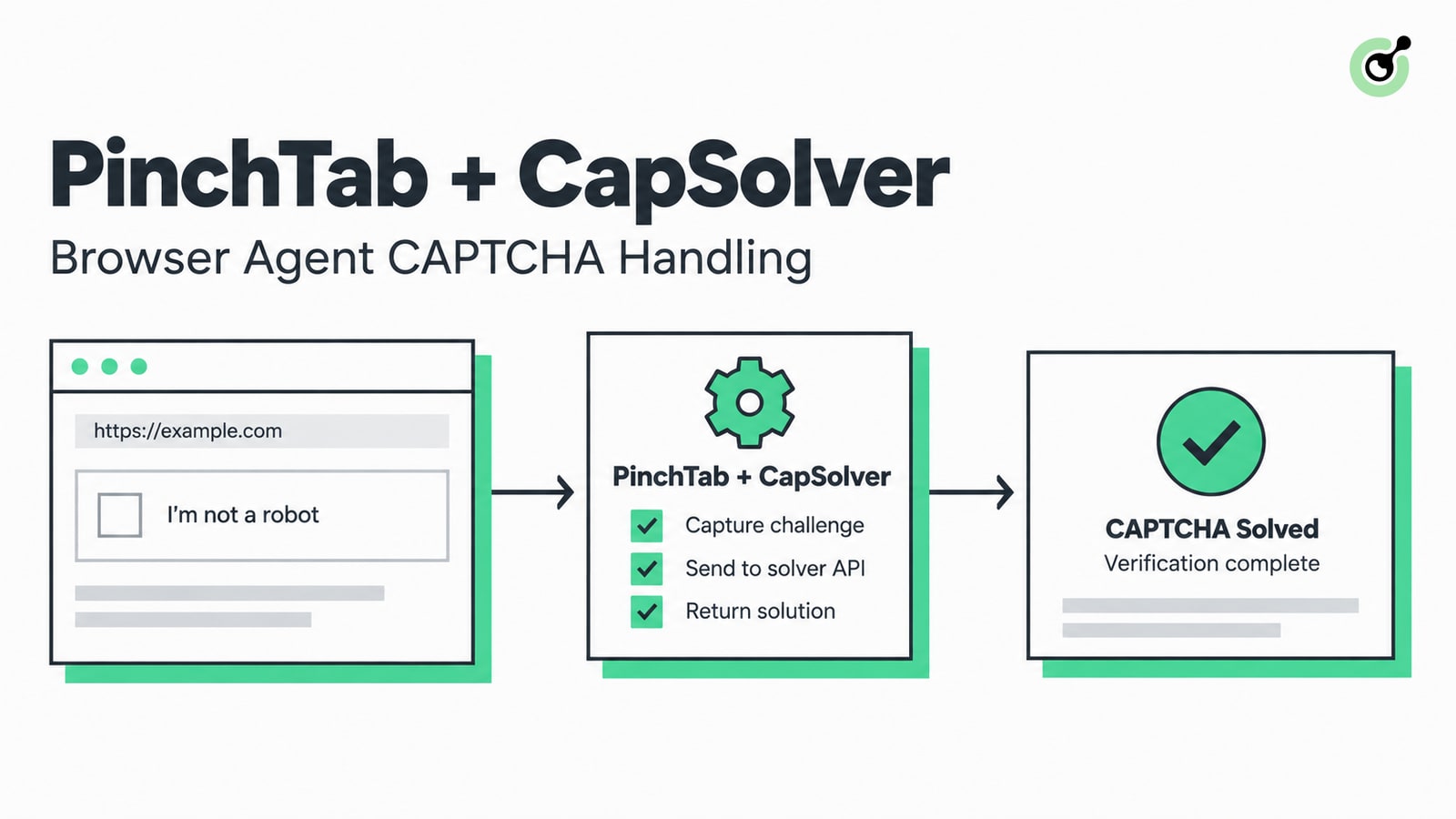
autoSolver.external.capsolverKey is configured.GET /solvers to confirm provider registration before calling POST /solve/capsolver or a tab-scoped solve route.solved: true as the result of the challenge step, not proof that the original form, test, or data task succeeded.PinchTab gives AI agents a compact HTTP, CLI, and MCP control plane for Chrome. Its current AutoSolver layer can also register external providers, including CapSolver, so an authorized browser workflow can handle a supported CAPTCHA without teaching the model raw API payloads.
This guide shows how to configure CapSolver in PinchTab, verify the local service, call a named solver, and keep the final workflow check outside the solver. The examples use PinchTab 0.15.2 and placeholder credentials. They are intended for QA, RPA, and public-data workflows you are permitted to automate.
The PinchTab and CapSolver integration adds a named CAPTCHA-handling step to a browser session that PinchTab already controls.
PinchTab's AutoSolver documentation describes a registry of internal and external solvers. The capsolver provider is enabled through the autoSolver.external.capsolverKey configuration field. PinchTab keeps the active tab and browser state, while the external provider handles the supported challenge task.
That separation matters for browser agents. The agent should not invent task types, copy credentials into prompts, or assume that a returned solution completed the business action. PinchTab owns the page session. CapSolver returns the documented challenge result. Your application still decides whether to continue, retry, stop, or request human review.
You need the following before configuring the integration:
PinchTab's security guide recommends a server token, loopback binding, and domain controls. Those safeguards are relevant even on a local machine because any local process that can reach the control plane may otherwise be able to drive the browser.
The verification run for this article used the official PinchTab 0.15.2 macOS ARM64 binary. The binary returned pinchtab 0.15.2, and its authenticated /health route returned HTTP 200 with authRequired: true. A full paid challenge was not submitted because this environment did not have an approved CapSolver key or an authorized CAPTCHA test target.
Install PinchTab from its official release or the installation method documented by the project, then confirm the binary you are running.
pinchtab versionExpected output for the version verified in this guide:
pinchtab 0.15.2Initialize a dedicated configuration file rather than modifying a personal browser setup used for unrelated work.
export PINCHTAB_CONFIG="$PWD/pinchtab-config.json"
pinchtab config init
config init creates a server token. Do not print that token in CI logs or commit the resulting file.
Configure CapSolver under autoSolver.external, and keep the browser control server on 127.0.0.1 unless you have a reviewed remote-access design.
{
  "server": {
    "bind": "127.0.0.1",
    "port": "9867",
    "token": "PINCHTAB_SERVER_TOKEN"
  },
  "security": {
    "allowedDomains": ["qa.example.com"],
    "idpi": {
      "enabled": true,
      "strictMode": true,
      "scanContent": true,
      "wrapContent": true
    }
  },
  "autoSolver": {
    "enabled": true,
    "autoTrigger": false,
    "triggerOnNavigate": false,
    "triggerOnAction": false,
    "maxAttempts": 3,
    "solverTimeoutSec": 30,
    "retryBaseDelayMs": 500,
    "retryMaxDelayMs": 5000,
    "solvers": ["capsolver", "cloudflare", "semantic"],
    "llmFallback": false,
    "external": {
      "capsolverKey": "CAPSOLVER_API_KEY"
    }
  }
}
Use your secret manager to inject the real values into the runtime configuration. The placeholders above are not usable credentials.
Starting with automatic triggers disabled makes the first test easier to audit. You can call the named solver only when your application has classified the page as an approved verification checkpoint. After the workflow is stable, evaluate automatic triggers separately and keep the same attempt and timeout limits.
Redeem Your CapSolver Bonus Code
Boost your automation budget instantly!
Use bonus code CAP26 when topping up your CapSolver account to get an extra 5% bonus on every recharge — with no limits.
Redeem it now in your CapSolver Dashboard
Verify the control plane and solver registry before opening the target workflow.
Start PinchTab with the dedicated configuration:
PINCHTAB_CONFIG="$PWD/pinchtab-config.json" pinchtab serverIn a second terminal, read the server token from your secret store and call the local health route:
curl -sS \
  -H "Authorization: Bearer $PINCHTAB_TOKEN" \
  http://127.0.0.1:9867/health
A healthy response reports status: "ok". Wait until the default browser instance is ready before checking the solver list.
curl -sS \
  -H "Authorization: Bearer $PINCHTAB_TOKEN" \
  http://127.0.0.1:9867/solvers
PinchTab's solve route reference states that capsolver is included when its API key is configured. If it is missing, check the active config path, restart the service, and confirm that the key was injected into the process that started PinchTab.
Call the named capsolver route when the active tab has reached an authorized challenge page.
curl -sS -X POST \
  -H "Authorization: Bearer $PINCHTAB_TOKEN" \
  -H "Content-Type: application/json" \
  http://127.0.0.1:9867/solve/capsolver \
  -d '{"maxAttempts": 3, "timeout": 30000}'
For a specific tab, use the tab-scoped route so concurrent agents do not act on whichever tab happens to be active:
curl -sS -X POST \
  -H "Authorization: Bearer $PINCHTAB_TOKEN" \
  -H "Content-Type: application/json" \
  "http://127.0.0.1:9867/tabs/TAB_ID/solve/capsolver" \
  -d '{"maxAttempts": 3, "timeout": 30000}'
The documented response includes the tab ID, solver name, solved flag, challenge type, attempt count, and final page title. Store those fields with the browser task's correlation ID. Do not store the API key or returned challenge artifacts in ordinary application logs.
The original browser task needs its own acceptance check after the challenge step returns.
For a QA workflow, verify the expected URL, page heading, authenticated state, or form result in the same tab. For a data workflow, validate that the expected record schema is present and that the response is not another challenge or error page. A browser title alone is not enough.
Use a small state machine instead of treating every non-error response as success:
| State | Required evidence | Next action |
|---|---|---|
challenge_detected |
Expected challenge markers on an approved domain | Call the named solver once |
solving |
Same tab and correlation ID remain active | Wait within the configured deadline |
challenge_handled |
Solver reports success | Re-check the original task |
task_verified |
Expected application outcome is present | Continue the workflow |
needs_review |
Unknown challenge, session change, or unclear permission | Stop and hand off |
failed |
Attempt budget or deadline exhausted | Record evidence and stop |
CapSolver's task-result documentation distinguishes a processing task from a ready result. PinchTab abstracts that provider interaction, but your application must still enforce the overall workflow deadline and final acceptance rule.
capsolver does not appear in /solversThe active PinchTab process is probably using a different config file, has not been restarted, or did not receive the external API key. Confirm PINCHTAB_CONFIG, restart the server, and query the registry again without printing the secret.
/solvers returns 503The PinchTab browser instance may still be starting or restarting. Check /health, inspect the instance state, and confirm that the configured Chromium binary can launch with the selected profile.
The page may have navigated, the token may belong to a different browser context, or the application may have rejected the original action. Keep tab ownership stable and verify the business result after challenge handling.
Repeated solving should not be unbounded. Keep maxAttempts small, preserve the first failure evidence, and move the workflow to needs_review when the same checkpoint returns.
CAPTCHA handling does not authorize credential entry, account creation, phone verification, or access to restricted data. Stop and request human action under the application's normal access policy.
PinchTab already exposes the integration seam needed to use CapSolver as a named external solver. A production setup should keep the server local or strongly authenticated, restrict target domains, bind every solve to a specific tab, cap attempts, and verify the original page outcome.
Use CapSolver only inside workflows you are permitted to automate. The provider result is one controlled step in the browser state machine, not a blanket signal to continue.
Create a CapSolver account, test the PinchTab integration on an owned QA page, and keep the API key in your runtime secret store. Start with manual solver calls and a strict attempt budget before enabling any automatic trigger.
Q: Does PinchTab support CapSolver directly?
Yes. PinchTab's AutoSolver documentation and solve reference list capsolver as an external provider enabled by autoSolver.external.capsolverKey.
Q: Can I use CapSolver through PinchTab MCP?
PinchTab exposes browser control through MCP, while its HTTP AutoSolver routes handle named solvers. Confirm the exact tool surface in your installed PinchTab version and keep solver invocation inside a bounded application workflow.
Q: Should I enable automatic solving immediately?
No. Start with explicit calls on an approved test page, verify the tab-scoped response, and add automatic triggers only after you have clear detection, stop, and audit rules.
Q: What does solved: true prove?
solved: true reports the challenge step's outcome. Your application must still verify that the original navigation, form submission, test assertion, or data request succeeded.
Q: What should the agent do when the challenge type is unsupported?
The agent should stop after the configured attempt budget and request human review. It should not improvise provider fields, switch to an unapproved target, or continue into login, 2FA, or identity verification.
Khadija Santos
AI Agent & MCP Engineer
Develops and maintains CapSolver’s MCP tooling, from implementation and package releases to AI agent integrations.
ABOUT THE AUTHOR
Understand CAPTCHA MCP proxy support across the client connection, browser, and solver task, including the limits of current CapSolver MCP tools.
Understand Stagehand CAPTCHA handling, compare browser actions with solver services, and choose a clear approach for local browsers or hosted sessions.