CAPTCHA Error 600010: What It Means and How to Fix It Fast

Anh Tuan
Data Science Expert
TL;Dr:
- CAPTCHA Error 600010 is a generic Cloudflare Turnstile error indicating a failed challenge, often due to browser issues, network problems, or site misconfigurations.
- Quick fixes for users include clearing browser cache/cookies, disabling extensions, syncing system clock, and trying different browsers.
- Developers and automators should verify
sitekeyandwebsiteURL, consider using reliable CAPTCHA solving services like CapSolver, and ensure proper handling of TLS fingerprints and proxies. - CapSolver offers an effective API-based solution for automating Turnstile CAPTCHA challenges, providing robust integration for web scraping and automation tasks.
- Performance optimization involves using high-quality proxies, managing request concurrency, and adhering to ethical scraping practices.
Introduction
Encountering a CAPTCHA can be a minor inconvenience, but a persistent CAPTCHA Error 600010 can halt your online activities or automated processes. This error, frequently associated with Cloudflare Turnstile, is a broad indicator that a security challenge has failed. It can stem from various client-side issues, such as browser settings or network configurations, or even server-side misconfigurations. Understanding the root causes and implementing effective solutions is crucial for seamless web interaction and efficient automation. This comprehensive guide will delve into the specifics of CAPTCHA Error 600010, providing actionable steps for both individual users and developers to resolve this common challenge quickly and efficiently.
Understanding CAPTCHA Error 600010
CAPTCHA Error 600010 is a general error code primarily used by Cloudflare Turnstile to signal that a CAPTCHA challenge could not be successfully verified. Unlike specific error messages that pinpoint an exact problem, 600010 acts as an umbrella, covering a range of potential issues from the user's browser environment to the website's configuration. This generic nature often makes troubleshooting challenging, as the actual cause might not be immediately apparent. It's a clear signal that the system suspects automated activity or an unusual browsing pattern, triggering the security measure.
Common Causes of CAPTCHA Error 600010
Several factors can contribute to the occurrence of CAPTCHA Error 600010. Identifying these underlying causes is the first step toward a lasting solution. These issues can be broadly categorized into client-side problems, network-related challenges, and server-side configurations.
| Category | Specific Cause | Description |
|---|---|---|
| Client-Side | Outdated Browser/OS | Older browser versions or operating systems may lack necessary security features or compatibility with modern CAPTCHA mechanisms. |
| Browser Extensions | Ad-blockers, script blockers, or privacy extensions can interfere with CAPTCHA scripts, preventing them from loading or executing correctly. | |
| Corrupted Cache/Cookies | Stale or corrupted browser data can lead to authentication failures and CAPTCHA errors. | |
| System Clock Mismatch | An unsynchronized system clock can cause issues with time-sensitive security protocols, leading to verification failures. | |
| Network-Related | IP Reputation | Using a VPN, proxy, or being on a shared network with a poor IP reputation can flag your connection as suspicious. |
| Network Instability | Unstable internet connections can interrupt the CAPTCHA verification process, resulting in errors. | |
| Server-Side | Incorrect Site Configuration | The website's integration of Cloudflare Turnstile might have incorrect sitekey or secretkey settings, or other misconfigurations. |
| Caching Plugins | For platforms like WordPress, caching plugins can sometimes interfere with dynamic CAPTCHA elements, causing them to fail. |
Step-by-Step Solutions for Users
For individual users encountering CAPTCHA Error 600010, a series of straightforward steps can often resolve the issue. These solutions focus on optimizing your browsing environment to ensure smooth interaction with CAPTCHA challenges.
Step 1: Clear Browser Cache and Cookies
- Purpose: To remove any corrupted or outdated data that might be interfering with CAPTCHA scripts.
- Operation:
- Open your browser settings.
- Navigate to the privacy or history section.
- Select the option to clear browsing data, ensuring that 'Cached images and files' and 'Cookies and other site data' are selected.
- Choose a time range (e.g., 'All time') and confirm.
- Considerations: This action will log you out of most websites. Remember to back up any unsaved work.
Step 2: Disable Browser Extensions
- Purpose: To identify if an extension is blocking CAPTCHA scripts or interfering with their functionality.
- Operation:
- Open your browser's extension management page (e.g.,
chrome://extensionsfor Chrome). - Toggle off all extensions, especially ad-blockers, script blockers, and privacy tools.
- Try accessing the website again. If the CAPTCHA Error 600010 is resolved, re-enable extensions one by one to pinpoint the culprit.
- Open your browser's extension management page (e.g.,
- Considerations: Some extensions are essential for security or productivity. Only disable them temporarily for testing.
Step 3: Synchronize Your System Clock
- Purpose: To ensure your computer's time is accurate, as time discrepancies can affect security protocols.
- Operation:
- Windows: Go to
Settings > Time & Language > Date & timeand ensure "Set time automatically" is enabled. Click "Sync now" if available. - macOS: Go to
System Settings > General > Date & Timeand ensure "Set date and time automatically" is enabled.
- Windows: Go to
- Considerations: This is a less common cause but an easy fix that can resolve subtle authentication issues.
Step 4: Try a Different Browser or Incognito Mode
- Purpose: To rule out browser-specific issues or persistent cached data.
- Operation:
- Attempt to access the problematic website using a different web browser (e.g., Firefox, Edge, Safari).
- Alternatively, open an Incognito (Chrome) or Private (Firefox) window in your current browser. This mode typically disables extensions and clears session data, providing a clean browsing environment.
- Considerations: If the error disappears in a different browser or Incognito mode, it strongly suggests a problem with your primary browser's settings or extensions.
Advanced Solutions for Developers and Automators
For developers and those involved in web automation, encountering CAPTCHA Error 600010 often points to more complex issues related to how your scripts interact with anti-bot mechanisms. Efficiently bypassing these challenges requires a robust strategy, often involving specialized tools like CapSolver.
Integrating CapSolver for Turnstile CAPTCHA Resolution
CapSolver provides an API-based solution to programmatically solve various CAPTCHA types, including Cloudflare Turnstile. This is particularly useful in automation scenarios where manual intervention is not feasible. The process involves sending the CAPTCHA details to CapSolver, which then returns a solution token.
Environment Preparation
Before integrating CapSolver, ensure your environment is set up with the necessary libraries. For Python, the requests library is commonly used for API interactions.
python
# Install the requests library if you haven't already
pip install requests
API Integration: Creating a Task
To solve a Cloudflare Turnstile CAPTCHA using CapSolver, you first need to create a task. The createTask endpoint requires your clientKey, the websiteURL where the CAPTCHA appears, and the websiteKey (sitekey) of the Turnstile widget. The type for Cloudflare Turnstile is AntiTurnstileTaskProxyLess, indicating that no proxy is required for the task itself.
Request Endpoint: https://api.capsolver.com/createTask
Example Request (Python):
python
import requests

api_key = "YOUR_CAPSOLVER_API_KEY"  # Replace with your CapSolver API key
site_key = "0x4XXXXXXXXXXXXXXXXX"  # The sitekey from the target website's Turnstile widget
site_url = "https://www.yourwebsite.com"  # The URL where the Turnstile CAPTCHA is located

payload = {
    "clientKey": api_key,
    "task": {
        "type": "AntiTurnstileTaskProxyLess",
        "websiteKey": site_key,
        "websiteURL": site_url,
        "metadata": {
            "action": "login"  # Optional: if the Turnstile widget has a data-action attribute
        }
    }
}

try:
    response = requests.post("https://api.capsolver.com/createTask", json=payload)
    response.raise_for_status()  # Raise an exception for HTTP errors
    resp_data = response.json()
    task_id = resp_data.get("taskId")

    if task_id:
        print(f"Task created successfully. Task ID: {task_id}")
    else:
        print(f"Failed to create task: {resp_data.get('errorDescription', 'Unknown error')}")
except requests.exceptions.RequestException as e:
    print(f"Request failed: {e}")
API Integration: Getting the Result
After creating the task, you need to poll the getTaskResult endpoint using the taskId obtained from the previous step. CapSolver will process the CAPTCHA, and once the solution is ready, it will return a token.
Request Endpoint: https://api.capsolver.com/getTaskResult
Example Request (Python):
python
import requests
import time

# Assuming task_id and api_key are already defined from the createTask step
# task_id = "..."
# api_key = "..."

def get_captcha_solution(api_key, task_id):
    while True:
        payload = {"clientKey": api_key, "taskId": task_id}
        try:
            response = requests.post("https://api.capsolver.com/getTaskResult", json=payload)
            response.raise_for_status()
            resp_data = response.json()
            status = resp_data.get("status")

            if status == "ready":
                solution_token = resp_data.get("solution", {}).get("token")
                print(f"CAPTCHA solved! Solution token: {solution_token}")
                return solution_token
            elif status == "processing":
                print("CAPTCHA still processing... waiting 5 seconds.")
                time.sleep(5)
            elif status == "failed" or resp_data.get("errorId"):
                print(f"CAPTCHA solving failed: {resp_data.get('errorDescription', 'Unknown error')}")
                return None
            else:
                print(f"Unexpected status: {status}. Waiting 5 seconds.")
                time.sleep(5)
        except requests.exceptions.RequestException as e:
            print(f"Request failed: {e}")
            return None

# Example usage:
# solution = get_captcha_solution(api_key, task_id)
# if solution:
#     # Use the solution_token to submit your form or continue automation
#     pass
Handling the Solution Token
Once you receive the solution_token from CapSolver, you typically need to inject this token into the web page's form submission or JavaScript context. This usually involves finding the hidden input field where the Turnstile token is expected (often named cf-turnstile-response) and populating it with the received token before submitting the form. This ensures that your automated request appears legitimate to the Cloudflare system.
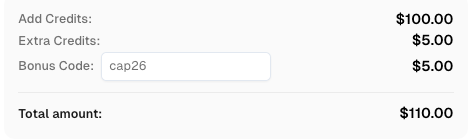
Redeem Your CapSolver Bonus Code
Boost your automation budget instantly!
Use bonus code CAP26 when topping up your CapSolver account to get an extra 5% bonus on every recharge — with no limits.
Redeem it now in your CapSolver Dashboard
Troubleshooting Common Issues
Even with a robust solution like CapSolver, you might encounter issues. Here's a guide to common problems and their resolutions when dealing with CAPTCHA Error 600010 in an automated context.
1. Invalid sitekey or websiteURL
- Problem: The
sitekeyorwebsiteURLprovided to CapSolver does not match the actual values on the target website. - Solution: Double-check these parameters. The
sitekeyis usually found in thedata-sitekeyattribute of the Turnstiledivelement on the webpage. ThewebsiteURLshould be the exact URL of the page hosting the CAPTCHA.
2. API Key Issues
- Problem: Your CapSolver API key is incorrect, expired, or has insufficient balance.
- Solution: Verify your
clientKeyin the CapSolver dashboard. Ensure your account has sufficient funds. Check the CapSolver API Error Codes for specific error messages related to API key or balance.
3. Network or Proxy Problems
- Problem: Although
AntiTurnstileTaskProxyLessdoesn't require a proxy for the CAPTCHA solving itself, your subsequent requests to the target website might still be blocked if your IP has a poor reputation or if you're using a low-quality proxy for your main automation script. - Solution: Consider using high-quality, residential proxies for your automation requests to the target website. This can significantly improve your success rate and avoid IP bans. For more details, refer to Avoiding IP Bans.
4. Incorrect metadata Parameters
- Problem: The
metadata(e.g.,action,cdata) provided in thecreateTaskrequest is incorrect or missing when the Turnstile widget expects it. - Solution: Inspect the Turnstile
divelement on the target page fordata-actionordata-cdataattributes. If they exist, include them accurately in yourmetadataobject when creating the task.
5. Timeouts and Delays
- Problem: The
getTaskResultcall times out before a solution is returned, or the solution is received too late. - Solution: Increase the polling interval or the overall timeout for
getTaskResult. While CapSolver typically returns results within 1-20 seconds, network latency or high system load can sometimes cause delays. Ensure your script can handle these variations.
Performance Optimization Suggestions
Optimizing your CAPTCHA solving process is crucial for efficient and scalable web automation. Beyond just fixing CAPTCHA Error 600010, consider these strategies to enhance performance:
1. Proxy Management
While CapSolver's AntiTurnstileTaskProxyLess task type doesn't require a proxy for solving the CAPTCHA, the overall success of your automation heavily relies on the quality of proxies used for your main web requests. High-quality residential or mobile proxies can mimic real user traffic, reducing the likelihood of triggering anti-bot measures and subsequent CAPTCHA challenges. This is a critical aspect of why web automation keeps failing on CAPTCHA.
2. Concurrency and Request Frequency
- Concurrency: Running multiple CAPTCHA solving tasks simultaneously can speed up your automation. However, be mindful of the target website's rate limits and your CapSolver account's concurrency limits.
- Request Frequency: Avoid sending requests too rapidly to the target website after receiving a CAPTCHA solution. Mimic human-like delays to prevent detection.
3. User-Agent and Header Management
Always use realistic and up-to-date User-Agent strings and other HTTP headers in your automation requests. Inconsistent or outdated headers can easily flag your requests as automated, leading to more CAPTCHA challenges or blocks.
Conclusion
CAPTCHA Error 600010 can be a frustrating hurdle, but with a systematic approach, it is entirely resolvable. For individual users, simple browser and system adjustments often suffice. For developers and automators, understanding the nuances of Cloudflare Turnstile and leveraging powerful tools like CapSolver are key. By following the step-by-step guidance, implementing robust API integrations, and optimizing for performance, you can effectively overcome this error and ensure your web interactions and automated workflows remain smooth and uninterrupted. CapSolver stands as a reliable partner in this endeavor, providing the technical backbone to navigate complex CAPTCHA challenges efficiently.
FAQ
Q1: What does CAPTCHA Error 600010 mean?
A1: CAPTCHA Error 600010 is a generic error code from Cloudflare Turnstile, indicating that a CAPTCHA challenge failed to verify. It's an umbrella error that can signify various underlying issues, from browser misconfigurations to network problems or incorrect site integration. For more details, you can check the Cloudflare Community discussion on Error 600010.
Q2: How can I fix CAPTCHA Error 600010 as a regular user?
A2: As a regular user, you can try several quick fixes: clear your browser's cache and cookies, disable browser extensions (especially ad-blockers), ensure your system clock is synchronized, or try using a different web browser or Incognito/Private mode. These steps often resolve client-side issues causing the error. Similar issues are often discussed on Microsoft Q&A regarding Error 600010.
Q3: Why is CapSolver recommended for CAPTCHA Error 600010 in automation?
A3: CapSolver is recommended for automation because it provides an API-based solution to programmatically solve Cloudflare Turnstile CAPTCHAs. This eliminates the need for manual intervention, allowing your automated scripts to seamlessly overcome these challenges and continue their tasks without interruption, significantly improving efficiency and reliability.
Q4: Are there any performance tips for solving CAPTCHA Error 600010 in bulk?
A4: Yes, for bulk operations, consider using high-quality residential or mobile proxies for your main web requests to maintain a good IP reputation. Manage concurrency carefully to avoid overwhelming target sites or your CapSolver account limits. Also, ensure your automation scripts use realistic User-Agent strings and mimic human-like delays between requests.
Q5: Can browser extensions cause CAPTCHA Error 600010?
A5: Yes, browser extensions, particularly ad-blockers, script blockers, and privacy-focused tools, can often interfere with the loading and execution of CAPTCHA scripts, leading to CAPTCHA Error 600010. Temporarily disabling them can help diagnose if an extension is the cause. This is a known issue in various automation frameworks, as seen in this GitHub issue on Turnstile challenges.
More
CloudflareApr 29, 2026
What Is a Cloudflare Challenge? How It Works & When It Appears
Learn what a Cloudflare Challenge is, how Cloudflare detects bots using JavaScript and machine learning, and why challenges appear during browsing. Complete guide for 2026.

CloudflareApr 21, 2026
Cloudflare Turnstile Verification Failed? Causes, Fixes & Troubleshooting Guide
Learn how to fix the "failed to verify cloudflare turnstile token" error. This guide covers causes, troubleshooting steps, and how to defeat cloudflare turnstile with CapSolver.