
🎉NEWCapSolver for AI agents-MCP, agent tools, and SDK integrations

Khadija Santos
AI Agent & MCP Engineer
Published Sep 21, 2026
Updated Sep 21, 2026 · min read
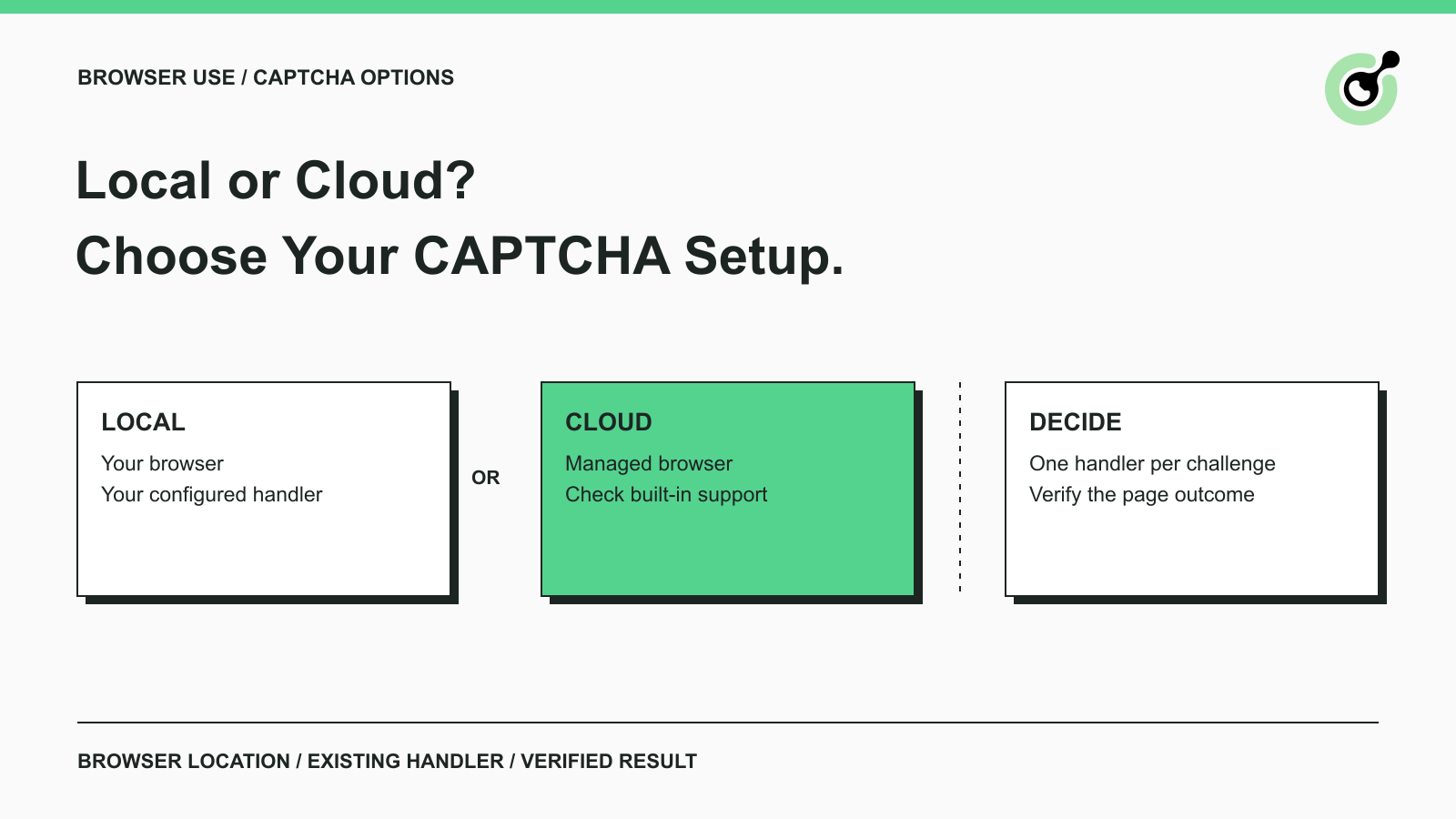
A Browser Use agent reaches a page, then stops at a CAPTCHA. Before adding more instructions or changing the model, check where its browser is running. The same agent framework can control a browser on your machine or connect to a hosted one, and those choices change how challenges are handled.
CapSolver is relevant when your workflow needs a separate solver for a supported CAPTCHA. It does not need to be added automatically to every Browser Use project. This guide compares the practical options for approved browser tasks, explains where a solver fits, and gives you a short evaluation process without building a complicated agent architecture.
Browser Use Cloud documents automatic solving for supported CAPTCHAs, while a locally controlled browser needs its own handling arrangement.
The distinction is between the agent and the browser service. An agent decides what to do next. The browser loads pages and performs actions. A CAPTCHA handler deals with a particular verification challenge. These responsibilities can be packaged together, but they are not interchangeable.
The official Browser Use product guide separates a hosted agent, a CLI for an existing agent, and the open-source Python library. The CLI and Python library can use local or cloud browsers. Running your agent code locally therefore does not necessarily mean its browser is local.
Check the actual browser connection before troubleshooting. If the page runs in a managed cloud session, read the cloud service's CAPTCHA policy. If it runs in a browser you launch and maintain, check which extension, custom action, or manual process is responsible for the challenge.
A CAPTCHA is also different from a general page error. A missing permission, an unavailable website, and a supported verification widget need different responses. Sending every failed page to a solver makes diagnosis harder.
Choose a local browser when control and direct inspection matter most; consider a cloud browser when you want the provider to operate the browser environment.
| Option | Who runs the browser? | CAPTCHA handling | Main question to answer |
|---|---|---|---|
| Local Browser Use | Your machine or infrastructure | Your configured handler or a person | Can you maintain and inspect the required setup? |
| Your agent with a cloud browser | Browser provider | Provider's documented capabilities, plus any explicitly supported customization | Does the managed browser support the challenges in your approved workflow? |
| Fully hosted Browser Use agent | Browser Use runs the agent and browser | Cloud browser handling | Does the hosted task produce the result your application needs? |
This choice does not require moving the entire application. Browser hosting and agent hosting are separate decisions. A team can retain its task logic while using a cloud browser, or keep both components under its own management.
For example, a developer checking a permitted research workflow may prefer a visible local browser. The developer can watch which page appears and inspect errors directly. A team scheduling repeated approved browser tasks may value a managed browser more, especially if operating browsers has become a maintenance burden.
Neither choice guarantees successful access to every page. Compare them on the tasks you actually need to complete, with the same success criteria and the same permission boundaries.
Give the cloud browser's existing handler a chance to finish before issuing more page actions.
Browser Use's current cloud CAPTCHA guidance says automatic solving is enabled by default for API V4 Agent runs and standalone Cloud Browser sessions. It advises pausing page interaction, waiting about ten seconds, and inspecting the page again. That pause is guidance for checking progress, not a guaranteed solve time.
Repeated refreshes, challenge clicks, or browser replacements can interfere with the attempt. If the page still requires attention, use the provider's supported inspection or human-control route.
The same documentation distinguishes automatic CAPTCHA solving from other browser protections. Do not assume that a general access-denied page is a challenge the solver can answer. Diagnose what is actually displayed and stop if the workflow is not permitted.
A custom CapSolver action should have a defined purpose in a cloud setup. Confirm that you need it and that the browser service exposes a supported way to coordinate the two handlers.
Browser Use documents a control for disabling automatic solving on standalone V4 browser creation. It also notes that this field is not currently part of V4 run browser settings. The two interfaces should not be treated as identical. Check the current documentation before making that configuration decision.
CapSolver fits at the point where the agent encounters a supported CAPTCHA and needs a dedicated solving action.
CapSolver's Browser Use integration guide describes registering a custom action and making it available to the agent. The agent-tools documentation explains the division of work: the agent chooses an action, the tool adapter passes the request to the solving engine, and the result returns to the workflow.
That separation keeps the task easy to reason about. The agent can still navigate to a permitted page and read the requested information. The solver handles the supported challenge. Your application checks whether the expected page or result is now available.
The browser-facing path needs access to the actual page the agent controls. A URL alone is not the same as a live page connection. Follow the official integration's current page adapter and supported task types instead of assuming every browser library exposes an identical interface.
This is a decision guide, so it does not introduce another custom integration script. Use the official example as the implementation starting point and validate it in your own environment before scheduling unattended work.
Redeem Your CapSolver Bonus Code
Boost your automation budget instantly!
Use bonus code CAP26 when topping up your CapSolver account to get an extra 5% bonus on every recharge — with no limits.
Redeem it now in your CapSolver Dashboard
Evaluate one approved browser task from start to finish before adding more tools or moving to a larger batch.
Use a page you own or are authorized to automate. Define the result in ordinary terms: read the selected product's availability, retrieve a permitted public record, or complete an approved test form.
Record what proves success. “The agent stopped” is not sufficient. A product observation should match the requested item; a test form should show the application's own confirmation. This gives local and cloud runs a fair basis for comparison.
When a CAPTCHA appears, identify the configured handler. In a local setup, confirm that the action is available and receives the expected page context. In a cloud setup, observe the existing handler before adding anything else.
Record the challenge type, the outcome, and whether a person had to intervene. Avoid collecting unrelated page data or putting credentials and solution tokens into the agent's general conversation history.
An unsuccessful attempt needs a clear endpoint. Stop the current workflow, report the problem, or request human review. Do not let the agent repeatedly create solving tasks while another attempt is still active.
Browser Use provides a documented human-control workflow for its cloud agent. Keep that option available for steps that need a person's judgment. CAPTCHA handling does not replace permission, identity checks, or approval of consequential actions.
Compare how often the desired result was obtained, how long the whole task took, and how much operator attention was needed. A fast token response and a successful browser task are different observations.
The broader CAPTCHA API evaluation guide for agents explains why task coverage and final application results matter. You can use those criteria without turning a small evaluation into a large benchmark project.
Compare the complete workflow cost, including the model, browser, solver, and time spent maintaining the setup.
A local browser still uses compute resources and needs upkeep. A remote model can still generate usage charges even when the browser runs on your own machine. Adding an external solver adds another service to configure and monitor.
A managed browser changes which responsibilities the provider takes on. Browser Use's billing documentation describes usage-based cloud billing and distinguishes browser, network, and model-related charges. Use current account terms when estimating cost rather than assuming “cloud” is one fixed subscription.
For a small pilot, record actual spend and completed tasks together. Include failed attempts when judging the total cost. The cheapest individual component can require more maintenance or leave more work for an operator.
If your current browser already completes the approved tasks reliably, there may be little reason to change it. If supported CAPTCHAs are the specific missing step in a local workflow, adding that capability can be a smaller change than replacing the entire browser setup.
Start with the browser environment you already use and identify its existing CAPTCHA capabilities. Test cloud handling before adding a second solver. For a local workflow that needs a supported challenge action, use the documented CapSolver integration and verify the page outcome.
Keep the decision practical: a clear handler, a clear success check, and a clear stop condition are enough to begin.
Q: Does installing Browser Use automatically solve CAPTCHAs?
Installing the open-source library does not add the managed cloud browser service to a local browser. CAPTCHA handling depends on the browser connection and the tools configured for that workflow.
Q: Do I need CapSolver when using Browser Use Cloud?
Not automatically. Browser Use Cloud documents built-in handling for supported CAPTCHAs. Evaluate that behavior first and consider a separate solver only when your requirements and the supported integration path justify it.
Q: Can a locally running agent use a cloud browser?
Yes. Browser Use separates where the agent runs from where the browser runs. Check the actual browser configuration rather than inferring it from the location of your Python process.
Q: What if a CAPTCHA remains after the handler finishes?
Inspect the page and the reported outcome, then stop or use a supported human-review path. Avoid immediately creating duplicate solving attempts or treating a general site refusal as a CAPTCHA.
Q: Does a CAPTCHA solution prove that the agent finished its task?
No. Verify the requested page, returned data, or application confirmation separately. A solution can be one successful step while the overall task remains incomplete.
Khadija Santos
AI Agent & MCP Engineer
Develops and maintains CapSolver’s MCP tooling, from implementation and package releases to AI agent integrations.
ABOUT THE AUTHOR
Find CapSolver MCP in the Official MCP Registry, install version 0.1.3 with uvx or pip, configure a local client, and verify the stdio tools.
Add CAPTCHA tools to Pydantic AI using the official CapSolver adapter, test tool execution locally, and handle typed inputs and structured solver results.