
🎉NEWCapSolver for AI agents-MCP, agent tools, and SDK integrations

Emma Foster
Machine Learning Engineer
Published Sep 22, 2026
Updated Sep 22, 2026 · min read
An agent opens a page but cannot continue. It might have reached a CAPTCHA, an unfinished page load, a rate limit, or an ordinary form error. Calling a solver immediately can turn a simple browser problem into a confusing sequence of repeated requests.
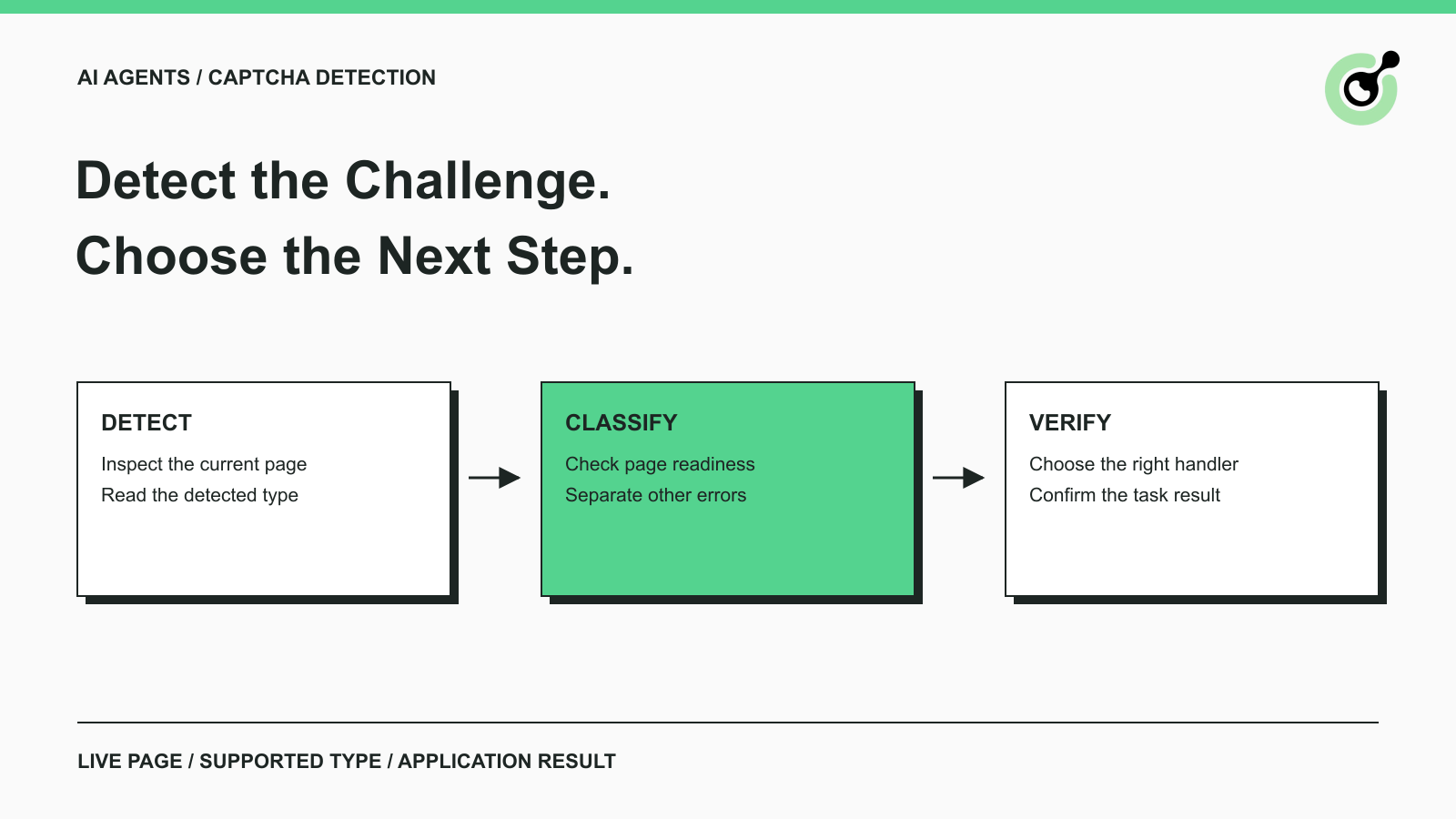
CapSolver provides documented browser-detection methods that help identify supported CAPTCHA types before solving. The useful sequence is to inspect the current page, classify what was found, choose the relevant tool, and check the final result. This guide keeps those steps separate and uses a small runnable example. It focuses on owned QA environments, approved browser workflows, and public demonstration pages, with clear boundaries between detecting a challenge and completing an application task.
Use the Core SDK's detection methods when your application already controls a compatible browser page.
The Core SDK reference documents four related operations: detect(page) returns detected CAPTCHA types; get_captcha_info(page) reads structured parameters; solve(info) requests a solution; and solve_on_page(page) combines browser-based detection, solving, and fill-back.
For a detection check, call the detection method. Do not use the full solving method just to discover whether the page contains a challenge. Keeping that choice explicit makes it easier to understand which steps need a solving-service credential and which steps only inspect browser state.
The SDK returns CAPTCHA-type enum values rather than the arbitrary labels an application might use in its own status messages. Read the documented value instead of inventing a mapping from a string representation.
The CapSolver for AI Agents overview explains that detection and parameter preparation happen on your side, while actual recognition uses the service. This distinction matters when reading logs: a successful local detection is not evidence that a solving request has been sent.
Start with an official demonstration page so you can check browser access and the detection method without involving your business workflow.
The example below adapts the official Core SDK's create_capsolver and detect usage. The additional code opens and closes a Playwright browser, waits for the demo widget's frame, and prints the returned enum values.
The tested environment used Python 3.12, capsolver-core==0.1.1, and playwright==1.63.0. Install those packages in an isolated environment and install the matching Chromium browser:
python -m pip install "capsolver-core[playwright]==0.1.1" "playwright==1.63.0"
python -m playwright install chromium --only-shell
Playwright's Python installation guide explains the separate package and browser installation steps. Installing the Python package alone does not ensure that its matching browser executable is present.
Save this as detect_demo.py:
import asyncio
from capsolver_core import create_capsolver
from playwright.async_api import async_playwright


async def main():
    async with async_playwright() as p:
        browser = await p.chromium.launch()
        try:
            page = await browser.new_page()
            await page.goto(
                "https://www.google.com/recaptcha/api2/demo",
                wait_until="domcontentloaded",
            )
            await page.wait_for_selector('iframe[title="reCAPTCHA"]')
            async with create_capsolver(api_key="YOUR_API_KEY") as cap:
                types = await cap.detect(page)
                print([item.value for item in types])
        finally:
            await browser.close()


asyncio.run(main())
Run it with python detect_demo.py. In the verification run, the actual printed result was ['reCaptchaV2'].
The placeholder key was sufficient because this example performs detection only. It does not call the solving API, click a challenge, submit the demo form, or verify a token. A real solving operation requires the appropriate service credentials and task inputs.
This run confirms the demonstrated detection path on that page at the time of testing. It does not establish universal detection coverage or a solve-success rate.
Treat detection as an observation of the page at a particular moment.
A page can finish its initial navigation before its widget or application controls appear. In the example, domcontentloaded is followed by a wait for the known demo frame. For another page, choose a readiness condition that corresponds to its actual interface.
The Playwright Page API describes page navigation and element-waiting behavior. A readiness check should help establish which state is being inspected, rather than introduce a long unconditional sleep.
When the detector returns a type, record enough context to connect that result to the interrupted task: the approved page, time, and a short description of the pending operation. You do not need a large state-machine framework to begin.
When the detector returns an empty list, inspect the page before continuing. The content might be ordinary, still loading, unsupported by that detector, or affected by another problem. “Nothing detected” and “the task succeeded” are separate statements.
A plain HTML element with a CAPTCHA-looking class is also not necessarily the same as an initialized widget. Test the actual page behavior, especially after changes to how the site renders its verification controls.
Send a page to the CAPTCHA-handling path only when the evidence supports that classification.
A CAPTCHA is one possible interruption. An expired session, invalid form field, missing permission, or network error needs a different response. If a page displays several messages, inspect which one prevents the intended operation.
For example, HTTP 429 indicates request-rate limiting and may include a retry delay. It is not, by itself, proof that a CAPTCHA is present. A detector and the application response should inform different parts of the decision.
Keep the next action simple:
This is the practical boundary described in the related article on AI agent tasks getting stuck on CAPTCHAs. Detection should make the next decision clearer, not create another loop around every failed page.
Redeem Your CapSolver Bonus Code
Boost your automation budget instantly!
Use bonus code CAP26 when topping up your CapSolver account to get an extra 5% bonus on every recharge — with no limits.
Redeem it now in your CapSolver Dashboard
Choose the integration layer that fits the application already controlling the task.
A Python browser script can use the core SDK directly. An LLM-driven application can expose supported operations through the agent-tool adapter. An MCP client needs a configured MCP service and access to the capabilities that service actually offers.
The agent-tools documentation describes the adapter's relationship to the core engine. Adding a tool description to a prompt does not connect it to a browser automatically. The executor still needs the required runtime context.
For a beginner implementation, keep detection and the approved next action close together. If the browser has navigated since detection, check the new page state instead of reusing old parameters without inspection.
Do not add every available method to the agent merely because it exists. Expose the operations required by the task and define when the application should stop. Keeping the tool selection small makes troubleshooting easier.
Verify each stage against its own expected outcome.
Detection should report what the SDK found. Parameter reading should produce the fields needed for the selected task. A solving call should return its documented result or an error. The browser workflow should then reach its own expected page, data, or confirmation.
For an approved catalog read, success means obtaining the requested item's data. For a test form, success means observing the application's confirmation. A detector returning a type does not satisfy either condition.
Use a small set of checks when validating your integration:
Those checks test application decisions rather than promise that every real-world challenge is supported. Keep the actual detector output available for debugging instead of replacing it with a generic “CAPTCHA fixed” message.
Give each task a clear stopping point and inspect repeated interruptions before attempting more work.
If the same challenge appears again, examine whether the page changed, the handler completed, and the application accepted the result. Repeating detection is different from creating another paid solving task. Track those actions separately so a harmless observation cannot silently become repeated submissions.
A short diagnostic record is usually enough: page identity, detected type, handler outcome, and application result. The OWASP logging guidance recommends protecting sensitive information in operational logs. Exclude API keys, session cookies, raw solution tokens, and unnecessary page content.
When moving from a single test to scheduled work, keep the same clear checks. Increase scope gradually, review failures by cause, and stop if the approved task or access conditions change. Complexity should follow a demonstrated need.
Reliable detection gives an agent better evidence for its next action. It does not replace solving, browser-state checks, or confirmation from the application.
Begin with the small example, adapt the readiness check to your approved page, and use CapSolver for the supported challenge step when it is needed. Preserve the simple sequence: observe, classify, handle, verify.
Q: How can an AI agent detect a CAPTCHA?
An application can inspect the live browser page with a supported detection method and return that evidence to the agent. CapSolver's Core SDK documents a detect method that returns recognized CAPTCHA types.
Q: Does detection require a paid solving request?
The demonstrated detection-only call inspected the browser page without calling the solving service. Solving is a separate operation that requires appropriate credentials and task inputs.
Q: What does an empty detection result mean?
It means no supported type was found in the inspected page state. Check readiness, page errors, and detector coverage before treating that result as permission to continue.
Q: Can the sample detect every CAPTCHA on every site?
No. The sample was verified against one official reCAPTCHA demonstration page. Other challenge types, rendering patterns, and browser contexts need their own checks.
Q: When should the agent stop?
Stop when the page state is unclear, the workflow leaves its approved scope, or repeated handling produces no confirmed progress. Report the observed reason instead of continuing an unbounded loop.
Emma Foster
Machine Learning Engineer
Where machine learning meets practical AI tooling.
ABOUT THE AUTHOR
Compare Browser Use CAPTCHA handling in local and cloud browsers, learn where CapSolver fits, and choose a practical setup for authorized agent workflows.

Find CapSolver MCP in the Official MCP Registry, install version 0.1.3 with uvx or pip, configure a local client, and verify the stdio tools.