
🎉NEWCapSolver for AI agents-MCP, agent tools, and SDK integrations
Khadija Santos
AI Agent & MCP Engineer
Published Oct 13, 2026
Updated Oct 13, 2026 · min read
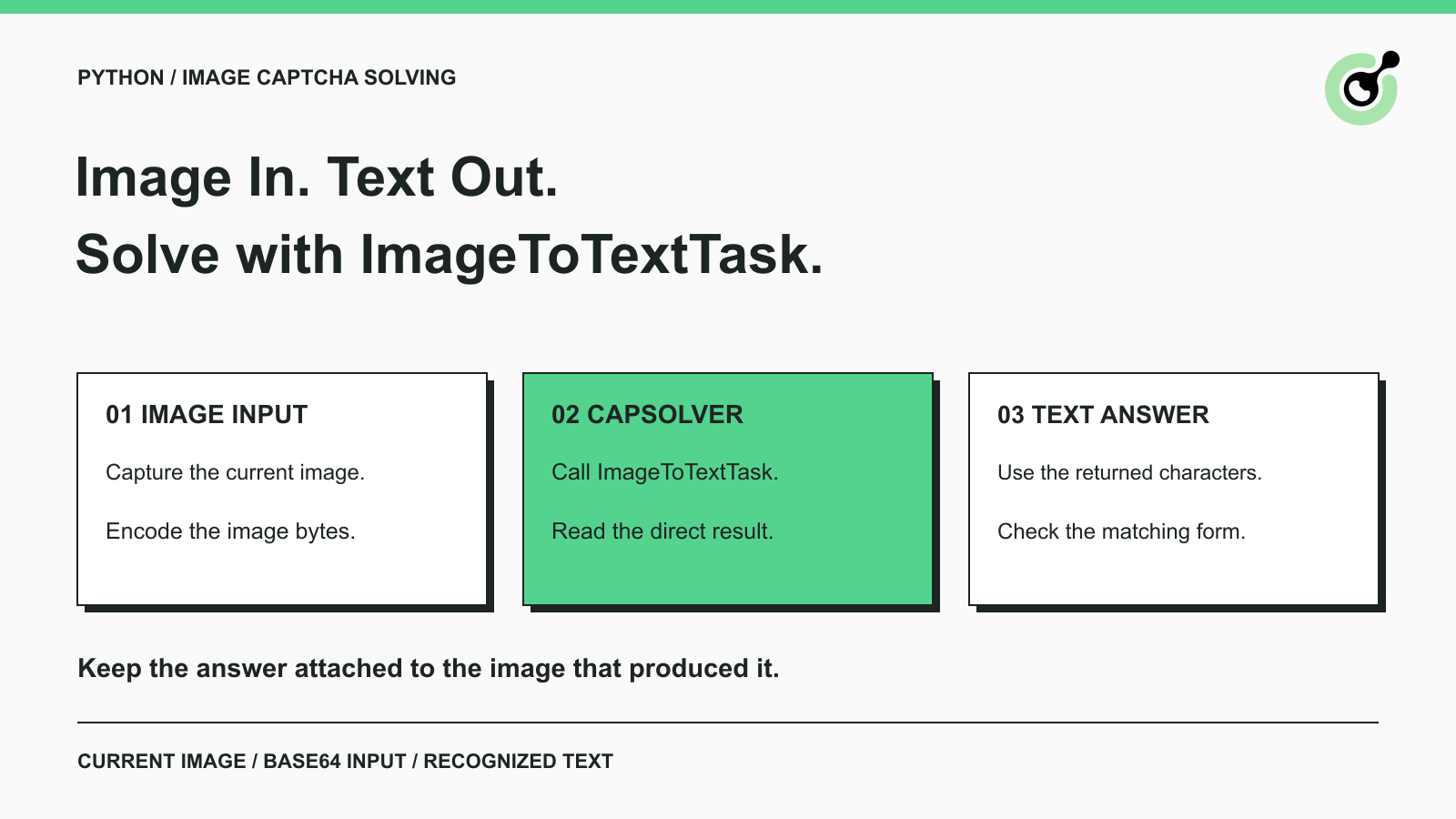
ImageToTextTask when a CAPTCHA asks you to read characters from an image.A Python script can reach a permitted form and stop at a small image containing distorted letters or numbers. The next step is straightforward: capture the current image, ask an image CAPTCHA solver to recognize its characters, and submit the returned text to the matching form.
CapSolver provides ImageToTextTask for this recognition step. This guide uses its official Python SDK example and explains how to prepare the input, read the result, and diagnose the mistakes that commonly occur around the call. Use the workflow on forms you own or are permitted to automate; the recognition response does not change the destination's access rules.
ImageToTextTask recognizes text in an image and returns characters that your Python application can use.
This is an optical character recognition task. The input is an image; the useful output is the text shown in that image. It fits a form that asks you to enter displayed characters into an answer field.
A reCAPTCHA checkbox or Turnstile widget is a different integration. Do not send a screenshot of an entire widget to ImageToTextTask and expect a browser-verification token. Use the matching documented task when the application needs a token rather than recognized text.
Start by checking what the form asks for. If it displays a character image beside a text input, image recognition may be appropriate. If it asks for a grid interaction, an invisible check, or a different challenge format, identify that format before selecting the API.
You need a current CAPTCHA image, Python, the CapSolver package, and a CapSolver account key with access to the required service.
Save the image from your approved test or application as captcha.png. Keep the complete character area visible. Do not include unrelated page text, browser controls, or another CAPTCHA alongside it. The goal is to send the image that the user would read for that particular form attempt.
Install the official package in your Python environment:
python -m pip install capsolver==1.0.7This pins the SDK version used for the package checks behind this guide. Python's package installation guidance explains why an isolated environment is useful when different projects need different dependencies.
The live SDK call later in this guide requires your real account key and the complete Base64 image string. Those are required inputs, not values that can be replaced by the abbreviated placeholders shown in documentation. The example is sourced from CapSolver's official documentation; a live recognition result is not demonstrated here.
Keep the account key out of shared screenshots, source repositories, and support tickets. The page's public sitekey, when another CAPTCHA type has one, is not a substitute for the CapSolver account key.
Convert the file's binary contents to a plain Base64 string before placing them in the task's body field.
Save the following preparation snippet as prepare_image.py in the same directory as captcha.png:
from pathlib import Path
import base64

image_bytes = Path("captcha.png").read_bytes()
image_base64 = base64.b64encode(image_bytes).decode("ascii")
Path("captcha-base64.txt").write_text(image_base64, encoding="ascii")
print("Saved Base64 image to captcha-base64.txt")
Run it with python prepare_image.py. The text file contains the complete value to use for body in the next step.
The snippet uses Python's documented binary file reading and Base64 encoding. It prepares the input locally; it does not call CapSolver or recognize the characters.
Open the source image before continuing. A file named captcha.png can still contain the wrong data if an earlier download saved an HTML error page. Confirm that it displays the expected image and that the text file was created from that file.
Do not send a local path such as captcha.png as the task body. Do not encode the image URL as text. The API needs the actual image bytes represented as Base64.
Call capsolver.solve with the documented ImageToText task after replacing the required placeholders.
The following SDK example is from the official ImageToTextTask documentation. Save it as solve_image.py. Replace ... with your account key and replace the entire abbreviated body string with the contents of captcha-base64.txt before running python solve_image.py.
import capsolver

capsolver.api_key = "..."
solution = capsolver.solve({
    "type": "ImageToTextTask",
    "module": "common",
    "body": "/9j/4AAQSkZJRgABA......"
})
print(solution)
The shown key and image strings are documentation placeholders. Running them unchanged cannot produce a useful recognition result. The separate preparation step above supplies a real image value; your account supplies the key.
The task fields have a small, specific purpose:
| Field | What to provide |
|---|---|
type |
ImageToTextTask |
module |
common for the general example shown here |
body |
Complete Base64-encoded image content |
websiteURL |
Optional source page URL, as documented for this task |
The official documentation also describes a number module for numeric images. Select it only when the image contains numbers and that documented mode matches your use case. Do not guess additional module names or copy modules from an unrelated recognition task.
If you prefer an HTTP integration later, the same recognition task is submitted through createTask. The Python SDK is a convenient way to make that call without writing the HTTP request handling yourself.
Redeem Your CapSolver Bonus Code
Boost your automation budget instantly!
Use bonus code CAP26 when topping up your CapSolver account to get an extra 5% bonus on every recharge — with no limits.
Redeem it now in your CapSolver Dashboard
ImageToTextTask returns recognition output directly instead of requiring a separate getTaskResult cycle.
The HTTP response documentation places recognized characters under solution.text. The SDK example returns the solution object; the existing Python image CAPTCHA guide reads its text with solution.get("text").
Inspect the actual response before using it. A successful result should contain the recognized characters for the image you submitted. An error, missing result, or empty value is not an answer to enter into the form.
Do not add a generic polling loop copied from a reCAPTCHA token tutorial. Those tasks can have different response behavior. Extra polling does not improve an image result that was already returned directly.
Also distinguish recognition from form submission. Printing a solution confirms that your script obtained a result from the solving step. The surrounding application still needs to enter that text into the appropriate field and inspect the form's response.
Use the recognized text only for the form attempt that supplied the image.
Suppose your approved form displays image A. Your script captures A, sends it to CapSolver, and receives an answer. If the page has refreshed to image B while the request was in progress, the answer for A is no longer a reliable input for the current form.
Keep the page and image association clear. Finish the current attempt before intentionally requesting a new challenge. If a refresh occurs, capture the replacement image and treat it as a new attempt rather than resubmitting the previous answer.
Preserve the characters returned by the solver. Do not automatically lowercase letters, remove leading zeros, or convert the answer to a number unless the target form explicitly requires that transformation. A text value and a numeric value can represent different inputs.
After submission, check the expected result. For an owned search form, that might be the requested result panel. For a QA test, it might be the application's specific success state. A CAPTCHA disappearing is helpful evidence, but it is not always the complete business outcome.
The quickest repair comes from checking the image, request, and form in that order.
Check that body contains Base64-encoded image bytes. Remove a data:image/...;base64, prefix if your image source added one, and avoid line breaks. Confirm the file is an image rather than an HTML page or empty download.
Use the CapSolver error reference for the actual returned code. An account-key problem, unsupported task, and invalid image request require different fixes. Do not keep sending the same rejected input without examining the error.
Inspect the exact image sent to the API. Look for clipped characters, an old image, or unrelated text in the capture. Check whether the selected module matches the character content.
Retain a limited diagnostic example from your own test, with sensitive page content excluded. That is more useful for investigating recognition quality than a screenshot of the whole browser after the challenge has changed.
Check whether the image refreshed, whether the answer went into the correct field, and whether the application reports a separate form-validation error. A required field or expired form state can prevent submission even when the recognized characters appear correct.
Use a bounded retry policy. If the same failure repeats, stop and inspect the cause instead of generating a new image and buying another result indefinitely.
Keep Python image CAPTCHA handling small: prepare the current image, submit ImageToTextTask, read the returned text, and verify the matching form attempt.
CapSolver handles the recognition step. Your script supplies a valid image and keeps the answer attached to the right operation, which is what makes the result useful in an actual automation workflow.
Q: Does ImageToTextTask require result polling?
No. This task returns the image recognition result directly. Follow its documented response behavior instead of adding a polling loop intended for asynchronous token tasks.
Q: Can I pass an image URL as body?
No. The documented body input is the Base64-encoded image content. Obtain the permitted image bytes first, then encode them.
Q: Which value contains the recognized text?
The HTTP result uses solution.text. In the official Python SDK pattern, read the text from the returned solution object.
Q: Can this example solve a reCAPTCHA checkbox?
No. ImageToTextTask is a text-recognition task. A reCAPTCHA widget needs the matching documented reCAPTCHA integration rather than a screenshot passed to this example.
Q: Why does the form reject an apparently correct answer?
The answer may belong to an earlier image, be placed in the wrong field, or accompany another invalid form value. Inspect the current form and its actual response before blaming image recognition.
Khadija Santos
AI Agent & MCP Engineer
Develops and maintains CapSolver’s MCP tooling, from implementation and package releases to AI agent integrations.
ABOUT THE AUTHOR
Understand proxyless CAPTCHA tasks, when a supplied proxy is needed, and how to choose the correct CapSolver task for your browser or API workflow.

Understand CAPTCHA tokens, cookies, and solver results, including reCAPTCHA, Turnstile, expiry, browser context, and the checks that confirm completion.