
🎉NEWCapSolver for AI agents-MCP, agent tools, and SDK integrations

Khadija Santos
AI Agent & MCP Engineer
Published Oct 22, 2026
Updated Oct 22, 2026 · min read
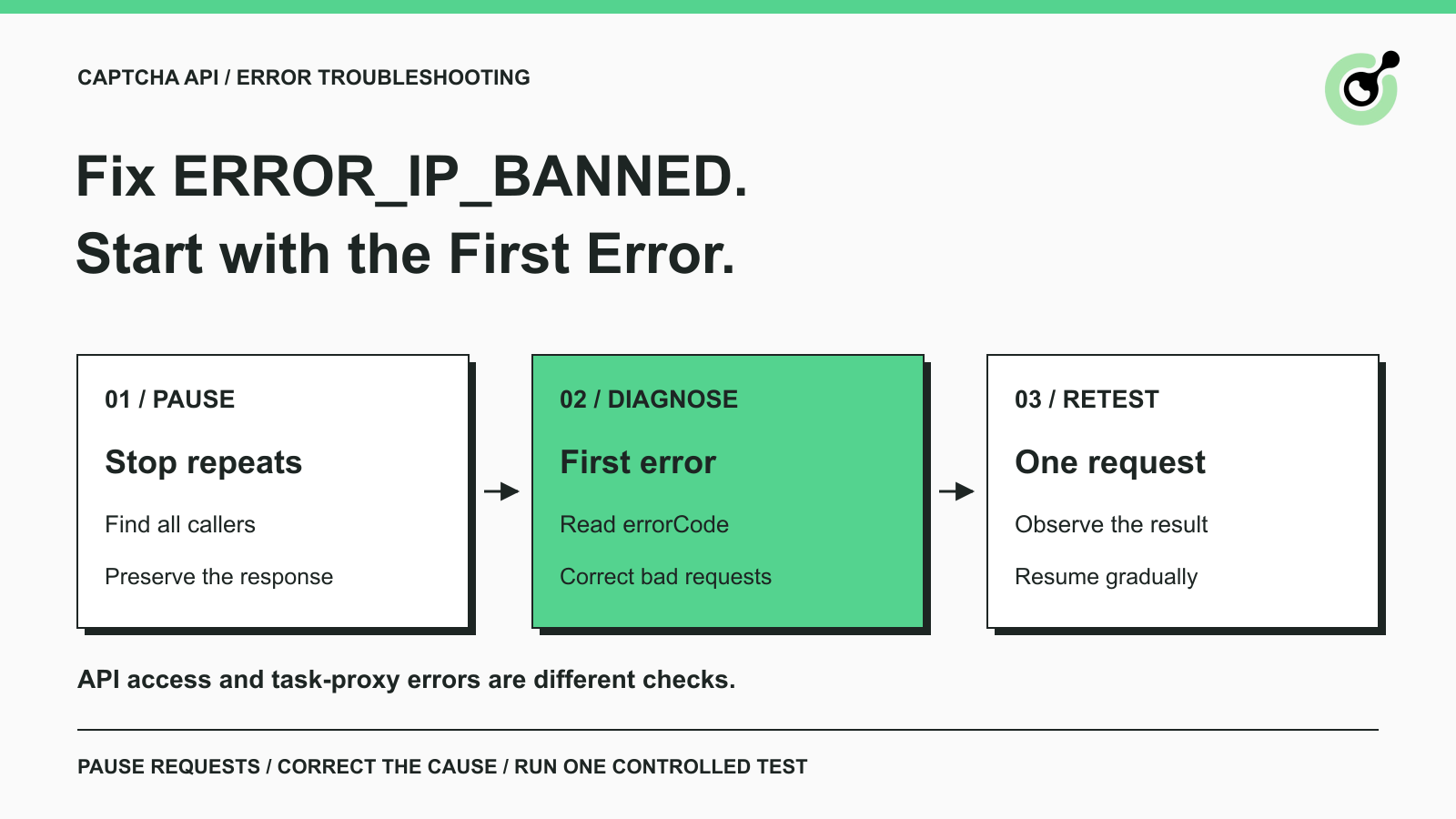
ERROR_IP_BANNED in a CapSolver API response concerns API access after repeated erroneous requests; it is distinct from a target website blocking a task's proxy.errorCode and errorDescription; do not diagnose this condition from an HTTP status alone.Repeated CAPTCHA API errors can create a second problem: an integration keeps sending the same failing request until API access is temporarily blocked. At that point, replacing the CAPTCHA site key at random or creating more workers makes diagnosis harder. The first useful action is to stop the source of the repeated failures and preserve the response that explains them.
This guide focuses on ERROR_IP_BANNED returned by CapSolver. It does not cover a website refusing access to a browser or a target service rejecting a proxy. The distinction matters because those events occur at different points in the workflow. Here, the goal is to correct the API client, understand the returned error, and resume normal authorized CAPTCHA requests without recreating the same failure pattern.
ERROR_IP_BANNED is listed in the official CapSolver error reference as an IP block associated with a high number of errors in a short period. Read it as an API-client troubleshooting signal, rather than evidence that the CAPTCHA itself is impossible to solve.
The response envelope provides errorId, errorCode, and errorDescription. Preserve the exact values from the actual response. A screenshot containing only “request failed” leaves out the information needed to separate bad input, insufficient balance, unsupported tasks, and temporary blocking.
The published table currently uses different durations in the description columns for this code. For that reason, this guide does not promise that every block clears after a particular number of minutes. Follow the information in your current response and contact support when the waiting behavior remains unclear after the underlying request issue has been corrected.
A CAPTCHA challenge and an API access error are separate events. The former belongs to the website's verification workflow; the latter concerns the request your integration sent to the solver service. Identifying the failing connection is the first step toward a useful fix.
Related codes describe different failure conditions, so the exact string should determine which evidence you collect next. Do not group every code containing “blocked” or “banned” into the same proxy issue.
| Returned code | Documented meaning | First practical check |
|---|---|---|
ERROR_IP_BANNED |
IP blocking associated with repeated errors | Stop the failing stream and inspect preceding errors |
ERROR_KEY_TEMP_BLOCKED |
Temporary key blocking after too many error requests | Find all callers using the affected key and correct the failures |
ERROR_RATE_LIMIT |
Request frequency exceeds the applicable service limit | Check request rate and the applicable service constraints |
ERROR_PROXY_BANNED |
The task proxy is blocked by the target service | Investigate the task-side proxy condition separately |
The meanings above come from the API error reference. The diagnostic actions are a practical sequence for investigating those meanings, not a guarantee that every account has the same limit or unblock interval.
A generic HTTP 429 response indicates rate limiting at the HTTP layer, but it should not be substituted for an application-specific error code. Record both the transport status and the JSON response when available. This does not imply that CapSolver always returns 429 for any code in the table.
Pause the requests that are producing the error before changing individual task parameters. If a queue, scheduled job, or multiple workers share the same integration, stopping one interactive script may leave the error stream running elsewhere.
Check the task producer, worker retry settings, HTTP client retries, and any outer workflow that reruns failed jobs. A single logical operation can be retried at more than one layer. If each layer automatically starts again, the number of outgoing requests can be much larger than the number of jobs shown in your application.
You do not need to redesign the whole system to start diagnosing this. Temporarily stop the affected work, identify which process still sends requests, and preserve a small sample of the errors. Avoid tests whose only purpose is to keep checking whether the block has cleared.
Google's SRE discussion of handling overload and retries explains why uncontrolled retries can amplify a failure. In this situation, that general principle supports a simple operating rule: correct the request before resuming its automatic repetition.
The earliest meaningful error is often more useful than the final blocked response. Review the responses immediately before ERROR_IP_BANNED appeared and group them by exact error code.
Look for a repeated cause, such as ERROR_INVALID_TASK_DATA, ERROR_KEY_DENIED_ACCESS, ERROR_TASK_NOT_SUPPORTED, or ERROR_ZERO_BALANCE. Each points to a different correction. A temporary pause may allow access to resume, but it does not repair an invalid field, wrong credential, unsupported task type, or account condition.
For each repeated failure, keep the endpoint, timestamp with timezone, task type, redacted payload structure, and response code and description. Include a task ID only if the API actually returned one. Do not invent one for a request that never reached successful task creation.
A useful incident record can be small: one representative failing request, the preceding error, the time the block began, and the set of callers affected. Keep account credentials, proxy passwords, cookies, response tokens, and sensitive page data out of shared logs.
Redeem Your CapSolver Bonus Code
Boost your automation budget instantly!
Use bonus code CAP26 when topping up your CapSolver account to get an extra 5% bonus on every recharge — with no limits.
Redeem it now in your CapSolver Dashboard
Correct the issue identified by the earlier response, using the current documentation for the specific task. Avoid changing credentials, CAPTCHA parameters, network routing, and retry behavior simultaneously, because a successful later call would not tell you which change mattered.
If the key is rejected, verify that the running process receives the intended account credential and passes it in the documented location. The official API error reference identifies a rejected account key separately. A correct key in a local settings file does not prove that a worker loaded the same value.
If task data is invalid, compare the outgoing JSON with the task's current schema. Check required fields and the exact task type. A queued payload may still contain an old configuration after you fix the application defaults; inspect what is actually transmitted.
If the task type is unsupported, stop producing that task and confirm the supported capability before trying again. If balance or settlement is the issue, resolve that account condition through the appropriate account workflow. These are corrections to the underlying failure, not reasons to increase retry frequency.
If the returned code is actually ERROR_PROXY_BANNED, move to the task-proxy troubleshooting guide. A proxy passed inside a task describes a different connection from the application sending the API request. Changing that proxy is not evidence that you have corrected an ERROR_IP_BANNED condition on the API call.
Resume with one corrected request after the relevant waiting period or support guidance, while the automatic failing stream remains paused. The purpose is to observe the service's actual response without immediately rebuilding the same error volume.
Where a server provides a Retry-After header, honor its meaning for that response. Do not assume that every CapSolver error includes the header or that its absence means immediate retry is appropriate.
Compare the new response with the previous one. If the IP-block code remains, stop and retain the evidence for support. If the block disappears but the original task-data error returns, the underlying correction is incomplete. If the request is accepted, follow the documented result flow before deciding whether normal operation can resume.
A successful task creation is only one checkpoint. A later solving error or an application rejection still needs separate handling. Restore workload gradually enough to observe whether the original error pattern returns, and keep the corrected error classification in the worker so permanent input errors do not become automatic retry loops.
A support request is most useful when it identifies the API failure and the actions already taken. Provide the exact error code and description, approximate start time with timezone, affected endpoint, task type, and any returned task IDs through the appropriate support channel.
Also explain whether the failing callers have been paused, what error preceded the block, and what you corrected before the controlled retest. If multiple environments share the configuration, say which ones are affected. A service owner can use that distinction to investigate the correct request path without guessing from the phrase “my IP is blocked.”
Use redacted examples. Show field names and enough non-sensitive context to reproduce the shape of the request, but remove account keys, proxy credentials, cookies, and tokens. If support needs additional private diagnostics, provide them through its approved channel rather than a public screenshot or issue comment.
Preventing a repeat starts with handling known invalid requests differently from transient failures. Validate required fields before submission, preserve the returned error code, and stop retrying unchanged requests when the response identifies a configuration problem.
For a shared worker pool, make the error visible at the queue level as well as in an individual worker log. Otherwise a job can fail in one worker and immediately be picked up by another with the same invalid input. The important outcome is a corrected CAPTCHA request, not a larger number of attempts.
Keep the final lesson specific: pause the request stream, locate the first error, fix that cause, and resume with a controlled check. That sequence gives you evidence for each change and avoids confusing API access, CAPTCHA solving, and target-side verification.
Use CapSolver for the supported CAPTCHA step in a workflow you are authorized to run. Keep the browser, solver result, and application outcome as separate checks so that a successful tool call does not hide a failed task.
Q: Is ERROR_IP_BANNED the same as a website banning my proxy?
No. CapSolver lists ERROR_PROXY_BANNED separately for a task proxy blocked by the target service. Use the actual returned code to identify the relevant connection.
Q: How long should I wait before trying again?
Do not rely on one universal interval. The public error table contains inconsistent duration wording for this code; use the current response and support guidance after stopping and correcting the failing requests.
Q: Should I rotate IPs or create another key to keep retrying?
No. Correct the repeated request errors and follow the service's access guidance. Changing identity or routing does not establish that the underlying fault has been repaired.
Q: Does reducing concurrency fix invalid task data?
No. It can reduce request pressure, but invalid task data still needs correction. Check the original error and transmitted payload.
Q: Why does the error continue after I stopped my script?
Other workers, schedules, or retry layers may still be sending requests, or the temporary block may still be active. Verify the callers first and then follow the response or support guidance.
Q: Does a successful retest mean the whole CAPTCHA workflow is fixed?
No. It confirms only the stage demonstrated by that response. Verify task completion and the application's final result separately.
Khadija Santos
AI Agent & MCP Engineer
Develops and maintains CapSolver’s MCP tooling, from implementation and package releases to AI agent integrations.
ABOUT THE AUTHOR
Compare CAPTCHA image recognition and token solving, understand their inputs and outputs, and choose the right API workflow for your authorized automation.
Troubleshoot CapSolver proxy errors by checking task parameters, authentication, connectivity, and session settings before retrying a CAPTCHA request.