🎉NEWCapSolver for AI agents-MCP, agent tools, and SDK integrations

Ethan Collins
AI Agent Workflow Engineer
Published Jun 04, 2026
Updated Jun 04, 2026 · min read
Automation triggering CAPTCHAs is a signal mismatch, not always a failure of your script. A protected site may see requests that look too fast, too stateless, too uniform, or too different from normal browser traffic. Modern traffic validation also checks whether JavaScript ran, whether cookies persisted, whether a token matches the action, and whether the network route changed mid-session. For authorized automation, CapSolver can be part of a controlled CAPTCHA handling workflow while your team keeps permissions, rate limits, and audit logs in place. This guide explains the most common reasons automation triggers CAPTCHAs and how to diagnose them responsibly.
Automation triggering CAPTCHAs usually starts when a risk system sees behavior that does not match expected user traffic. That can happen even when the automation is legitimate. QA scripts, RPA jobs, monitoring agents, and scraping tools often move through pages faster than a person, reuse the same request shape, skip assets, or lose browser state between actions.
Google's reCAPTCHA v3 documentation describes a score-based model that evaluates interactions and actions, while Cloudflare's Turnstile widget documentation shows that challenge widgets can be rendered implicitly or explicitly in client-side flows. AWS also documents CAPTCHA and Challenge actions as part of AWS WAF traffic controls. The common theme is simple: CAPTCHA decisions are made from context.
For teams using browser automation, the first job is not to solve the challenge. The first job is to understand why automation triggering CAPTCHAs happens in that workflow.
Automation triggering CAPTCHAs often comes from several small mismatches at once. A single unusual signal may be tolerated. A cluster of unusual signals can push the request into a challenge state.
Common triggers include:
The most useful diagnosis is comparative. Capture one successful manual browser path and one automated path. Compare timing, page loads, cookies, token creation, protected requests, status codes, and redirects. MDN's user agent guidance is a good reminder that user agent strings are only one part of browser behavior and should not be treated as a complete identity.
If automation triggering CAPTCHAs appears after a deployment, compare the new release against the last stable browser trace before changing provider settings.
Automation triggering CAPTCHAs is common when a script uses plain HTTP requests for a workflow that expects a full browser. Modern protection can depend on JavaScript execution, canvas or storage behavior, resource loading order, and token timing. A request library can fetch HTML, but it does not automatically behave like Chrome, Safari, or Firefox.
For authorized workflows, use a real browser engine when the site expects one. Playwright, Selenium, and Puppeteer can preserve state across navigation, form entry, token handling, and protected fetch calls. CapSolver documents automation tool integration for Selenium, Puppeteer, Playwright, and similar tools, which is the right direction when the workflow already needs browser behavior.
A good browser context should remain stable for:
If the automation opens a new context for every action, the site may see each step as a new visitor with no history. That makes automation triggering CAPTCHAs more likely.
In practice, automation triggering CAPTCHAs often drops once the same browser context carries the full task from landing page to final action.
Automation triggering CAPTCHAs can happen because the token exists but does not match the action. Google notes that reCAPTCHA v3 tokens should be sent immediately for verification and that tokens expire after two minutes. That matters for automation because a token collected too early, reused too late, or submitted with the wrong action can fail validation.
AWS WAF challenges can also rely on token state. If a browser receives a WAF token cookie and your script switches proxy, browser profile, or cookie jar, the next request may not look like the same client. The result can be another challenge, a 403 response, or a loop that looks like the site is broken.
When diagnosing token issues, log:
CapSolver's reCAPTCHA v2 documentation shows a createTask and getTaskResult flow and includes fields such as website URL, website key, proxy, callback behavior, and invisible mode. Those details matter because CAPTCHA handling is usually tied to the page and the action, not just the domain.
If automation triggering CAPTCHAs continues after token handling changes, check whether the token is being applied to a different page action than the one that created it.
Automation triggering CAPTCHAs often increases when the IP route does not fit the session. A clean browser profile can still receive challenges if requests come from a high-risk network, a data center range, a mismatched geography, or a route that changes during one task.
The goal is consistency. If a workflow starts on one proxy, keep that proxy for the full browser context. If the target site binds challenge state to an IP or session token, rotating mid-flow can make the next request look unrelated. CapSolver's proxy setup guidance is useful when a CAPTCHA task must match the same network route used by the browser.
Use this quick comparison when reviewing routes:
| Signal | Low-risk pattern | Higher-risk pattern |
|---|---|---|
| Session route | Same proxy through the task | Proxy changes after token creation |
| Cookie state | One persistent browser context | New context for every request |
| Request timing | Natural delay and wait states | Fixed bursts at identical intervals |
| Page flow | Loads page before protected action | Calls protected endpoint directly |
| Error handling | Stops and logs challenge state | Retries until blocked |
This table does not guarantee access. It helps teams reduce accidental risk signals in workflows they are allowed to run.
When automation triggering CAPTCHAs correlates with one proxy pool or geography, separate route quality from application logic before changing the script.
Automation triggering CAPTCHAs can be caused by retry logic that is too aggressive. Many agents treat a challenge page, 403, 405, or token error as a temporary network failure. Then they retry with the same state, same route, same headers, and same invalid token. The protection system sees repeated suspicious behavior, and the automation sees only more CAPTCHA prompts.
Add stop conditions. If a response contains challenge markup, CAPTCHA provider scripts, WAF headers, token errors, or a sudden redirect to verification, stop the normal retry loop. Return a structured error to the agent or queue:
challenge_detectedproviderstatus_codetoken_presentcookie_countproxy_idbrowser_context_idretry_countrecommended_next_stepAutomation triggering CAPTCHAs becomes easier to fix when the tool reports the real state. A generic "request failed" message hides the cause and encourages repeated attempts.
If automation triggering CAPTCHAs only appears after retries begin, the retry policy is probably amplifying the original issue.
Automation triggering CAPTCHAs does not automatically mean a solver should be used. First confirm that the automation is permitted, the target data or action is authorized, and the site policy allows the workflow. CAPTCHA handling should support legitimate tasks such as QA testing, account-owned RPA, public data monitoring, accessibility testing, and internal operations.
When CAPTCHA handling is appropriate, connect it to the exact challenge type. CapSolver has product and documentation paths for Cloudflare Turnstile, AWS WAF, and reCAPTCHA task flows. The clean pattern is to detect the challenge, collect required page parameters, create the task, retrieve the result, and apply the token or cookie in the same browser context.
Redeem Your CapSolver Bonus Code
Boost your automation budget instantly!
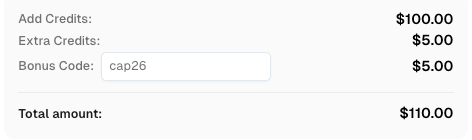
Use bonus code CAP26 when topping up your CapSolver account to get an extra 5% bonus on every recharge — with no limits.
Redeem it now in your CapSolver Dashboard
Do not invent parameters. Use the task fields documented for the specific provider. For example, AWS WAF workflows can require different information than reCAPTCHA or Turnstile. Treat the solver as one part of a browser workflow, not as a replacement for state management.
Automation triggering CAPTCHAs should lead to a review of both technical design and permission boundaries. Technical capability does not grant permission to access private, restricted, sensitive, or unauthorized data. Keep rate limits, audit logs, and clear ownership rules in place.
Use this checklist before scaling:
The practical goal is not to hide automation. The goal is to make authorized automation behave consistently, report its real state, and avoid unnecessary challenge loops.
Automation triggering CAPTCHAs usually means the workflow is missing context that the protected site expects: browser execution, token freshness, stable cookies, consistent network route, reasonable timing, or a valid action flow. Start with logs and side-by-side browser comparison, then fix state handling before adding a solver. For authorized CAPTCHA handling in browser automation, QA, RPA, and public data monitoring workflows, CapSolver can help connect provider-specific challenge solving to a controlled automation pipeline.
Headers are only one signal. CAPTCHA systems can also evaluate JavaScript execution, cookies, browser state, request timing, IP reputation, token freshness, and whether the request follows the expected page flow.
Slowing requests can help, but it is rarely enough by itself. You also need stable browser context, persistent cookies, consistent proxy routing, correct token timing, and structured error handling.
Use Playwright, Selenium, or Puppeteer when the protected workflow expects browser-side JavaScript, cookies, widgets, or dynamic requests. Plain HTTP requests are better for endpoints that are explicitly designed for API access.
Use a CAPTCHA solving service only for authorized workflows where CAPTCHA handling is allowed and technically required. Detect the challenge type first, then follow provider-specific documentation for parameters, tokens, cookies, and browser state.
Sometimes it is a permission signal, and sometimes it is a risk-control signal for a legitimate workflow. Review site policy, account permissions, rate limits, and data boundaries before continuing.
Ethan Collins
AI Agent Workflow Engineer
Building clearer handoffs between AI agents and tools.
ABOUT THE AUTHOR
Choose the CapSolver Python Core SDK or direct HTTP API by task support, page access, response handling, and the responsibilities your application owns.
Build search intent drift monitoring with Search Console data, controlled SERP observations, intent labels, confidence gates, evidence, and safe automation.