

🎉NEWCapSolver for AI agents-MCP, agent tools, and SDK integrations

Nikolai Smirnov
Software Development Lead
Published Oct 26, 2026
Updated Oct 27, 2026 · min read
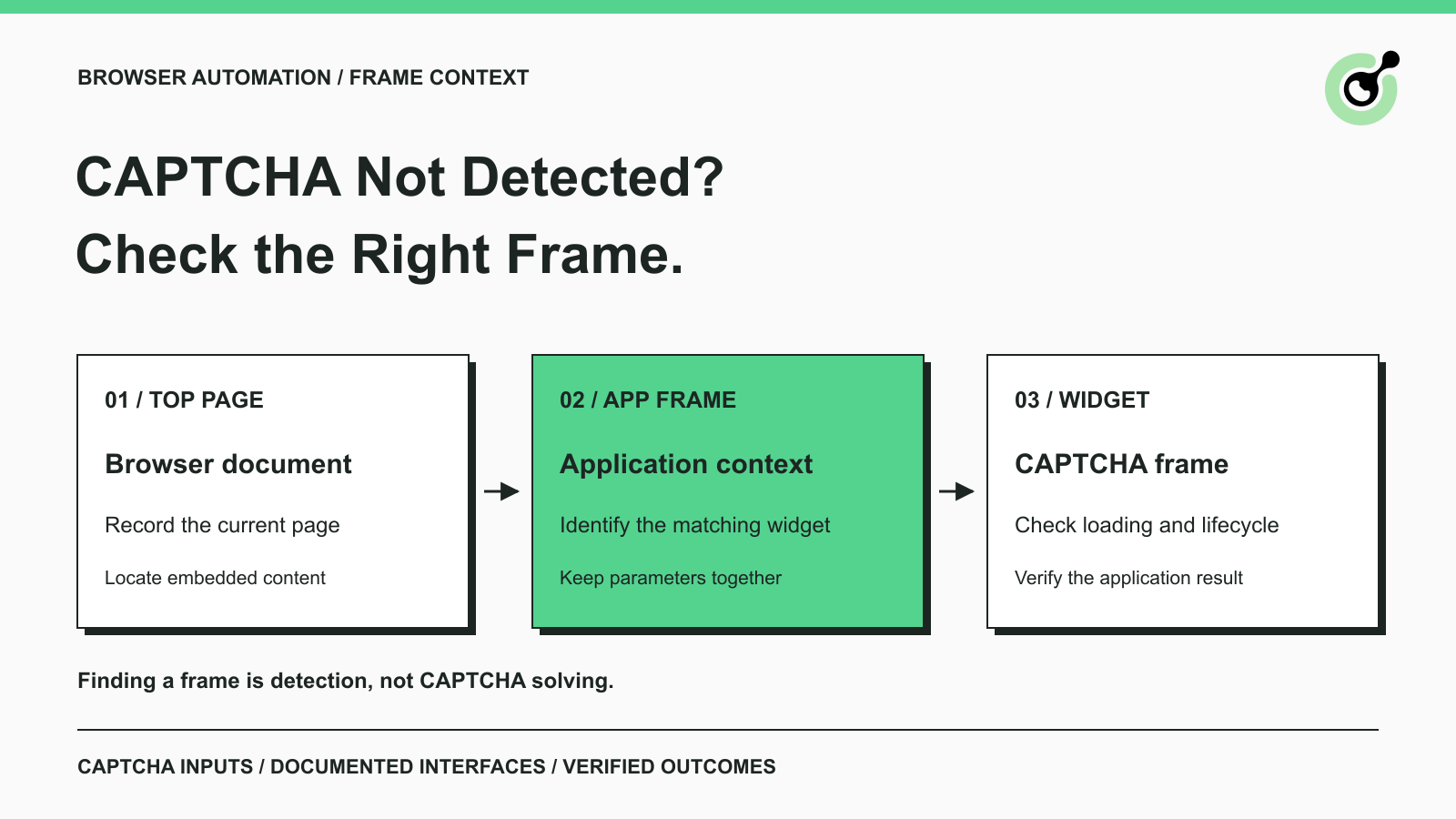
A browser screenshot shows a CAPTCHA, but the automation reports that no widget was found. The next useful check is often the document context. A selector evaluated on the top-level page does not automatically search every embedded document, and ordinary page JavaScript has restrictions when a frame belongs to another origin.
Before submitting a request to CapSolver, identify which page owns the challenge and where its parameters come from. This guide explains that inspection step without relying on fragile internal selectors or treating browser frame access as proof that a challenge was solved.
A visible CAPTCHA can be missed because visual composition and document structure are different things.
The browser draws multiple documents into one window. Your automation still needs to address the document containing the element it wants to inspect. The top page might embed an application, and that application might render a CAPTCHA through another frame.
The browser's same-origin policy restricts what page JavaScript can read across origins. A script running in the parent document may therefore be unable to inspect a child document directly. That restriction is different from a broken selector or an unavailable solver.
Treat CAPTCHA detection as a specific observation. A screenshot proves that something resembling a widget is visible. A frame lookup proves that an embedded document exists. Neither observation alone supplies the complete, current parameters required by a solving task.
Map the document hierarchy before changing the API payload or adding more retries.
Start with the browser's top-level URL. Identify any embedded application frame and the CAPTCHA widget inside it. Record which document contains the application form, which frame renders the widget, and where the application receives the verification result.
For a typical embedded workflow, the important distinction is between the application frame and the provider widget frame. The application owns the task the user is trying to complete. The provider frame may contain its own rendering resources and controls. Copying the provider frame's resource URL into every solver request is not a reliable substitute for identifying the page that uses the CAPTCHA.
Use the relevant task parameters as the authority for what the solver expects. Where an embedding arrangement makes the correct page context unclear, inspect the application's actual configuration or ask for support with a redacted example. Do not derive a universal URL rule from one screenshot.
Keep the detected sitekey, CAPTCHA family, page context, and any required task-specific fields associated with one widget instance.
Pages can contain more than one form or widget. A key read from an unrelated frame may look valid while describing the wrong challenge. Re-run the relevant inspection after a navigation or widget replacement instead of reusing data from an earlier document.
This is also why an empty search in the top document should not immediately trigger a solve. First establish whether the challenge is in another frame, still loading, or absent from the current state.
Use frame controls supplied by your browser automation library instead of trying to force parent-page JavaScript to read a different origin.
The Playwright frame guide distinguishes page-level interaction from interaction within a frame. Frame locators let a test address content in an embedded document. Choose a frame using a stable property you can verify on the page, rather than relying on its numerical position in a list.
Selenium uses a different interaction model. Its frame documentation describes switching the driver's context into a frame and returning to the default document. A test that remains inside a CAPTCHA frame may subsequently fail to find the application submit button outside it.
These are document-navigation mechanisms. They do not provide a CAPTCHA solution. Keep the frame inspection, solver request, and application continuation as distinct steps so a failure has a clear location.
Redeem Your CapSolver Bonus Code
Boost your automation budget instantly!
Use bonus code CAP26 when topping up your CapSolver account to get an extra 5% bonus on every recharge — with no limits.
Redeem it now in your CapSolver Dashboard
Check whether the relevant document and widget have finished loading before interpreting a missing result.
A frame element can exist before its contents are ready. An application may also replace a frame after a route change or refresh a widget after a previous attempt. A reference captured earlier can then point to a context that no longer represents the visible challenge.
Use an application-specific readiness condition: the expected frame is present, the intended document has loaded, and the relevant CAPTCHA configuration is available. Increasing a sleep everywhere may make a test slower without proving any of those conditions.
The reCAPTCHA identification guide helps distinguish variants before selecting a task. Combine that identification with current frame context rather than guessing the variant from the size or position of a visible box.
If the provider script fails to load, investigate the loading failure. A solver request built from incomplete or stale page data is not a repair for a missing widget script.
Pass inputs through the solver interface that matches your workflow, and verify that interface's frame support rather than assuming it.
The Core SDK guide documents the supported browser integration and CAPTCHA-information methods. Follow that contract for the installed version. A method that accepts a page object is not automatically documented to accept every frame, wrapper, remote handle, or browser-library object.
If you use the REST API instead, gather the fields required by the matching task reference from the permitted page and its configuration. Keep the original relationships between URL, public sitekey, and challenge variant intact. Do not mix values collected from different tabs merely because the fields share the same names.
For a token result, application integration remains necessary. The returned token must reach the correct application flow while it is valid. A result written into an unrelated document or discarded when a frame reloads does not establish success.
Avoid editing provider-owned widget internals as a generic technique. Internal markup can change, and finding a textarea or button does not tell you how the application's documented verification flow works. Prefer the official solver and application interfaces for the operation you need.
Verify the application outcome in the context where the workflow continues.
After the intended CAPTCHA operation, return to the application document if your framework changed contexts. Check the specific result your task expects, such as the owned form's confirmation state. Do not count a located iframe, a non-empty token string, or a click on a button as equivalent to application acceptance.
For a useful failure record, capture the top-level URL, the relevant frame relationship, the CAPTCHA family, the stage that failed, and a redacted error description. Exclude session secrets and unrelated page content.
That small record lets a teammate distinguish a frame-selection error from a loading problem, a parameter mismatch, a solver failure, or an application-side rejection. Each requires a different correction.
Resolve document context before spending effort on repeated solving attempts. CapSolver needs inputs and browser integration that describe the actual challenge. A clear frame map makes those inputs easier to verify and keeps detection separate from the final application outcome.
Q: Does document.querySelector search inside every iframe?
No. A query runs in its current document context. Use the automation framework's frame facilities when the target element belongs to an embedded document.
Q: Should websiteURL be the CAPTCHA iframe's src?
Not automatically. A provider resource URL is not necessarily the page that uses the CAPTCHA. Follow the matching task reference and verify the application context.
Q: Why can Selenium find the widget but not the form button afterward?
The driver may still be inside the frame context. Check the document that owns the form button and use the documented context-switching operation before interacting with it.
Q: Does finding the sitekey mean the CAPTCHA is solved?
No. The public sitekey is an input that identifies a CAPTCHA configuration. Detection, solving, and the application's verification of the result are separate stages.
Q: Can a page SDK method always accept a frame object?
No. Only pass object types documented for the installed SDK. A similar-looking method surface does not establish compatibility.
Nikolai Smirnov
Software Development Lead
Building dependable software for complex automation.
ABOUT THE AUTHOR
Detect CAPTCHA in Robot Framework with a tested Python keyword and the official solver SDK. Inspect page parameters and understand where detection stops.

Plan Node.js CAPTCHA tests with vendor test keys, controlled solver checks, and clear assertions. Separate form regressions from external solving failures.