🎉全新面向 AI Agent 的 CapSolver-MCP、agent 工具和 SDK 集成

Ethan Collins
AI Agent Workflow Engineer
已发表 Nov 12, 2024
已更新 Nov 05, 2024 · 最小阅读量

网络抓取是数据提取、市场研究和自动化的强大工具。但是,验证码会阻碍自动抓取工作。在本指南中,我们将探讨如何使用 SeleniumBase 进行网络抓取并集成 CapSolver 以有效地解决验证码,使用 quotes.toscrape.com 作为我们的示例网站。
SeleniumBase 是一个 Python 框架,它简化了 Web 自动化和测试。它通过更用户友好的 API、高级选择器、自动等待和额外的测试工具扩展了 Selenium WebDriver 的功能。
在我们开始之前,请确保您的系统上安装了 Python 3。按照以下步骤设置 SeleniumBase:
安装 SeleniumBase:
pip install seleniumbase验证安装:
sbase --help让我们从创建一个简单的脚本开始,该脚本导航到 quotes.toscrape.com 并提取引文和作者。
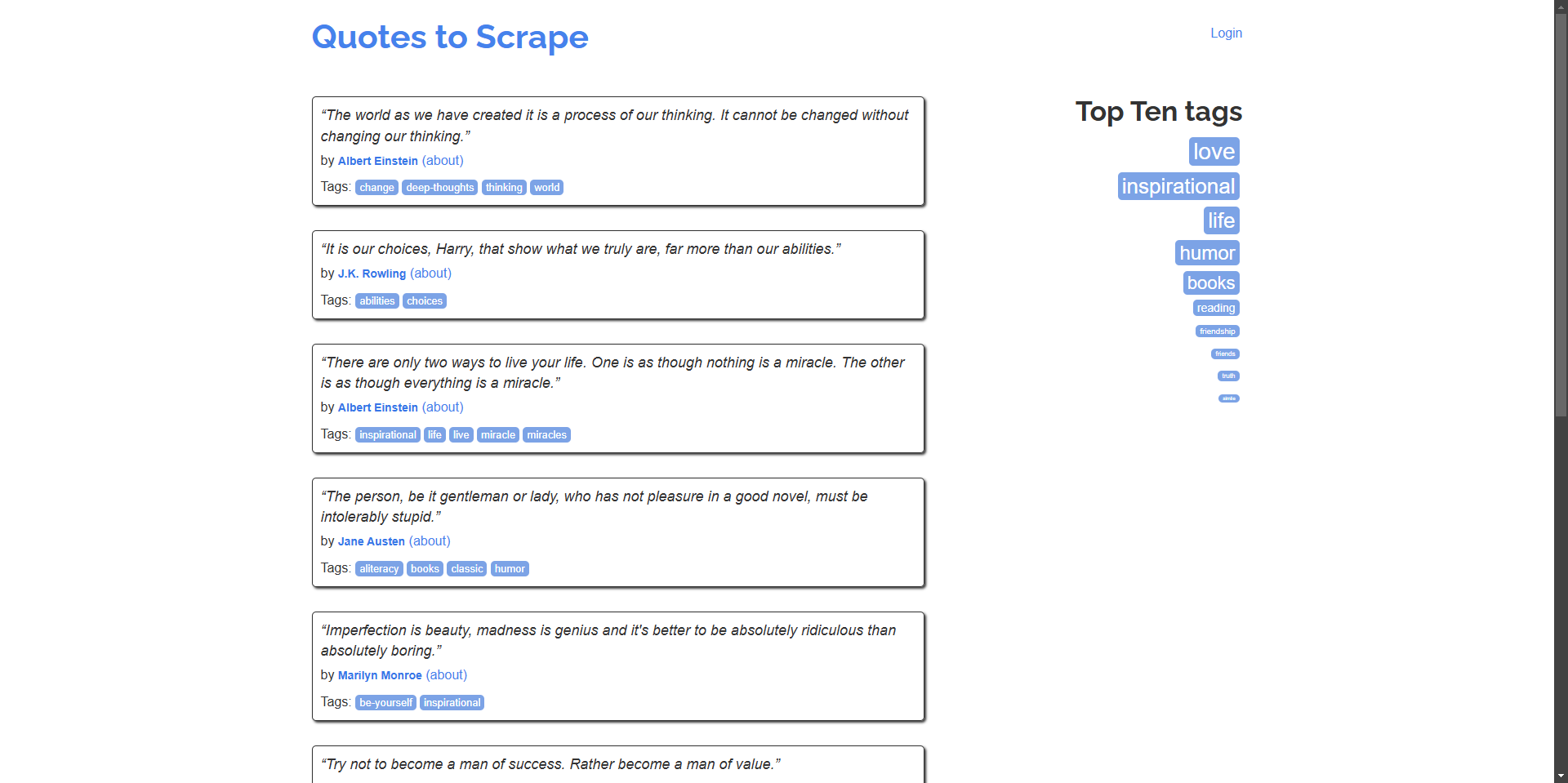
示例: 从主页抓取引文及其作者。
# scrape_quotes.py

from seleniumbase import BaseCase

class QuotesScraper(BaseCase):
    def test_scrape_quotes(self):
        self.open("https://quotes.toscrape.com/")
        quotes = self.find_elements("div.quote")
        for quote in quotes:
            text = quote.find_element("span.text").text
            author = quote.find_element("small.author").text
            print(f"\"{text}\" - {author}")

if __name__ == "__main__":
    QuotesScraper().main()
运行脚本:
python scrape_quotes.py输出:
“The world as we have created it is a process of our thinking. It cannot be changed without changing our thinking.” - Albert Einstein
...为了增强您的网络抓取技能,让我们探索使用 SeleniumBase 的更高级的示例。
许多网站在多个页面上显示内容。让我们修改我们的脚本以浏览所有页面并抓取引文。
# scrape_quotes_pagination.py

from seleniumbase import BaseCase

class QuotesPaginationScraper(BaseCase):
    def test_scrape_all_quotes(self):
        self.open("https://quotes.toscrape.com/")
        while True:
            quotes = self.find_elements("div.quote")
            for quote in quotes:
                text = quote.find_element("span.text").text
                author = quote.find_element("small.author").text
                print(f"\"{text}\" - {author}")

            # 检查是否有下一页
            if self.is_element_visible('li.next > a'):
                self.click('li.next > a')
            else:
                break

if __name__ == "__main__":
    QuotesPaginationScraper().main()
说明:
is_element_visible 来检查 "下一页" 按钮。某些网站使用 AJAX 动态加载内容。SeleniumBase 可以通过等待元素加载来处理此类情况。
示例: 从网站抓取标签,这些标签是动态加载的。
# scrape_dynamic_content.py

from seleniumbase import BaseCase

class TagsScraper(BaseCase):
    def test_scrape_tags(self):
        self.open("https://quotes.toscrape.com/")
        # 单击 "Top Ten tags" 链接以动态加载标签
        self.click('a[href="/tag/"]')
        self.wait_for_element("div.tags-box")
        tags = self.find_elements("span.tag-item > a")
        for tag in tags:
            tag_name = tag.text
            print(f"Tag: {tag_name}")

if __name__ == "__main__":
    TagsScraper().main()
说明:
div.tags-box 元素以确保动态内容已加载。wait_for_element 确保脚本在元素可用之前不会继续。有时,您需要登录网站才能抓取内容。以下是处理表单提交的方法。
示例: 登录网站并从已认证的用户页面抓取引文。
# scrape_with_login.py

from seleniumbase import BaseCase

class LoginScraper(BaseCase):
    def test_login_and_scrape(self):
        self.open("https://quotes.toscrape.com/login")
        # 填写登录表单
        self.type("input#username", "testuser")
        self.type("input#password", "testpass")
        self.click("input[type='submit']")

        # 通过检查注销链接来验证登录
        if self.is_element_visible('a[href="/logout"]'):
            print("Logged in successfully!")

            # 现在抓取引文
            self.open("https://quotes.toscrape.com/")
            quotes = self.find_elements("div.quote")
            for quote in quotes:
                text = quote.find_element("span.text").text
                author = quote.find_element("small.author").text
                print(f"\"{text}\" - {author}")
        else:
            print("Login failed.")

if __name__ == "__main__":
    LoginScraper().main()
说明:
注意: 由于 quotes.toscrape.com 允许任何用户名和密码进行演示,因此我们可以使用虚拟凭据。
网站通常在表格中显示数据。以下是提取表格数据的方法。
示例: 从表格中抓取数据(假设示例,因为该网站没有表格)。
# scrape_table.py

from seleniumbase import BaseCase

class TableScraper(BaseCase):
    def test_scrape_table(self):
        self.open("https://www.example.com/table-page")
        # 等待表格加载
        self.wait_for_element("table#data-table")
        rows = self.find_elements("table#data-table > tbody > tr")
        for row in rows:
            cells = row.find_elements("td")
            row_data = [cell.text for cell in cells]
            print(row_data)

if __name__ == "__main__":
    TableScraper().main()
说明:
quotes.toscrape.com 没有表格,因此请用包含表格的真实网站的 URL 替换 URL。虽然 quotes.toscrape.com 没有验证码,但许多现实世界的网站都有。为了为这种情况做好准备,我们将演示如何使用 CapSolver 浏览器扩展将 CapSolver 集成到我们的 SeleniumBase 脚本中。
下载 CapSolver 扩展:
./capsolver_extension。找到配置文件:
capsolver_extension/assets 目录中的 config.json 文件。更新配置:
enabledForcaptcha 和/或 enabledForRecaptchaV2 设置为 true。captchaMode 或 reCaptchaV2Mode 设置为 "token" 以进行自动解决。示例 config.json:
{
  "apiKey": "YOUR_CAPSOLVER_API_KEY",
  "enabledForcaptcha": true,
  "captchaMode": "token",
  "enabledForRecaptchaV2": true,
  "reCaptchaV2Mode": "token",
  "solveInvisibleRecaptcha": true,
  "verbose": false
}"YOUR_CAPSOLVER_API_KEY" 替换为您实际的 CapSolver API 密钥。要在 SeleniumBase 中使用 CapSolver 扩展,我们需要配置浏览器,以便在启动时加载扩展。
修改您的 SeleniumBase 脚本:
selenium.webdriver.chrome.options 中导入 ChromeOptions。示例:
from seleniumbase import BaseCase
from selenium.webdriver.chrome.options import Options as ChromeOptions
import os

class QuotesScraper(BaseCase):
    def setUp(self):
        super().setUp()

        # CapSolver 扩展的路径
        extension_path = os.path.abspath('capsolver_extension')

        # 配置 Chrome 选项
        options = ChromeOptions()
        options.add_argument(f"--load-extension={extension_path}")
        options.add_argument("--disable-gpu")
        options.add_argument("--no-sandbox")

        # 使用新选项更新驱动程序
        self.driver.quit()
        self.driver = self.get_new_driver(browser_name="chrome", options=options)
确保扩展路径正确:
extension_path 指向您解压缩 CapSolver 扩展的目录。这是一个将 CapSolver 集成到 SeleniumBase 中以自动解决验证码的完整脚本。我们将继续使用 https://recaptcha-demo.appspot.com/recaptcha-v2-checkbox.php 作为我们的示例网站。
# scrape_quotes_with_capsolver.py
from seleniumbase import BaseCase
from selenium.webdriver.chrome.options import Options as ChromeOptions
import os

class QuotesScraper(BaseCase):
    def setUp(self):
        super().setUp()

        # CapSolver 扩展文件夹的路径
        # 确保此路径正确指向 CapSolver Chrome 扩展文件夹
        extension_path = os.path.abspath('capsolver_extension')

        # 配置 Chrome 选项
        options = ChromeOptions()
        options.add_argument(f"--load-extension={extension_path}")
        options.add_argument("--disable-gpu")
        options.add_argument("--no-sandbox")

        # 使用新选项更新驱动程序
        self.driver.quit()  # 关闭任何现有的驱动程序实例
        self.driver = self.get_new_driver(browser_name="chrome", options=options)

    def test_scrape_quotes(self):
        # 导航到包含 reCAPTCHA 的目标网站
        self.open("https://recaptcha-demo.appspot.com/recaptcha-v2-checkbox.php")

        # 检查验证码是否存在,如果需要,则解决
        if self.is_element_visible("iframe[src*='recaptcha']"):
            # CapSolver 扩展应该自动处理验证码
            print("CAPTCHA detected, waiting for CapSolver extension to solve it...")

            # 等待验证码被解决
            self.sleep(10)  # 根据平均解决时间调整时间

        # 在验证码被解决后继续执行抓取操作
        # 示例操作:单击按钮或提取文本
        self.assert_text("reCAPTCHA demo", "h1")  # 确认页面内容

    def tearDown(self):
        # 在测试后清理并关闭浏览器
        self.driver.quit()
        super().tearDown()

if __name__ == "__main__":
    QuotesScraper().main()
说明:
setUp 方法:
setUp 方法,以便在每次测试之前使用 CapSolver 扩展配置 Chrome 浏览器。test_scrape_quotes 方法:
tearDown 方法:
运行脚本:
python scrape_quotes_with_capsolver.py注意: 虽然 quotes.toscrape.com 没有验证码,但集成 CapSolver 会为您的抓取器做好准备,以应对确实有验证码的网站。
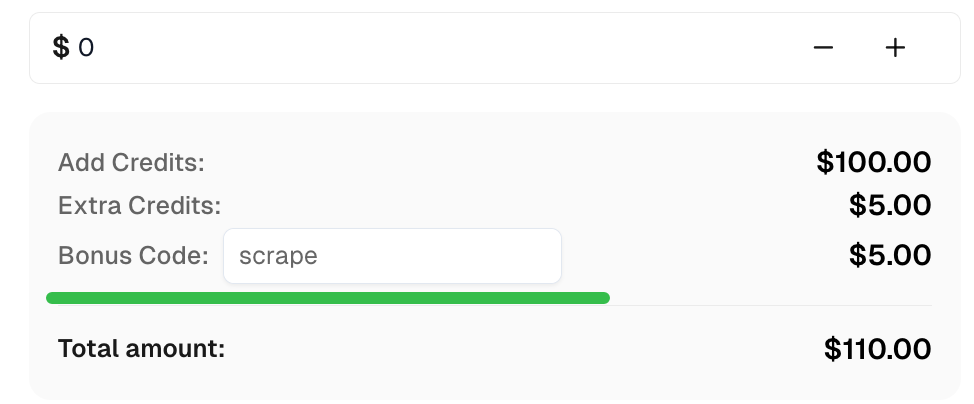
在 CapSolver 中获取顶级验证码解决方案的奖励代码:scrape。兑换后,每次充值后,您将获得额外的 5% 奖励,不限次数。
在本指南中,我们探讨了如何使用 SeleniumBase 执行网络抓取,涵盖了基本的抓取技术以及更高级的示例,例如处理分页、动态内容和表单提交。我们还演示了如何将 CapSolver 集成到您的 SeleniumBase 脚本中,以自动解决验证码,确保抓取会话不受中断。
Ethan Collins
AI Agent Workflow Engineer
Building clearer handoffs between AI agents and tools.
关于作者