
🎉新着AI エージェント向け CapSolver-MCP、エージェントツール、SDK 統合

Nikolai Smirnov
Software Development Lead
発行済み Nov 12, 2024
更新されました Nov 05, 2024 · 最小読み取り

ウェブスクレイピングは、データ抽出、市場調査、自動化のための強力なツールです。ただし、CAPTCHAは、自動スクレイピングの取り組みを妨げる可能性があります。このガイドでは、SeleniumBase を使用してウェブスクレイピングを実行し、quotes.toscrape.com を例に、CapSolver を統合してCAPTCHAを効率的に解決する方法について説明します。
SeleniumBase は、ウェブ自動化とテストを簡素化するPythonフレームワークです。Selenium WebDriverの機能を拡張し、よりユーザーフレンドリーなAPI、高度なセレクター、自動待ち時間、追加のテストツールを提供します。
始める前に、システムにPython 3がインストールされていることを確認してください。SeleniumBaseをセットアップするには、次の手順に従ってください。
SeleniumBaseをインストールする:
pip install seleniumbaseインストールを確認する:
sbase --helpquotes.toscrape.com に移動して、引用と著者の名前を抽出する簡単なスクリプトを作成してみましょう。
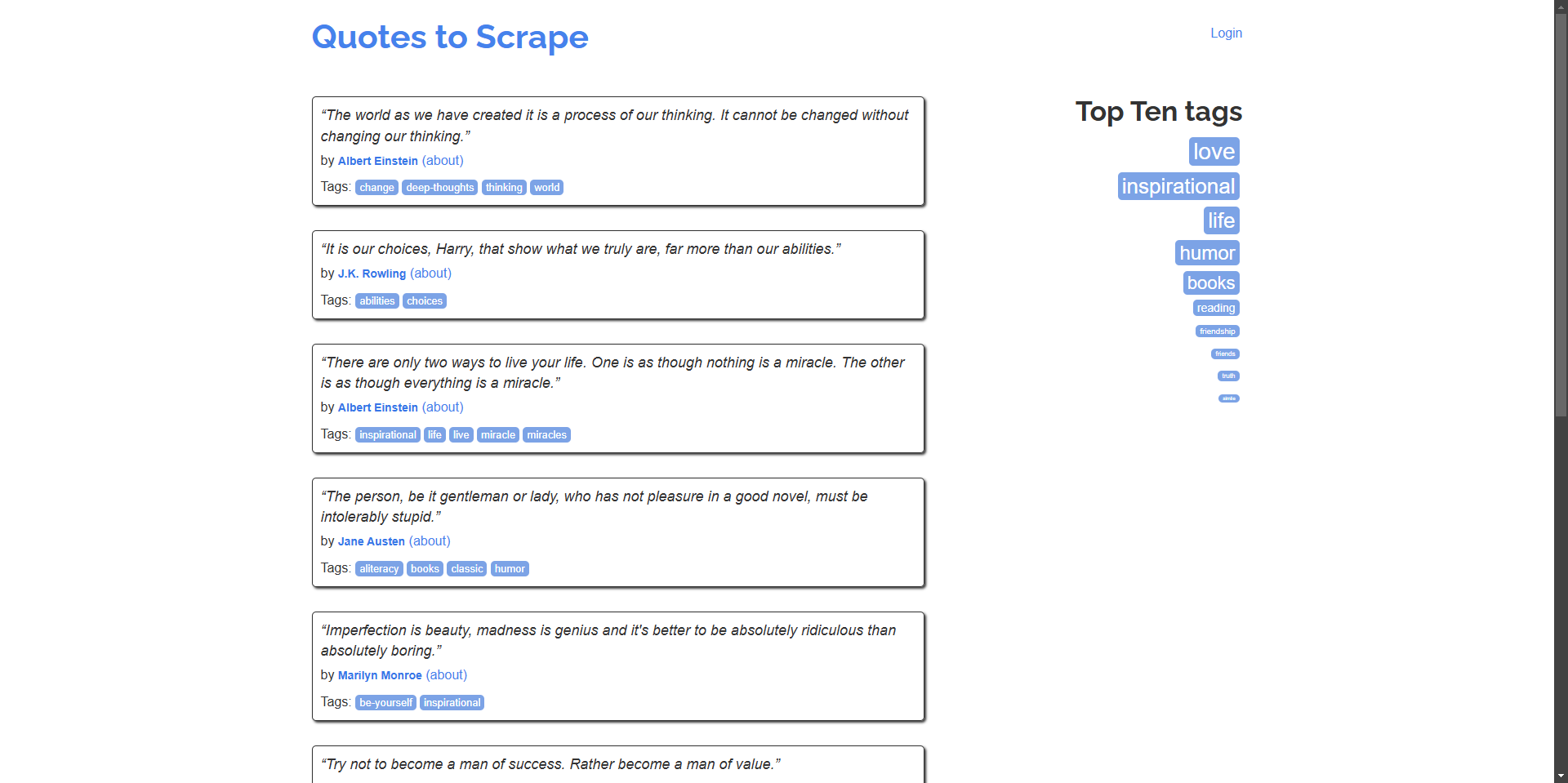
例: ホームページから引用とその作者の名前をスクレイピングする。
# scrape_quotes.py

from seleniumbase import BaseCase

class QuotesScraper(BaseCase):
    def test_scrape_quotes(self):
        self.open("https://quotes.toscrape.com/")
        quotes = self.find_elements("div.quote")
        for quote in quotes:
            text = quote.find_element("span.text").text
            author = quote.find_element("small.author").text
            print(f"\"{text}\" - {author}")

if __name__ == "__main__":
    QuotesScraper().main()
スクリプトを実行する:
python scrape_quotes.py出力:
“The world as we have created it is a process of our thinking. It cannot be changed without changing our thinking.” - Albert Einstein
...ウェブスクレイピングのスキルを向上させるために、SeleniumBaseを使用したより高度な例を見てみましょう。
多くのウェブサイトでは、コンテンツが複数のページにわたって表示されます。スクリプトを変更して、すべてのページを移動し、引用をスクレイピングしてみましょう。
# scrape_quotes_pagination.py

from seleniumbase import BaseCase

class QuotesPaginationScraper(BaseCase):
    def test_scrape_all_quotes(self):
        self.open("https://quotes.toscrape.com/")
        while True:
            quotes = self.find_elements("div.quote")
            for quote in quotes:
                text = quote.find_element("span.text").text
                author = quote.find_element("small.author").text
                print(f"\"{text}\" - {author}")

            # 次のページがあるかどうかを確認する
            if self.is_element_visible('li.next > a'):
                self.click('li.next > a')
            else:
                break

if __name__ == "__main__":
    QuotesPaginationScraper().main()
説明:
is_element_visible を使用して、"Next"ボタンの有無を確認します。一部のウェブサイトでは、AJAXを使用してコンテンツを動的に読み込んでいます。SeleniumBaseでは、要素が読み込まれるのを待つことで、このようなシナリオを処理できます。
例: 動的に読み込まれるウェブサイトからタグをスクレイピングする。
# scrape_dynamic_content.py

from seleniumbase import BaseCase

class TagsScraper(BaseCase):
    def test_scrape_tags(self):
        self.open("https://quotes.toscrape.com/")
        # 'Top Ten tags' リンクをクリックして、タグを動的に読み込む
        self.click('a[href="/tag/"]')
        self.wait_for_element("div.tags-box")
        tags = self.find_elements("span.tag-item > a")
        for tag in tags:
            tag_name = tag.text
            print(f"Tag: {tag_name}")

if __name__ == "__main__":
    TagsScraper().main()
説明:
div.tags-box 要素が読み込まれるまで待ちます。これにより、動的コンテンツが確実に読み込まれます。wait_for_element を使用することで、要素が使用可能になるまでスクリプトが続行されません。場合によっては、コンテンツをスクレイピングする前に、ウェブサイトにログインする必要があることがあります。フォームの送信を処理する方法を次に示します。
例: ウェブサイトにログインして、認証されたユーザーページから引用をスクレイピングする。
# scrape_with_login.py

from seleniumbase import BaseCase

class LoginScraper(BaseCase):
    def test_login_and_scrape(self):
        self.open("https://quotes.toscrape.com/login")
        # ログインフォームに入力する
        self.type("input#username", "testuser")
        self.type("input#password", "testpass")
        self.click("input[type='submit']")

        # ログアウトリンクをチェックすることで、ログインを確認する
        if self.is_element_visible('a[href="/logout"]'):
            print("Logged in successfully!")

            # ここで引用をスクレイピングする
            self.open("https://quotes.toscrape.com/")
            quotes = self.find_elements("div.quote")
            for quote in quotes:
                text = quote.find_element("span.text").text
                author = quote.find_element("small.author").text
                print(f"\"{text}\" - {author}")
        else:
            print("Login failed.")

if __name__ == "__main__":
    LoginScraper().main()
説明:
注: quotes.toscrape.com では、デモ用にユーザー名とパスワードが許可されているため、ダミーの資格情報を使用できます。
ウェブサイトでは、多くの場合、データがテーブル形式で表示されます。テーブルデータの抽出方法を次に示します。
例: テーブルからデータをスクレイピングする(ウェブサイトにはテーブルがないため、仮定上の例)。
# scrape_table.py

from seleniumbase import BaseCase

class TableScraper(BaseCase):
    def test_scrape_table(self):
        self.open("https://www.example.com/table-page")
        # テーブルが読み込まれるまで待つ
        self.wait_for_element("table#data-table")
        rows = self.find_elements("table#data-table > tbody > tr")
        for row in rows:
            cells = row.find_elements("td")
            row_data = [cell.text for cell in cells]
            print(row_data)

if __name__ == "__main__":
    TableScraper().main()
説明:
quotes.toscrape.com にはテーブルがないため、URLをテーブルを含む実際のウェブサイトに置き換えてください。quotes.toscrape.com にはCAPTCHAはありませんが、実際には多くのウェブサイトにCAPTCHAが実装されています。このような場合に備えて、CapSolverブラウザ拡張機能を使用して、SeleniumBaseスクリプトにCapSolverを統合する方法を説明します。
CapSolver拡張機能をダウンロードする:
./capsolver_extension)に拡張機能を解凍します。構成ファイルを見つける:
capsolver_extension/assets ディレクトリにある config.json ファイルを探します。構成を更新する:
enabledForcaptcha や enabledForRecaptchaV2 を true に設定します。captchaMode または reCaptchaV2Mode を自動解決のために "token" に設定します。config.json の例:
{
  "apiKey": "YOUR_CAPSOLVER_API_KEY",
  "enabledForcaptcha": true,
  "captchaMode": "token",
  "enabledForRecaptchaV2": true,
  "reCaptchaV2Mode": "token",
  "solveInvisibleRecaptcha": true,
  "verbose": false
}
"YOUR_CAPSOLVER_API_KEY" を実際のCapSolver APIキーに置き換えます。SeleniumBaseでCapSolver拡張機能を使用するには、ブラウザが起動時に拡張機能を読み込むように構成する必要があります。
SeleniumBaseスクリプトを変更する:
selenium.webdriver.chrome.options から ChromeOptions をインポートします。例:
from seleniumbase import BaseCase
from selenium.webdriver.chrome.options import Options as ChromeOptions
import os

class QuotesScraper(BaseCase):
    def setUp(self):
        super().setUp()

        # CapSolver拡張機能へのパス
        extension_path = os.path.abspath('capsolver_extension')

        # Chromeオプションを構成する
        options = ChromeOptions()
        options.add_argument(f"--load-extension={extension_path}")
        options.add_argument("--disable-gpu")
        options.add_argument("--no-sandbox")

        # 新しいオプションを使用してドライバーを更新する
        self.driver.quit()
        self.driver = self.get_new_driver(browser_name="chrome", options=options)
拡張機能のパスが正しいことを確認する:
extension_path が、CapSolver拡張機能を解凍したディレクトリを指していることを確認してください。SeleniumBaseにCapSolverを統合して、CAPTCHAを自動的に解決する、完全なスクリプトを次に示します。引き続き、https://recaptcha-demo.appspot.com/recaptcha-v2-checkbox.php を例として使用します。
# scrape_quotes_with_capsolver.py
from seleniumbase import BaseCase
from selenium.webdriver.chrome.options import Options as ChromeOptions
import os

class QuotesScraper(BaseCase):
    def setUp(self):
        super().setUp()

        # CapSolver拡張機能フォルダへのパス
        # このパスがCapSolver Chrome拡張機能フォルダを正しく指していることを確認してください
        extension_path = os.path.abspath('capsolver_extension')

        # Chromeオプションを構成する
        options = ChromeOptions()
        options.add_argument(f"--load-extension={extension_path}")
        options.add_argument("--disable-gpu")
        options.add_argument("--no-sandbox")

        # 新しいオプションを使用してドライバーを更新する
        self.driver.quit()  # 既存のドライバーインスタンスを閉じる
        self.driver = self.get_new_driver(browser_name="chrome", options=options)

    def test_scrape_quotes(self):
        # reCAPTCHAのあるターゲットサイトに移動する
        self.open("https://recaptcha-demo.appspot.com/recaptcha-v2-checkbox.php")

        # CAPTCHAの有無をチェックし、必要に応じて解決する
        if self.is_element_visible("iframe[src*='recaptcha']"):
            # CapSolver拡張機能がCAPTCHAを自動的に処理する
            print("CAPTCHA detected, waiting for CapSolver extension to solve it...")

            # CAPTCHAが解決されるまで待つ
            self.sleep(10)  # 平均解決時間に基づいて時間を調整する

        # CAPTCHAが解決された後にスクレイピングのアクションを実行する
        # 例として、ボタンをクリックしたり、テキストを抽出したりする
        self.assert_text("reCAPTCHA demo", "h1")  # ページの内容を確認する

    def tearDown(self):
        # テスト後にクリーンアップしてブラウザを閉じる
        self.driver.quit()
        super().tearDown()

if __name__ == "__main__":
    QuotesScraper().main()
説明:
setUp メソッド:
setUp メソッドをオーバーライドします。test_scrape_quotes メソッド:
tearDown メソッド:
スクリプトの実行:
python scrape_quotes_with_capsolver.py注: quotes.toscrape.com にはCAPTCHAはありませんが、CapSolverを統合することで、CAPTCHAを使用しているサイトをスクレイピングできるようになります。
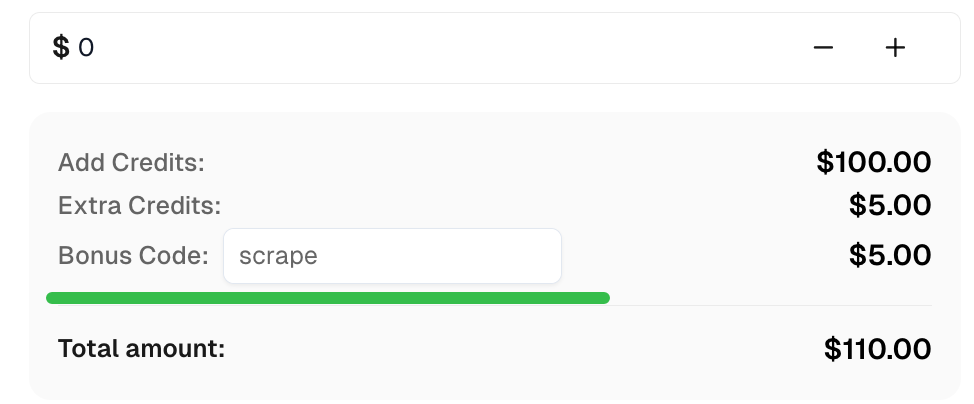
CapSolver で最高のCAPTCHAソリューションのボーナスコード を取得する: scrape。このコードを引き換えると、チャージごとに最大5%のボーナスが、無制限に適用されます。
このガイドでは、SeleniumBaseを使用したウェブスクレイピングの方法について説明しました。基本的なスクレイピングテクニックから、ページネーション、動的コンテンツ、フォーム送信の処理などのより高度な例まで、さまざまな内容を扱いました。また、SeleniumBaseスクリプトにCapSolverを統合して、CAPTCHAを自動的に解決し、スクレイピングセッションを途切れさせないようにする方法も示しました。
Nikolai Smirnov
Software Development Lead
Building dependable software for complex automation.
著者について
オフィシャル MCP レジストリで CapSolver MCP を検索し、uvx または pip を使用してバージョン 0.1.3 をインストールし、ローカルクライアントを設定し、stdio ツールを確認してください。

Pydantic AIに公式のCapSolverアダプタを使用してCAPTCHAツールを追加し、ローカルでツールの実行をテストし、タイプされた入力と構造化されたソルバーの結果を処理します。