🎉NEWCapSolver for AI agents-MCP, agent tools, and SDK integrations

Ethan Collins
AI Agent Workflow Engineer
Published Apr 17, 2026
Updated Apr 17, 2026 · min read
TL;Dr:
ERR_CONNECTION_REFUSED or CAPTCHA challenges.Google Chrome stands as the internet's most popular gateway, guiding billions of users daily. This widespread adoption means Chrome bears a significant responsibility for user safety. It actively blocks websites to protect users from various online threats. However, these robust security measures often create hurdles for legitimate web automation processes. This article explores the delicate balance between Chrome's essential browser security and the growing need for seamless automation access. We will delve into why Chrome blocks websites and how these mechanisms impact automated tasks, offering insights for both general users and developers.
Chrome employs a multi-layered security approach to safeguard its users. These mechanisms are constantly evolving to counter new threats. Understanding these core features helps clarify why Chrome blocks websites.
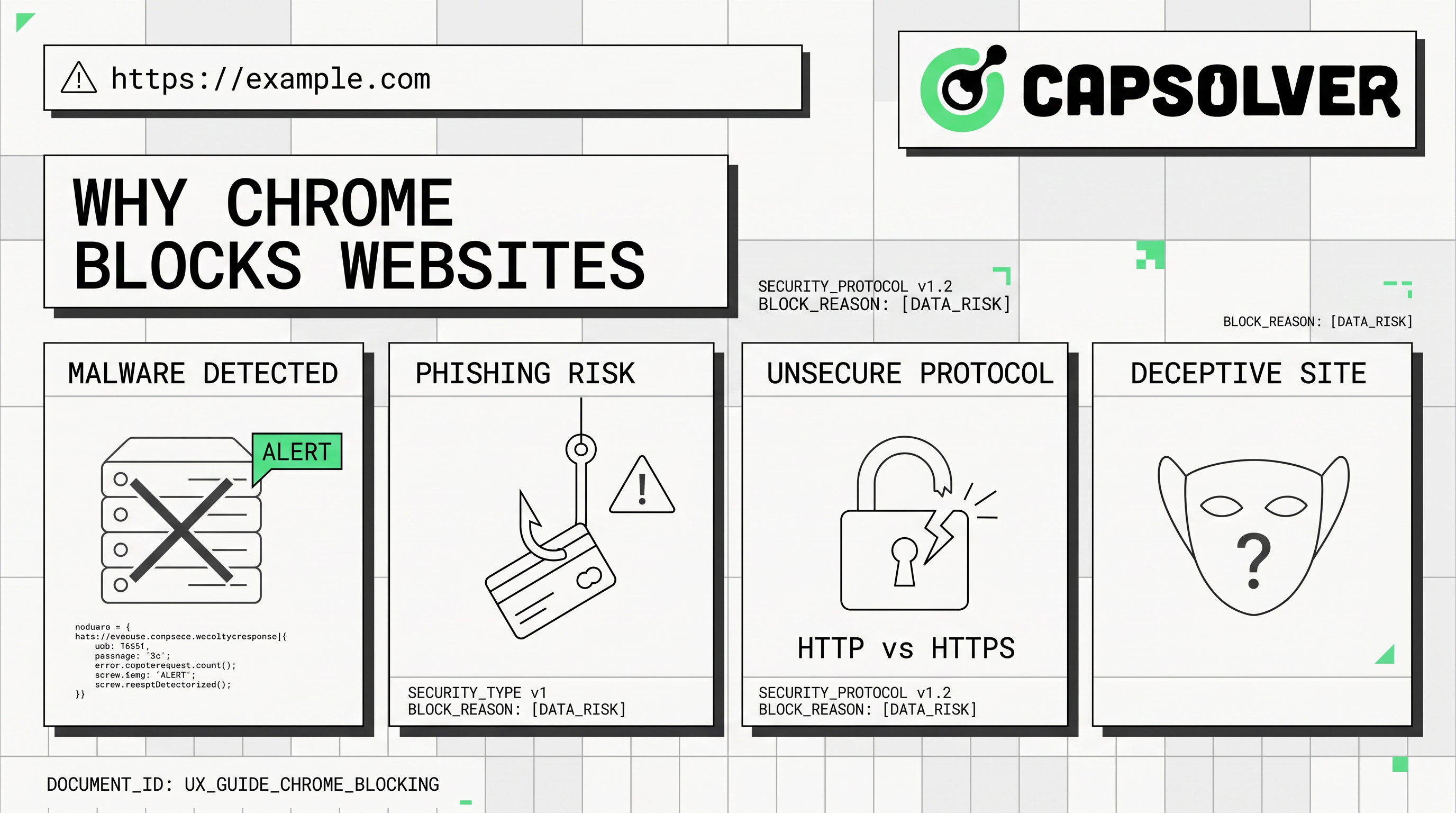
Chrome's Safe Browsing feature is a cornerstone of its security framework. It proactively warns users about dangerous websites. This includes sites known for malware, phishing, and unwanted software. When you encounter a chrome blocking websites warning, Safe Browsing is often at work. It maintains lists of unsafe sites and checks pages against these lists in real-time Google Safe Browsing. This helps prevent accidental visits to malicious domains.
Secure Sockets Layer (SSL) and Transport Layer Security (TLS) certificates are vital for encrypted communication. Chrome rigorously checks these certificates to ensure data integrity and privacy. An SSL certificate error chrome indicates a problem with a website's certificate. This could be due to expiration, misconfiguration, or an untrusted issuer. Chrome will display a NET::ERR_CERT_AUTHORITY_INVALID warning, preventing access to potentially insecure sites. This protects sensitive information from interception.
Modern websites should load all resources over a secure HTTPS connection. Mixed content occurs when a secure HTTPS page attempts to load insecure HTTP resources. Chrome blocks this mixed content to prevent vulnerabilities. Insecure resources could be exploited to compromise the entire secure page. This blocking enhances the overall security posture of web browsing.
Chrome operates on a sandbox architecture, isolating different browser processes. This means if one tab or extension is compromised, it cannot affect other tabs or your operating system. This isolation limits the damage potential of malicious code. It's a fundamental security design choice that underpins Chrome's resilience against attacks.
Beyond its core security features, several specific issues can cause Chrome to block access. These range from server-side problems to user-specific settings. Each reason contributes to why Chrome blocks websites.
The ERR_CONNECTION_REFUSED error is a common message indicating a connection failure. It means your browser tried to connect to a website's server, but the server actively refused the connection. This can happen if the server is offline, overloaded, or configured to block your IP address. Network settings or firewall rules on either end can also cause this error Google Chrome Help. For automation, this often signals an IP ban or rate limiting.
When Chrome displays ERR_NAME_NOT_RESOLVED, it signifies a problem with DNS resolution. The browser cannot translate the website's domain name into an IP address. This can stem from incorrect DNS settings, a temporary DNS server outage, or a typo in the URL. It effectively means Chrome cannot find the website on the internet.
Some websites restrict access based on geographical location. This is known as geo-restriction. Content providers often implement these blocks due to licensing agreements or regional distribution policies. If your IP address indicates you are in a restricted region, Chrome will block access. This is a common challenge when solving geo restrictions chrome for content access.
In managed environments like schools or workplaces, network administrators often implement content filters. Parental control software can also block specific websites. These blocks are enforced at a system or network level, not directly by Chrome's security features. However, Chrome will still display a blocked page message. This is a deliberate restriction for policy enforcement.
Certain browser extensions can inadvertently cause websites to be blocked. Ad blockers, privacy tools, or security extensions might misinterpret legitimate content as malicious. They can prevent pages from loading correctly or block specific elements. If you experience unexpected blocking, disabling extensions one by one can help identify the culprit.
Your computer's firewall or antivirus software can also prevent Chrome from accessing websites. Overly strict firewall rules might block legitimate outgoing connections. This can lead to ERR_CONNECTION_REFUSED or other connection errors. Ensuring Chrome is whitelisted in your security software is essential for uninterrupted browsing.
Chrome's robust security, while beneficial for human users, presents unique challenges for web automation. Automated scripts often mimic human behavior but can be flagged as suspicious. This leads to chrome blocking websites for automation tools.
Web scraping, automated testing, and data collection are common automation tasks. These activities require consistent access to web resources. However, websites deploy sophisticated bot detection mechanisms. These systems aim to differentiate between human users and automated scripts. When automation is detected, websites can respond by blocking access, serving CAPTCHAs, or rate-limiting requests. This creates a constant cat-and-mouse game between automation developers and website security.
For instance, an automation script might trigger an ERR_CONNECTION_REFUSED if it makes too many requests too quickly. This is a server-side defense against potential denial-of-service attacks. Similarly, SSL certificate error chrome can halt automation if the script isn't configured to handle certificate validation properly. The goal for legitimate automation is to operate stealthily and respectfully, avoiding triggers for these security measures.
Overcoming Chrome's blocking mechanisms for legitimate automation requires strategic approaches. These methods aim to mimic human browsing patterns and solving common detection techniques. Effective unblock websites chrome strategies are crucial for successful automation.
Proxies and VPNs are essential tools for managing network-level restrictions. A VPN encrypts your internet traffic and routes it through a server in a different location. This helps in solving geo restrictions chrome by making it appear as if you are browsing from another country. Proxies act as intermediaries, masking your original IP address. The choice between proxy vs vpn chrome depends on the specific automation needs. Proxies are often preferred for web scraping due to their flexibility and ability to rotate IP addresses. However, they do not encrypt traffic like VPNs Cloudflare Learning.
For automation, SSL certificate error chrome can be problematic. Scripts need to be configured to either properly validate SSL certificates or, in controlled environments, to solving validation if the risk is understood. Ignoring SSL errors in production environments is not recommended due to security implications. Ensuring your automation environment has up-to-date root certificates can prevent many NET::ERR_CERT_AUTHORITY_INVALID issues.
Websites use browser fingerprinting to identify and track users, including automated bots. This involves collecting data about your browser, operating system, and device. Automation tools must implement techniques to manage their browser fingerprint. This includes rotating user agents, managing cookies, and mimicking realistic mouse movements and keyboard inputs. Without proper fingerprint management, automation scripts are easily detected and blocked.
One of the most frequent obstacles in web automation is the CAPTCHA challenge. These tests are designed to distinguish humans from bots. When Chrome blocks websites, or when a website's bot detection triggers, CAPTCHAs often appear. This is where services like CapSolver become invaluable. CapSolver offers automated CAPTCHA solving, allowing your automation scripts to proceed uninterrupted. It supports various CAPTCHA types, including reCAPTCHA v2, reCAPTCHA v3, Cloudflare Turnstile, and more. This ensures your automation can navigate these security checkpoints efficiently. For more details on why automation fails on CAPTCHA, refer to Why Web Automation Keeps Failing on CAPTCHA.
Here's a Python example using aiohttp and CapSolver to solve a reCAPTCHA v2:
import aiohttp
import json

CAPSOLVER_API_KEY = "YOUR_CAPSOLVER_API_KEY"
PAGE_URL = "https://example.com/recaptcha_page"
SITE_KEY = "YOUR_RECAPTCHA_SITE_KEY"

async def create_capsolver_task(api_key, website_url, website_key):
    url = "https://api.capsolver.com/createTask"
    headers = {"Content-Type": "application/json"}
    payload = {
        "clientKey": api_key,
        "task": {
            "type": "ReCaptchaV2TaskProxyless",
            "websiteURL": website_url,
            "websiteKey": website_key
        }
    }
    async with aiohttp.ClientSession() as session:
        async with session.post(url, headers=headers, data=json.dumps(payload)) as response:
            return await response.json()

async def get_capsolver_result(api_key, task_id):
    url = "https://api.capsolver.com/getTaskResult"
    headers = {"Content-Type": "application/json"}
    payload = {
        "clientKey": api_key,
        "taskId": task_id
    }
    async with aiohttp.ClientSession() as session:
        async with session.post(url, headers=headers, data=json.dumps(payload)) as response:
            return await response.json()

async def solve_recaptcha_v2():
    # Create task
    create_task_response = await create_capsolver_task(CAPSOLVER_API_KEY, PAGE_URL, SITE_KEY)
    if create_task_response.get("errorId") != 0:
        print(f"Error creating task: {create_task_response.get('errorDescription')}")
        return None

    task_id = create_task_response.get("taskId")
    print(f"Task created with ID: {task_id}")

    # Poll for result
    while True:
        get_result_response = await get_capsolver_result(CAPSOLVER_API_KEY, task_id)
        if get_result_response.get("errorId") != 0:
            print(f"Error getting result: {get_result_response.get('errorDescription')}")
            return None

        status = get_result_response.get("status")
        if status == "ready":
            g_recaptcha_response = get_result_response["solution"]["gRecaptchaResponse"]
            print("reCAPTCHA solved successfully!")
            return g_recaptcha_response
        elif status == "processing":
            print("Solving reCAPTCHA... waiting...")
            await asyncio.sleep(5) # Wait for 5 seconds before polling again
        else:
            print(f"Unknown status: {status}")
            return None

async def main():
    # Example usage: solve reCAPTCHA and then submit to a page
    recaptcha_token = await solve_recaptcha_v2()
    if recaptcha_token:
        print(f"Received reCAPTCHA token: {recaptcha_token}")
        # Now you can use this token to submit a form or access the protected page
        # For example:
        # async with aiohttp.ClientSession() as session:
        #     data = {'g-recaptcha-response': recaptcha_token, 'other_form_field': 'value'}
        #     async with session.post(PAGE_URL, data=data) as response:
        #         print(await response.text())

if __name__ == "__main__":
    import asyncio
    asyncio.run(main())
This code snippet demonstrates how to integrate CapSolver into your Python automation workflow to handle reCAPTCHA v2 challenges. For more advanced scraping techniques, including handling CAPTCHAs, you can explore resources like How to Scrape Captcha Protected Sites with n8n, CapSolver, and OpenClaw.
Redeem Your CapSolver Bonus Code
Boost your automation budget instantly!
Use bonus code CAP26 when topping up your CapSolver account to get an extra 5% bonus on every recharge — with no limits.
Redeem it now in your CapSolver Dashboard
| Feature/Aspect | Browser Security Perspective | Automation Access Perspective |
|---|---|---|
| Primary Goal | Protect human users from threats (malware, phishing, data breaches). | Access web data/functionality efficiently and reliably. |
| Blocking Mechanisms | Safe Browsing, SSL validation, mixed content, sandbox. | IP bans, rate limiting, CAPTCHAs, browser fingerprinting detection. |
| Common Errors | SSL certificate error chrome, ERR_CONNECTION_REFUSED, NET::ERR_CERT_AUTHORITY_INVALID. |
ERR_CONNECTION_REFUSED, CAPTCHA prompts, HTTP 403 Forbidden. |
| Geo-restrictions | Enforced for licensing/regional policies. | Overcome with proxies/VPNs (solving geo restrictions chrome). |
| Automation Impact | Legitimate automation can be mistaken for malicious activity. | Requires sophisticated techniques to mimic human behavior. |
| Solution for Automation | Not directly applicable; security is for human interaction. | Proxies, VPNs, user-agent rotation, CAPTCHA solving services (e.g., CapSolver). |
Chrome's commitment to user security is evident in its robust blocking mechanisms. Features like Safe Browsing and strict SSL validation are crucial for a safe online experience. However, these same protections pose significant challenges for web automation. Developers and businesses engaged in automation must understand why Chrome blocks websites to navigate these hurdles effectively. Strategies such as using proxies, managing browser fingerprints, and integrating CAPTCHA solving services like CapSolver are vital for maintaining seamless automation access. By respecting website policies and employing ethical automation practices, it is possible to balance browser security with the demands of automated web tasks. Explore CapSolver today to enhance your automation workflows and overcome CAPTCHA challenges efficiently.
ERR_CONNECTION_REFUSED?ERR_CONNECTION_REFUSED means your browser could not establish a connection with the website's server. This often indicates the server is down, blocking your request, or there's a network issue on your end. It's a common error when chrome blocking websites due to server-side issues.
Chrome Safe Browsing protects you by maintaining lists of known malicious websites (malware, phishing). When you try to visit a site, Chrome checks it against these lists. If a match is found, it displays a warning, preventing you from accessing the potentially harmful page. This is a key feature for chrome safe browsing.
A VPN can help unblock websites chrome that are geo-restricted or blocked by local network filters. However, it cannot solving all types of blocks. For instance, if a website has robust bot detection or if Chrome blocks a site due to severe malware, a VPN alone might not suffice. It's effective for solving geo restrictions chrome but not for all security blocks.
SSL certificate error chrome?An SSL certificate error chrome occurs when there's a problem with a website's security certificate. This could mean the certificate is expired, not issued by a trusted authority, or misconfigured. Chrome blocks access to protect your data from insecure connections. Always ensure your system date and time are correct, as this can sometimes cause such errors.
Automation tools can address Chrome blocking by using proxies or VPNs for IP rotation and geo-unblocking. They should also manage browser fingerprints to appear more human-like. For CAPTCHA challenges, integrating specialized solving services like CapSolver is highly effective. These strategies help unblock websites chrome for legitimate automated tasks.
Ethan Collins
AI Agent Workflow Engineer
Building clearer handoffs between AI agents and tools.
ABOUT THE AUTHOR
Learn scalable Rust web scraping architecture with reqwest, scraper, async scraping, headless browser scraping, proxy rotation, and compliant CAPTCHA handling.

Learn the best techniques to scrape job listings without getting blocked. Master Indeed scraping, Google Jobs API, and web scraping API with CapSolver.