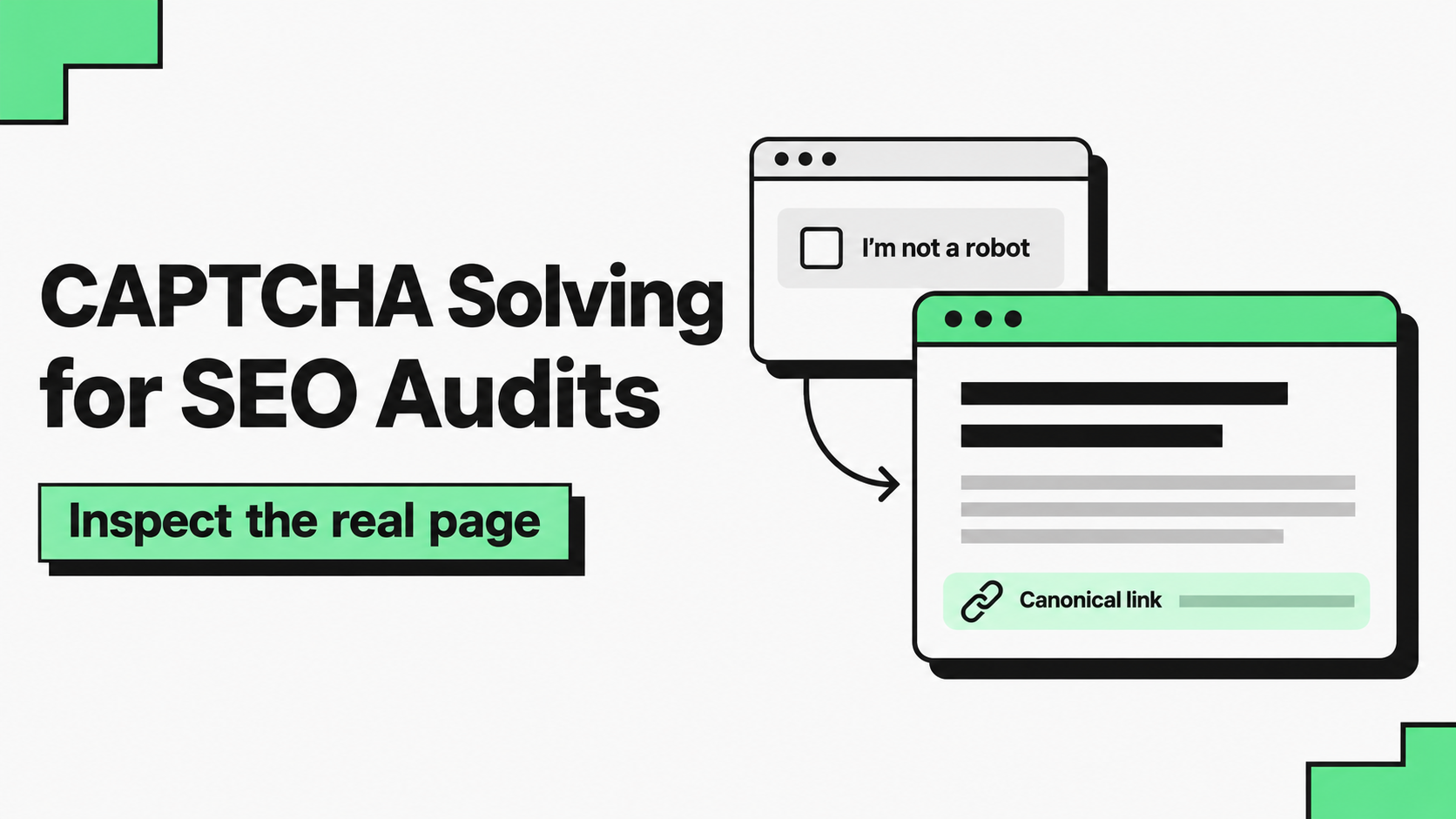
CAPTCHA Solving for SEO Audits: How to Check Protected Pages
Adélia Cruz
MCP Integration Engineer
Published Nov 25, 2026
Updated Nov 25, 2026 · min read
TL;DR
Confirm that your audit reached the actual page before extracting SEO fields. A challenge screen can have its own title, content, and directives.
Use CAPTCHA solving only for a supported challenge in an authorized audit. It is one access step, not an SEO crawler or indexing service.
Keep the first response and the post-challenge observation separate. This prevents the audit from hiding an access problem or reporting challenge-page metadata as a site defect.
Read status, title, canonical, and robots signals from the correct document. Render JavaScript when needed, and record where each field came from.
Check Google visibility independently. A successful audit browser session does not prove Googlebot can crawl the page or that Google has indexed it.
Why a CAPTCHA can distort an SEO audit
A technical SEO audit depends on inspecting the intended page. If a crawler receives a verification screen instead, it may report a repeated title, missing canonical, unusually short content, or a page that appears unrelated to the requested URL.
Those observations describe what the crawler received. They do not yet establish defects in the underlying product, category, or article page. Treating them as normal page findings can send a client a long list of misleading fixes.
CAPTCHA solving has a narrow role here: when an authorized audit encounters a supported challenge, a solver can help the audit browser reach the page that needs inspection. The auditor must still confirm the final document, collect SEO evidence, and assess search-engine access separately.
This guide is for audits of sites you own or are authorized to assess. It is an inspection workflow, not a new crawler integration or a claim that every SEO tool supports a solver plug-in.
Decide whether the page needs a solver
Start with the site's intended access policy. For a client-owned property, ask the site team whether there is an approved crawl method or a test configuration for the audit. That may resolve the access issue without a solving step.
If the purpose is to inspect the experience presented to an ordinary browser, preserve that access condition in your report. An audit run through a special permitted configuration and a browser run that encounters a challenge answer different questions.
Classify the response before choosing a tool:
What the audit sees
Next step
Expected page content
Continue the SEO inspection
Supported CAPTCHA before page access
Use the documented solving workflow if it is within the audit's authorization
Login or account-permission requirement
Obtain the required access through the site owner
Rate-limit or service-error response
Respect the limit or investigate availability
Unrecognized verification page
Record it and investigate; do not assume a solver supports it
A CAPTCHA solver does not grant account permissions, remove a subscription requirement, or correct a server outage. It should be called for the challenge actually present, using that challenge's current task contract.
Step 1: preserve the original observation
Keep a record of the first response before attempting to continue. At minimum, save the requested URL, final URL, response status, observation time, and the reason the audit classified the page as challenged.
A screenshot or a short, redacted evidence excerpt can help the site team confirm the classification. Avoid copying unnecessary personal information into the audit report. A challenge detection should be a distinct result, not a generic “page title missing” issue.
Do not classify access solely from a status code. Inspect the actual response body and the page in context. Likewise, a familiar word in the text is not enough to prove a CAPTCHA is blocking access: an article about CAPTCHAs may legitimately contain the same words.
For a small manual audit, this can be a separate row in the working sheet. For an automated audit, make it an explicit state before the SEO extraction step. Either way, the original result must remain available after the browser reaches the page.
Step 2: handle the supported CAPTCHA
Match the observed challenge to a documented CapSolver task. Use the inputs from the current page and follow the response contract for that task. The createTask reference is the starting point for task submission; asynchronous tasks use the task-result method to retrieve a result.
Your audit browser or existing integration must then apply the result in the appropriate page context and inspect the site's response. Receiving a solution from the API does not by itself establish that the site accepted it or that the intended content loaded.
For browser-assisted inspection, the official extension guide describes a no-code entry point for supported CAPTCHA handling. For an existing custom crawler, keep the solver in the access stage and the SEO extractor after it. Do not imply a built-in integration with a named audit product unless that integration is documented and tested.
If the challenge remains unresolved, record the URL as not inspected due to an access challenge. Do not fill its SEO fields with values from the verification page. A missing observation is more useful than a confident finding about the wrong document.
Step 3: confirm that the real page loaded
Require evidence of the intended page before extracting its metadata. Useful checks include the expected final URL, the page's main content area, and an identifying element such as a product name or article heading.
Choose checks appropriate to the template. A single URL match is weak evidence because a verification screen may be served at the requested URL. A generic page heading can also be insufficient if several templates use the same text.
An illustrative audit row might progress like this:
Observation
Result
SEO interpretation
Initial visit
Verification screen shown at the requested product URL
Product metadata not yet inspected
After supported solving step
Correct product name and main content visible
Product page is available to this browser session
Metadata inspection
Title, canonical, and robots values collected from that document
Page-level findings can now be assessed
Search Console check
Separate indexed or live-test evidence reviewed
Google visibility assessed independently
This is an example of report structure, not a live test result. Its purpose is to keep the access finding visible even when the later inspection succeeds.
Redeem Your CapSolver Bonus Code
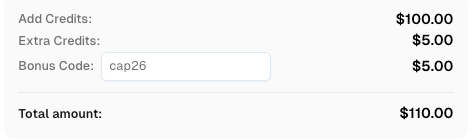
Use bonus code CAP26 when topping up your CapSolver account to get an extra 5% bonus on every recharge — with no limits. Redeem it in your CapSolver Dashboard.
Step 4: collect SEO signals with their source
Record where a value was found: the HTTP response, initial HTML, or rendered document. This matters when JavaScript changes metadata after the original HTML arrives.
Google's JavaScript SEO documentation describes crawling, rendering, and indexing as distinct phases. Your audit should likewise avoid treating a raw HTML snapshot and a fully rendered browser page as interchangeable evidence.
Signal
What to record
Interpretation to avoid
Status and final URL
Original navigation and post-challenge navigation
Replacing the challenged response with a single unexplained success
Title and main heading
Values from the confirmed content page
Reporting a challenge title as the product's title
Canonical
Declared canonical and the document where it appeared
Assuming it is necessarily Google's selected canonical
Robots directives
Relevant meta directives and response headers
Assigning the challenge screen's directives to the protected content
Main content
Expected template content and whether rendering was required
Treating an empty app shell as the final rendered page
A declared canonical is a signal supplied by the site. Google explains the available methods and their roles in its canonicalization guidance. Record the declaration accurately, then investigate unexpected targets rather than assuming every difference is a confirmed indexing defect.
For noindex, inspect both the relevant HTML and response headers. Google's noindex documentation explains that Google must be able to access the resource to see the directive. The absence of a directive in a blocked audit response is not proof that the underlying page permits indexing.
Keep findings precise: “The rendered product page declares this canonical” is stronger than “Google indexes this URL,” because the first statement matches the evidence collected.
Step 5: verify Google visibility separately
Use Search Console for the search-engine question. The URL Inspection documentation distinguishes information about Google's indexed version from a live test. It also explains that the live test cannot predict the Google-selected canonical.
For a challenged URL, compare the audit observation with the relevant Search Console evidence and, where available, the site's own request logs. Ask the site owner to investigate any difference. A browser session that continued after a solved CAPTCHA may not represent the response delivered to Google's crawler.
Report these as separate conclusions:
The audit browser did or did not obtain the intended content.
The inspected document contained particular SEO signals.
Google's indexed data or live test showed a separately recorded result.
If Search Console access is unavailable, state that limitation. Do not replace it with an assumption that a solver made the page crawlable or improved its rankings. A solver returns a supported challenge result; it does not control search-engine indexing decisions.
Build a client report that separates access from defects
Use one line per inspected URL and retain the access outcome alongside the SEO findings. A useful report includes requested URL, initial access state, final inspection state, metadata source, specific finding, supporting evidence, and the responsible team.
Assign access-policy questions to the site or infrastructure owner. Assign confirmed content metadata issues to the team responsible for the template or CMS. This helps avoid a content team attempting to fix a title that actually belongs to a verification screen.
For an unresolved URL, write “not inspected” rather than copying the previous run's values without a freshness warning. For a resolved URL, retain the original challenge event so the client can decide whether that browser experience is acceptable.
Once the first audit is reliable, recurring change detection can build on it. The existing technical SEO regression monitoring guide covers baselines and later comparisons. This article addresses the earlier question: whether the observation describes the intended page at all.
The CapSolver glossary can help readers distinguish CAPTCHA and automation terms. A useful SEO audit keeps the same distinction throughout its evidence: access to a page, inspection of that page, and visibility in search are related, but each requires its own check.
Build Reliable Automation Workflows with CapSolver
Use CapSolver for the supported CAPTCHA step in your authorized workflow. Start with the matching task documentation, verify the page outcome, and measure the completed work. Try CapSolver to configure your account.
FAQ
Q: Can a CAPTCHA solver perform a technical SEO audit?
No. It handles a supported CAPTCHA step. The audit tool or browser still needs to retrieve the intended document and inspect its SEO fields.
Q: Does solving a CAPTCHA help Googlebot index the page?
A successful solve in your audit browser does not establish that. Review Google's access and indexing evidence separately with the site owner and Search Console.
Q: Should a CAPTCHA page's title appear in the missing-title report?
Keep it as evidence of an access challenge, not as the protected page's title. Inspect the intended content before assigning a page-metadata defect.
Q: Can this workflow be used without an automated crawler?
Yes. A manual browser audit can preserve the initial access observation, use an approved supported solving method, and inspect the resulting page. Keep the same evidence boundaries.
Q: What if the page still cannot be inspected?
Record the access condition and the uninspected fields, then ask the site owner to investigate. Do not invent SEO values or keep submitting solver tasks without a defined reason and limit.