
🎉NEWCapSolver for AI agents-MCP, agent tools, and SDK integrations

Khadija Santos
AI Agent & MCP Engineer
Published Oct 16, 2026
Updated Oct 16, 2026 · min read
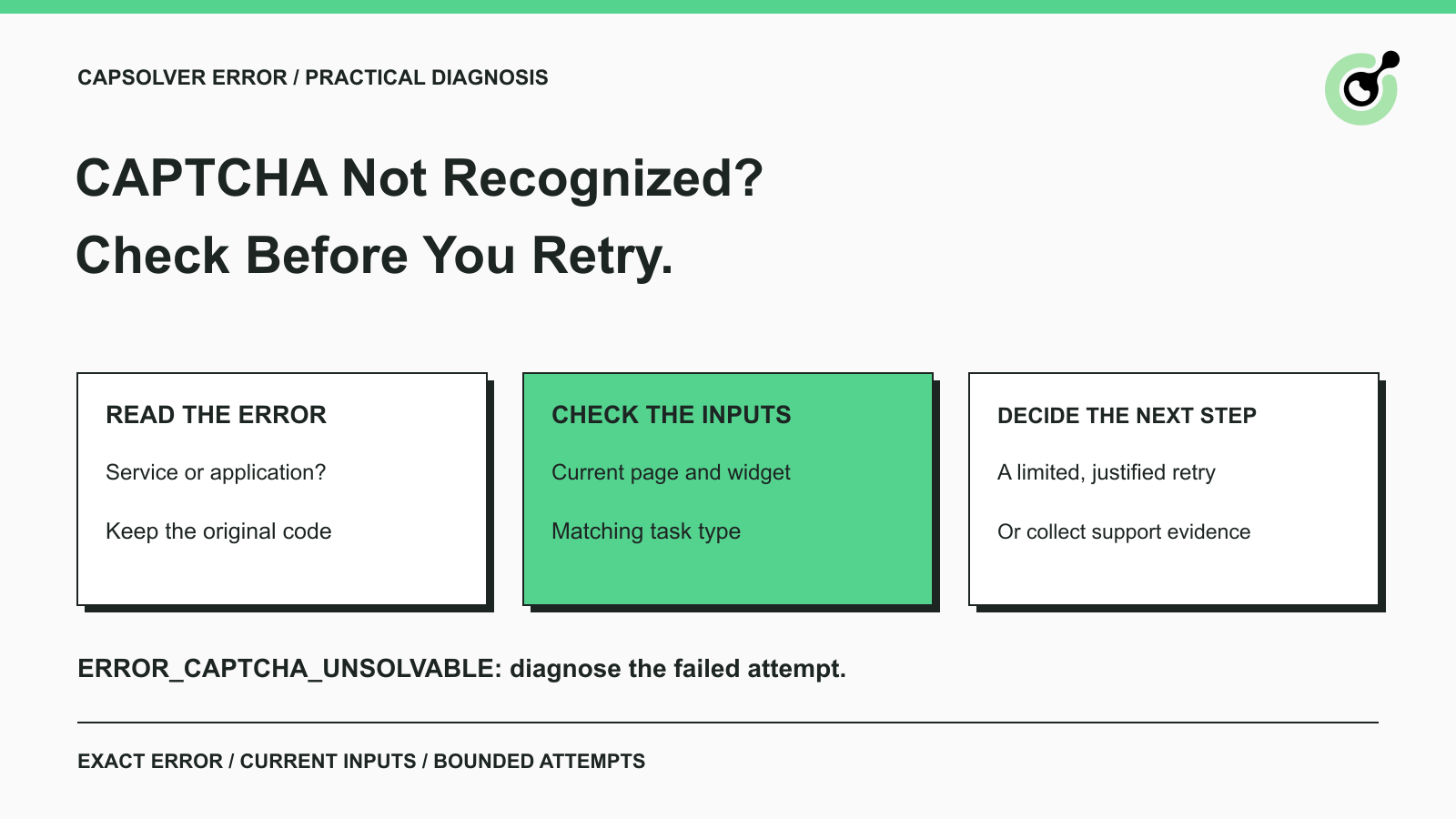
ERROR_CAPTCHA_UNSOLVABLE means CapSolver did not recognize the CAPTCHA for that attempt; the code alone does not identify one universal cause.errorCode and errorDescription before changing settings. Invalid task data, account errors, timeouts, and a website rejecting a returned token are different conditions.A script submits a CAPTCHA task, waits for a result, and receives ERROR_CAPTCHA_UNSOLVABLE. The obvious next step is another request, but an automatic retry can repeat the same problem if the page has changed or the request no longer describes the challenge.
CapSolver documents this error separately from malformed inputs and task timeouts. That distinction is the starting point for troubleshooting. This guide explains what the code tells you, which details to check, and how to decide whether another attempt is useful. The workflow applies to permitted testing and automation. It does not promise that changing one parameter will solve every failure, and it does not treat an access restriction as permission to keep trying.
ERROR_CAPTCHA_UNSOLVABLE reports an unsuccessful recognition attempt, rather than a completed solution waiting to be submitted.
The official error-code reference describes this specific error as a CAPTCHA that was not recognized. The same entry states that there is no deduction for this error and advises trying again. That billing statement is specific to the documented code; it should not be generalized to every unsuccessful browser workflow or every type of API failure.
Read the complete response before assigning a cause. The API uses errorId, errorCode, and errorDescription to describe service errors. Save those values with the task context, rather than reducing everything to a message such as “CAPTCHA failed.” A client-side timeout or parsing exception can otherwise appear identical to a response from the solving service.
A CAPTCHA is only one stage in the application workflow. A service that did not produce a solution and an application that rejected an available solution require different investigations. Keeping the stages separate prevents you from applying a retry policy to the wrong problem.
Identify whether the failure occurred during request submission, result retrieval, or application handling.
The createTask documentation distinguishes tasks that return their result synchronously from asynchronous tasks that return an identifier. For an asynchronous task, a creation response with an ID is not yet a successful solve. Use the existing ID with the result-retrieval flow to observe the outcome.
If the client never received a response, record that fact. Do not invent a service error code to describe a transport failure. Likewise, if a response contains a ready solution and the website later rejects it, retain the application error separately. The later rejection does not retroactively turn the earlier service response into ERROR_CAPTCHA_UNSOLVABLE.
Use a short timeline: submission, task ID if available, result or error, and application outcome if reached. A timeline often answers the first support question without requiring a large browser recording or a full dump of sensitive request data.
Compare the task with the challenge currently used by the page before submitting another attempt.
Start with the CAPTCHA family and variant. A familiar-looking widget is not enough to select a task type. Confirm whether the page uses the family you expect, then consult that family's current task contract. Do not construct a new type name by modifying a string from another tutorial.
For reCAPTCHA v2, the task reference describes the relevant page URL, public sitekey, supported task variants, and optional fields. These inputs need to describe the same current page and widget. A correct field name with a value copied from an unrelated demo is still the wrong input for your workflow.
Recheck inputs if the workflow navigated, refreshed the challenge, changed environments, or moved to another form.
A stored configuration may describe yesterday's deployment or a different widget on the same page. Keep the browser observation and the solving request connected. If a form has multiple verification steps, identify which step produced the parameters rather than simply using the first sitekey found in the document.
The CapSolver detector instructions provide a way to inspect CAPTCHA parameters through browser developer tools. Review the detected values against the task reference. Detection helps collect evidence; it does not prove that every resulting request will succeed.
Use task-specific options because the current page and documentation require them, not because another example contains them.
The absence of an optional field is not automatically the explanation for an unsuccessful solve. Adding speculative proxy, action, or other values can introduce another mismatch. Compare a small, documented request with the observed page and change one justified setting at a time.
Keep private account credentials separate from public page identifiers. If the response instead reports an account-key or balance problem, address that exact problem first. A recognition retry does not correct an invalid account credential.
Redeem Your CapSolver Bonus Code
Boost your automation budget instantly!
Use bonus code CAP26 when topping up your CapSolver account to get an extra 5% bonus on every recharge — with no limits.
Redeem it now in your CapSolver Dashboard
A retry is useful when the operation remains permitted, the page state is current, and the next attempt has a defined stopping point.
The documented suggestion to try again is not a recommendation for an unlimited loop. Set an attempt budget and an overall deadline suitable for the application. If the same response repeats after you have checked the inputs, stop and collect evidence rather than increasing request volume automatically.
Creating a new task starts another attempt. Asking for the result of an existing asynchronous task observes that attempt. Do not mix these operations in a retry loop: repeatedly calling creation while the first task is still pending produces multiple attempts rather than faster information about the original one.
For browser tests, also check the test runner's retry behavior. Playwright's retry documentation explains that a failed test can be run again and identifies tests that pass only on retry as flaky. A whole-test retry may repeat the solving step in addition to any retry inside your solver client. Assign the retry decision deliberately so two layers do not multiply attempts without visibility.
After correcting an observed mismatch, run one small permitted check and compare it with the previous attempt.
Record the change, the task type, the returned outcome, and whether the application completed. If you changed several unrelated settings together, a successful retry will not explain which change mattered. A controlled comparison produces evidence you can use again when the issue recurs.
Keep the stop outcome useful. An unfinished task should remain unfinished with its reason recorded. Returning an empty data object as though it were a successful observation hides the failure and can damage downstream reports.
Use the exact error category to choose the next check.
| Observed condition | First useful check |
|---|---|
ERROR_CAPTCHA_UNSOLVABLE |
Review the current challenge and request; consider a bounded retry |
ERROR_INVALID_TASK_DATA |
Read the description and correct the reported input |
ERROR_TASK_NOT_SUPPORTED |
Confirm the documented task type and supported challenge |
ERROR_TASKID_INVALID |
Check the identifier used for result retrieval |
ERROR_TASK_TIMEOUT |
Review the task outcome and application waiting policy |
| Ready solution, then website rejection | Inspect token handling and the application's verification result |
These are investigation paths, not promises that one check will identify every cause. Preserve the original error text when escalating a case. Replacing it with a broad label removes information that the support team may need.
For a website you own, compare the browser submission with the server's verification response. Google's reCAPTCHA verification documentation makes clear that verification belongs on the server and that response tokens have a limited lifetime and are single-use. A token used too late or reused after verification is a different problem from the solver producing no token.
For browser-side inspection, the Chrome Network panel guide shows how to examine requests and responses. Inspect the relevant operation on your permitted page; avoid exporting an entire authenticated session when a redacted request summary answers the question.
Send a concise, redacted record that allows the failing stage to be identified.
Include the task type, task ID if one exists, approximate request time with timezone, exact error code and description, and whether the behavior is reproducible. Describe any page or configuration change that preceded the failure. State whether you have already checked the request against the current task documentation.
Do not paste the CapSolver API key, full session cookies, complete solved tokens, or unrelated personal data into a public issue. The OWASP logging guidance explains why authentication and session material should be excluded or protected. Use an appropriate support channel for any additional information specifically needed for diagnosis.
The parameter-identification walkthrough can help when the unresolved question is which inputs the page uses. If the inputs already match and the same error persists, provide that finding rather than presenting an assumed cause as a confirmed diagnosis.
The practical response to ERROR_CAPTCHA_UNSOLVABLE is to identify the failed stage, validate current inputs, make a bounded retry decision, and retain useful evidence if the failure continues.
Use CapSolver task responses alongside the application's own outcome. That gives you a clear distinction between an unsuccessful solve and a later integration problem.
Start with one supported challenge and one current request, then expand only after the permitted workflow produces the expected result.
Q: Does ERROR_CAPTCHA_UNSOLVABLE always mean my sitekey is wrong?
No. The error reports unsuccessful recognition. Check the inputs, but do not treat the code alone as proof of a specific parameter mismatch.
Q: Is this error charged?
The current official error table states no deduction for ERROR_CAPTCHA_UNSOLVABLE. That statement applies to this specific error, not every unsuccessful workflow. Use account records and support for billing questions about particular tasks.
Q: Should I keep polling after a terminal error?
Handle the reported error rather than treating it as a pending result. A new solving attempt and retrieval of an existing task are separate actions.
Q: Why does my form still fail after a ready solution?
A ready solution does not prove application acceptance. Inspect the matching page state, result handling, and server verification response where you control the application.
Q: What is the best first step when the error repeats?
Confirm the exact error, compare current page inputs with the task reference, and preserve a redacted task record. Stop repeated attempts when no justified correction or useful new observation is available.
Khadija Santos
AI Agent & MCP Engineer
Develops and maintains CapSolver’s MCP tooling, from implementation and package releases to AI agent integrations.
ABOUT THE AUTHOR
Understand proxyless CAPTCHA tasks, when a supplied proxy is needed, and how to choose the correct CapSolver task for your browser or API workflow.

Solve image CAPTCHAs in Python with CapSolver ImageToTextTask. Prepare Base64 input, read the returned text, and fix common image and submission errors.