🎉NEWCapSolver for AI agents-MCP, agent tools, and SDK integrations

Rajinder Singh
Deep Learning Researcher
Published May 24, 2024
Updated May 24, 2024 · min read
Website security is paramount in recent days, and Google reCAPTCHA serves as a frontline defense against spam and abuse. Integral to this system is the reCAPTCHA Site Key, a unique identifier that ensures interactions on a website are human-driven. Understanding how to locate this key is essential for website administrators and developers alike.
A reCAPTCHA Site Key is a unique identifier used by Google reCAPTCHA to verify user interactions on a website. It is part of the reCAPTCHA service that helps protect websites from spam and abuse by ensuring that the interaction is being performed by a human rather than a bot.
Now, let's delve into how the CapSolver extension simplifies the process of finding the Google reCAPTCHA site key:
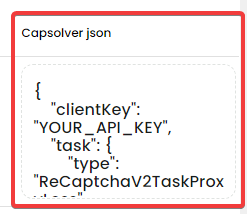
Capsolver, a powerful CAPTCHA recognition service, offers a comprehensive solution for users struggling to identify ReCAPTCHA v2 site keys. With its innovative capabilities, Capsolver simplifies the process of finding the site key and provides a user-friendly experience. Here's how Capsolver can assist users in identifying ReCAPTCHA v2 site keys:


Identifiable Parameters:
Visit the Target Website:
Open the website where you want to find the reCAPTCHA Site Key.
View Page Source:
Ctrl+U (Windows) or Command+Option+U (Mac).F12 to open the developer tools and then select the "Elements" tab.Search for reCAPTCHA Code:
Ctrl+F (Windows) or Command+F (Mac) to open the search box.data-sitekey in the search box.Find the Site Key:
<div class="g-recaptcha" data-sitekey="YOUR_SITE_KEY"></div>data-sitekey attribute is the reCAPTCHA Site Key for that website.Suppose you find the following code snippet in the source code of a website:
<div class="g-recaptcha" data-sitekey="6Lc_aX0UAAAAABxX0X0X0X0X0X0X0X0X0X0X0"></div>In this case, 6Lc_aX0UAAAAABxX0X0X0X0X0X0X0X0X0X0 is the Google reCAPTCHA Site Key for that website.
By following these steps, you can easily find the Google reCAPTCHA Site Key for any website. Please note that using other Site Key might involve legal and privacy issues, so make sure to use this information legally and ethically.
The CapSolver extension makes it easier for inexperienced newcomers to get started, and more importantly, it helps to solve reCAPTCHA, turning CAPTCHA into something invisible, which is very versatile. If you still have questions about how to find site key, or need to find other CAPTCHA parameters, feel free to ask. You can contact us by email support@capsolver.com or online customer service, we value your experience and hope to see you soon!
Rajinder Singh
Deep Learning Researcher
Making CAPTCHA solving more reliable in automated workflows.
ABOUT THE AUTHOR
Choose the best CAPTCHA extension for Chrome automation, QA, and browser testing with CapSolver support for reCAPTCHA, Turnstile, text CAPTCHA, and AWS WAF.

Discover CapSolver, the premier no-code CAPTCHA solver for AI automation in 2026, to streamline workflows and enhance data collection without coding. Learn about its key features, benefits, and ethical use.