🎉NEWCapSolver for AI agents-MCP, agent tools, and SDK integrations

Ethan Collins
AI Agent Workflow Engineer
Published Mar 16, 2026
Updated Mar 18, 2026 · min read
Image-based CAPTCHAs are everywhere — login forms, registration pages, ticketing sites, and government portals. They show a distorted image of letters, numbers, or a mix of both, and require the user to type what they see. Automating these with traditional tools means building your own OCR pipeline, dealing with noise filters, and handling edge cases for every font and distortion style.
What if you could solve image CAPTCHAs automatically inside your n8n workflows — whether you're building a reusable solver API or automating a form submission that requires reading a captcha image — all without training a single model?
In this guide, you'll learn how to combine n8n (a visual workflow automation tool) with CapSolver (an AI-powered captcha solving service) to solve Image To Text captchas on demand — either as a standalone API endpoint or as a step inside any automation workflow.
What you'll build:
Solver API — a reusable endpoint your other tools can call:
Direct-use workflow — CapSolver embedded as a step inside a larger automation:
Image To Text is CapSolver's OCR-based recognition service. You send a base64-encoded image of a captcha, and CapSolver returns the recognized text — letters, numbers, or both — immediately.
This is fundamentally different from other CapSolver operations like reCAPTCHA or Turnstile:
| Feature | Image To Text (Recognition) | reCAPTCHA / Turnstile (Token) |
|---|---|---|
| Resource type | Recognition | Token |
| Input | Base64 image | Website URL + site key |
| Result | Recognized text (instant) | Token (requires polling) |
| Proxy needed | No | Depends on task type |
| Use case | Read distorted text from an image | Generate a verification token |
The key distinction is that Recognition operations return results instantly — there's no task creation followed by polling. You send the image, CapSolver reads it, and the text comes back in a single request-response cycle.
| Parameter | Value | Description |
|---|---|---|
body |
Base64 string | The captcha image, base64-encoded. No newlines, no data:image/...;base64, prefix — just the raw base64 string |
module |
"common" |
The recognition module. "common" handles general alphanumeric OCR |
| Parameter | Description |
|---|---|
websiteURL |
The URL of the page where the captcha appears (helps CapSolver optimize recognition) |
images (1-9) |
Additional images for the "number" module when solving multi-image numeric captchas |
| Module | Purpose |
|---|---|
common |
General OCR — letters, numbers, mixed characters. The default for most captchas |
number |
Numeric-only captchas. Supports batch solving with up to 9 additional images via images parameter |
Before getting started, make sure you have the following:
Important: Make sure you have sufficient balance in your CapSolver account. ImageToText tasks consume credits based on usage.
CapSolver is available as an official integration in n8n — no community node installation required. You can find it directly in the node panel when building your workflows.
Since it's an official integration, you need to create a credential in n8n so that the CapSolver node can authenticate with your account.
Go to your n8n instance and navigate to Settings -> Credentials. You'll see all your configured credentials here.

All (default)n8n will automatically test the connection. You should see a green "Connection tested successfully" banner confirming your API key is valid.
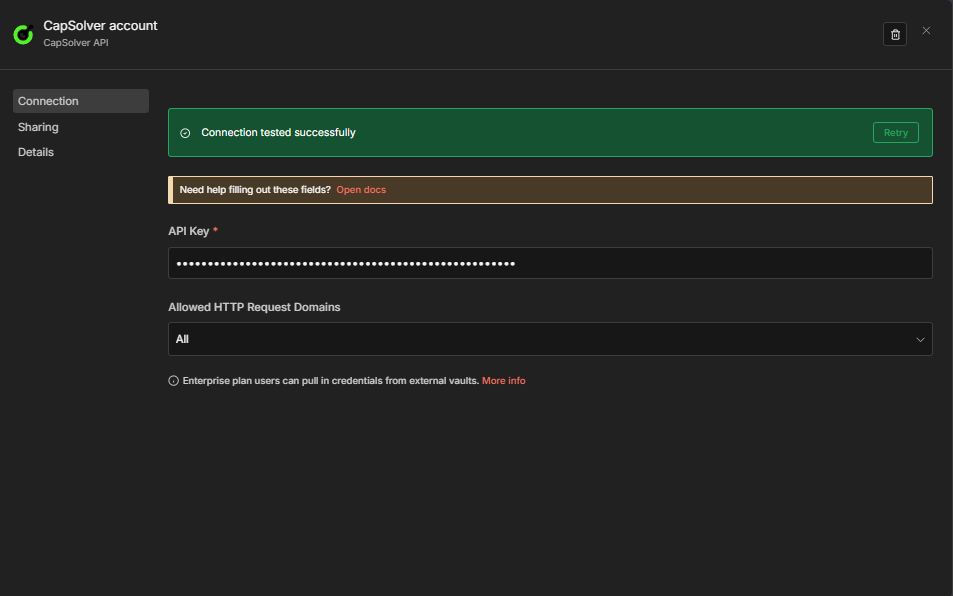
Important: Every CapSolver node in your workflows will reference this credential. You only need to create it once — all your solver workflows will share the same credential.
Now you're ready to build your Image To Text solver workflow!
Before diving into the workflows, it's important to understand the base64 requirements for ImageToTextTask. This is the most common source of errors.
The body parameter must contain a clean base64 string — the raw encoded bytes of the image file. Specifically:
data: prefix — if you have data:image/png;base64,iVBORw0KGgo..., you must strip the data:image/png;base64, part\n charactersWhen you fetch an image with an HTTP Request node in n8n, the response arrives as binary data. To convert it to base64 for CapSolver, use a Code node:
// Convert binary image data to clean base64
const binaryData = $input.first().binary.data;
const base64String = binaryData.data; // Already base64 in n8n's binary format

// Strip the data: prefix if present (safety check)
const cleanBase64 = base64String.replace(/^data:image\/\w+;base64,/, '');

// Remove any newlines
const finalBase64 = cleanBase64.replace(/\n/g, '');

return [{ json: { body: finalBase64 } }];| Mistake | Result |
|---|---|
Sending data:image/png;base64,... |
CapSolver rejects the body as invalid |
| Base64 string contains newlines | CapSolver cannot decode the image |
| Sending the image URL instead of base64 | Wrong parameter — body expects base64, not a URL |
| Sending an empty string | CapSolver returns an error |
This workflow creates a POST API endpoint that accepts a base64 captcha image and returns the recognized text.
The workflow consists of six nodes:
body exists and is valid base64| Setting | Value |
|---|---|
| HTTP Method | POST |
| Path | solver-image-to-text |
| Respond | Response Node |
This creates an endpoint at: https://your-n8n-instance.com/webhook/solver-image-to-text
This node checks that the request body contains a valid body parameter and strips any accidental data: prefix or newlines:
const body = $input.first().json.body;

if (!body || !body.body) {
  return [{ json: { error: 'Missing required field: body (base64 encoded image)' } }];
}

let imageBase64 = String(body.body);

// Strip data: prefix if accidentally included
imageBase64 = imageBase64.replace(/^data:image\/\w+;base64,/, '');

// Remove newlines and whitespace
imageBase64 = imageBase64.replace(/[\n\r\s]/g, '');

// Basic base64 validation
if (!/^[A-Za-z0-9+/]+=*$/.test(imageBase64)) {
  return [{ json: { error: 'Invalid base64 encoding in body field' } }];
}

return [{
  json: {
    body: imageBase64,
    module: body.module || 'common'
  }
}];| Parameter | Value | Description |
|---|---|---|
| Resource | Recognition |
Selects the Recognition resource (not Token) |
| Operation | Image To Text |
The ImageToTextTask operation |
| Body | {{ $json.body }} |
The clean base64 image string |
| Module | {{ $json.module }} |
The recognition module (default: common) |
Important: In the CapSolver node, you must select Resource = Recognition first, then Operation = Image To Text. This is different from Token operations like reCAPTCHA or Turnstile. Also select your CapSolver credentials in this node.
| Setting | Value |
|---|---|
| Condition | ={{ $json.error }} is not empty |
| True branch | Routes to the Error Respond to Webhook node |
| False branch | Routes to the Success Respond to Webhook node |
The CapSolver node continues on error (onError: continueRegularOutput), so failures arrive here as { "error": "..." } rather than crashing the workflow.
| Setting | Value |
|---|---|
| Respond With | JSON |
| Response Body | ={{ JSON.stringify($json.data) }} |
| Setting | Value |
|---|---|
| Respond With | JSON |
| Response Body | ={{ JSON.stringify({ error: $json.error }) }} |
Error messages follow one of two formats:
| Failure point | Format |
|---|---|
| Task creation rejected (wrong key, no balance, invalid base64, etc.) | {"error": "Failed to create task: Request failed with status code 400"} |
| Image could not be recognized | {"error": "Solve failed: <reason>"} |
Send a POST request to your webhook endpoint:
curl -X POST https://your-n8n-instance.com/webhook/solver-image-to-text \
  -H "Content-Type: application/json" \
  -d '{
    "body": "iVBORw0KGgoAAAANSUhEUgAA...",
    "module": "common"
  }'
Expected Response:
{
  "solution": {
    "text": "xK7mQ"
  },
  "status": "ready"
}
The solution.text field contains the recognized captcha text. This is the value you would type into a captcha input field.
Copy the JSON below and import it into n8n via Menu -> Import from JSON:
{
  "nodes": [
    {
      "parameters": {
        "content": "## Image To Text \u2014 Solver API\n\n### How it works\n\n1. Receives an image captcha solving request through a webhook.\n2. Validates the image input received from the request.\n3. Attempts to solve the image captcha using an external service.\n4. Checks if the captcha solving process encountered an error.\n5. Responds to the initial request with either an error message or a success message based on the captcha solution attempt.\n\n### Setup steps\n\n- [ ] Configure the webhook to receive image captcha requests.\n- [ ] Ensure Captcha Solver API credentials are set up.\n- [ ] Define successful and error response handling in webhook responses.\n\n### Customization\n\nThe validation logic for image inputs can be modified to accommodate different types or sizes of images.",
        "width": 480,
        "height": 736
      },
      "type": "n8n-nodes-base.stickyNote",
      "typeVersion": 1,
      "position": [
        -704,
        -240
      ],
      "id": "661cd42d-58d0-4533-b336-3e1312f1cb4a",
      "name": "Sticky Note"
    },
    {
      "parameters": {
        "content": "## Request receive and validation\n\nHandles receiving webhook requests and validates the incoming image input.",
        "width": 496,
        "height": 304,
        "color": 7
      },
      "type": "n8n-nodes-base.stickyNote",
      "typeVersion": 1,
      "position": [
        -144,
        -128
      ],
      "id": "90b8aca5-9b22-48d6-a02a-2173e66874d1",
      "name": "Sticky Note1"
    },
    {
      "parameters": {
        "content": "## Image captcha solving\n\nAttempts to solve the image captcha using Captcha Solver service.",
        "width": 240,
        "height": 320,
        "color": 7
      },
      "type": "n8n-nodes-base.stickyNote",
      "typeVersion": 1,
      "position": [
        576,
        -160
      ],
      "id": "209f7d16-2899-4e53-b851-7b37a9db31b8",
      "name": "Sticky Note2"
    },
    {
      "parameters": {
        "content": "## Response decision\n\nChecks if the captcha solution succeeded or failed and routes the response accordingly.",
        "width": 560,
        "height": 496,
        "color": 7
      },
      "type": "n8n-nodes-base.stickyNote",
      "typeVersion": 1,
      "position": [
        992,
        -240
      ],
      "id": "cd1ffe30-1d30-4901-acb8-ecd2661372ac",
      "name": "Sticky Note3"
    },
    {
      "parameters": {
        "httpMethod": "POST",
        "path": "solver-image-to-text",
        "responseMode": "responseNode",
        "options": {}
      },
      "type": "n8n-nodes-base.webhook",
      "typeVersion": 2.1,
      "position": [
        -96,
        0
      ],
      "id": "itt-101",
      "name": "Receive Solver Request",
      "webhookId": "itt-101-webhook",
      "onError": "continueRegularOutput"
    },
    {
      "parameters": {
        "jsCode": "const body = $input.first().json.body;\n\nif (!body || !body.body) {\n  return [{ json: { error: 'Missing required field: body (base64 encoded image)' } }];\n}\n\nlet imageBase64 = String(body.body);\nimageBase64 = imageBase64.replace(/^data:image\\/\\w+;base64,/, '');\nimageBase64 = imageBase64.replace(/[\\n\\r\\s]/g, '');\n\nif (!/^[A-Za-z0-9+\\/]+=*$/.test(imageBase64)) {\n  return [{ json: { error: 'Invalid base64 encoding in body field' } }];\n}\n\nreturn [{\n  json: {\n    body: imageBase64,\n    module: body.module || 'common'\n  }\n}];"
      },
      "type": "n8n-nodes-base.code",
      "typeVersion": 2,
      "position": [
        208,
        0
      ],
      "id": "itt-102",
      "name": "Validate Image Input"
    },
    {
      "parameters": {
        "resource": "Recognition",
        "module": "={{ $json.module }}",
        "body": "={{ $json.body }}",
        "optional": {}
      },
      "type": "n8n-nodes-capsolver.capSolver",
      "typeVersion": 1,
      "position": [
        624,
        0
      ],
      "id": "itt-103",
      "name": "Solve Image Captcha",
      "credentials": {
        "capSolverApi": {
          "id": "BeBFMAsySMsMGeE9",
          "name": "CapSolver account"
        }
      },
      "onError": "continueRegularOutput"
    },
    {
      "parameters": {
        "conditions": {
          "options": {
            "caseSensitive": true,
            "leftValue": "",
            "typeValidation": "loose",
            "version": 2
          },
          "conditions": [
            {
              "id": "itt-err-001",
              "leftValue": "={{ $json.error }}",
              "operator": {
                "type": "string",
                "operation": "isNotEmpty",
                "singleValue": true
              }
            }
          ],
          "combinator": "and"
        },
        "options": {}
      },
      "type": "n8n-nodes-base.if",
      "typeVersion": 2.2,
      "position": [
        1040,
        0
      ],
      "id": "itt-104",
      "name": "Image Captcha Error?"
    },
    {
      "parameters": {
        "respondWith": "json",
        "responseBody": "={{ JSON.stringify({ error: $json.error }) }}",
        "options": {}
      },
      "type": "n8n-nodes-base.respondToWebhook",
      "typeVersion": 1.5,
      "position": [
        1408,
        -112
      ],
      "id": "itt-105",
      "name": "Respond to Webhook Error"
    },
    {
      "parameters": {
        "respondWith": "json",
        "responseBody": "={{ JSON.stringify($json.data) }}",
        "options": {}
      },
      "type": "n8n-nodes-base.respondToWebhook",
      "typeVersion": 1.5,
      "position": [
        1376,
        80
      ],
      "id": "itt-106",
      "name": "Respond to Webhook"
    }
  ],
  "connections": {
    "Receive Solver Request": {
      "main": [
        [
          {
            "node": "Validate Image Input",
            "type": "main",
            "index": 0
          }
        ]
      ]
    },
    "Validate Image Input": {
      "main": [
        [
          {
            "node": "Solve Image Captcha",
            "type": "main",
            "index": 0
          }
        ]
      ]
    },
    "Solve Image Captcha": {
      "main": [
        [
          {
            "node": "Image Captcha Error?",
            "type": "main",
            "index": 0
          }
        ]
      ]
    },
    "Image Captcha Error?": {
      "main": [
        [
          {
            "node": "Respond to Webhook Error",
            "type": "main",
            "index": 0
          }
        ],
        [
          {
            "node": "Respond to Webhook",
            "type": "main",
            "index": 0
          }
        ]
      ]
    }
  },
  "pinData": {},
  "meta": {
    "instanceId": "962ff0267b713be0344b866fa54daae28de8ed2144e2e6867da355dae193ea1f"
  }
}This workflow automates end-to-end form submission on a site protected by an image captcha. It fetches the captcha image from the target site, converts it to base64, solves it with CapSolver, and submits the form with the recognized text.
It supports two activation modes:
Schedule path:
Every 6 Hours → Set Target Config → Fetch Captcha Image → Convert to Base64
  → Solve Image Captcha → Submit Form with Solution → Check Submission Result
  → Mark Success / Mark Failed
Webhook path:
Webhook Trigger → Set Target Config [Webhook] → Fetch Captcha Image [Webhook]
  → Convert to Base64 [Webhook] → Solve Image Captcha [Webhook]
  → Submit Form with Solution [Webhook] → Check Submission Result [Webhook]
→ Mark Success [Webhook] / Mark Failed [Webhook] → Respond to WebhookSchedule Trigger:
| Setting | Value |
|---|---|
| Interval | Every 6 hours |
Webhook Trigger:
| Setting | Value |
|---|---|
| HTTP Method | POST |
| Path | image-captcha-form |
| Respond | Response Node |
This node stores all configuration for the target site in one place:
| Config Field | Purpose |
|---|---|
captchaImageURL |
The URL that serves the captcha image (e.g., https://example.com/captcha.png) |
formActionURL |
The endpoint that receives the form POST |
captchaFieldName |
The form field name for the captcha answer (e.g., captcha, captcha_code, verification) |
module |
The CapSolver recognition module (common for general OCR, number for numeric only) |
userAgent |
The user agent string to send with requests |
| Setting | Value |
|---|---|
| Method | GET |
| URL | ={{ $json.captchaImageURL }} |
| Response Format | File (binary) |
This downloads the captcha image as binary data. The response will be available in $binary.data.
Note: Some sites require cookies or session headers to serve the captcha image. If the captcha is session-bound, you may need to add a prior request to get the session cookie and pass it along.
// Convert the binary captcha image to a clean base64 string
const binaryData = $input.first().binary.data;
const base64String = binaryData.data;

// Strip data: prefix if present
const cleanBase64 = base64String.replace(/^data:image\/\w+;base64,/, '');

// Remove any newlines
const finalBase64 = cleanBase64.replace(/\n/g, '');

// Pass along the target config from the Set Target Config node
const config = $('Set Target Config').first().json;

return [{
  json: {
    body: finalBase64,
    module: config.module || 'common',
    captchaFieldName: config.captchaFieldName,
    formActionURL: config.formActionURL,
    userAgent: config.userAgent
  }
}];| Parameter | Value |
|---|---|
| Resource | Recognition |
| Operation | Image To Text |
| Body | {{ $json.body }} |
| Module | {{ $json.module }} |
This returns the recognized text immediately in $json.data.solution.text.
| Setting | Value |
|---|---|
| Method | POST |
| URL | ={{ $('Set Target Config').first().json.formActionURL }} |
| Content Type | form-urlencoded |
| Body Fields | Form fields + captcha answer |
The captcha answer goes into the field specified by captchaFieldName:
| Field | Value |
|---|---|
username |
your-username |
password |
your-password |
{{ captchaFieldName }} |
={{ $json.data.solution.text }} |
| Setting | Value |
|---|---|
| Condition | {{ $json.statusCode < 400 }} — checks the HTTP response indicates success |
| True branch | Mark Success |
| False branch | Mark Failed |
Send a POST request to trigger the form automation:
curl -X POST https://your-n8n-instance.com/webhook/image-captcha-form \
  -H "Content-Type: application/json" \
  -d '{}'
Expected Response (success):
{
  "action": "form_submission",
  "status": "success",
  "captchaText": "xK7mQ",
  "message": "Form submitted successfully with solved captcha",
  "submittedAt": "2026-03-16T12:00:00.000Z"
}
Expected Response (failure):
{
  "action": "form_submission",
  "status": "failed",
  "statusCode": 403,
  "message": "Form submission was rejected by the target site",
  "submittedAt": "2026-03-16T12:00:00.000Z"
}Copy the JSON below and import it into n8n via Menu -> Import from JSON:
{
"nodes": [
{
"parameters": {
"content": "## Form Automation \u2014 Solve Image Captcha & Submit\n\n### How it works\n\n1. Initiates form automation every 6 hours or via webhook.\n2. Retrieves and converts the captcha image to Base64 for solving.\n3. Solves the captcha using a solver service.\n4. Submits the form with the solution and checks the result.\n5. Marks the submission success or failure and responds appropriately.\n6. Provides feedback to the webhook when using the webhook trigger.\n\n### Setup steps\n\n- [ ] Set up scheduling with appropriate cron pattern in 'Every 6 Hours'.\n- [ ] Configure webhook endpoint in 'Webhook Trigger'.\n- [ ] Set URLs and field names in 'Set Target Config' and 'Set Target Config [Webhook]'.\n- [ ] Configure external captcha solving service in 'Solve Image Captcha' and 'Solve Image Captcha [Webhook]'.\n- [ ] Ensure form submits correctly in 'Submit Form with Solution' and 'Submit Form with Solution [Webhook]'.\n",
"width": 480,
"height": 896
},
"type": "n8n-nodes-base.stickyNote",
"typeVersion": 1,
"position": [
-1008,
-368
],
"id": "9d0cbf33-48a7-479e-a214-b74428b8d649",
"name": "Sticky Note"
},
{
"parameters": {
"content": "## Scheduled trigger setup\n\nInitiates the workflow every 6 hours.",
"width": 240,
"height": 304,
"color": 7
},
"type": "n8n-nodes-base.stickyNote",
"typeVersion": 1,
"position": [
-448,
-128
],
"id": "56fe23e6-067c-4bae-b358-1a03dcccb4ae",
"name": "Sticky Note1"
},
{
"parameters": {
"content": "## Fetch captcha image\n\nSets configuration and retrieves the captcha image for scheduled trigger.",
"width": 496,
"height": 304,
"color": 7
},
"type": "n8n-nodes-base.stickyNote",
"typeVersion": 1,
"position": [
-144,
-128
],
"id": "d95b86f5-1f09-4fe5-a76f-47ab77aaa569",
"name": "Sticky Note2"
},
{
"parameters": {
"content": "## Process and solve captcha\n\nConverts the captcha image to Base64 and solves it.",
"width": 624,
"height": 272,
"color": 7
},
"type": "n8n-nodes-base.stickyNote",
"typeVersion": 1,
"position": [
464,
-112
],
"id": "84169773-de21-4ae5-9e5b-146067c1da53",
"name": "Sticky Note3"
},
{
"parameters": {
"content": "## Submit form and check result\n\nSubmits the form with the captcha solution and checks the submission result.",
"width": 496,
"height": 304,
"color": 7
},
"type": "n8n-nodes-base.stickyNote",
"typeVersion": 1,
"position": [
1200,
-128
],
"id": "223d89bf-0d07-4673-b57a-39468f219885",
"name": "Sticky Note4"
},
{
"parameters": {
"content": "## Handle submission outcome\n\nMarks the submission as success or failure based on the result.",
"width": 240,
"height": 560,
"color": 7
},
"type": "n8n-nodes-base.stickyNote",
"typeVersion": 1,
"position": [
1808,
-368
],
"id": "8dcf905b-2a72-49bd-a426-0825ba802b1e",
"name": "Sticky Note5"
},
{
"parameters": {
"content": "## Webhook trigger setup\n\nInitiates the workflow on webhook call.",
"width": 240,
"height": 304,
"color": 7
},
"type": "n8n-nodes-base.stickyNote",
"typeVersion": 1,
"position": [
-448,
400
],
"id": "b17c4781-3b03-44c2-9a74-03886a009e62",
"name": "Sticky Note6"
},
{
"parameters": {
"content": "## Webhook image processing\n\nFetches, processes, and solves captcha for webhook trigger.",
"width": 1232,
"height": 272,
"color": 7
},
"type": "n8n-nodes-base.stickyNote",
"typeVersion": 1,
"position": [
-144,
416
],
"id": "bf814840-0020-4d18-a0b7-43c9ee2f2406",
"name": "Sticky Note7"
},
{
"parameters": {
"content": "## Submit webhook form\n\nSubmits the form and checks result for webhook trigger.",
"width": 496,
"height": 272,
"color": 7
},
"type": "n8n-nodes-base.stickyNote",
"typeVersion": 1,
"position": [
1200,
416
],
"id": "8ccf3071-0112-4972-9011-cd38816fb8f1",
"name": "Sticky Note8"
},
{
"parameters": {
"content": "## Webhook submission outcome\n\nHandles submission result and responds to webhook call.",
"width": 496,
"height": 448,
"color": 7
},
"type": "n8n-nodes-base.stickyNote",
"typeVersion": 1,
"position": [
1808,
304
],
"id": "ed3b0f29-a57c-487f-91fc-979bb3d1525b",
"name": "Sticky Note9"
},
{
"parameters": {
"rule": {
"interval": [
{
"field": "hours",
"hoursInterval": 6
}
]
}
},
"type": "n8n-nodes-base.scheduleTrigger",
"typeVersion": 1.3,
"position": [
-400,
0
],
"id": "fa-201",
"name": "Every 6 Hours"
},
{
"parameters": {
"assignments": {
"assignments": [
{
"id": "cfg-001",
"name": "captchaImageURL",
"value": "https://YOUR-TARGET-SITE.com/captcha.png",
"type": "string"
},
{
"id": "cfg-002",
"name": "formActionURL",
"value": "https://YOUR-TARGET-SITE.com/submit",
"type": "string"
},
{
"id": "cfg-003",
"name": "captchaFieldName",
"value": "captcha",
"type": "string"
},
{
"id": "cfg-004",
"name": "module",
"value": "common",
"type": "string"
},
{
"id": "cfg-005",
"name": "userAgent",
"value": "Mozilla/5.0 (Windows NT 10.0; Win64; x64) AppleWebKit/537.36 (KHTML, like Gecko) Chrome/125.0.0.0 Safari/537.36",
"type": "string"
}
]
},
"options": {}
},
"type": "n8n-nodes-base.set",
"typeVersion": 3.4,
"position": [
-96,
0
],
"id": "fa-202",
"name": "Set Target Config"
},
{
"parameters": {
"url": "={{ $json.captchaImageURL }}",
"sendHeaders": true,
"headerParameters": {
"parameters": [
{
"name": "user-agent",
"value": "={{ $json.userAgent }}"
}
]
},
"options": {
"response": {
"response": {
"responseFormat": "file"
}
}
}
},
"type": "n8n-nodes-base.httpRequest",
"typeVersion": 4.3,
"position": [
208,
0
],
"id": "fa-203",
"name": "Fetch Captcha Image"
},
{
"parameters": {
"jsCode": "const binaryData = $input.first().binary.data;\nconst base64String = binaryData.data;\nconst cleanBase64 = base64String.replace(/^data:image\\/\\w+;base64,/, '');\nconst finalBase64 = cleanBase64.replace(/\\n/g, '');\nconst config = $('Set Target Config').first().json;\nreturn [{ json: { body: finalBase64, module: config.module || 'common', captchaFieldName: config.captchaFieldName, formActionURL: config.formActionURL, userAgent: config.userAgent } }];"
},
"type": "n8n-nodes-base.code",
"typeVersion": 2,
"position": [
512,
0
],
"id": "fa-204",
"name": "Convert to Base64"
},
{
"parameters": {
"resource": "Recognition",
"module": "={{ $json.module }}",
"body": "={{ $json.body }}",
"optional": {}
},
"type": "n8n-nodes-capsolver.capSolver",
"typeVersion": 1,
"position": [
944,
0
],
"id": "fa-205",
"name": "Solve Image Captcha",
"credentials": {
"capSolverApi": {
"id": "BeBFMAsySMsMGeE9",
"name": "CapSolver account"
}
},
"onError": "continueRegularOutput"
},
{
"parameters": {
"method": "POST",
"url": "={{ $('Set Target Config').first().json.formActionURL }}",
"sendHeaders": true,
"headerParameters": {
"parameters": [
{
"name": "content-type",
"value": "application/x-www-form-urlencoded"
},
{
"name": "user-agent",
"value": "={{ $('Set Target Config').first().json.userAgent }}"
}
]
},
"sendBody": true,
"contentType": "form-urlencoded",
"bodyParameters": {
"parameters": [
{
"name": "username",
"value": "YOUR_USERNAME"
},
{
"name": "password",
"value": "YOUR_PASSWORD"
},
{
"name": "={{ $('Set Target Config').first().json.captchaFieldName }}",
"value": "={{ $json.data.solution.text }}"
}
]
},
"options": {
"response": {
"response": {
"fullResponse": true,
"neverError": true
}
}
}
},
"type": "n8n-nodes-base.httpRequest",
"typeVersion": 4.3,
"position": [
1248,
0
],
"id": "fa-206",
"name": "Submit Form with Solution"
},
{
"parameters": {
"conditions": {
"options": {
"caseSensitive": false,
"leftValue": "",
"typeValidation": "strict",
"version": 2
},
"conditions": [
{
"id": "fa-if-001",
"leftValue": "={{ $json.statusCode }}",
"rightValue": 400,
"operator": {
"type": "number",
"operation": "lt"
}
}
],
"combinator": "and"
},
"options": {}
},
"type": "n8n-nodes-base.if",
"typeVersion": 2.2,
"position": [
1552,
0
],
"id": "fa-207",
"name": "Check Submission Result"
},
{
"parameters": {
"assignments": {
"assignments": [
{
"id": "ms-001",
"name": "action",
"value": "form_submission",
"type": "string"
},
{
"id": "ms-002",
"name": "status",
"value": "success",
"type": "string"
},
{
"id": "ms-003",
"name": "captchaText",
"value": "={{ $('Solve Image Captcha').first().json.data.solution.text }}",
"type": "string"
},
{
"id": "ms-004",
"name": "message",
"value": "Form submitted successfully with solved captcha",
"type": "string"
},
{
"id": "ms-005",
"name": "submittedAt",
"value": "={{ new Date().toISOString() }}",
"type": "string"
}
]
},
"options": {}
},
"type": "n8n-nodes-base.set",
"typeVersion": 3.4,
"position": [
1856,
-176
],
"id": "fa-208",
"name": "Mark Success"
},
{
"parameters": {
"assignments": {
"assignments": [
{
"id": "mf-001",
"name": "action",
"value": "form_submission",
"type": "string"
},
{
"id": "mf-002",
"name": "status",
"value": "failed",
"type": "string"
},
{
"id": "mf-003",
"name": "statusCode",
"value": "={{ $json.statusCode }}",
"type": "number"
},
{
"id": "mf-004",
"name": "message",
"value": "Form submission was rejected by the target site",
"type": "string"
},
{
"id": "mf-005",
"name": "submittedAt",
"value": "={{ new Date().toISOString() }}",
"type": "string"
}
]
},
"options": {}
},
"type": "n8n-nodes-base.set",
"typeVersion": 3.4,
"position": [
1856,
32
],
"id": "fa-209",
"name": "Mark Failed"
},
{
"parameters": {
"httpMethod": "POST",
"path": "image-captcha-form",
"responseMode": "responseNode",
"options": {}
},
"type": "n8n-nodes-base.webhook",
"typeVersion": 2.1,
"position": [
-400,
528
],
"id": "fa-210",
"name": "Webhook Trigger",
"webhookId": "fa-210-webhook",
"onError": "continueRegularOutput"
},
{
"parameters": {
"assignments": {
"assignments": [
{
"id": "wcfg-001",
"name": "captchaImageURL",
"value": "={{ $json.body.captchaImageURL }}",
"type": "string"
},
{
"id": "wcfg-002",
"name": "formActionURL",
"value": "={{ $json.body.formActionURL }}",
"type": "string"
},
{
"id": "wcfg-003",
"name": "captchaFieldName",
"value": "={{ $json.body.captchaFieldName || 'captcha' }}",
"type": "string"
},
{
"id": "wcfg-004",
"name": "module",
"value": "={{ $json.body.module || 'common' }}",
"type": "string"
},
{
"id": "wcfg-005",
"name": "userAgent",
"value": "={{ $json.body.userAgent || 'Mozilla/5.0 (Windows NT 10.0; Win64; x64) AppleWebKit/537.36 (KHTML, like Gecko) Chrome/125.0.0.0 Safari/537.36' }}",
"type": "string"
}
]
},
"options": {}
},
"type": "n8n-nodes-base.set",
"typeVersion": 3.4,
"position": [
-96,
528
],
"id": "fa-211",
"name": "Set Target Config [Webhook]"
},
{
"parameters": {
"url": "={{ $json.captchaImageURL }}",
"sendHeaders": true,
"headerParameters": {
"parameters": [
{
"name": "user-agent",
"value": "={{ $json.userAgent }}"
}
]
},
"options": {
"response": {
"response": {
"responseFormat": "file"
}
}
}
},
"type": "n8n-nodes-base.httpRequest",
"typeVersion": 4.3,
"position": [
208,
528
],
"id": "fa-212",
"name": "Fetch Captcha Image [Webhook]"
},
{
"parameters": {
"jsCode": "const binaryData = $input.first().binary.data;\nconst base64String = binaryData.data;\nconst cleanBase64 = base64String.replace(/^data:image\\/\\w+;base64,/, '');\nconst finalBase64 = cleanBase64.replace(/\\n/g, '');\nconst config = $('Set Target Config [Webhook]').first().json;\nreturn [{ json: { body: finalBase64, module: config.module || 'common', captchaFieldName: config.captchaFieldName, formActionURL: config.formActionURL, userAgent: config.userAgent } }];"
},
"type": "n8n-nodes-base.code",
"typeVersion": 2,
"position": [
512,
528
],
"id": "fa-213",
"name": "Convert to Base64 [Webhook]"
},
{
"parameters": {
"resource": "Recognition",
"module": "={{ $json.module }}",
"body": "={{ $json.body }}",
"optional": {}
},
"type": "n8n-nodes-capsolver.capSolver",
"typeVersion": 1,
"position": [
944,
528
],
"id": "fa-214",
"name": "Solve Image Captcha [Webhook]",
"credentials": {
"capSolverApi": {
"id": "BeBFMAsySMsMGeE9",
"name": "CapSolver account"
}
},
"onError": "continueRegularOutput"
},
{
"parameters": {
"method": "POST",
"url": "={{ $('Set Target Config [Webhook]').first().json.formActionURL }}",
"sendHeaders": true,
"headerParameters": {
"parameters": [
{
"name": "content-type",
"value": "application/x-www-form-urlencoded"
},
{
"name": "user-agent",
"value": "={{ $('Set Target Config [Webhook]').first().json.userAgent }}"
}
]
},
"sendBody": true,
"contentType": "form-urlencoded",
"bodyParameters": {
"parameters": [
{
"name": "username",
"value": "YOUR_USERNAME"
},
{
"name": "password",
"value": "YOUR_PASSWORD"
},
{
"name": "={{ $('Set Target Config [Webhook]').first().json.captchaFieldName }}",
"value": "={{ $json.data.solution.text }}"
}
]
},
"options": {
"response": {
"response": {
"fullResponse": true,
"neverError": true
}
}
}
},
"type": "n8n-nodes-base.httpRequest",
"typeVersion": 4.3,
"position": [
1248,
528
],
"id": "fa-215",
"name": "Submit Form with Solution [Webhook]"
},
{
"parameters": {
"conditions": {
"options": {
"caseSensitive": false,
"leftValue": "",
"typeValidation": "strict",
"version": 2
},
"conditions": [
{
"id": "fa-if-002",
"leftValue": "={{ $json.statusCode }}",
"rightValue": 400,
"operator": {
"type": "number",
"operation": "lt"
}
}
],
"combinator": "and"
},
"options": {}
},
"type": "n8n-nodes-base.if",
"typeVersion": 2.2,
"position": [
1552,
528
],
"id": "fa-216",
"name": "Check Submission Result [Webhook]"
},
{
"parameters": {
"assignments": {
"assignments": [
{
"id": "wms-001",
"name": "action",
"value": "form_submission",
"type": "string"
},
{
"id": "wms-002",
"name": "status",
"value": "success",
"type": "string"
},
{
"id": "wms-003",
"name": "captchaText",
"value": "={{ $('Solve Image Captcha [Webhook]').first().json.data.solution.text }}",
"type": "string"
},
{
"id": "wms-004",
"name": "message",
"value": "Form submitted successfully with solved captcha",
"type": "string"
},
{
"id": "wms-005",
"name": "submittedAt",
"value": "={{ new Date().toISOString() }}",
"type": "string"
}
]
},
"options": {}
},
"type": "n8n-nodes-base.set",
"typeVersion": 3.4,
"position": [
1856,
416
],
"id": "fa-217",
"name": "Mark Success [Webhook]"
},
{
"parameters": {
"assignments": {
"assignments": [
{
"id": "wmf-001",
"name": "action",
"value": "form_submission",
"type": "string"
},
{
"id": "wmf-002",
"name": "status",
"value": "failed",
"type": "string"
},
{
"id": "wmf-003",
"name": "statusCode",
"value": "={{ $json.statusCode }}",
"type": "number"
},
{
"id": "wmf-004",
"name": "message",
"value": "Form submission was rejected by the target site",
"type": "string"
},
{
"id": "wmf-005",
"name": "submittedAt",
"value": "={{ new Date().toISOString() }}",
"type": "string"
}
]
},
"options": {}
},
"type": "n8n-nodes-base.set",
"typeVersion": 3.4,
"position": [
1856,
592
],
"id": "fa-218",
"name": "Mark Failed [Webhook]"
},
{
"parameters": {
"respondWith": "json",
"responseBody": "={{ JSON.stringify($json) }}",
"options": {}
},
"type": "n8n-nodes-base.respondToWebhook",
"typeVersion": 1.5,
"position": [
2160,
528
],
"id": "fa-219",
"name": "Respond to Webhook"
}
],
"connections": {
"Every 6 Hours": {
"main": [
[
{
"node": "Set Target Config",
"type": "main",
"index": 0
}
]
]
},
"Set Target Config": {
"main": [
[
{
"node": "Fetch Captcha Image",
"type": "main",
"index": 0
}
]
]
},
"Fetch Captcha Image": {
"main": [
[
{
"node": "Convert to Base64",
"type": "main",
"index": 0
}
]
]
},
"Convert to Base64": {
"main": [
[
{
"node": "Solve Image Captcha",
"type": "main",
"index": 0
}
]
]
},
"Solve Image Captcha": {
"main": [
[
{
"node": "Submit Form with Solution",
"type": "main",
"index": 0
}
]
]
},
"Submit Form with Solution": {
"main": [
[
{
"node": "Check Submission Result",
"type": "main",
"index": 0
}
]
]
},
"Check Submission Result": {
"main": [
[
{
"node": "Mark Success",
"type": "main",
"index": 0
}
],
[
{
"node": "Mark Failed",
"type": "main",
"index": 0
}
]
]
},
"Webhook Trigger": {
"main": [
[
{
"node": "Set Target Config [Webhook]",
"type": "main",
"index": 0
}
]
]
},
"Set Target Config [Webhook]": {
"main": [
[
{
"node": "Fetch Captcha Image [Webhook]",
"type": "main",
"index": 0
}
]
]
},
"Fetch Captcha Image [Webhook]": {
"main": [
[
{
"node": "Convert to Base64 [Webhook]",
"type": "main",
"index": 0
}
]
]
},
"Convert to Base64 [Webhook]": {
"main": [
[
{
"node": "Solve Image Captcha [Webhook]",
"type": "main",
"index": 0
}
]
]
},
"Solve Image Captcha [Webhook]": {
"main": [
[
{
"node": "Submit Form with Solution [Webhook]",
"type": "main",
"index": 0
}
]
]
},
"Submit Form with Solution [Webhook]": {
"main": [
[
{
"node": "Check Submission Result [Webhook]",
"type": "main",
"index": 0
}
]
]
},
"Check Submission Result [Webhook]": {
"main": [
[
{
"node": "Mark Success [Webhook]",
"type": "main",
"index": 0
}
],
[
{
"node": "Mark Failed [Webhook]",
"type": "main",
"index": 0
}
]
]
},
"Mark Success [Webhook]": {
"main": [
[
{
"node": "Respond to Webhook",
"type": "main",
"index": 0
}
]
]
},
"Mark Failed [Webhook]": {
"main": [
[
{
"node": "Respond to Webhook",
"type": "main",
"index": 0
}
]
]
}
},
"pinData": {},
"meta": {
"instanceId": "962ff0267b713be0344b866fa54daae28de8ed2144e2e6867da355dae193ea1f"
}
}If you've used the CapSolver n8n node for reCAPTCHA, Turnstile, or other challenge types, you've been using the Token resource. Image To Text uses the Recognition resource, and the difference matters:
websiteURL and websiteKeyThis is why the CapSolver n8n node has two separate resources:
| Resource | Operations |
|---|---|
| Token | reCAPTCHA v2, reCAPTCHA v3, Cloudflare Turnstile, Cloudflare Challenge, GeeTest V3, GeeTest V4, DataDome, AWS WAF, MTCaptcha |
| Recognition | Image To Text |
When configuring the CapSolver node for Image To Text, make sure you select Resource = Recognition first — this changes the available operations and parameters.
These workflows are templates. On a real target, you should expect to customize:
The form automation template fetches the image from a single URL (captchaImageURL). In practice, the captcha image may be:
<img> tagMany image captcha systems are session-bound — the captcha image is linked to a server-side session. If you fetch the image in one request and submit the answer in another, you need to:
Different sites use different form field names for the captcha answer:
| Common field names |
|---|
captcha |
captcha_code |
verification |
captcha_text |
answer |
security_code |
Inspect the form HTML to find the exact field name.
Most image captchas work with module: "common". But if the captcha contains only numbers, try module: "number" — it's optimized for numeric recognition and may give better results.
The template includes placeholder username and password fields. Your target may require:
This error means your CapSolver account or package doesn't include ImageToText access. Check your CapSolver dashboard to verify your package includes this service.
Image captcha recognition is not 100% accurate. If you're getting incorrect results:
module — "common" vs "number" vs specific module IDsCommon causes:
data:image/...;base64, prefix was not strippedIf the form submission always fails even with correct recognized text, the most likely cause is a session mismatch between the image fetch and the form submission. Ensure you're passing the same session cookies across both requests.
This usually means:
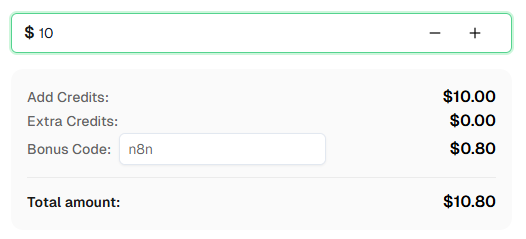
"common" for mixed alphanumeric, "number" for digits only.Ready to get started? Sign up for CapSolver and use bonus code n8n for an extra 8% bonus on your first recharge!
You've learned how to build an Image To Text solver API and a form automation workflow using n8n and CapSolver — no traditional coding or OCR model training required.
In this guide, we covered:
The key takeaway: Image To Text is the simplest CapSolver operation to integrate — you send a base64 image and get text back immediately. The challenge is usually in the surrounding workflow: fetching the image correctly, preserving session state, and submitting the answer to the right form field.
Tip: These workflows use Schedule + Webhook triggers, but you can swap the trigger node to any n8n trigger — manual, app event, form submission, etc. After solving the captcha, use n8n's built-in nodes to save results to Google Sheets, databases, cloud storage, or send alerts via Telegram/Slack/Email.
ImageToTextTask is CapSolver's OCR-based captcha recognition service. You send a base64-encoded image of a captcha, and CapSolver returns the recognized text — letters, numbers, or both. It uses the Recognition resource in the CapSolver n8n node, which is different from the Token resource used for reCAPTCHA, Turnstile, and other challenge types.
Pricing varies based on usage. Check the CapSolver pricing page for current ImageToText rates. Image recognition tasks are generally among the most affordable CapSolver operations.
Image To Text is a Recognition operation, which means results come back instantly — typically under 1 second. There's no task creation or polling delay like with Token operations.
No. Unlike Token operations (reCAPTCHA, Turnstile, Cloudflare Challenge), Image To Text does not require a proxy. You're sending the image data directly to CapSolver — there's no browser interaction or site visit involved.
CapSolver accepts common image formats (PNG, JPEG, GIF, BMP) as base64-encoded data. The image should contain a visible captcha — no blank, corrupted, or overly large images.
module parameter do?The module parameter tells CapSolver which recognition engine to use:
"common" — General OCR for letters, numbers, and mixed characters. This is the default and works for most captchas."number" — Optimized for numeric-only captchas. Also supports batch solving with up to 9 additional images."module_001" through "module_032" — Specialized engines for specific captcha styles. Check the CapSolver documentation for details on each module.No. CapSolver's Image To Text recognition does not support case sensitivity. If the target site requires a case-sensitive captcha answer, the recognition result may not match. This is a known limitation.
Yes. This workflow works with both self-hosted n8n and n8n Cloud. The CapSolver node is already available as an official integration — just add your API credentials.
Many sites tie the captcha image to a server session. To handle this:
In n8n, you can extract cookies from the HTTP Request response headers and pass them to subsequent requests.
Image captcha recognition is not 100% accurate — especially for heavily distorted or noisy images. If you're getting incorrect results:
"common", "number", or a specific module ID)For Image To Text, CapSolver returns recognized text, not a token. If the form submission is rejected:
solution.text valueEthan Collins
AI Agent Workflow Engineer
Building clearer handoffs between AI agents and tools.
ABOUT THE AUTHOR
Learn how to use the CapSolver n8n template to monitor AWS WAF-protected product pages, solve challenges, extract prices, compare changes, and trigger alerts automatically.
Learn how to build web scrapers in n8n for captcha-protected sites using CapSolver. This step-by-step guide covers solving reCAPTCHA, submitting tokens correctly, extracting product data, and automating workflows with schedule and webhook triggers.