
🎉NEWCapSolver for AI agents-MCP, agent tools, and SDK integrations

Lucas Mitchell
Automation Engineer
Published Mar 17, 2026
Updated Mar 18, 2026 · min read
Every automation engineer hits the same wall: you build a perfect workflow, scraping, login, or form submission — and a captcha stops it cold. like reCAPTCHA will give your data extraction work some difficulty, Cloudflare Challenge shuts down your requests, and slider puzzles lock you out of the APIs you need.
What if you could solve every major captcha type directly inside your n8n workflows without custom scripts or complex integrations?
n8n is a workflow automation platform with 400+ integrations, available as self-hosted or cloud, that lets you build powerful automations visually with no-code or low-code. CapSolver is an leading AI-powered captcha solving service supporting reCAPTCHA v2/v3, Cloudflare Turnstil/Challenge, GeeTest, AWS WAF, ImageToText and more, available as an official n8n node you can use directly in your workflows.
Together, they let you solve captchas seamlessly and build scraping pipelines, login automations, and form workflows in one place, and this guide is your complete reference to using CapSolver in n8n.
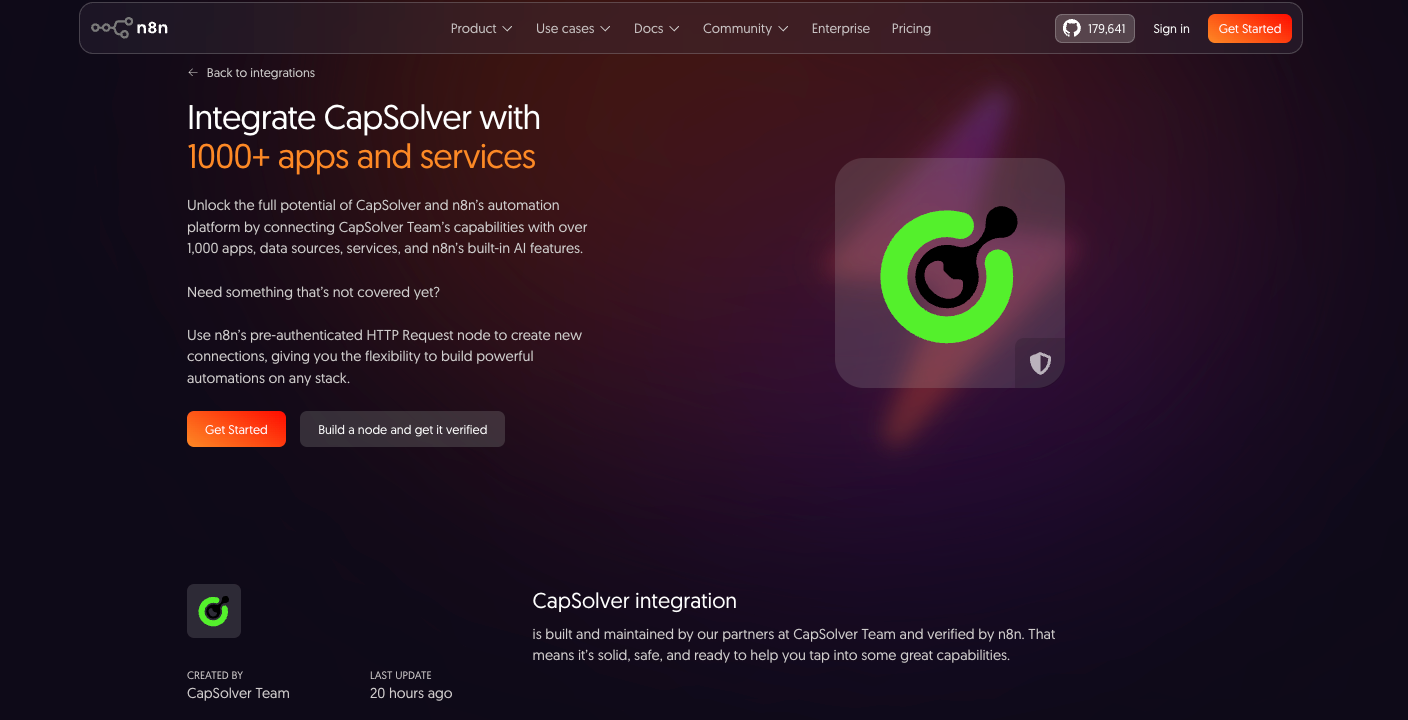
The CapSolver n8n node supports multiple operations organized under two resource types: Token and Recognition. Understanding the difference is critical — it determines how the node behaves, what parameters you need, and how you use the result.
Token operations solve captchas that protect websites. You provide the target URL and captcha parameters, CapSolver creates a task in the background, polls until it's solved, and returns a token (or cookie) that you submit to the website — exactly as a browser would.
| Operation | Captcha Service | Proxy Required? | Key Parameters | Detailed Guide |
|---|---|---|---|---|
| reCAPTCHA v2 | reCAPTCHA | Optional | websiteURL, websiteKey |
reCAPTCHA Guide |
| reCAPTCHA v3 | reCAPTCHA | Optional | websiteURL, websiteKey, pageAction |
reCAPTCHA Guide |
| Cloudflare Turnstile | Cloudflare | No | websiteURL, websiteKey |
Turnstile Guide |
| Cloudflare Challenge | Cloudflare | Yes | websiteURL, proxy, userAgent |
Cloudflare Challenge Guide |
| GeeTest V3 | GeeTest | No | websiteURL, gt, challenge |
GeeTest V3 Guide |
| GeeTest V4 | GeeTest | No | websiteURL, captchaId |
GeeTest V4 Guide |
| AWS WAF | Amazon WAF | Optional | websiteURL |
AWS WAF Guide |
Recognition operations analyze images or visual puzzles. You send the image data directly, and CapSolver returns the result immediately — no task creation, no polling. These are used when you need to read text from an image captcha or solve a visual challenge like a slider puzzle.
| Operation | Purpose | Key Parameters | Detailed Guide |
|---|---|---|---|
| Image To Text | OCR — read text from captcha images | body (base64), module |
Image To Text Guide |
| reCAPTCHA v2 (Recognition) | Classify reCAPTCHA image challenges | image, question |
-- |
| AWS WAF (Recognition) | Classify AWS WAF image challenges | question, images |
-- |
| Vision Engine | Solve visual puzzles (slider, rotation, object detection) | module, image, imageBackground |
Vision Engine Guide |
Note: The reCAPTCHA v2 and AWS WAF recognition operations appear under the Recognition resource type in the CapSolver node dropdown — they are separate from the Token-based operations with the same name. The Token version generates a verification token; the Recognition version classifies an image challenge.
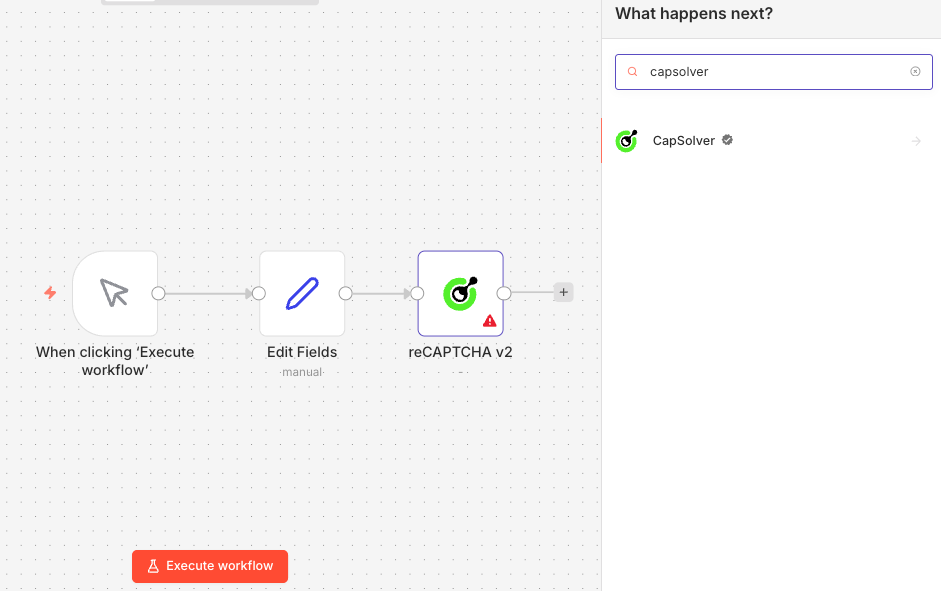
CapSolver is available as an official integration in n8n — no community node installation required. You can find it directly in the node panel when building your workflows.
Since it's an official integration, you need to create a credential in n8n so that the CapSolver node can authenticate with your account.
Go to your n8n instance and navigate to Settings -> Credentials. You'll see all your configured credentials here.

All (default)n8n will automatically test the connection. You should see a green "Connection tested successfully" banner confirming your API key is valid.
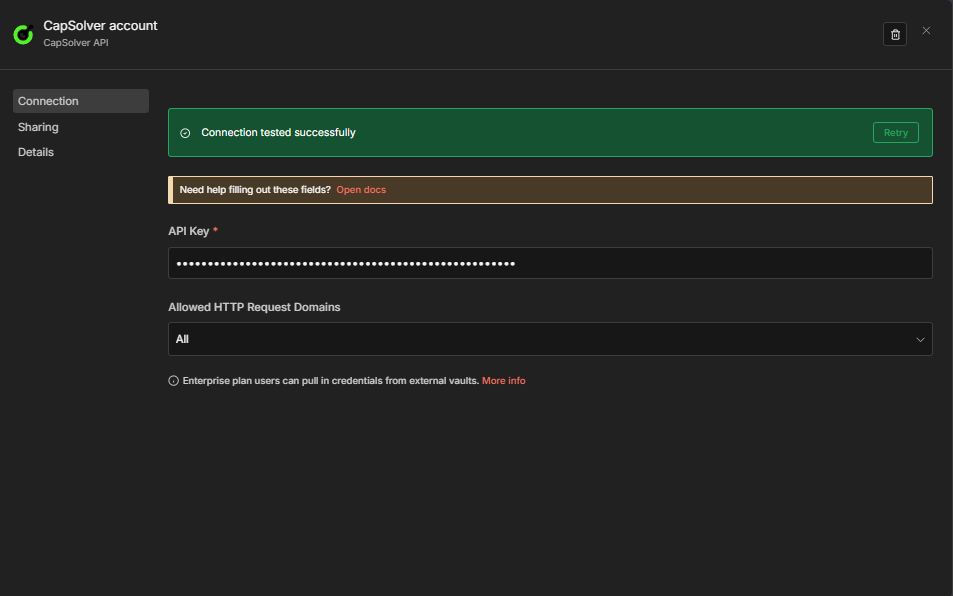
Important: Every CapSolver node in your workflows will reference this credential. You only need to create it once — all your solver workflows will share the same credential.
The CapSolver n8n node organizes its operations under two resource types. Choosing the right one determines how the node behaves and what kind of result you get back.
Token operations follow a create task -> poll -> get result pattern:
The result is always something you send back to the website — a gRecaptchaResponse token for reCAPTCHA, a cf_clearance cookie for Cloudflare Challenge, a token for Turnstile, etc.
When to use Token: Any time you need to bypass a captcha that protects a web page, API endpoint, or form submission. This covers the vast majority of real-world automation scenarios.
Recognition operations follow a create task -> get result immediately pattern:
There is no polling — the result comes back instantly.
When to use Recognition: When you need to read text from a captcha image, classify an image challenge, or solve a visual puzzle like a slider or rotation challenge. These operations work with the image data directly — they don't interact with any website.
| Feature | Token | Recognition |
|---|---|---|
| How it works | Create task -> poll -> get result | Create task -> get result instantly |
| Typical solve time | 5-30 seconds | Under 1 second |
| Input | Website URL + captcha parameters | Base64 image(s) |
| Output | Token, cookie, or response string | Text, coordinates, or measurements |
| Proxy support | Yes (optional or required) | No |
| Use case | Bypass website captcha protection | Read/classify/solve image puzzles |
Not sure which operation to use? Follow this decision guide based on what you see on the target website.
See a checkbox ("I'm not a robot") or invisible challenge on a Google-protected site?
-> reCAPTCHA v2 (checkbox) or reCAPTCHA v3 (invisible/score-based). Check the page source for render= in the reCAPTCHA script URL — if it contains a site key directly, it's likely v3. If you see data-sitekey on a div element, it's v2.
See "Verifying you are human..." or "Checking your browser..." full-page screen?
-> Cloudflare Challenge. This is a full-page interstitial — not a small widget. It requires a proxy. See the dedicated Cloudflare Challenge guide for details.
See a small embedded widget with a spinning checkmark (not full-page)?
-> Cloudflare Turnstile. Look for a div with data-sitekey and a script from challenges.cloudflare.com.
See a slider puzzle where you drag a piece into place?
-> Could be GeeTest V3, GeeTest V4, DataDome, or a generic slider. Open DevTools and check the network requests: GeeTest requests go to api.geetest.com or gcaptcha4.geetest.com; DataDome requests go to *.datadome.co. If it's a generic slider not tied to a specific service, use Vision Engine with the slider_1 module.
See a text/number image captcha (distorted letters or digits)?
-> Image To Text. Capture the image, convert to base64, and send it to the Recognition resource.
See a rotation puzzle (rotate an image to the correct orientation)?
-> Vision Engine with the rotate module.
See an object detection challenge (click on specific objects)?
-> Vision Engine with the appropriate module for the challenge type.
See a "Press and hold" or puzzle challenge on an e-commerce site?
-> Check DevTools for DataDome or AWS WAF request patterns. DataDome challenges load from *.datadome.co. AWS WAF challenges contain awswaf in the script URLs.
Not sure what captcha type a site uses?
-> Install the CapSolver browser extension. Open DevTools, go to the "CapSolver Captcha Detector" tab, and trigger the captcha. The extension will identify the captcha type and display all required parameters automatically.
Every captcha-solving workflow in n8n follows one of four patterns. Understanding these patterns means you can build a workflow for any captcha type — just swap the CapSolver operation and adjust the parameters.
A reusable API endpoint that accepts captcha parameters and returns the solved token. Other tools, scripts, or workflows call this endpoint when they need a captcha solved.
Webhook (receive request)
  -> CapSolver (solve captcha)
    -> IF (check for errors)
      -> Respond to Webhook (return token or error)
Best for: Building a centralized captcha-solving service that multiple systems can call. You configure it once and any tool that can make an HTTP request can use it.
A scheduled or on-demand workflow that solves a captcha, fetches protected data, extracts fields, compares against previous values, and alerts on changes.
Schedule / Webhook (trigger)
  -> Set Target Config (URL, keys, proxy)
    -> CapSolver (solve captcha)
      -> HTTP Request (fetch protected page with token)
        -> HTML / Code (extract data)
          -> Code (compare with stored data)
            -> IF (data changed?)
              -> Build Alert / No Change
Best for: Price monitoring, inventory tracking, competitor analysis — any scenario where you need to regularly scrape a captcha-protected page and detect changes.
A workflow that solves a captcha, submits login credentials, and verifies the login succeeded.
Schedule / Webhook (trigger)
  -> Set Login Config (URL, keys, credentials)
    -> CapSolver (solve captcha)
      -> HTTP Request (POST credentials + token)
        -> IF (login successful?)
          -> Mark Success / Mark Failed
Best for: Keeping sessions alive, automated account monitoring, or any flow that requires authenticating through a captcha-protected login form.
The following workflow implements Pattern 1: Solver API — a simple 5-node webhook endpoint that solves reCAPTCHA v2 and returns the token. This is the simplest possible CapSolver workflow and serves as a template for any Token operation.
Receive Solver Request (Webhook)
  -> Solve Captcha (CapSolver reCAPTCHA v2)
    -> CapSolver Error? (IF node)
-> Respond to Webhook (Error) / Respond to Webhook (Success)websiteURL and websiteKeyTemplate for any Token operation: This workflow works for any of the 9 Token operations — just change the Operation dropdown in the CapSolver node (e.g., from "reCAPTCHA v2" to "Cloudflare Turnstile") and adjust the input parameters accordingly. The webhook -> solve -> check -> respond pattern stays the same.
{
  "nodes": [
    {
      "parameters": {
        "content": "## CapSolver \u2014 reCAPTCHA v2 Solver API\n\n### How it works\n\n1. Receives a request via a webhook trigger.\n2. Uses CapSolver to solve the reCAPTCHA v2 challenge.\n3. Sends back the result through a webhook response.\n\n### Setup steps\n\n- [ ] Set up webhook URL in application.\n- [ ] Configure CapSolver API credentials.\n\n### Customization\n\nCustomize the CapSolver settings if necessary for different reCAPTCHA types.",
        "width": 480,
        "height": 512
      },
      "type": "n8n-nodes-base.stickyNote",
      "typeVersion": 1,
      "position": [
        -784,
        -368
      ],
      "id": "c6530d09-1367-41d4-a4d6-e9d015347dbd",
      "name": "Sticky Note"
    },
    {
      "parameters": {
        "content": "## Solve reCAPTCHA operation\n\nHandles the entire process from receiving a solver request to responding with results.",
        "width": 720,
        "height": 304,
        "color": 7
      },
      "type": "n8n-nodes-base.stickyNote",
      "typeVersion": 1,
      "position": [
        -224,
        -368
      ],
      "id": "dcceb52e-8816-48f2-bd26-b56e2592edf6",
      "name": "Sticky Note1"
    },
    {
      "parameters": {
        "httpMethod": "POST",
        "path": "capsolver-recaptcha-v2",
        "responseMode": "responseNode",
        "options": {}
      },
      "type": "n8n-nodes-base.webhook",
      "typeVersion": 2.1,
      "position": [
        -176,
        -240
      ],
      "id": "ov-002",
      "name": "Receive Solver Request",
      "webhookId": "ov-002-webhook",
      "onError": "continueRegularOutput"
    },
    {
      "parameters": {
        "websiteURL": "={{ $json.body.websiteURL }}",
        "websiteKey": "={{ $json.body.websiteKey }}",
        "optional": {}
      },
      "type": "n8n-nodes-capsolver.capSolver",
      "typeVersion": 1,
      "position": [
        80,
        -240
      ],
      "id": "ov-003",
      "name": "Solve Captcha",
      "credentials": {
        "capSolverApi": {
          "id": "BeBFMAsySMsMGeE9",
          "name": "CapSolver account"
        }
      }
    },
    {
      "parameters": {
        "respondWith": "json",
        "responseBody": "={{ JSON.stringify($json.data) }}",
        "options": {}
      },
      "type": "n8n-nodes-base.respondToWebhook",
      "typeVersion": 1.5,
      "position": [
        352,
        -240
      ],
      "id": "ov-004",
      "name": "Respond to Webhook"
    }
  ],
  "connections": {
    "Receive Solver Request": {
      "main": [
        [
          {
            "node": "Solve Captcha",
            "type": "main",
            "index": 0
          }
        ]
      ]
    },
    "Solve Captcha": {
      "main": [
        [
          {
            "node": "Respond to Webhook",
            "type": "main",
            "index": 0
          }
        ]
      ]
    }
  },
  "pinData": {},
  "meta": {
    "instanceId": "962ff0267b713be0344b866fa54daae28de8ed2144e2e6867da355dae193ea1f"
  }
}These tips apply across all captcha types and workflow patterns.
Use the CapSolver browser extension to identify captcha parameters. Don't guess which captcha type a site uses or manually search the page source for site keys. Install the CapSolver browser extension, open DevTools, and trigger the captcha — the extension identifies the type and displays all required parameters automatically.
Start with ProxyLess task types; add proxy only when needed. Most Token operations offer both proxy and proxyless variants. ProxyLess is simpler (fewer parameters, no proxy cost) and works for most sites. Only switch to a proxy-based task type if the proxyless version fails or if the captcha type requires it (Cloudflare Challenge and DataDome always require a proxy).
Use residential proxies for Cloudflare Challenge and DataDome. Datacenter proxies are cheaper but frequently blocked by strict anti-bot systems. CapSolver will return error 1002 or mark the task as "unsolvable" if you use a datacenter proxy on a site that requires residential IPs. Use residential or mobile proxies for these two captcha types.
Set up error handling with IF nodes. Always add an IF node after the CapSolver node to check for errors before proceeding. CapSolver returns errorId: 0 on success and a non-zero errorId with an errorDescription on failure. Routing errors separately prevents cascading failures in your workflow.
Use Set Fields nodes to centralize configuration. Don't hardcode target URLs, site keys, and proxy strings directly in each node. Use a Set node at the beginning of your workflow to define all configuration in one place. This makes it easy to update parameters, switch between targets, or duplicate the workflow for a different site.
Submit tokens immediately — they expire. Most captcha tokens are valid for 60-120 seconds. Don't add unnecessary delays between the CapSolver node and the HTTP Request node that submits the token. If you're building a solver API, make sure the client submits the token immediately after receiving it.
Test with the webhook path first, then enable the schedule. All use-case workflows in the detailed guides include both a Schedule trigger (for recurring runs) and a Webhook trigger (for on-demand testing). Start with the webhook path to verify everything works, then activate the workflow to enable the schedule.
Inspect the actual form submission in DevTools. Solving the captcha is only half the job — you also need to submit the token exactly as the browser does. Open DevTools -> Network tab, solve the captcha manually in your browser, and inspect the request that gets sent. Check the field name (it's not always g-recaptcha-response), the request method, the content type, and the endpoint URL.
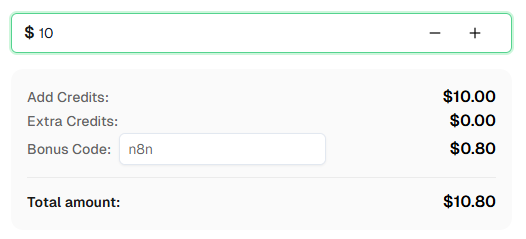
Ready to get started? Sign up for CapSolver and use bonus code n8n for an extra 8% bonus on your first recharge!
The CapSolver n8n node gives you access to 13 captcha-solving operations across 2 resource types — covering every major captcha service you'll encounter in the wild. Whether you're dealing with reCAPTCHA, Cloudflare, GeeTest, DataDome, AWS WAF, MTCaptcha, or image-based challenges, there's a dedicated operation ready to use.
Every workflow follows one of three patterns: Solver API, Scraping Pipeline. Once you understand the pattern, building a new workflow for a different captcha type is just a matter of changing the operation dropdown and adjusting the parameters.
For step-by-step instructions on any specific captcha type, use the detailed guides linked in the operations table above. Each guide includes complete, importable workflow JSON for solver APIs, scraping pipelines, and login automations.
Tip: These workflows use Schedule + Webhook triggers, but you can swap the trigger node to any n8n trigger — manual, app event, form submission, etc. After fetching data, use n8n's built-in nodes to save results to Google Sheets, databases, cloud storage, or send alerts via Telegram/Slack/Email.
Yes. CapSolver is available as an official node in n8n's built-in node library. You don't need to install any community node — just search for "CapSolver" in the node panel and it's ready to use. The only setup required is creating a credential with your CapSolver API key.
Cloudflare Challenge and DataDome always require a proxy — there is no proxyless option. All other Token operations (reCAPTCHA v2/v3, Cloudflare Turnstile, Challenge, GeeTest V3/V4, AWS WAF, ) offer proxyless variants that work without one. Recognition operations (Image To Text, Vision Engine) never need a proxy.
Token operations solve captchas that protect websites — they return a token or cookie you submit to the site. They're async (create task, poll, get result) and take 5-30 seconds. Recognition operations analyze images — they return text, coordinates, or measurements instantly. Token covers 9 of the 13 operations; Recognition covers 4.
Yes. These workflows work with both self-hosted n8n and n8n Cloud. The CapSolver node is already available in n8n Cloud's node library — just add your API credentials.
Pricing varies by captcha type. reCAPTCHA v2 starts 0.4 per 1,000 solves; Cloudflare Challenge and DataDome are more expensive due to their complexity. Image To Text and Vision Engine recognition tasks are typically the cheapest. Check the CapSolver pricing page for current rates. Use bonus code n8n for an 8% bonus on your first recharge.
The fastest method is the CapSolver browser extension. Install it, open DevTools on the target page, go to the "CapSolver Captcha Detector" tab, and trigger the captcha. The extension identifies the captcha type and displays all required parameters (site key, API domain, challenge ID, etc.) automatically. Alternatively, you can inspect the page source and network requests manually — look for script URLs containing recaptcha, turnstile, geetest, datadome, or awswaf.
Yes. You can add multiple CapSolver nodes to a single workflow, each configured for a different operation. For example, a workflow might solve a Cloudflare Turnstile challenge on a login page, then later solve a reCAPTCHA v2 challenge on a form within the authenticated session. Each CapSolver node operates independently — just make sure each one has the correct operation and parameters configured.
Several things can cause this. First, tokens expire quickly (60-120 seconds) — make sure you submit immediately after solving. Second, verify you're sending the token to the right endpoint and field name: inspect the actual network request the browser makes when you submit the form (DevTools -> Network tab) and confirm everything matches. Third, some sites require additional parameters (like enterprisePayload for reCAPTCHA Enterprise, metadata.action for Turnstile, or specific headers/cookies). Use the CapSolver extension to check if any of these apply. Fourth, for Cloudflare Challenge and DataDome, check the dedicated guides — these types have additional requirements (proxy, User-Agent matching, etc.). If the token is still rejected, contact CapSolver support for help.
Lucas Mitchell
Automation Engineer
Helping browser automation recover and continue.
ABOUT THE AUTHOR
Learn how to use the CapSolver n8n template to monitor AWS WAF-protected product pages, solve challenges, extract prices, compare changes, and trigger alerts automatically.

Learn how to build web scrapers in n8n for captcha-protected sites using CapSolver. This step-by-step guide covers solving reCAPTCHA, submitting tokens correctly, extracting product data, and automating workflows with schedule and webhook triggers.