
🎉NEWCapSolver for AI agents-MCP, agent tools, and SDK integrations

Ethan Collins
AI Agent Workflow Engineer
Published Aug 07, 2026
Updated Aug 07, 2026 · min read
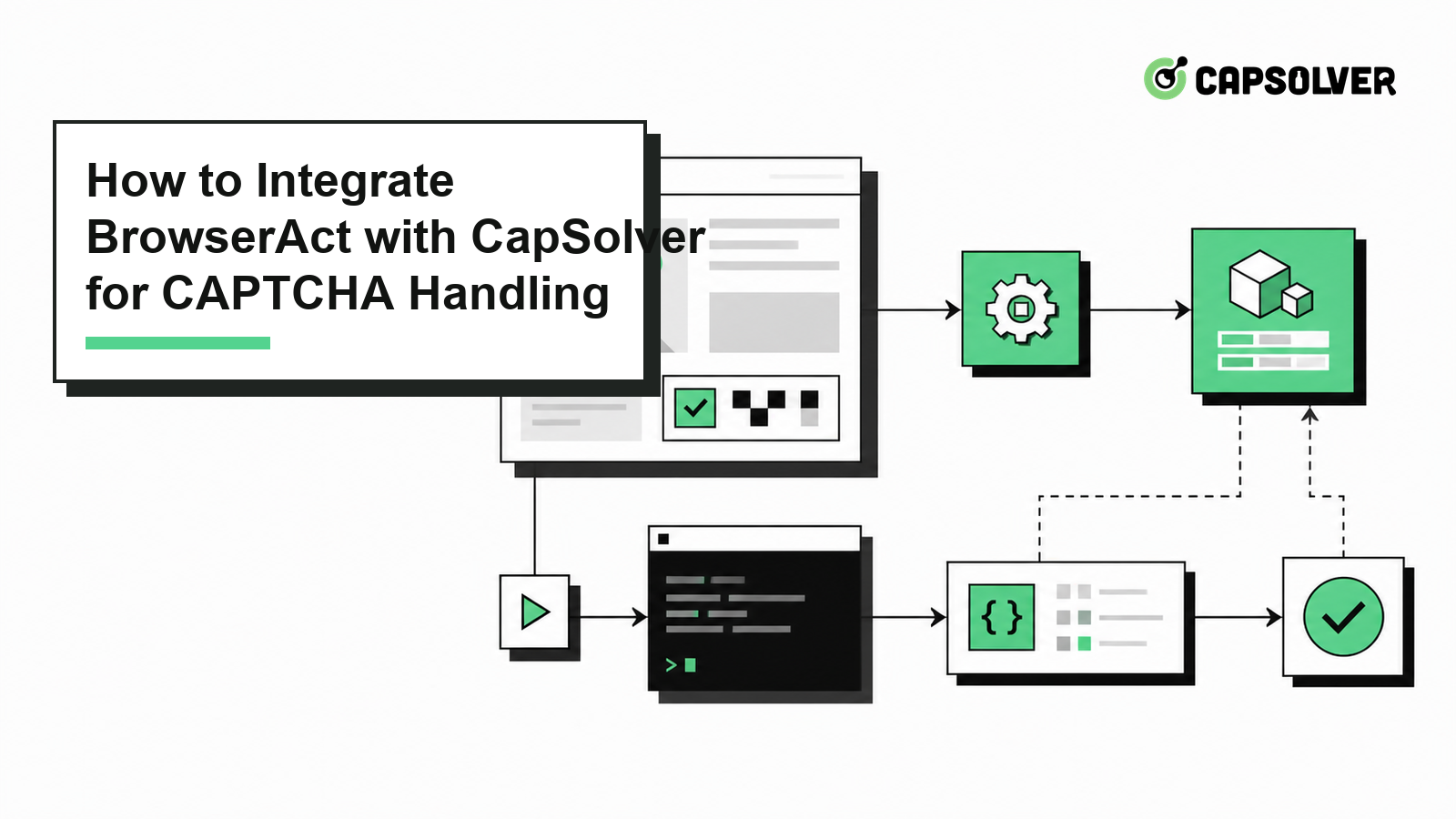
capsolver Python SDK and call capsolver.solve() directly; your application does not need to reimplement createTask and result polling.BrowserAct is a browser automation tool for AI agents. Through its CLI, it can manage browser sessions and perform page navigation, element location, clicks, input, script execution, and network-state checks. Unlike a script that focuses on one selector at a time, BrowserAct is better suited to organizing multiple page actions into a recoverable task flow.
When a login, form submission, or data-access workflow encounters a CAPTCHA challenge, BrowserAct maintains the page, cookies, proxy, and browser identity, while CapSolver handles the CAPTCHA task. The program extracts the websiteURL, site key, user agent, or image Base64 from the current page, calls the official CapSolver SDK for a result, and then returns that result to the original browser session through BrowserAct's eval, cookie commands, or page-input actions.
The key to this integration is not simply obtaining a token. It is keeping the context consistent before and after solving and using the target page's business result as the final success condition.
For agent-native implementation options, start with CapSolver for AI Agents and the introduction and quick start. The official Core SDK, Agent Tools, and MCP Service explain the supported paths for scripts, agent tool calls, and MCP clients.
Install the BrowserAct CLI first and confirm that the command runs correctly:
uv tool install browser-act-cli --python 3.12
browser-act --version
The first use requires you to connect a BrowserAct account. auth login only generates a registration link; it does not complete authentication directly in the terminal:
browser-act auth loginOpen the link returned by the command and complete registration or login, then poll the authentication result:
browser-act auth pollIf the command returns status=pending, wait a few seconds and run it again. Authentication is complete only when it returns status=completed and confirms that the API key has been saved. Finally, check the browser list:
browser-act browser listAfter the first authentication, No browsers found. is normal. It means that no BrowserAct browser instance has been created in the account yet.
Install the official CapSolver Python SDK:
pip install --upgrade capsolver# pip install --upgrade capsolver
# export CAPSOLVER_API_KEY='...'
import capsolver
# capsolver.api_key = "..."
solution = capsolver.solve({
"type": "ReCaptchaV2TaskProxyLess",
"websiteURL": "https://www.google.com/recaptcha/api2/demo",
"websiteKey": "6Le-wvkSAAAAAPBMRTvw0Q4Muexq9bi0DJwx_mJ-",
})
print(solution)The three parameters work as follows:
type selects the CAPTCHA task type.websiteURL and websiteKey must match the actual configuration on the current page.The CapSolver SDK handles task creation and result polling. The returned field depends on the task type: reCAPTCHA typically uses gRecaptchaResponse, Turnstile uses token, DataDome uses cookie, and image CAPTCHA recognition uses text.
When you need a stable proxy and browser identity, you can create a fixed stealth session:
browser-act browser create `
  --type stealth `
  --name "capsolver-demo" `
  --desc "Authorized CAPTCHA integration test" `
  --custom-proxy socks5://user:pass@proxy.example:1080 `
  --private false
This command normally returns a web confirmation URL and a <request_id> first; it does not immediately return a <browser_id> in the terminal. Open the confirmation URL and finish creating the browser, then query the creation result and browser list:
browser-act browser listAfter a navigation, a closed pop-up, or a refreshed CAPTCHA, run state again. BrowserAct element numbers belong to the current page state and must not be reused across pages.
The following example puts the BrowserAct CLI and CapSolver SDK in the same Python script and completes these steps:
capsolver.solve() to obtain a token.eval --stdin to write the token to g-recaptcha-response.Verification note: This source example is preserved exactly. Live execution requires a configured BrowserAct CLI and session, a BrowserAct browser resource, and a CapSolver API key; replace the blank placeholders only in your own test environment.
import json
import subprocess
import capsolver

BROWSER_ACT = ""  # Absolute path to the BrowserAct CLI executable.
SESSION = ""  # Name of the BrowserAct session used by this script.
BROWSER_ID = ""  # ID of the existing BrowserAct browser resource.
TARGET_URL = "https://www.google.com/recaptcha/api2/demo"  # Page used for the reCAPTCHA v2 integration test.
capsolver.api_key = ""

def browser_act(*args, stdin=None):
    command = [BROWSER_ACT, "--session", SESSION, *args]
    result = subprocess.run(command,input=stdin,text=True,capture_output=True,check=False,)
    if result.returncode != 0:  #
        raise RuntimeError(
            f"BrowserAct failed ({result.returncode}): "
            f"{result.stderr.strip()}"
        )
    return result.stdout

def browser_eval(script):
    """Execute JavaScript in the current BrowserAct page."""
    return browser_act("eval", "--stdin", stdin=script)

def inject_recaptcha_token(token: str):
    token_json = json.dumps(token)
    script = f"""
((token) => {{
  const textarea = document.getElementById('g-recaptcha-response');
  if (textarea) {{
    textarea.value = token;
  }}
}})({token_json})
"""
    browser_eval(script)
def main():
    browser_act("browser", "open", BROWSER_ID, TARGET_URL)
    browser_act("state")
    solution = capsolver.solve({
        "type": "ReCaptchaV2TaskProxyLess",
        "websiteURL": "https://www.google.com/recaptcha/api2/demo",
        "websiteKey": "6Le-wvkSAAAAAPBMRTvw0Q4Muexq9bi0DJwx_mJ-",
    })
    token = solution["gRecaptchaResponse"]
    inject_recaptcha_token(token)
    print(browser_act("click", "--selector", "#recaptcha-demo-submit"))
    print(browser_act("wait", "stable"))
    print(browser_act("get", "markdown"))  # Read the resulting page.
if __name__ == "__main__":
    main()
The execution flow can be summarized as follows:
BrowserAct opens the reCAPTCHA v2 demo page
  -> Read the current page state
  -> Call capsolver.solve(ReCaptchaV2TaskProxyLess)
  -> Read solution["gRecaptchaResponse"]
  -> Write to #g-recaptcha-response
  -> Click #recaptcha-demo-submit
  -> Wait for the page to stabilize
  -> Read BrowserAct markdown and confirm the final result
inject_recaptcha_token() only writes the token into the page field; it does not automatically submit the business form. Add the submission action according to the target site's actual button, form, or BrowserAct agent instruction, then reread state or the network result after submission.
Redeem Your CapSolver Bonus Code
Boost your automation budget instantly!
Use bonus code CAP26 when topping up your CapSolver account to get an extra 5% bonus on every recharge — with no limits.
Redeem it now in your CapSolver Dashboard
In addition to token-based challenges, BrowserAct can work with CapSolver to process standard image-text CAPTCHAs. This section uses the BotDetect CAPTCHA Demo. The CAPTCHA image element ID is demoCaptcha_CaptchaImage, the result input ID is captchaCode, and the validation button ID is validateCaptchaButton.
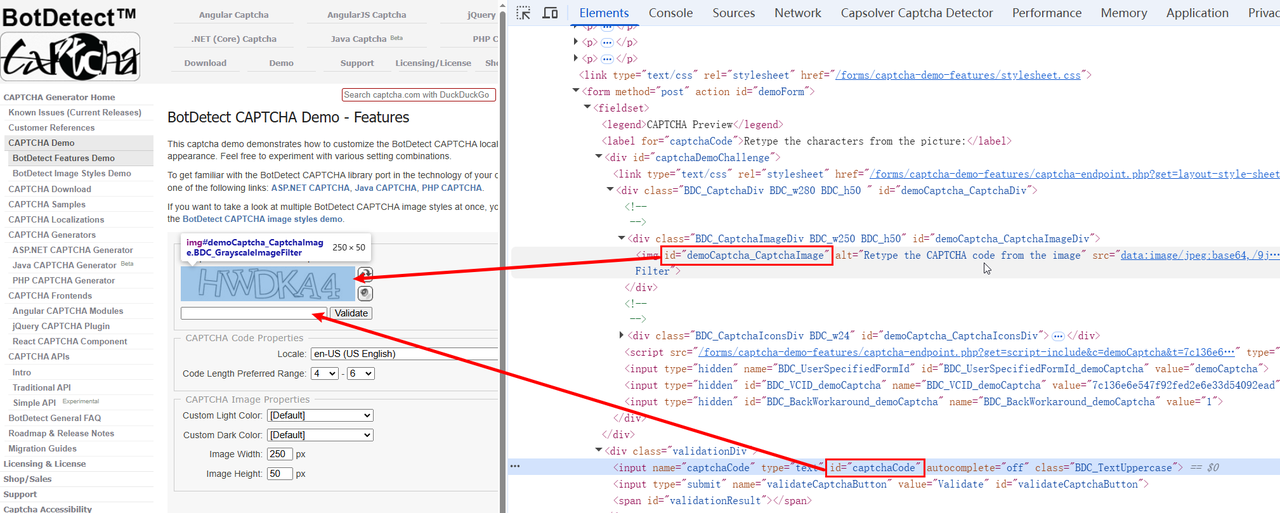
ImageToTextTask requires you to convert the CAPTCHA image to Base64 and submit it to CapSolver through the body parameter. If the image src is a Data URL, for example:
data:image/png;base64,iVBORw0KGgoAAA...When sending it to CapSolver, keep only the Base64 content after the comma; do not include the data:image/...;base64, prefix. Unlike token-based tasks, ImageToTextTask returns the recognition result directly, so your application does not need to implement additional getTaskResult polling.
The following example uses BrowserAct eval --stdin to read the current page image, call the official SDK, fill in the recognition result, and click the validation button:
Verification note: This source example is preserved exactly. Live execution requires the BrowserAct prerequisites, a CapSolver API key, and authorized access to the demo page.
import json
import subprocess
import capsolver

BROWSER_ACT = ""  # Absolute path to the BrowserAct CLI executable.
BROWSER_ID = ""  # ID of the existing BrowserAct browser resource.
TARGET_URL = "https://captcha.com/demos/features/captcha-demo.aspx"  # Image CAPTCHA demo page.
SESSION = ""  # Name of the BrowserAct session used by this script.
capsolver.api_key = ""  # Configure the CapSolver client with the account API key.

def browser_act(*args, stdin=None):
    result = subprocess.run(
        [BROWSER_ACT, "--session", SESSION, *args],
        input=stdin,
        text=True,
        capture_output=True,
        check=False,
    )
    if result.returncode != 0:
        raise RuntimeError(result.stderr.strip())
    return result.stdout


def browser_eval(script):
    return browser_act("eval", "--stdin", stdin=script)

def main():
    browser_act("browser", "open", BROWSER_ID, TARGET_URL)
    browser_act("state")

    image_src = browser_eval("""
(() => document.querySelector('#demoCaptcha_CaptchaImage')?.getAttribute('src') || '')()
""").strip()

    if not image_src or "," not in image_src:
        raise RuntimeError("A valid Base64 CAPTCHA image was not found")

    base64_image = image_src.split(",", 1)[1]
    solution = capsolver.solve({
        "type": "ImageToTextTask",
        "websiteURL": TARGET_URL,
        "module": "common",
        "body": base64_image,
    })

    captcha_text = solution["text"]
    print("Recognition result:", captcha_text)

    browser_eval(
        "document.querySelector('#captchaCode').value = "
        + json.dumps(captcha_text)
    )
    browser_act("click", "--selector", "#validateCaptchaButton")
    browser_act("wait", "stable")

    result_page = browser_act("get", "markdown")
    if "Incorrect!" in result_page:
        print("CAPTCHA verification: FAILED")
    elif "Correct!" in result_page:
        print("CAPTCHA verification: PASSED")
    else:
        print("CAPTCHA verification: UNKNOWN")


if __name__ == "__main__":
    main()
The execution flow can be summarized as follows:
BrowserAct opens the CAPTCHA page
  -> Read the Data URL from #demoCaptcha_CaptchaImage
  -> Extract the Base64 image content after the comma
  -> Call capsolver.solve(ImageToTextTask)
  -> Read solution["text"]
  -> Fill #captchaCode
  -> Click #validateCaptchaButton
  -> Wait for the page to stabilize
  -> Read BrowserAct markdown
-> Output the verification result from Correct!/Incorrect!module is optional, and common can be used by default. If the CAPTCHA contains only numbers, use number. For certain special styles, select the corresponding independent model from the CapSolver documentation to improve recognition accuracy.
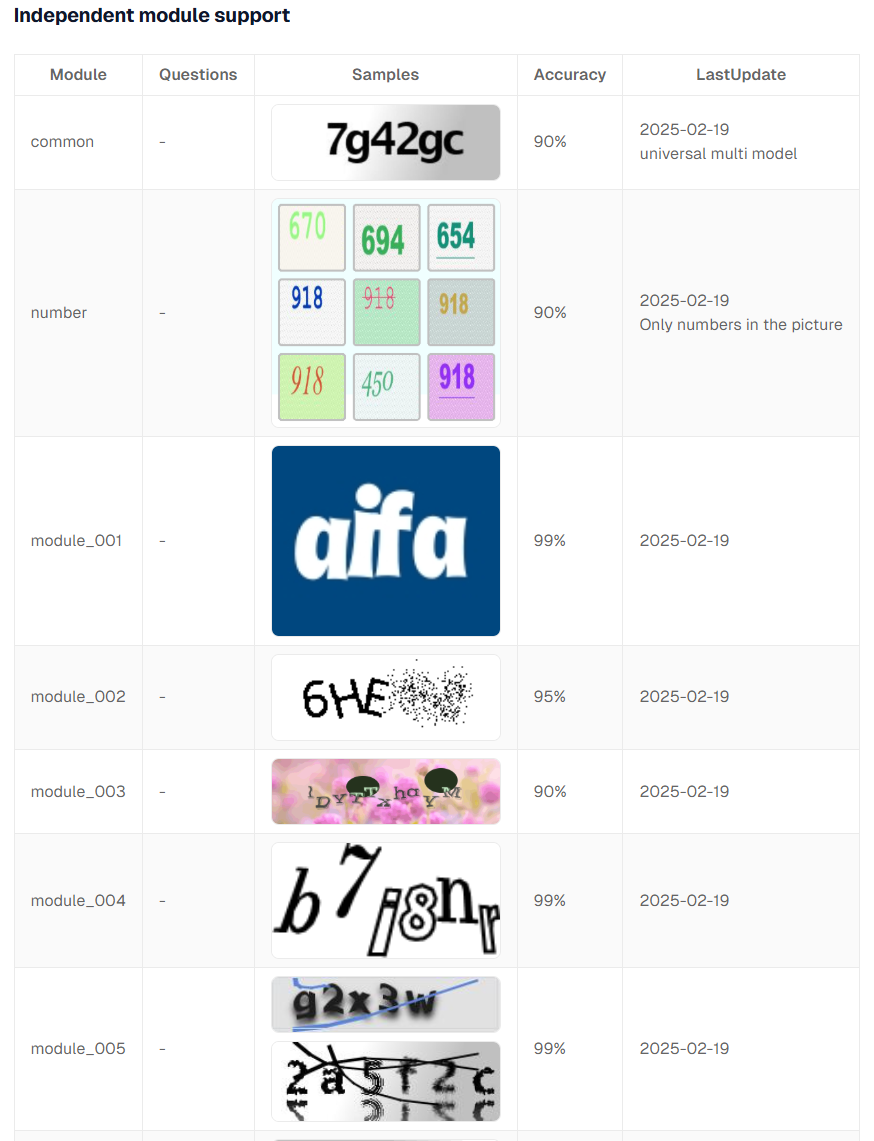
For example, when recognizing a numeric CAPTCHA only, change the task parameters to:
solution = capsolver.solve({
    "type": "ImageToTextTask",
    "module": "number",
    "images": [base64_image],
})

answers = solution["answers"]
The number model supports multiple images in one submission, and images can contain up to nine Base64 strings. For other model names and supported image types, consult the official CapSolver ImageToTextTask documentation.
Choosing a CAPTCHA-handling approach for BrowserAct depends on the target site's verification type, session stability, and business-flow complexity. BrowserAct is suited to browser lifecycle management, page actions, and result verification, while CapSolver is suited to specialized handling for reCAPTCHA, Turnstile, DataDome, or image CAPTCHAs.
The recommended workflow can be summarized as follows:
BrowserAct opens and inspects the page
  -> Extract the CAPTCHA parameters from the current session
  -> capsolver.solve()
  -> Return the token, cookie, or recognized text to the same session
  -> BrowserAct continues the submission or navigation
  -> Read the page state and business response to confirm the result
With the official SDK, a fixed session, consistent proxy and user-agent settings, and explicit timeout, retry, and logging policies, BrowserAct and CapSolver can form a more maintainable AI browser automation workflow. Store the API key in environment variables or a secret-management system, and limit automation to pages and business processes for which access is authorized. Technical capability does not grant permission to access private, restricted, sensitive, or unauthorized data.
For an authorized BrowserAct workflow that needs structured CAPTCHA handling, evaluate CapSolver with your own controlled test cases and verify the final business state after every solve.
For related implementation patterns and product guidance, review the CapSolver blog and CapSolver FAQ before rollout.
Q: What does BrowserAct handle in this integration?
BrowserAct manages the browser session, navigation, page actions, and final-state checks. CapSolver handles the CAPTCHA task and returns the token, cookie, or recognized text that the authorized workflow needs.
Q: Why must the CAPTCHA result return to the same BrowserAct session?
The browser context contains the page state, cookies, proxy identity, and user agent associated with the challenge. Returning the result to a different context can make the result unusable and prevents reliable business-state verification.
Q: Does inject_recaptcha_token() submit the form automatically?
No. The function only writes the token to g-recaptcha-response; the workflow must still perform the site's real submission action and confirm the resulting page or network state.
Q: Does ImageToTextTask require separate result polling?
No. The official CapSolver documentation states that ImageToTextTask returns the recognition result directly, so the application does not need a separate getTaskResult polling loop for that task.
Q: Can this workflow be used on any website?
No. Use it only for lawful, reasonable, and responsible automation on pages and workflows you own or are authorized to access, while respecting site terms, applicable laws, rate limits, and data-minimization requirements.
Ethan Collins
AI Agent Workflow Engineer
Building clearer handoffs between AI agents and tools.
ABOUT THE AUTHOR
Estimate CAPTCHA solving costs in Browser Use by separating agent runs, challenge types, billable solves, retries, and verified outcomes from browser costs.

Set up CapSolver MCP in Claude Code, check the available CAPTCHA tools, and choose token or page solving for a supported, authorized browser task.