
🎉NEWCapSolver for AI agents-MCP, agent tools, and SDK integrations

Emma Foster
Machine Learning Engineer
Published Oct 23, 2026
Updated Oct 23, 2026 · min read
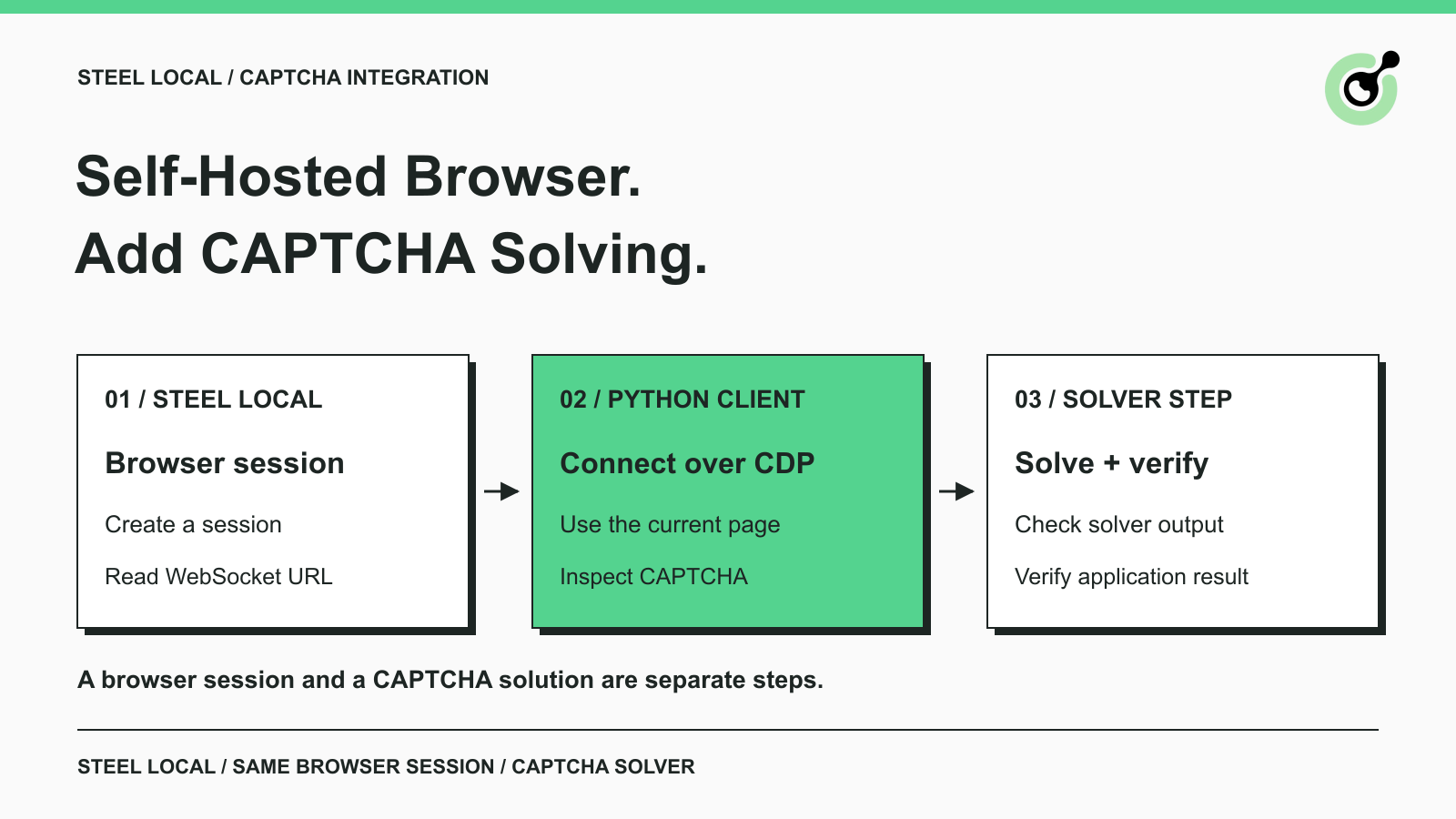
A self-hosted browser can navigate to the right page and still leave your workflow waiting at a CAPTCHA. If you run Steel locally, adding the cloud service's solving flag is not enough: local and cloud deployments have different capabilities.
This guide shows where a CAPTCHA solver fits in self-hosted Steel Browser, with one small Python connection check. The example uses a local development page and Google's public reCAPTCHA test key. It does not target a third-party website or require an AI model.
Steel Browser is a browser API for developers building web agents and automation applications. It manages a browser session that clients can control through familiar automation tools. The official Steel repository documents self-hosting and connections from Playwright, Puppeteer, and Selenium.
For a developer running an authorized form workflow, the division of work is straightforward. Steel supplies the browser. Playwright navigates and interacts with the page. A CAPTCHA solver handles a supported challenge when one appears. Your workflow then checks whether the application accepted the intended action.
This tutorial uses the CapSolver Core SDK for that CAPTCHA step. The SDK can inspect a Playwright page and expose a separate solving operation. There is no need to add an LLM just to connect these components.
The useful scenario is a self-hosted browser job that already needs a CAPTCHA operation. For routine testing of software you own, CAPTCHA vendor test settings may be sufficient. Use the solver path when your authorized workflow actually needs it, rather than making every browser navigation depend on a paid request.
Steel Local does not include the cloud product's built-in CAPTCHA solving. Steel's local-versus-cloud feature matrix explicitly distinguishes the two deployments.
That distinction affects implementation. A cloud tutorial may enable solving during session creation, while a self-hosted integration must supply the missing operation. Do not assume that a cloud configuration field activates a feature in the local server.
The path used here is:
websocketUrl.Avoid launching an unrelated browser in step three. A second browser would not be the session returned by Steel, making it easy to inspect one page while your actual job waits in another.
Start with a running, dedicated Steel Local instance and Python 3.12. The verified setup used Steel API 0.5.3 from repository revision 8362bbd, Playwright 1.64.0, and capsolver-core 0.1.1 on macOS.
Follow the repository's local setup instructions for your deployment. For the source-based server used here, the API was started with HOST=127.0.0.1, PORT=3300, and CDP_REDIRECT_PORT=9323. These are the test environment's port choices, not required defaults. Keep your development API reachable only from the intended client.
Install the Python dependencies in an isolated environment:
python -m pip install "playwright==1.64.0" "capsolver-core==0.1.1" "httpx==0.28.1"Steel starts the browser, so this client does not launch another Chromium instance. Playwright's CDP connection method attaches to an existing Chromium-based browser and exposes its default context.
The client also needs access to the returned WebSocket address. If Steel runs in a container or on another machine, confirm that the address is reachable from Python; 127.0.0.1 refers to the machine making the connection.
No CapSolver credential is needed for the detection check below. Actual solving requires your own valid API key and account resources. Paid solving, token fill-back, and application acceptance were not executed for this guide. Keep that separate validation step in your deployment checklist.
The script creates a real Steel session, connects to its browser, and reads a development widget through the official SDK. Save it as steel_sdk_check.py and run it with Python.
The example defaults to a local server on port 3300. Set STEEL_URL if your server uses another address. Use a dedicated instance: session creation and release change that instance's active browser session.
The page is supplied through a Playwright route, so no web server is needed on port 8765. Google's widget script still requires network access. The public site key is documented in Google's reCAPTCHA testing guidance and is intended for development, not production.
import asyncio
import json
import os

import httpx
from capsolver_core import create_capsolver
from playwright.async_api import async_playwright

STEEL_URL = os.environ.get("STEEL_URL", "http://127.0.0.1:3300")
TEST_URL = "http://127.0.0.1:8765/"
HTML = """<!doctype html><html><head><title>Steel CAPTCHA check</title></head>
<body><h1>Owned development page</h1>
<div class="g-recaptcha" data-sitekey="6LeIxAcTAAAAAJcZVRqyHh71UMIEGNQ_MXjiZKhI"></div>
<script src="https://www.google.com/recaptcha/api.js" async defer></script>
</body></html>"""


async def main():
    async with httpx.AsyncClient(base_url=STEEL_URL, timeout=90) as api:
        response = await api.post("/v1/sessions", json={"headless": True})
        response.raise_for_status()
        session = response.json()
        try:
            async with async_playwright() as playwright:
                browser = await playwright.chromium.connect_over_cdp(session["websocketUrl"])
                try:
                    context = browser.contexts[0]
                    page = await context.new_page()
                    await page.route(TEST_URL, lambda route: route.fulfill(
                        content_type="text/html", body=HTML))
                    await page.goto(TEST_URL)
                    await page.wait_for_function(
                        "() => !!window.___grecaptcha_cfg && "
                        "Object.keys(window.___grecaptcha_cfg.clients || {}).length > 0",
                        timeout=30000)
                    async with create_capsolver() as cap:
                        infos = await cap.get_captcha_info(page)
                    result = [{"type": info.type.value,
                               "url": info.website_url,
                               "site_key": info.website_key} for info in infos]
                    print(json.dumps({"session_id": session["id"],
                                      "captcha_parameters": result}))
                    assert result and result[0]["type"] == "reCaptchaV2"
                finally:
                    await browser.close()
        finally:
            released = await api.post(f"/v1/sessions/{session['id']}/release")
            released.raise_for_status()
            print(json.dumps({"released": released.json().get("success")}))


if __name__ == "__main__":
    asyncio.run(main())
The executed check returned one reCaptchaV2 descriptor with the local page URL and the public test site key. The final release response reported true. Those observations verify the real Steel session, CDP connection, page access, and SDK parameter-reading path.
They do not establish that a paid CAPTCHA was solved. The development key is not a production challenge, and the script deliberately requests no solution token.
The code keeps the page in Steel's existing browser context. Its cleanup closes the client connection and asks the server to release the session even if detection fails. If you adapt it to a shared service, give one component responsibility for session lifetime instead of letting unrelated jobs release each other's work.
Add the solving call after your authorized application page has loaded its supported CAPTCHA, while the browser connection and SDK client are still open. Replace the local development fixture with your own application workflow; do not use the test key as a production input.
Create the SDK client with its documented api_key option, loading the credential from your approved secret configuration. CapSolver handles the challenge request; Steel continues to own the browser session.
The following line is the unchanged official browser-mode call. It requires a configured API key, and paid execution through this Steel connection was not tested for this tutorial:
results = await cap.solve_on_page(page)Keep the call inside the live client context. Pasting it after the example's cleanup would refer to a closed browser and client.
Inspect each returned result before continuing. The SDK reports an error, a possible solution, and whether fill-back occurred through filled. An empty result or a missing solution is not evidence that your application passed its CAPTCHA.
The Core SDK's documented token mode covers reCAPTCHA v2/v3 and Cloudflare Turnstile. Do not assume that the same call solves every challenge type listed elsewhere in the broader CapSolver API. The reCAPTCHA v2 task documentation provides the task-specific requirements for that supported path.
The workflow is complete only when the application reaches its intended state. A token response, a filled field, and a successful form submission are separate observations.
For an application you control, choose a concrete success signal such as its confirmation message or expected response. Wait for that signal after the normal form action. If it does not appear, inspect the application response rather than sending repeated solving requests without understanding the failure.
Keep page identity stable during the operation. Do not navigate away, close the tab, or release the session while a solve is in progress. If the application reloads the widget, inspect the current challenge again instead of reusing parameters from an earlier page state.
The CAPTCHA glossary explains the verification concept, while the guide to CAPTCHA tokens and cookies helps distinguish different outputs. Neither a browser cookie nor a token string should replace your application's success check.
Start troubleshooting at the earliest failed operation so that connection problems do not turn into unnecessary solver requests.
| Symptom | What to check |
|---|---|
| Session creation fails | Confirm the Steel API is running and inspect the HTTP status and server log. |
| CDP connection fails | Check that websocketUrl is reachable from the Python process and belongs to the current session. |
| The widget never initializes | Check browser access to Google's development script and confirm the expected page loaded. |
| Detection returns no descriptors | Inspect the current page and supported CAPTCHA type before attempting a paid solve. |
| A solution is returned but the workflow stalls | Check fill-back, the normal application action, and the application's response. |
| Another job loses its browser session | Review session ownership and release calls before sharing the local instance. |
Keep diagnostic logs small. Record the stage and a redacted error, not API keys, response tokens, or complete browser storage. Test a single page first, and add retry behavior only after identifying a temporary failure that a retry can reasonably fix.
A Steel Local integration needs a clear handoff from the managed browser page to the CAPTCHA operation. The working connection check establishes that handoff without making a paid request. Before using it in production, validate solving with your own credential and verify the application's outcome on an authorized environment.
Keep the session open for the work it owns, and release it when that work ends. This gives you a useful boundary for both troubleshooting and future package upgrades.
Connect CapSolver at the supported CAPTCHA step in your Steel workflow. Start with the verified detection path, then validate your credentialed operation before increasing workload.
Try CapSolver. Use bonus code CAP26 for a 5% bonus under the campaign terms.

Q: Does self-hosted Steel Browser solve CAPTCHAs automatically?
No. Steel's official comparison lists no built-in CAPTCHA solving for Steel Local. The cloud product's solving feature is a separate capability.
Q: Do I need a Steel Cloud account for this example?
No. The example connects to a running local instance. You remain responsible for starting and operating that instance.
Q: Why connect over CDP instead of launching Playwright Chromium?
CDP attaches Python to the browser managed by Steel. Launching another browser would create a separate session from the one this example intends to use.
Q: Does the detection check spend CapSolver credits?
The check only reads widget parameters and makes no paid solving request. The separate solving call requires a valid CapSolver credential.
Q: Has the complete paid-solving flow been tested here?
No. The real run verified session creation, CDP connection, SDK detection, and release. Paid solving, fill-back, and application acceptance still require a separate credentialed test.
Q: Is this an official Steel partnership or native integration?
No. This is a tested connection example using Steel's public browser interface and CapSolver's official SDK. It does not establish a partnership or compatibility guarantee for future releases.
Emma Foster
Machine Learning Engineer
Where machine learning meets practical AI tooling.
ABOUT THE AUTHOR
Learn scalable Rust web scraping architecture with reqwest, scraper, async scraping, headless browser scraping, proxy rotation, and compliant CAPTCHA handling.

Learn the best techniques to scrape job listings without getting blocked. Master Indeed scraping, Google Jobs API, and web scraping API with CapSolver.