
🎉NEWCapSolver for AI agents-MCP, agent tools, and SDK integrations

Emma Foster
Machine Learning Engineer
Published Oct 22, 2026
Updated Oct 22, 2026 · min read
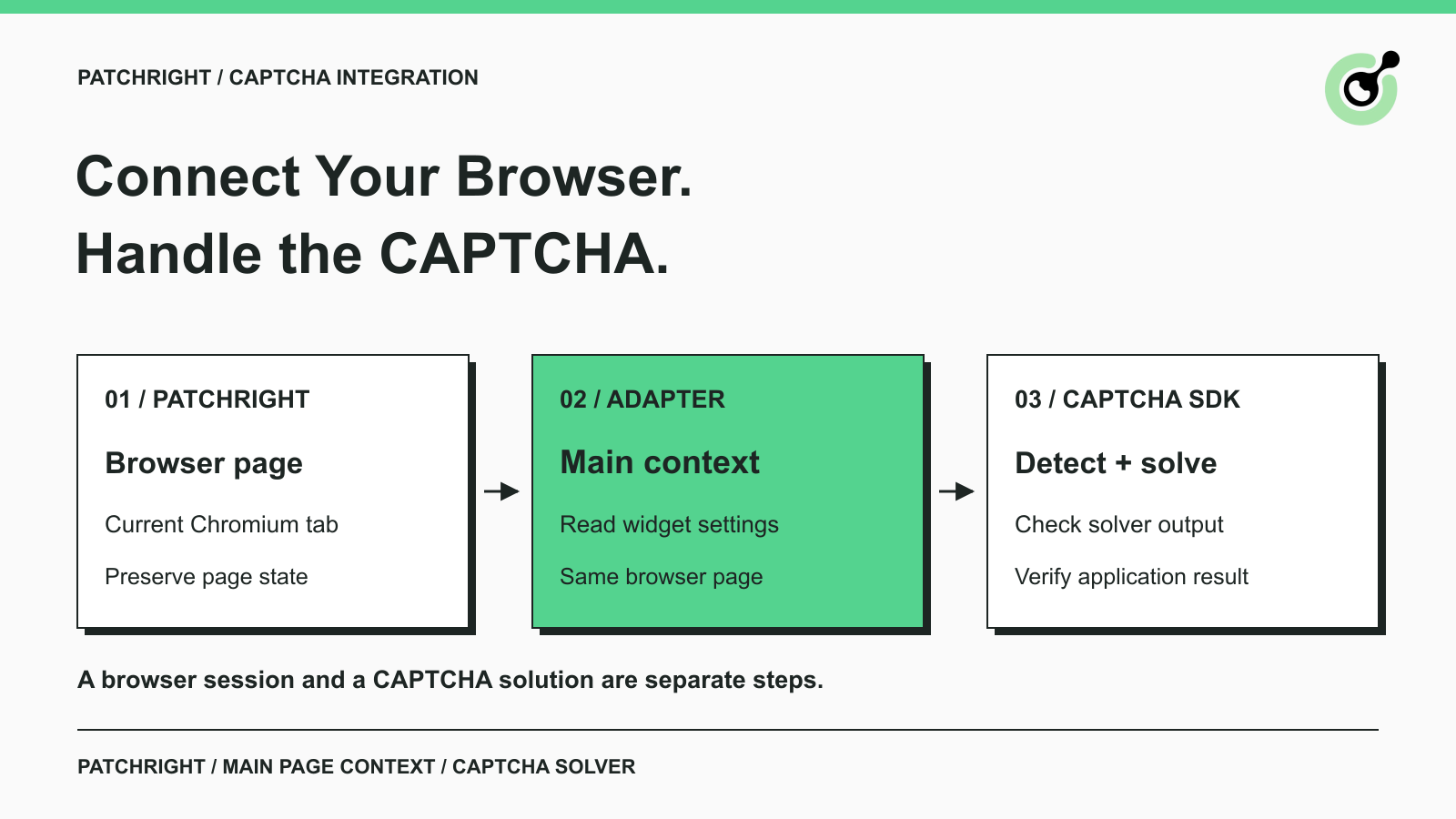
A Patchright script may navigate successfully, find the form, and then stop at a reCAPTCHA widget. Changing browser libraries does not supply the response that the widget and the application require. You need a CAPTCHA solver at that point, plus a check that the application accepted the result.
This Patchright CAPTCHA solver tutorial connects a Python browser session to CapSolver through its official Core SDK. The useful detail is the page's JavaScript environment: reading the visible DOM and reading reCAPTCHA's page-owned configuration are different operations. The example below handles that distinction, keeps one page open, and verifies detection on a local development fixture. Use this approach for pages you own or have permission to automate.
Patchright is a community-maintained derivative of Playwright with a similar Python automation interface. The official Python repository documents its Chromium support and its use as a replacement import for Playwright. Firefox and WebKit are not supported by Patchright.
Developers use Patchright to control pages, interact with elements, and run browser workflows. A solver becomes relevant when a supported CAPTCHA prevents an authorized workflow from completing a form or reaching its expected result. If your page is already accessible, there is no reason to make a paid solving request.
The integration has three separate responsibilities. Patchright owns navigation and the page's lifetime. The solver reads supported challenge inputs and requests a solution. Your application workflow decides whether the form or subsequent page actually succeeded. The CAPTCHA glossary explains the verification mechanism behind this separation.
For routine tests of your own application, prefer the CAPTCHA vendor's development settings. A paid solver integration check is a separate task from testing whether your ordinary form validation works.
reCAPTCHA detection may need configuration created by the widget in the page's main JavaScript environment. Patchright's documented evaluate() option, isolated_context, defaults to True; page-owned JavaScript globals may therefore be absent from an ordinary evaluation even when the widget is visible.
In the controlled example used for this guide, the default evaluation could not see window.___grecaptcha_cfg, while evaluation with isolated_context=False could. The SDK needs access to that page state for this reCAPTCHA path. A timeout or an empty detection result should therefore prompt a context check before you change the site key or submit repeated solving requests.
The adapter below forwards SDK evaluations to the page's main environment. It does not modify Patchright's installed files or switch the environment for every browser operation. Navigation and ordinary locators remain on raw_page; only the page object passed to the SDK uses this wrapper. Treat it as a tested integration example for the versions listed below, not a claim of an official Patchright partnership or universal compatibility.
The example uses Python 3.12, Patchright 1.64.1, and capsolver-core 0.1.1. Install the packages in an isolated environment and install Patchright's Chromium runtime. Pin these versions for the setup check so a package upgrade does not silently change its behavior.
python3 -m venv .venv
source .venv/bin/activate
python -m pip install "patchright==1.64.1" "capsolver-core==0.1.1"
python -m patchright install chromium
The detection example does not need a CapSolver API key. Actual solving requires your own valid key and sufficient account resources. Configure the client with the documented create_capsolver(api_key=...) option and keep the key in your application's secret configuration. The Core SDK guide documents client creation, detection, solving, and result fields.
The setup check below was executed against a local page using Google's public reCAPTCHA test key. Paid solving, token fill-back, and the application's acceptance of a solved token were not executed for this guide. Do not use this fixture as a production success-rate test.
The setup check opens one local fixture, waits for the test widget to initialize, and prints the CAPTCHA parameters returned by the official SDK. Save it as patchright_sdk_check.py and run it with Python in the environment above.
The local URL is served through a browser route, so no separate web server is needed. The widget script still loads from Google and requires network access. The public site key comes from Google's reCAPTCHA testing guidance; it is a development key, not a private credential.
import asyncio
import json

from capsolver_core import create_capsolver
from patchright.async_api import async_playwright

TEST_URL = "http://127.0.0.1:8765/"
HTML = """<!doctype html><html><head><title>CAPTCHA integration check</title></head>
<body><h1>Owned development page</h1>
<div class="g-recaptcha" data-sitekey="6LeIxAcTAAAAAJcZVRqyHh71UMIEGNQ_MXjiZKhI"></div>
<script src="https://www.google.com/recaptcha/api.js" async defer></script>
</body></html>"""


class MainWorldPage:
    def __init__(self, page):
        self._page = page

    @property
    def url(self):
        return self._page.url

    async def evaluate(self, expression, arg=None):
        return await self._page.evaluate(expression, arg, isolated_context=False)

    async def wait_for_selector(self, selector, **kwargs):
        return await self._page.wait_for_selector(selector, **kwargs)


async def main():
    async with async_playwright() as p:
        browser = await p.chromium.launch(headless=True)
        try:
            raw_page = await browser.new_page()
            await raw_page.route(
                TEST_URL, lambda route: route.fulfill(content_type="text/html", body=HTML)
            )
            await raw_page.goto(TEST_URL)
            page = MainWorldPage(raw_page)
            for _ in range(60):
                ready = await page.evaluate(
                    "() => !!window.___grecaptcha_cfg && "
                    "Object.keys(window.___grecaptcha_cfg.clients || {}).length > 0"
                )
                if ready:
                    break
                await asyncio.sleep(0.5)
            else:
                raise RuntimeError("Test widget did not initialize")

            async with create_capsolver() as cap:
                infos = await cap.get_captcha_info(page)
                result = [{"type": info.type.value, "url": info.website_url,
                           "site_key": info.website_key} for info in infos]
                print(json.dumps({"captcha_parameters": result}))
                assert result and result[0]["type"] == "reCaptchaV2"
        finally:
            await browser.close()


if __name__ == "__main__":
    asyncio.run(main())
The successful run returned one item with type reCaptchaV2, the local page URL, and the public test site key. That result confirms that Patchright opened the page and that the SDK could read the initialized widget through the adapter. It does not contain a solved token and does not prove that a production form would accept one.
The browser closes in finally, including when widget loading or detection fails. The SDK client also exits its asynchronous context. Keep that cleanup when moving the integration into a longer script, especially when a challenge causes an exception.
Redeem Your CapSolver Bonus Code
Boost your automation budget instantly!
Use bonus code CAP26 when topping up your CapSolver account to get an extra 5% bonus on every recharge — with no limits.
Redeem it now in your CapSolver Dashboard
Solving belongs inside the active browser and SDK contexts, before the page closes or navigates away. On your authorized application page, create the SDK client with your key, wrap the current Patchright page as shown above, and use the official browser-mode call.
The following line is the official SDK call, unchanged. It requires a configured API key; paid execution with this Patchright adapter was not tested here. Place it while cap and the wrapped page are still in scope, rather than running it as a standalone script.
results = await cap.solve_on_page(page)Inspect the returned items before continuing. The SDK exposes error, solution, and filled so you can distinguish a failed attempt, a returned solution, and token fill-back. Do not submit the form if the required solution is missing or the relevant result reports an error.
For reCAPTCHA v2, the official task parameters explain the relationship between the page URL, site key, and task type. Confirm that the detected challenge matches the intended page. A key copied from another environment or an old page state is not a useful input merely because it has the right format.
Application success is a separate check after solving and fill-back. Your workflow may still need to submit a form or wait for a page-specific callback. Google's server-side verification guidance explains why the application must validate the response. Define the success signal from your own application, such as a confirmation message or the expected result section, and stop when that signal does not arrive.
Avoid treating an HTTP response, a token string, or filled=True as proof that the whole browser task succeeded. If the page rejected the response, preserve a useful error summary and inspect the cause before retrying. The guide to CAPTCHA tokens and cookies provides context for interpreting solver outputs.
Troubleshooting should start at the first step that failed: page loading, widget initialization, context access, solving, or application acceptance.
| Symptom | Check first |
|---|---|
| The test widget never initializes | Confirm that the browser can load Google's script and that the widget is present on the intended page. |
| The widget is visible but detection is empty | Confirm that the SDK receives the wrapped page and that main-environment access works for your pinned version. |
| The SDK returns an error | Read the documented error, verify credentials and task inputs, and avoid repeating the same invalid request. |
| A solution exists but fill-back is false | Inspect supported challenge handling and the page state before submitting anything. |
| Fill-back succeeds but the workflow stops | Check the form action, callback behavior, and the application's own rejection or success signal. |
Start with one page and one attempt. Add bounded retries only after you understand which failures are temporary. Reusing a previous result after navigation can associate a solution with the wrong page state, while retrying blindly can add costs without correcting the original issue.
Patchright changes and SDK changes should be tested together before upgrading an automation job. Its familiar API does not guarantee identical execution behavior for every Playwright extension or SDK. Preserve the small detection check as a compatibility test, and run a separate credentialed solve-and-application check in your own environment before production use.
A useful Patchright integration connects the current browser page, the supported CAPTCHA task, and an observable application result. Verify page-context access first, then validate paid solving with your own credentials, and finally check that the intended browser action completed. This keeps CapSolver focused on the CAPTCHA step without assuming that every navigation problem is a challenge it can solve.
Try CapSolver when your authorized Patchright workflow needs a supported CAPTCHA response. Keep solving conditional on an actual challenge and verify the result before expanding the workload.
Q: Does Patchright solve reCAPTCHA by itself?
No. Browser control does not provide a reCAPTCHA solution token. If your authorized page still requires a CAPTCHA response, add a supported solving step or use the application's development testing configuration.
Q: Why can a visible widget produce an empty detection result?
The script may be reading a different JavaScript environment from the one where the widget initialized its configuration. Check initialization and main-environment access before assuming the site key is missing.
Q: Is this an official Patchright integration?
No. This is an integration example using the official Patchright package and CapSolver SDK. The custom adapter and detection script were executed with the listed versions; paid solving was not tested.
Q: Do I need an API key for the local setup check?
No. The setup check reads the public development widget's parameters. A valid API key and account resources are required for the separate solving call.
Q: Can I use Firefox or WebKit with this example?
No. Patchright documents support for Chromium-based browsers. The example launches its Chromium runtime.
Q: Does token fill-back mean that the form passed verification?
No. Token fill-back and application acceptance are separate outcomes. Check the application's response after the required action before continuing your workflow.
Emma Foster
Machine Learning Engineer
Where machine learning meets practical AI tooling.
ABOUT THE AUTHOR
Learn scalable Rust web scraping architecture with reqwest, scraper, async scraping, headless browser scraping, proxy rotation, and compliant CAPTCHA handling.

Learn the best techniques to scrape job listings without getting blocked. Master Indeed scraping, Google Jobs API, and web scraping API with CapSolver.