

🎉NEWCapSolver for AI agents-MCP, agent tools, and SDK integrations

Rajinder Singh
Deep Learning Researcher
Published Oct 29, 2026
Updated Oct 29, 2026 · min read
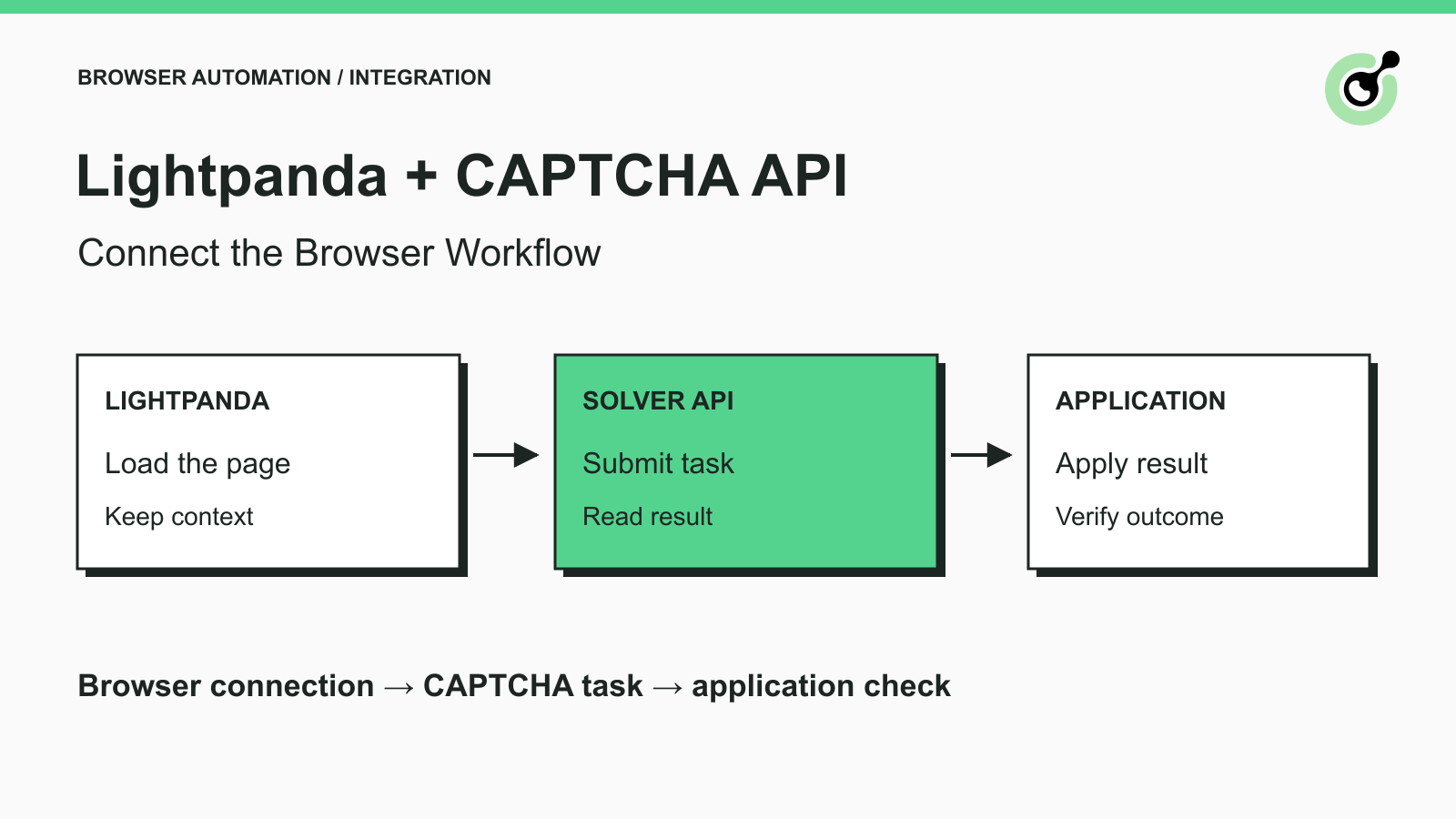
Lightpanda is a headless browser built for automation, crawling, testing, and browser agents. Developers control it through interfaces such as the Chrome DevTools Protocol, commonly using Puppeteer. It can execute page JavaScript and inspect the DOM, which makes it useful when an HTTP response alone does not contain the information a workflow needs.
A CAPTCHA is a separate step. Loading a page through Lightpanda does not mean its verification challenge has been completed. CapSolver can provide the documented solver API for a supported CAPTCHA, while your application remains responsible for page state and the final result.
This guide connects those responsibilities without assuming that every CAPTCHA page behaves like Chromium. The runnable example verifies the browser connection. The solver request and application acceptance require your own credentials and an authorized challenge.
A Lightpanda CAPTCHA integration needs one connection to the browser and another from the application backend to the solver API.
The Lightpanda repository shows Puppeteer connecting to a CDP endpoint. Browser navigation, page inspection, and application callbacks stay on that side of the workflow. The CapSolver task API receives the task-specific inputs and returns a task response.
Do not point a solver API request at the CDP port. Do not send a browser WebSocket URL as websiteURL, either. One address controls a browser process; the other identifies the webpage that loads the CAPTCHA.
An API contract also sets the boundary of what the integration knows. A solver result is not a command that automatically resumes every browser. The application must use the returned fields in the way its page expects.
Install Lightpanda and Puppeteer in an isolated project folder before adding paid solver requests.
The connection example uses Lightpanda 1.0.2, Puppeteer Core 25.16.0, and Node.js 24. Install the Node dependency with npm install --save-exact puppeteer-core@25.16.0. Download the binary for your operating system and processor from the official 1.0.2 release, make it executable, and confirm the version with ./lightpanda version.
Start the local CDP server with ./lightpanda serve --host 127.0.0.1 --port 9227. Keep that terminal running while the client connects. The port in the following example must match the server port. Use a local binding for this development setup.
Prepare a permitted test page before proceeding. The initial connection check can use a simple page you own; a later CAPTCHA test needs a page with the actual challenge and an application-side way to observe acceptance. Also prepare a valid CapSolver API key and balance before creating a paid solver task.
No paid solve is demonstrated in this guide. The verified browser steps and an API authentication response establish their respective connection surfaces; they do not establish successful CAPTCHA solving or compatibility with a particular external website.
Set AUTHORIZED_TEST_URL to your test page, save the following as lightpanda-connect.mjs, and run node lightpanda-connect.mjs.
The example adapts Lightpanda's official Puppeteer connection pattern. It creates a browser context, loads the permitted page, reads its title and final URL, and cleans up the context and client connection.
import puppeteer from 'puppeteer-core';

const target = process.env.AUTHORIZED_TEST_URL;
if (!target) throw new Error('Set AUTHORIZED_TEST_URL to your permitted test page');
const browser = await puppeteer.connect({
  browserWSEndpoint: 'ws://127.0.0.1:9227',
});
try {
  const context = await browser.createBrowserContext();
  try {
    const page = await context.newPage();
    await page.goto(target, { waitUntil: 'domcontentloaded' });
    console.log({ title: await page.title(), url: page.url() });
  } finally {
    await context.close();
  }
} finally {
  await browser.disconnect();
}
The output should identify the page that was actually loaded. If it reports an error page, redirect, or unrelated document, fix that before constructing a CAPTCHA request. Successful JavaScript evaluation on a simple test page is a useful starting point, but it does not show that all of a real widget's browser APIs are supported.
Puppeteer's connect reference describes attachment to an existing browser. This is why the example uses connect instead of launching a separate Chromium process: the process under test must remain Lightpanda.
Construct the solver task from the actual challenge loaded by the browser, keeping its inputs associated with that page.
For standard reCAPTCHA v2, start from the official v2 task reference. A proxyless request uses ReCaptchaV2TaskProxyLess, websiteURL, and websiteKey. Other observed parameters belong in their documented fields; do not infer them from the visible checkbox alone.
The following JSON illustrates that request shape. It contains placeholders and is not a live challenge or an executed paid request. Replace the values from your own permitted page, and use the official API or SDK example linked above to send it.
{
  "clientKey": "YOUR_API_KEY",
  "task": {
    "type": "ReCaptchaV2TaskProxyLess",
    "websiteURL": "https://example.com/authorized-form",
    "websiteKey": "PUBLIC_SITE_KEY_FROM_THIS_PAGE"
  }
}
Keep clientKey in the backend process. It is not a browser-side site key and should not be inserted into the page. websiteURL should describe the webpage loading the CAPTCHA, rather than the CAPTCHA iframe URL or the Lightpanda control endpoint.
If you do not know the version or additional parameters, use the documented CAPTCHA parameter detection workflow while inspecting the permitted page. That is a preparation step; it does not mean a Chrome extension can be loaded into Lightpanda.
Redeem Your CapSolver Bonus Code
Boost your automation budget instantly!
Use bonus code CAP26 when topping up your CapSolver account to get an extra 5% bonus on every recharge — with no limits.
Redeem it now in your CapSolver Dashboard
Keep the Lightpanda page and its application state alive while the task API finishes.
For an asynchronous response, retain the task ID returned by createTask and use getTaskResult for that task. Inspect API errors and the processing state before reading the solution. The v2 result's documented response-token field is gRecaptchaResponse.
Do not create a new browser context merely because the solver request has completed. A new context is a different page environment, and your application may have state that belongs to the original operation. Likewise, do not reuse a result for another pending page because that page happens to show the same kind of widget.
The connection-only script above closes the context deliberately. When integrating solver execution into a real application, place the solver operation and page-specific continuation inside the context's lifetime, before that cleanup runs. Preserve the cleanup on error as well as success.
Apply the result through the callback or submission path defined by your own application. There is no universal callback name that works across every page. Do not paste a guessed function into an integration and assume the form has accepted the value.
A minimal browser-side adapter can first be checked on an owned fixture with an inert string: verify that the intended callback receives that string and the relevant field changes. That validates only the adapter. It must not submit the inert string as if it were a valid CAPTCHA response.
Google's reCAPTCHA response verification guide explains the separate application-side verification step. After a genuine solver result is handed back, check the application's result for the same attempt. A populated field or a completed callback alone is insufficient evidence.
Separate browser loading, solver execution, and application acceptance so that retries address the actual problem.
Confirm that the Lightpanda process is still running and that the host and port match. Check the pinned client and browser versions before assuming that a working Chromium script is compatible with the current Lightpanda build.
Inspect page script errors and the widget's network requests. A solver API cannot repair a browser engine feature that the page requires. Prove that the authorized page loads the expected challenge before proceeding with a paid task.
Read the documented error response and check the key, task type, URL, site key, and conditional fields. An authentication error establishes that the API answered; it does not establish a successful solver integration. Do not repeatedly submit the same invalid input.
Check the page ownership, token handoff, callback behavior, and server-side verification. Record the task ID and redacted failure reason. Avoid logging API keys or raw response tokens in shared build output.
Treat the fixture as an adapter test. Run the actual permitted CAPTCHA flow before relying on the integration. Browser behavior, widget scripts, and application validation are additional conditions, and none follows automatically from a successful CDP handshake.
Lightpanda plus an external solver API is relevant when a crawler already uses Lightpanda, encounters a supported CAPTCHA during an authorized task, and has a verified way to continue the same page. It is not a reason to add a solver to pages without CAPTCHAs or to claim universal browser compatibility.
Begin with the real browser connection, verify the task schema, and test one permitted application flow before adding concurrency. Keep each result associated with its requesting page and measure the application's actual outcome.
Use the solver at a verified CAPTCHA checkpoint, then confirm the application outcome. CapSolver provides the documented solver interface for that step. Try CapSolver with a permitted test workflow before extending the integration.
Q: Does this install a CAPTCHA solver inside Lightpanda?
No. The application communicates with Lightpanda through CDP and calls the external solver API separately. It must then apply the result through the authorized application's expected flow.
Q: Can I load the CapSolver Chrome extension into this browser?
This tutorial does not establish Chrome-extension support in Lightpanda. It uses the external task API. Parameter inspection in a supported Chrome environment is a separate preparation step.
Q: Does Puppeteer connect prove that reCAPTCHA works in Lightpanda?
No. It proves the client can connect and run the demonstrated browser operations. The actual CAPTCHA scripts and application acceptance need their own test.
Q: Which reCAPTCHA type does the JSON example use?
It illustrates standard reCAPTCHA v2 with ReCaptchaV2TaskProxyLess. Enterprise, v3, and other challenge families need their own documented task types and inputs.
Q: Has a paid CAPTCHA solve been completed by the sample code?
No. The executable sample checks the browser connection, while the JSON explains the task shape with placeholders. A valid solver account and an authorized live challenge are required to test solving and final acceptance.
Rajinder Singh
Deep Learning Researcher
Making CAPTCHA solving more reliable in automated workflows.
ABOUT THE AUTHOR
Learn scalable Rust web scraping architecture with reqwest, scraper, async scraping, headless browser scraping, proxy rotation, and compliant CAPTCHA handling.

Learn the best techniques to scrape job listings without getting blocked. Master Indeed scraping, Google Jobs API, and web scraping API with CapSolver.