How to Solve reCAPTCHA v2/v3 Using CapSolver and n8n

Lucas Mitchell
Automation Engineer
If you've ever tried to automate web interactions, you've almost certainly run into reCAPTCHA — Google's challenge system that blocks bots from accessing websites. Whether you're building scrapers, testing web applications, or automating repetitive tasks, reCAPTCHA can bring your entire workflow to a halt.
What if you could solve reCAPTCHA automatically inside your n8n workflows — whether you're building a reusable solver API, scraping a captcha-protected site, or automating a login form — all without writing a single line of traditional code?
In this guide, you'll learn how to combine n8n (a visual workflow automation tool) with CapSolver (an AI-powered captcha solving service) to solve reCAPTCHA v2, v2 Invisible, and v3 challenges on demand — either as a standalone API endpoint or as a step inside any automation workflow.
What you'll build:
Solver API — a reusable endpoint your other tools can call:
- A reCAPTCHA solver API (works for v2, v2 Invisible, and v3 — just change the Operation in the CapSolver node)
Direct-use workflows — CapSolver embedded as a step inside larger automations:
- A price & product scraper that solves reCAPTCHA, fetches protected pages, and alerts on price changes
- An account login automation that solves reCAPTCHA before submitting credentials
What is reCAPTCHA?
reCAPTCHA is Google's bot detection system used by millions of websites. There are three main versions you'll encounter:
reCAPTCHA v2 — Checkbox ("I'm not a robot") + image challenges
reCAPTCHA v2 Invisible — No visible checkbox, triggers automatically in the background
reCAPTCHA v3 — Completely invisible, assigns a score (0.0–1.0) based on behavior
Understanding which version a website uses is critical — each one requires slightly different parameters when solving.
Prerequisites
Before getting started, make sure you have the following:
- An n8n instance — Either self-hosted or n8n Cloud
- A CapSolver account — Sign up here and get your API key
- The CapSolver n8n node — Already available as an official node in n8n (no installation needed)
- CapSolver browser extension (optional but recommended) — For identifying captcha parameters on target websites
Important: Make sure you have sufficient balance in your CapSolver account. reCAPTCHA solving tasks consume credits based on the captcha type.
Setting Up CapSolver in n8n
CapSolver is available as an official integration in n8n — no community node installation required. You can find it directly in the node panel when building your workflows.
Since it's an official integration, you need to create a credential in n8n so that the CapSolver node can authenticate with your account.
Step 1: Open the Credentials Page
Go to your n8n instance and navigate to Settings → Credentials. You'll see all your configured credentials here.

Step 2: Create the CapSolver Credential
- Click Create credential (top right)
- Search for "CapSolver" and select CapSolver API
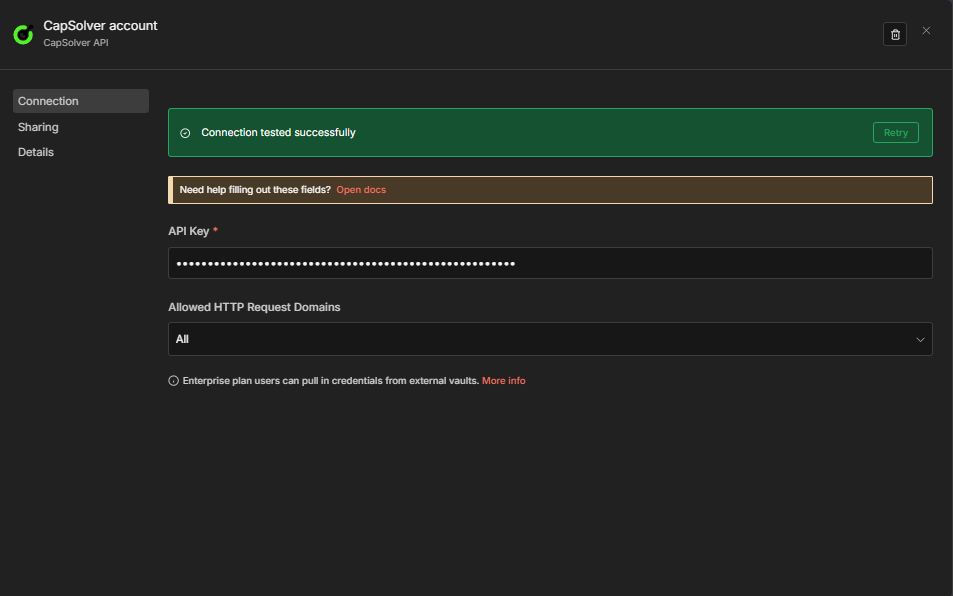
- Enter your API Key — copy it directly from the CapSolver Dashboard
- Leave Allowed HTTP Request Domains set to
All(default) - Click Save
n8n will automatically test the connection. You should see a green "Connection tested successfully" banner confirming your API key is valid.
Important: Every CapSolver node in your workflows will reference this credential. You only need to create it once — all your solver workflows will share the same credential.
Now you're ready to build your reCAPTCHA solver workflow!
How to Identify reCAPTCHA Parameters
Before you can solve a reCAPTCHA, you need to know its parameters — specifically the websiteURL and websiteKey (also called the site key). The easiest way to find these is using the CapSolver Browser Extension.
Step 1: Install the CapSolver Extension
Download and install the CapSolver extension from the Chrome Web Store or Firefox Add-ons.
Step 2: Open the CAPTCHA Detector
- Navigate to the target website
- Press F12 to open Developer Tools
- Find the "CapSolver Captcha Detector" tab in DevTools

Step 3: Trigger the CAPTCHA
With the detector panel open, interact with the page to trigger the reCAPTCHA. The extension will automatically detect and display all relevant parameters:
- Website URL — The page URL hosting the CAPTCHA
- Website Key (Site Key) — The public key identifier for the captcha
- pageAction — The specific action being verified (v3)
- isInvisible — Whether it's an invisible reCAPTCHA
- isEnterprise — Whether it uses reCAPTCHA Enterprise
- apiDomain — The API endpoint being used (e.g.,
recaptcha.net)

Tip: The extension generates a JSON output showing exactly how to format these parameters for your solving request. This saves you from having to manually inspect the page source.
For a detailed guide on identifying captcha parameters, check out the official CapSolver documentation.
Workflow: reCAPTCHA Solver API
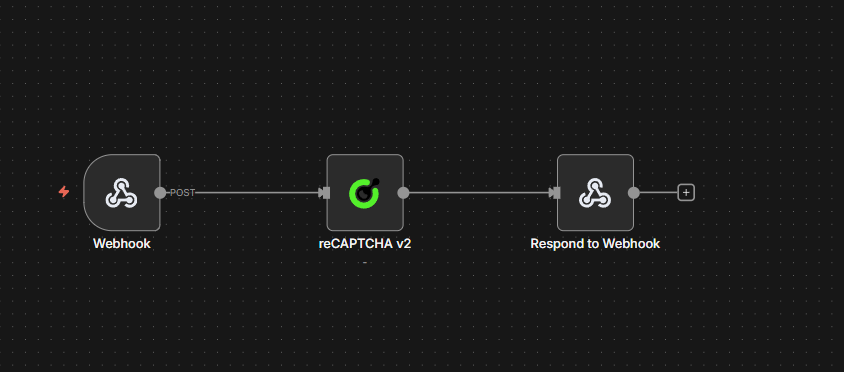
This workflow creates a POST endpoint that accepts reCAPTCHA parameters and returns a solved token. The same 4-node structure works for all reCAPTCHA types — just change the Operation in the CapSolver node.
How It Works
- Webhook — Receives POST requests with captcha parameters
- CapSolver — Solves the challenge using the configured Operation
- CapSolver Error? — IF node that branches on whether solving failed (
$json.erroris not empty) - Respond to Webhook — Returns the solution on success, or
{"error": "..."}on failure
Choosing Your reCAPTCHA Type
| Type | Operation to select | Extra parameter |
|---|---|---|
| v2 Standard | reCAPTCHA v2 |
— |
| v2 Invisible | reCAPTCHA v2 |
Set Is Invisible to true in the node |
| v3 | reCAPTCHA v3 |
Add pageAction — must match the target site's configured action (e.g., login, submit) |
The workflow below uses reCAPTCHA v2 as the default. Open the CapSolver node and change the Operation dropdown to switch types. No other structural changes are needed.
Node Configuration
1. Webhook Node
| Setting | Value |
|---|---|
| HTTP Method | POST |
| Path | solver-recaptcha |
| Respond | Response Node |
This creates an endpoint at: https://your-n8n-instance.com/webhook/solver-recaptcha
2. CapSolver Node
| Parameter | Value | Description |
|---|---|---|
| Operation | reCAPTCHA v2 |
Change this to reCAPTCHA v3 for v3; for v2 Invisible, keep reCAPTCHA v2 and set Is Invisible to true |
| Website URL | ={{ $json.body.websiteURL }} |
The URL of the page with the captcha |
| Website Key | ={{ $json.body.websiteKey }} |
The reCAPTCHA site key |
| Page Action | ={{ $json.body.pageAction || '' }} |
Required for v3 — must match the site's configured action |
| Is Invisible | ={{ $json.body.isInvisible || false }} |
Set to true for v2 Invisible |
| API Domain | ={{ $json.body.apiDomain || '' }} |
Optional — custom API domain (e.g., recaptcha.net) |
| Enterprise Payload | ={{ $json.body.enterprisePayload || '' }} |
Optional — additional payload for reCAPTCHA Enterprise |
| Is Session | ={{ $json.body.isSession || false }} |
Optional — enable session-based solving |
| Task Type | ={{ $json.body.taskType || 'ReCaptchaV2TaskProxyLess' }} |
CapSolver task type — see reference below. Defaults to ReCaptchaV2TaskProxyLess |
| Proxy | ={{ $json.body.proxy || '' }} |
Only used when the selected Task Type requires a proxy (non-ProxyLess types). Leave empty or omit for ProxyLess task types. Format: ip:port:user:pass |
Also select your CapSolver credentials in the node.
reCAPTCHA Task Type Reference:
| Task Type | Proxy Required | Notes |
|---|---|---|
ReCaptchaV2TaskProxyLess |
No | v2 default |
ReCaptchaV2Task |
Yes | v2 with proxy |
ReCaptchaV2EnterpriseTaskProxyLess |
No | Enterprise v2, no proxy |
ReCaptchaV2EnterpriseTask |
Yes | Enterprise v2, requires proxy |
ReCaptchaV3TaskProxyLess |
No | v3 default |
ReCaptchaV3Task |
Yes | v3 with proxy |
ReCaptchaV3EnterpriseTaskProxyLess |
No | Enterprise v3, no proxy |
ReCaptchaV3EnterpriseTask |
Yes | Enterprise v3, requires proxy |
Proxy: Only applicable for non-
ProxyLesstask types (e.g.,ReCaptchaV2Task,ReCaptchaV3EnterpriseTask). When using aProxyLesstask type, the proxy field is ignored — CapSolver uses its own infrastructure. When using a non-ProxyLesstype, you must supply a proxy.
3. CapSolver Error? Node (IF)
| Setting | Value |
|---|---|
| Condition | ={{ $json.error }} is not empty |
| True branch | Routes to the Error Respond to Webhook node |
| False branch | Routes to the Success Respond to Webhook node |
This makes the error path explicit on the canvas. The CapSolver node continues on error (onError: continueRegularOutput), so failures arrive here as { "error": "..." } rather than crashing the workflow. You can attach additional nodes to the true branch (logging, alerts, retries) without touching the success path.
4. Respond to Webhook Nodes
Success branch (false output of CapSolver Error?):
| Setting | Value |
|---|---|
| Respond With | JSON |
| Response Body | ={{ JSON.stringify($json.data) }} |
Test It
Send a POST request to your webhook endpoint:
bash
curl -X POST https://your-n8n-instance.com/webhook/solver-recaptcha \
  -H "Content-Type: application/json" \
  -d '{
    "websiteURL": "https://example.com/login",
    "websiteKey": "6Le-wvkSAAAAAPBMRTvw0Q4Muexq9bi0DJwx_mJ-",
    "taskType": "ReCaptchaV2TaskProxyLess"
  }'
Task type must match the node's Operation. Each deployed workflow is configured for a specific reCAPTCHA version via the Operation field in the CapSolver node (
reCAPTCHA v2orreCAPTCHA v3). Only task types for that version are valid — sending a v3 task type to a v2 workflow (or vice versa) will not work. Note: v2 Invisible uses the samereCAPTCHA v2operation as standard v2 — the difference is theisInvisibleparameter, not the operation.
For reCAPTCHA v3, also add "pageAction": "login" (or whatever action the site uses) to the request body, and use a v3 task type (e.g., "taskType": "ReCaptchaV3TaskProxyLess").
Expected Response:
json
{
  "taskId": "abc123...",
  "solution": {
    "gRecaptchaResponse": "03AGdBq24PBCb..."
  },
  "status": "ready"
}
Import This Workflow
Copy the JSON below and import it into n8n via Menu → Import from JSON. Then change the Operation in the CapSolver node to your target reCAPTCHA type.
Click to expand workflow JSON (reCAPTCHA v2 — change Operation for other types)
json
{
  "nodes": [
    {
      "parameters": {
        "content": "## reCAPTCHA Solver API\n\n### How it works\n\n1. A webhook receives the reCAPTCHA solver request.\n2. The request is passed to the solver node to resolve the reCAPTCHA.\n3. The system checks if the solver encountered an error.\n4. If an error occurred, a response is sent indicating the failure.\n5. If successful, a response is sent with the result.\n\n### Setup steps\n\n- [ ] Configure webhook endpoint to receive solver requests.\n- [ ] Set up CapSolver credentials if necessary.\n\n### Customization\n\nAdjust the solver node settings depending on reCAPTCHA type or difficulty.",
        "width": 480,
        "height": 592
      },
      "type": "n8n-nodes-base.stickyNote",
      "typeVersion": 1,
      "position": [
        -800,
        -240
      ],
      "id": "497d295f-4668-48ff-8eaa-97773cfd1c89",
      "name": "Sticky Note"
    },
    {
      "parameters": {
        "content": "## Receive request and solve\n\nHandles incoming requests and solves reCAPTCHA.",
        "width": 496,
        "height": 272,
        "color": 7
      },
      "type": "n8n-nodes-base.stickyNote",
      "typeVersion": 1,
      "position": [
        -240,
        -112
      ],
      "id": "cb4b7a54-ae67-458e-bbef-18e3f6d242bb",
      "name": "Sticky Note1"
    },
    {
      "parameters": {
        "content": "## Evaluate and respond\n\nChecks for errors and sends appropriate webhook responses.",
        "width": 560,
        "height": 432,
        "color": 7
      },
      "type": "n8n-nodes-base.stickyNote",
      "typeVersion": 1,
      "position": [
        464,
        -240
      ],
      "id": "fc9430f0-b899-45ce-b5cf-de9a1b10fbe2",
      "name": "Sticky Note2"
    },
    {
      "parameters": {
        "httpMethod": "POST",
        "path": "solver-recaptcha",
        "responseMode": "responseNode",
        "options": {}
      },
      "id": "rc-api-001",
      "name": "Receive Solver Request",
      "type": "n8n-nodes-base.webhook",
      "typeVersion": 2,
      "position": [
        -192,
        0
      ],
      "webhookId": "solver-recaptcha"
    },
    {
      "parameters": {
        "websiteURL": "={{ $json.body.websiteURL }}",
        "websiteKey": "={{ $json.body.websiteKey }}",
        "optional": {}
      },
      "id": "rc-api-002",
      "name": "Solve reCAPTCHA",
      "type": "n8n-nodes-capsolver.capSolver",
      "typeVersion": 1,
      "position": [
        112,
        0
      ],
      "credentials": {
        "capSolverApi": {
          "id": "BeBFMAsySMsMGeE9",
          "name": "CapSolver account"
        }
      },
      "continueOnFail": true
    },
    {
      "parameters": {
        "conditions": {
          "options": {
            "version": 2,
            "caseSensitive": true,
            "leftValue": "",
            "typeValidation": "strict"
          },
          "combinator": "and",
          "conditions": [
            {
              "id": "1",
              "operator": {
                "type": "string",
                "operation": "isNotEmpty",
                "singleValue": true
              },
              "leftValue": "={{ $json.error }}",
              "rightValue": ""
            }
          ]
        },
        "options": {}
      },
      "id": "rc-api-003",
      "name": "CapSolver Error?",
      "type": "n8n-nodes-base.if",
      "typeVersion": 2.2,
      "position": [
        512,
        -32
      ]
    },
    {
      "parameters": {
        "respondWith": "json",
        "responseBody": "={{ JSON.stringify({ error: $json.error }) }}",
        "options": {}
      },
      "id": "rc-api-004",
      "name": "Respond to Webhook (Error)",
      "type": "n8n-nodes-base.respondToWebhook",
      "typeVersion": 1.1,
      "position": [
        880,
        -128
      ]
    },
    {
      "parameters": {
        "respondWith": "json",
        "responseBody": "={{ JSON.stringify($json.data) }}",
        "options": {}
      },
      "id": "rc-api-005",
      "name": "Respond to Webhook",
      "type": "n8n-nodes-base.respondToWebhook",
      "typeVersion": 1.1,
      "position": [
        880,
        32
      ]
    }
  ],
  "connections": {
    "Receive Solver Request": {
      "main": [
        [
          {
            "node": "Solve reCAPTCHA",
            "type": "main",
            "index": 0
          }
        ]
      ]
    },
    "Solve reCAPTCHA": {
      "main": [
        [
          {
            "node": "CapSolver Error?",
            "type": "main",
            "index": 0
          }
        ]
      ]
    },
    "CapSolver Error?": {
      "main": [
        [
          {
            "node": "Respond to Webhook (Error)",
            "type": "main",
            "index": 0
          }
        ],
        [
          {
            "node": "Respond to Webhook",
            "type": "main",
            "index": 0
          }
        ]
      ]
    }
  },
  "pinData": {},
  "meta": {
    "instanceId": "962ff0267b713be0344b866fa54daae28de8ed2144e2e6867da355dae193ea1f"
  }
}Workflow: Submitting Tokens to Websites
So far, the API workflows above show how to get a solved captcha token. But what do you actually do with it?
In real-world automation, solving the captcha is only half the job. You need to submit the token to the target website — exactly as a browser would — to unlock the data or action behind the captcha.
Here's the general pattern:
- Solve the captcha → Get the
gRecaptchaResponsetoken from CapSolver - Submit the token → Send it to the target website via an HTTP Request (usually as a
g-recaptcha-responseform field or URL parameter) - Verify the response → Check if the website accepted the token and returned the expected data
- Process the result → Extract the data you need
Example: Solving & Submitting reCAPTCHA v2
Example: example.com
Workflow Flow
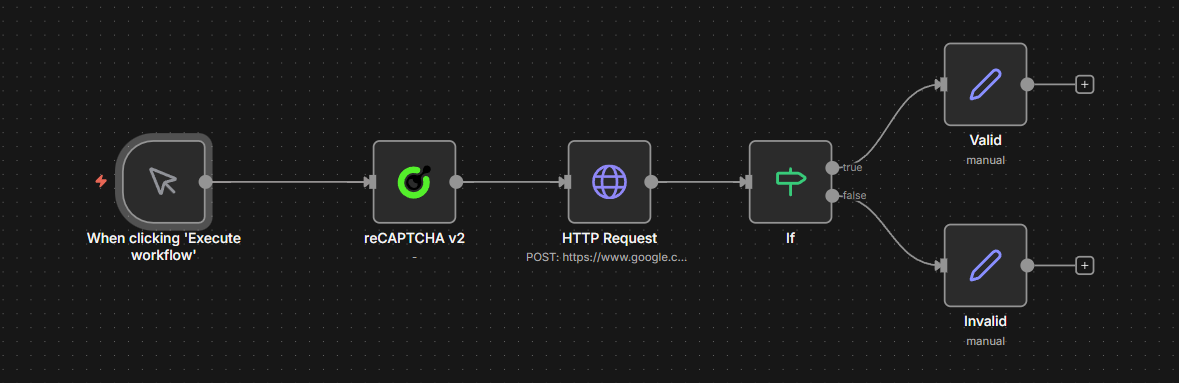
Manual Trigger → CapSolver reCAPTCHA v2 → HTTP POST Request → IF (check success) → Valid / InvalidHow It Works
- Manual Trigger — Starts the workflow manually (click "Execute workflow"). You can replace this with any trigger — Webhook, Schedule, App Event, etc.
- CapSolver reCAPTCHA v2 — Solves the captcha for the demo page:
- Website URL:
https://example.com - Website Key:
YOUR_SITE_KEY
- Website URL:
- HTTP POST Request — Submits the solved token to the same URL as a form POST:
- The token is sent in the
g-recaptcha-responseform field - This is exactly what a browser does when you click "Submit" after solving the captcha
- The token is sent in the
- IF Node — Checks if the response HTML contains
"recaptcha-success", meaning the captcha was accepted - Valid / Invalid — The IF node routes to the Valid branch on success (where you extract the data you need, e.g., with the HTML node for product listings, form results, etc.) or the Invalid branch on failure (where you handle the error)
Key concept: Every website handles token submission differently. In this demo, the token goes in a
g-recaptcha-responseform field via POST — but other sites may expect it as a URL parameter, in a JSON body, or through a completely different endpoint. Always inspect the site's actual form submission (using DevTools Network tab) to see exactly how the token needs to be sent.
Click to expand workflow JSON
json
{
  "nodes": [
    {
      "parameters": {
        "content": "## reCAPTCHA v2 \u2014 All Triggers\n\n### How it works\n\n1. Receives solver requests through a webhook.\n2. Processes these requests using CapSolver and returns the results.\n3. Regularly triggers checks every hour using a schedule.\n4. Executes the scheduled process and checks the status of tasks.\n5. Allows manual testing of CapSolver through a manual trigger.\n\n### Setup steps\n\n- [ ] Set up webhook credentials for 'Receive Solver Request'.\n- [ ] Configure CapSolver with necessary keys for all CapSolver nodes.\n- [ ] Assign necessary permissions for HTTP request to reCAPTCHA endpoint.\n- [ ] Review and adjust the schedule in 'Schedule Trigger'.\n- [ ] Test manual execution with 'Manual Trigger'.\n",
        "width": 480,
        "height": 896
      },
      "type": "n8n-nodes-base.stickyNote",
      "typeVersion": 1,
      "position": [
        -816,
        -128
      ],
      "id": "68e8c344-ce45-4e9f-859b-ca005db7c73e",
      "name": "Sticky Note"
    },
    {
      "parameters": {
        "content": "## Receive and handle requests\n\nStarts with receiving a solver request via webhook, processes it, and returns the solver result.",
        "width": 800,
        "height": 304,
        "color": 7
      },
      "type": "n8n-nodes-base.stickyNote",
      "typeVersion": 1,
      "position": [
        -256,
        -128
      ],
      "id": "c26741c7-e0e6-4a4e-9fbf-2a623df014c8",
      "name": "Sticky Note1"
    },
    {
      "parameters": {
        "content": "## Scheduled recurrent process\n\nInitiates the process on an hourly schedule, sets target parameters, and sends them to CapSolver.",
        "width": 800,
        "height": 304,
        "color": 7
      },
      "type": "n8n-nodes-base.stickyNote",
      "typeVersion": 1,
      "position": [
        -256,
        224
      ],
      "id": "4b879cbf-e269-4260-9596-740b95df628a",
      "name": "Sticky Note2"
    },
    {
      "parameters": {
        "content": "## Process and validate token\n\nPosts to the reCAPTCHA validation endpoint and checks results, branching into pass or fail paths.",
        "width": 736,
        "height": 464,
        "color": 7
      },
      "type": "n8n-nodes-base.stickyNote",
      "typeVersion": 1,
      "position": [
        656,
        96
      ],
      "id": "7c860b53-f4a7-4d0b-8537-5253eec5a043",
      "name": "Sticky Note3"
    },
    {
      "parameters": {
        "content": "## Manual testing process\n\nAllows manual trigger testing with CapSolver and formats the result for review.",
        "width": 800,
        "height": 272,
        "color": 7
      },
      "type": "n8n-nodes-base.stickyNote",
      "typeVersion": 1,
      "position": [
        -256,
        576
      ],
      "id": "8936a2df-c5b5-4c63-a0d5-afd190553a57",
      "name": "Sticky Note4"
    },
    {
      "parameters": {
        "httpMethod": "POST",
        "path": "solve-recaptcha-v2",
        "responseMode": "responseNode",
        "options": {}
      },
      "type": "n8n-nodes-base.webhook",
      "typeVersion": 2.1,
      "position": [
        -208,
        0
      ],
      "id": "11111111-1111-1111-1111-111111111101",
      "name": "Receive Solver Request",
      "webhookId": "a1b2c3d4-e5f6-7890-abcd-ef1234567801",
      "onError": "continueRegularOutput"
    },
    {
      "parameters": {
        "type": "={{ $json.body.taskType || 'ReCaptchaV2TaskProxyLess' }}",
        "proxy": "={{ $json.body.proxy || '' }}",
        "websiteURL": "={{ $json.body.websiteURL }}",
        "websiteKey": "={{ $json.body.websiteKey }}",
        "optional": {
          "pageAction": "={{ $json.body.pageAction || '' }}",
          "isInvisible": "={{ $json.body.isInvisible || false }}",
          "apiDomain": "={{ $json.body.apiDomain || '' }}",
          "enterprisePayload": "={{ $json.body.enterprisePayload || '' }}",
          "isSession": "={{ $json.body.isSession || false }}"
        }
      },
      "type": "n8n-nodes-capsolver.capSolver",
      "typeVersion": 1,
      "position": [
        112,
        0
      ],
      "id": "11111111-1111-1111-1111-111111111102",
      "name": "CapSolver [Webhook]",
      "credentials": {
        "capSolverApi": {
          "id": "BeBFMAsySMsMGeE9",
          "name": "CapSolver account"
        }
      }
    },
    {
      "parameters": {
        "respondWith": "json",
        "responseBody": "={{ JSON.stringify($json.data) }}",
        "options": {}
      },
      "type": "n8n-nodes-base.respondToWebhook",
      "typeVersion": 1.5,
      "position": [
        400,
        0
      ],
      "id": "11111111-1111-1111-1111-111111111103",
      "name": "Return Solver Result"
    },
    {
      "parameters": {
        "rule": {
          "interval": [
            {
              "field": "hours",
              "hoursInterval": 1
            }
          ]
        }
      },
      "type": "n8n-nodes-base.scheduleTrigger",
      "typeVersion": 1.3,
      "position": [
        -208,
        352
      ],
      "id": "11111111-1111-1111-1111-111111111104",
      "name": "Schedule Trigger (Every 1h)"
    },
    {
      "parameters": {
        "assignments": {
          "assignments": [
            {
              "id": "sa-001",
              "name": "websiteURL",
              "value": "https://www.google.com/recaptcha/api2/demo",
              "type": "string"
            },
            {
              "id": "sa-002",
              "name": "websiteKey",
              "value": "6Le-wvkSAAAAAPBMRTvw0Q4Muexq9bi0DJwx_mJ-",
              "type": "string"
            }
          ]
        },
        "options": {}
      },
      "type": "n8n-nodes-base.set",
      "typeVersion": 3.4,
      "position": [
        112,
        352
      ],
      "id": "11111111-1111-1111-1111-111111111105",
      "name": "Set Target Params"
    },
    {
      "parameters": {
        "websiteURL": "={{ $json.websiteURL }}",
        "websiteKey": "={{ $json.websiteKey }}",
        "optional": {}
      },
      "type": "n8n-nodes-capsolver.capSolver",
      "typeVersion": 1,
      "position": [
        400,
        352
      ],
      "id": "11111111-1111-1111-1111-111111111106",
      "name": "CapSolver [Schedule]",
      "credentials": {
        "capSolverApi": {
          "id": "BeBFMAsySMsMGeE9",
          "name": "CapSolver account"
        }
      }
    },
    {
      "parameters": {
        "method": "POST",
        "url": "https://www.google.com/recaptcha/api2/demo",
        "sendHeaders": true,
        "headerParameters": {
          "parameters": [
            {
              "name": "content-type",
              "value": "application/x-www-form-urlencoded"
            },
            {
              "name": "user-agent",
              "value": "Mozilla/5.0 (Windows NT 10.0; Win64; x64) AppleWebKit/537.36 (KHTML, like Gecko) Chrome/125.0.0.0 Safari/537.36"
            }
          ]
        },
        "sendBody": true,
        "contentType": "form-urlencoded",
        "bodyParameters": {
          "parameters": [
            {
              "name": "g-recaptcha-response",
              "value": "={{ $json.data.solution.gRecaptchaResponse }}"
            }
          ]
        },
        "options": {}
      },
      "type": "n8n-nodes-base.httpRequest",
      "typeVersion": 4.3,
      "position": [
        704,
        352
      ],
      "id": "11111111-1111-1111-1111-111111111107",
      "name": "Submit Token"
    },
    {
      "parameters": {
        "conditions": {
          "options": {
            "caseSensitive": true,
            "leftValue": "",
            "typeValidation": "strict",
            "version": 2
          },
          "conditions": [
            {
              "id": "if-001",
              "leftValue": "={{ $json.data }}",
              "rightValue": "recaptcha-success",
              "operator": {
                "type": "string",
                "operation": "contains"
              }
            }
          ],
          "combinator": "and"
        },
        "options": {}
      },
      "type": "n8n-nodes-base.if",
      "typeVersion": 2.3,
      "position": [
        1008,
        352
      ],
      "id": "11111111-1111-1111-1111-111111111108",
      "name": "Check Result"
    },
    {
      "parameters": {
        "assignments": {
          "assignments": [
            {
              "id": "sp-001",
              "name": "status",
              "value": "passed",
              "type": "string"
            },
            {
              "id": "sp-002",
              "name": "message",
              "value": "reCAPTCHA v2 monitor passed successfully",
              "type": "string"
            },
            {
              "id": "sp-003",
              "name": "timestamp",
              "value": "={{ new Date().toISOString() }}",
              "type": "string"
            }
          ]
        },
        "options": {}
      },
      "type": "n8n-nodes-base.set",
      "typeVersion": 3.4,
      "position": [
        1248,
        224
      ],
      "id": "11111111-1111-1111-1111-111111111109",
      "name": "Monitor Passed"
    },
    {
      "parameters": {
        "assignments": {
          "assignments": [
            {
              "id": "sf-001",
              "name": "status",
              "value": "failed",
              "type": "string"
            },
            {
              "id": "sf-002",
              "name": "message",
              "value": "reCAPTCHA v2 monitor FAILED \u2014 token rejected",
              "type": "string"
            },
            {
              "id": "sf-003",
              "name": "timestamp",
              "value": "={{ new Date().toISOString() }}",
              "type": "string"
            }
          ]
        },
        "options": {}
      },
      "type": "n8n-nodes-base.set",
      "typeVersion": 3.4,
      "position": [
        1248,
        384
      ],
      "id": "11111111-1111-1111-1111-111111111110",
      "name": "Monitor Failed"
    },
    {
      "parameters": {},
      "type": "n8n-nodes-base.manualTrigger",
      "typeVersion": 1,
      "position": [
        -208,
        688
      ],
      "id": "11111111-1111-1111-1111-111111111111",
      "name": "Manual Trigger (Test)"
    },
    {
      "parameters": {
        "websiteURL": "https://www.google.com/recaptcha/api2/demo",
        "websiteKey": "6Le-wvkSAAAAAPBMRTvw0Q4Muexq9bi0DJwx_mJ-",
        "optional": {}
      },
      "type": "n8n-nodes-capsolver.capSolver",
      "typeVersion": 1,
      "position": [
        112,
        688
      ],
      "id": "11111111-1111-1111-1111-111111111112",
      "name": "CapSolver [Manual]",
      "credentials": {
        "capSolverApi": {
          "id": "BeBFMAsySMsMGeE9",
          "name": "CapSolver account"
        }
      }
    },
    {
      "parameters": {
        "assignments": {
          "assignments": [
            {
              "id": "mr-001",
              "name": "token",
              "value": "={{ $json.data.solution.gRecaptchaResponse }}",
              "type": "string"
            },
            {
              "id": "mr-002",
              "name": "taskId",
              "value": "={{ $json.data.taskId }}",
              "type": "string"
            },
            {
              "id": "mr-003",
              "name": "status",
              "value": "solved",
              "type": "string"
            },
            {
              "id": "mr-004",
              "name": "solvedAt",
              "value": "={{ new Date().toISOString() }}",
              "type": "string"
            }
          ]
        },
        "options": {}
      },
      "type": "n8n-nodes-base.set",
      "typeVersion": 3.4,
      "position": [
        400,
        688
      ],
      "id": "11111111-1111-1111-1111-111111111113",
      "name": "Format Result"
    }
  ],
  "connections": {
    "Receive Solver Request": {
      "main": [
        [
          {
            "node": "CapSolver [Webhook]",
            "type": "main",
            "index": 0
          }
        ]
      ]
    },
    "CapSolver [Webhook]": {
      "main": [
        [
          {
            "node": "Return Solver Result",
            "type": "main",
            "index": 0
          }
        ]
      ]
    },
    "Schedule Trigger (Every 1h)": {
      "main": [
        [
          {
            "node": "Set Target Params",
            "type": "main",
            "index": 0
          }
        ]
      ]
    },
    "Set Target Params": {
      "main": [
        [
          {
            "node": "CapSolver [Schedule]",
            "type": "main",
            "index": 0
          }
        ]
      ]
    },
    "CapSolver [Schedule]": {
      "main": [
        [
          {
            "node": "Submit Token",
            "type": "main",
            "index": 0
          }
        ]
      ]
    },
    "Submit Token": {
      "main": [
        [
          {
            "node": "Check Result",
            "type": "main",
            "index": 0
          }
        ]
      ]
    },
    "Check Result": {
      "main": [
        [
          {
            "node": "Monitor Passed",
            "type": "main",
            "index": 0
          }
        ],
        [
          {
            "node": "Monitor Failed",
            "type": "main",
            "index": 0
          }
        ]
      ]
    },
    "Manual Trigger (Test)": {
      "main": [
        [
          {
            "node": "CapSolver [Manual]",
            "type": "main",
            "index": 0
          }
        ]
      ]
    },
    "CapSolver [Manual]": {
      "main": [
        [
          {
            "node": "Format Result",
            "type": "main",
            "index": 0
          }
        ]
      ]
    }
  },
  "pinData": {},
  "meta": {
    "instanceId": "962ff0267b713be0344b866fa54daae28de8ed2144e2e6867da355dae193ea1f"
  }
}
Adapting for other reCAPTCHA types: This same pattern works for v2 Invisible and v3. For v2 Invisible, set
isInvisible: truein the CapSolver node. For v3, change the Operation toreCAPTCHA v3and add thepageActionparameter. The HTTP Request submission step will differ per site — always inspect the actual form submission in DevTools.
Workflow: Use-Case Examples
The solver API and scraping examples above show the core pattern: solve the captcha, submit the token, process the result. The following workflows extend this pattern to production-ready use cases — each with dual triggers (schedule + webhook), persistent state tracking, and structured output.
| Workflow | Purpose |
|---|---|
reCAPTCHA Scraping — Price & Product Details — CapSolver + Schedule + Webhook |
Scrapes price and product name every 6 hours, compares against previous values stored in staticData, alerts on changes |
reCAPTCHA Account Login — CapSolver + Schedule + Webhook |
Logs into your own account on a captcha-protected site by solving first, then POSTing credentials with the token |
Example 1: Scraping — Price & Product Details
This workflow scrapes a product page every 6 hours (schedule) or on demand (webhook), extracts the price using the HTML node, and compares it against the previously stored value.
Schedule path:
Every 6 Hours → Solve reCAPTCHA v3 → Fetch Product Page → Extract Data
  → Compare Data → Data Changed? → Build Alert / No Change
Error handling: If CapSolver fails, the execution stops and is marked as failed in n8n. Check Executions to see the error, or configure n8n's Error Workflow to get notified automatically.
Key behaviors:
- Uses reCAPTCHA v3 with a
pageActionparameter (configurable) - The token is sent as an
x-recaptcha-tokenheader (adapt to your site's expected format) - The HTML node extracts price and product name via CSS selectors (
.product-price,h1) $workflow.staticData.lastPricepersists the previous price across executions- Price comparison detects both drops (severity:
deal) and increases (severity:info) - Task type is
ReCaptchaV3TaskProxyLess(hardcoded) — edit the Solve reCAPTCHA v3 node directly to change the task type or proxy
Click to expand full workflow JSON (17 nodes)
json
{
"nodes": [
{
"parameters": {
"content": "## reCAPTCHA Scraping \u2014 Price & Product Monitor\n\n### How it works\n\n1. Triggers the workflow every 6 hours or via webhook.\n2. Configures target website URL and key for scraping.\n3. Solves reCAPTCHA to access the webpage.\n4. Fetches and extracts product data from the webpage.\n5. Compares current data with previous data to check for changes.\n6. Builds alert or updates status based on data changes.\n\n### Setup steps\n\n- [ ] Configure the 'Every 6 Hours' trigger to set the appropriate time schedule.\n- [ ] Set up the target website URL and key parameters in the 'Set Target Config [Schedule]' node.\n- [ ] Ensure the 'Solve reCAPTCHA' and 'Solve reCAPTCHA [Webhook]' nodes are configured with the correct CAPTCHA services.\n- [ ] Set up webhook endpoint in the 'Webhook Trigger' node.\n- [ ] Configure the 'Respond to Webhook' node for handling webhook responses.\n\n### Customization\n\nAdjust the 'Compare Data' and 'Compare Data [Webhook]' code to fit specific data comparison logic or data formats.",
"height": 896,
"width": 480
},
"type": "n8n-nodes-base.stickyNote",
"typeVersion": 1,
"position": [
-1312,
-352
],
"id": "871c5a60-20b4-4cc0-a357-d5cecb8a322a",
"name": "Sticky Note"
},
{
"parameters": {
"content": "## Scheduled trigger setup\n\nTriggers every 6 hours and sets the target config for scraping.",
"height": 304,
"width": 496,
"color": 7
},
"type": "n8n-nodes-base.stickyNote",
"typeVersion": 1,
"position": [
-752,
-128
],
"id": "43acb039-cfcd-47c3-892e-e13da011b721",
"name": "Sticky Note1"
},
{
"parameters": {
"content": "## Scheduled CAPTCHA solving and page fetch\n\nSolves the CAPTCHA and fetches the product page based on schedule.",
"height": 304,
"width": 496,
"color": 7
},
"type": "n8n-nodes-base.stickyNote",
"typeVersion": 1,
"position": [
-144,
-128
],
"id": "68fc53a6-181e-4ca8-bf7d-f3f8e9b12f9d",
"name": "Sticky Note2"
},
{
"parameters": {
"content": "## Scheduled data extraction and comparison\n\nExtracts and compares data from the fetched page.",
"height": 272,
"width": 784,
"color": 7
},
"type": "n8n-nodes-base.stickyNote",
"typeVersion": 1,
"position": [
464,
-112
],
"id": "155fc92b-721a-40bf-80e6-6dd2082b126a",
"name": "Sticky Note3"
},
{
"parameters": {
"content": "## Scheduled alert or status update\n\nHandles response based on data comparison for scheduled runs.",
"height": 560,
"color": 7
},
"type": "n8n-nodes-base.stickyNote",
"typeVersion": 1,
"position": [
1296,
-352
],
"id": "ee2c8c8e-d21d-42aa-b261-49a6fffb3d11",
"name": "Sticky Note4"
},
{
"parameters": {
"content": "## Webhook trigger setup\n\nInitiates the workflow via a webhook request.",
"height": 368,
"color": 7
},
"type": "n8n-nodes-base.stickyNote",
"typeVersion": 1,
"position": [
-752,
304
],
"id": "6957473e-81a0-4afd-a0ea-e6f61c3be715",
"name": "Sticky Note5"
},
{
"parameters": {
"content": "## Webhook CAPTCHA solving and page fetch\n\nSolves the CAPTCHA and fetches the product page via webhook.",
"height": 304,
"width": 496,
"color": 7
},
"type": "n8n-nodes-base.stickyNote",
"typeVersion": 1,
"position": [
-144,
304
],
"id": "48990176-a5b5-48db-ac09-bcc207318f0a",
"name": "Sticky Note6"
},
{
"parameters": {
"content": "## Webhook data extraction and comparison\n\nProcesses data fetched from the page and checks for changes via webhook.",
"height": 272,
"width": 784,
"color": 7
},
"type": "n8n-nodes-base.stickyNote",
"typeVersion": 1,
"position": [
464,
320
],
"id": "844166d1-75f7-4192-8bfb-3a1381fb6235",
"name": "Sticky Note7"
},
{
"parameters": {
"content": "## Webhook alert or status update\n\nResponds to webhook trigger with alert or status update.",
"height": 544,
"width": 384,
"color": 7
},
"type": "n8n-nodes-base.stickyNote",
"typeVersion": 1,
"position": [
1328,
240
],
"id": "c1926a60-dfb3-4520-a530-82aa40c6341c",
"name": "Sticky Note8"
},
{
"parameters": {
"rule": {
"interval": [
{
"field": "hours",
"hoursInterval": 6
}
]
}
},
"type": "n8n-nodes-base.scheduleTrigger",
"typeVersion": 1.3,
"position": [
-704,
0
],
"id": "rc-s-901",
"name": "Every 6 Hours"
},
{
"parameters": {
"assignments": {
"assignments": [
{
"id": "cfg-001",
"name": "websiteURL",
"value": "https://YOUR-TARGET-SITE.com/product-page",
"type": "string"
},
{
"id": "cfg-002",
"name": "websiteKey",
"value": "YOUR_SITE_KEY_HERE",
"type": "string"
}
]
},
"options": {}
},
"type": "n8n-nodes-base.set",
"typeVersion": 3.4,
"position": [
-400,
0
],
"id": "rc-s-900",
"name": "Set Target Config [Schedule]"
},
{
"parameters": {
"websiteURL": "={{ $json.websiteURL }}",
"websiteKey": "={{ $json.websiteKey }}",
"optional": {}
},
"type": "n8n-nodes-capsolver.capSolver",
"typeVersion": 1,
"position": [
-96,
0
],
"id": "rc-s-902",
"name": "Solve reCAPTCHA",
"credentials": {
"capSolverApi": {
"id": "BeBFMAsySMsMGeE9",
"name": "CapSolver account"
}
}
},
{
"parameters": {
"method": "POST",
"url": "={{ $('Set Target Config [Schedule]').first().json.websiteURL }}",
"sendHeaders": true,
"headerParameters": {
"parameters": [
{
"name": "user-agent",
"value": "Mozilla/5.0 (Windows NT 10.0; Win64; x64) AppleWebKit/537.36 (KHTML, like Gecko) Chrome/125.0.0.0 Safari/537.36"
}
]
},
"sendBody": true,
"contentType": "form-urlencoded",
"bodyParameters": {
"parameters": [
{
"name": "g-recaptcha-response",
"value": "={{ $json.data.solution.gRecaptchaResponse }}"
}
]
},
"options": {
"response": {
"response": {}
}
}
},
"type": "n8n-nodes-base.httpRequest",
"typeVersion": 4.3,
"position": [
208,
0
],
"id": "rc-s-903",
"name": "Fetch Product Page"
},
{
"parameters": {
"operation": "extractHtmlContent",
"extractionValues": {
"values": [
{
"key": "price",
"cssSelector": ".product-price, [data-price], .price"
},
{
"key": "productName",
"cssSelector": "h1, .product-title"
}
]
},
"options": {}
},
"type": "n8n-nodes-base.html",
"typeVersion": 1.2,
"position": [
512,
0
],
"id": "rc-s-904",
"name": "Extract Data"
},
{
"parameters": {
"jsCode": "const staticData = $workflow.staticData;\nconst currentPrice = $input.first().json.price;\nconst previousPrice = staticData.lastPrice;\nconst productName = $input.first().json.productName || 'Product';\nconst parsePrice = (str) => { if (!str) return null; const match = str.match(/[\\d]+\\.?\\d*/); return match ? parseFloat(match[0].replace(',', '')) : null; };\nconst currentNum = parsePrice(currentPrice);\nconst previousNum = parsePrice(previousPrice);\nstaticData.lastPrice = currentPrice;\nstaticData.lastChecked = new Date().toISOString();\nconst changed = previousNum !== null && currentNum !== null && currentNum !== previousNum;\nconst direction = changed ? (currentNum < previousNum ? 'dropped' : 'increased') : 'unchanged';\nconst diff = changed ? Math.abs(currentNum - previousNum).toFixed(2) : '0';\nreturn [{ json: { productName, currentPrice, previousPrice: previousPrice || 'first check', changed, direction, diff: changed ? `$${diff}` : null, checkedAt: new Date().toISOString() } }];"
},
"type": "n8n-nodes-base.code",
"typeVersion": 2,
"position": [
800,
0
],
"id": "rc-s-905",
"name": "Compare Data"
},
{
"parameters": {
"conditions": {
"options": {
"caseSensitive": true,
"leftValue": "",
"typeValidation": "strict",
"version": 2
},
"conditions": [
{
"id": "if-1",
"leftValue": "={{ $json.changed }}",
"operator": {
"type": "boolean",
"operation": "true",
"singleValue": true
}
}
],
"combinator": "and"
},
"options": {}
},
"type": "n8n-nodes-base.if",
"typeVersion": 2.2,
"position": [
1104,
0
],
"id": "rc-s-906",
"name": "Data Changed?"
},
{
"parameters": {
"assignments": {
"assignments": [
{
"id": "a1",
"name": "alert",
"value": "=Price {{ $json.direction }} for {{ $json.productName }}: {{ $json.previousPrice }} \u2192 {{ $json.currentPrice }}",
"type": "string"
},
{
"id": "a2",
"name": "severity",
"value": "={{ $json.direction === 'dropped' ? 'deal' : 'info' }}",
"type": "string"
},
{
"id": "a3",
"name": "checkedAt",
"value": "={{ $json.checkedAt }}",
"type": "string"
}
]
},
"options": {}
},
"type": "n8n-nodes-base.set",
"typeVersion": 3.4,
"position": [
1344,
-160
],
"id": "rc-s-907",
"name": "Build Alert"
},
{
"parameters": {
"assignments": {
"assignments": [
{
"id": "n1",
"name": "status",
"value": "no_change",
"type": "string"
},
{
"id": "n2",
"name": "currentPrice",
"value": "={{ $json.currentPrice }}",
"type": "string"
},
{
"id": "n3",
"name": "checkedAt",
"value": "={{ $json.checkedAt }}",
"type": "string"
}
]
},
"options": {}
},
"type": "n8n-nodes-base.set",
"typeVersion": 3.4,
"position": [
1344,
48
],
"id": "rc-s-908",
"name": "No Change"
},
{
"parameters": {
"httpMethod": "POST",
"path": "price-monitor-recaptcha",
"responseMode": "responseNode",
"options": {}
},
"type": "n8n-nodes-base.webhook",
"typeVersion": 2.1,
"position": [
-704,
480
],
"id": "rc-s-909",
"name": "Webhook Trigger",
"webhookId": "rc-s-909-webhook",
"onError": "continueRegularOutput"
},
{
"parameters": {
"websiteURL": "={{ $json.body.websiteURL }}",
"websiteKey": "={{ $json.body.websiteKey }}",
"optional": {}
},
"type": "n8n-nodes-capsolver.capSolver",
"typeVersion": 1,
"position": [
-96,
432
],
"id": "rc-s-910",
"name": "Solve reCAPTCHA [Webhook]",
"credentials": {
"capSolverApi": {
"id": "BeBFMAsySMsMGeE9",
"name": "CapSolver account"
}
}
},
{
"parameters": {
"method": "POST",
"url": "={{ $('Webhook Trigger').item.json.body.websiteURL }}",
"sendHeaders": true,
"headerParameters": {
"parameters": [
{
"name": "user-agent",
"value": "Mozilla/5.0 (Windows NT 10.0; Win64; x64) AppleWebKit/537.36 (KHTML, like Gecko) Chrome/125.0.0.0 Safari/537.36"
}
]
},
"sendBody": true,
"contentType": "form-urlencoded",
"bodyParameters": {
"parameters": [
{
"name": "g-recaptcha-response",
"value": "={{ $json.data.solution.gRecaptchaResponse }}"
}
]
},
"options": {
"response": {
"response": {}
}
}
},
"type": "n8n-nodes-base.httpRequest",
"typeVersion": 4.3,
"position": [
208,
432
],
"id": "rc-s-911",
"name": "Fetch Product Page [Webhook]"
},
{
"parameters": {
"operation": "extractHtmlContent",
"extractionValues": {
"values": [
{
"key": "price",
"cssSelector": ".product-price, [data-price], .price"
},
{
"key": "productName",
"cssSelector": "h1, .product-title"
}
]
},
"options": {}
},
"type": "n8n-nodes-base.html",
"typeVersion": 1.2,
"position": [
512,
432
],
"id": "rc-s-912",
"name": "Extract Data [Webhook]"
},
{
"parameters": {
"jsCode": "const staticData = $workflow.staticData;\nconst currentPrice = $input.first().json.price;\nconst previousPrice = staticData.lastPrice;\nconst productName = $input.first().json.productName || 'Product';\nconst parsePrice = (str) => { if (!str) return null; const match = str.match(/[\\d]+\\.?\\d*/); return match ? parseFloat(match[0].replace(',', '')) : null; };\nconst currentNum = parsePrice(currentPrice);\nconst previousNum = parsePrice(previousPrice);\nstaticData.lastPrice = currentPrice;\nstaticData.lastChecked = new Date().toISOString();\nconst changed = previousNum !== null && currentNum !== null && currentNum !== previousNum;\nconst direction = changed ? (currentNum < previousNum ? 'dropped' : 'increased') : 'unchanged';\nconst diff = changed ? Math.abs(currentNum - previousNum).toFixed(2) : '0';\nreturn [{ json: { productName, currentPrice, previousPrice: previousPrice || 'first check', changed, direction, diff: changed ? `$${diff}` : null, checkedAt: new Date().toISOString() } }];"
},
"type": "n8n-nodes-base.code",
"typeVersion": 2,
"position": [
800,
432
],
"id": "rc-s-913",
"name": "Compare Data [Webhook]"
},
{
"parameters": {
"conditions": {
"options": {
"caseSensitive": true,
"leftValue": "",
"typeValidation": "strict",
"version": 2
},
"conditions": [
{
"id": "if-2",
"leftValue": "={{ $json.changed }}",
"operator": {
"type": "boolean",
"operation": "true",
"singleValue": true
}
}
],
"combinator": "and"
},
"options": {}
},
"type": "n8n-nodes-base.if",
"typeVersion": 2.2,
"position": [
1104,
432
],
"id": "rc-s-914",
"name": "Data Changed? [Webhook]"
},
{
"parameters": {
"assignments": {
"assignments": [
{
"id": "a4",
"name": "alert",
"value": "=Price {{ $json.direction }} for {{ $json.productName }}: {{ $json.previousPrice }} \u2192 {{ $json.currentPrice }}",
"type": "string"
},
{
"id": "a5",
"name": "severity",
"value": "={{ $json.direction === 'dropped' ? 'deal' : 'info' }}",
"type": "string"
},
{
"id": "a6",
"name": "checkedAt",
"value": "={{ $json.checkedAt }}",
"type": "string"
}
]
},
"options": {}
},
"type": "n8n-nodes-base.set",
"typeVersion": 3.4,
"position": [
1376,
368
],
"id": "rc-s-915",
"name": "Build Alert [Webhook]"
},
{
"parameters": {
"assignments": {
"assignments": [
{
"id": "n4",
"name": "status",
"value": "no_change",
"type": "string"
},
{
"id": "n5",
"name": "currentPrice",
"value": "={{ $json.currentPrice }}",
"type": "string"
},
{
"id": "n6",
"name": "checkedAt",
"value": "={{ $json.checkedAt }}",
"type": "string"
}
]
},
"options": {}
},
"type": "n8n-nodes-base.set",
"typeVersion": 3.4,
"position": [
1392,
608
],
"id": "rc-s-916",
"name": "No Change [Webhook]"
},
{
"parameters": {
"respondWith": "json",
"responseBody": "={{ JSON.stringify($json) }}",
"options": {}
},
"type": "n8n-nodes-base.respondToWebhook",
"typeVersion": 1.5,
"position": [
1568,
512
],
"id": "rc-s-917",
"name": "Respond to Webhook"
}
],
"connections": {
"Every 6 Hours": {
"main": [
[
{
"node": "Set Target Config [Schedule]",
"type": "main",
"index": 0
}
]
]
},
"Set Target Config [Schedule]": {
"main": [
[
{
"node": "Solve reCAPTCHA",
"type": "main",
"index": 0
}
]
]
},
"Solve reCAPTCHA": {
"main": [
[
{
"node": "Fetch Product Page",
"type": "main",
"index": 0
}
]
]
},
"Fetch Product Page": {
"main": [
[
{
"node": "Extract Data",
"type": "main",
"index": 0
}
]
]
},
"Extract Data": {
"main": [
[
{
"node": "Compare Data",
"type": "main",
"index": 0
}
]
]
},
"Compare Data": {
"main": [
[
{
"node": "Data Changed?",
"type": "main",
"index": 0
}
]
]
},
"Data Changed?": {
"main": [
[
{
"node": "Build Alert",
"type": "main",
"index": 0
}
],
[
{
"node": "No Change",
"type": "main",
"index": 0
}
]
]
},
"Webhook Trigger": {
"main": [
[
{
"node": "Solve reCAPTCHA [Webhook]",
"type": "main",
"index": 0
}
]
]
},
"Solve reCAPTCHA [Webhook]": {
"main": [
[
{
"node": "Fetch Product Page [Webhook]",
"type": "main",
"index": 0
}
]
]
},
"Fetch Product Page [Webhook]": {
"main": [
[
{
"node": "Extract Data [Webhook]",
"type": "main",
"index": 0
}
]
]
},
"Extract Data [Webhook]": {
"main": [
[
{
"node": "Compare Data [Webhook]",
"type": "main",
"index": 0
}
]
]
},
"Compare Data [Webhook]": {
"main": [
[
{
"node": "Data Changed? [Webhook]",
"type": "main",
"index": 0
}
]
]
},
"Data Changed? [Webhook]": {
"main": [
[
{
"node": "Build Alert [Webhook]",
"type": "main",
"index": 0
}
],
[
{
"node": "No Change [Webhook]",
"type": "main",
"index": 0
}
]
]
},
"Build Alert [Webhook]": {
"main": [
[
{
"node": "Respond to Webhook",
"type": "main",
"index": 0
}
]
]
},
"No Change [Webhook]": {
"main": [
[
{
"node": "Respond to Webhook",
"type": "main",
"index": 0
}
]
]
}
},
"pinData": {},
"meta": {
"instanceId": "962ff0267b713be0344b866fa54daae28de8ed2144e2e6867da355dae193ea1f"
}
}Example 2: Account Login
This workflow automates login to a captcha-protected site. A Set Login Config node centralizes all parameters — [Schedule] for the schedule path and [Webhook] for the on-demand webhook path. Edit the appropriate config node to configure each path.
Schedule path:
Every 24 Hours → Set Login Config → Solve Captcha → Submit Login
  → Login Successful? → Mark Login Success / Mark Login Failed
Error handling: If CapSolver fails, the execution stops and is marked as failed in n8n. Check Executions to see the error, or configure n8n's Error Workflow to get notified automatically.
Key behaviors:
- Defaults to reCAPTCHA v2 (
ReCaptchaV2TaskProxyLess) — changetaskTypein Set Login Config [Schedule] or Set Login Config [Webhook] for the respective path; change theOperationin the Solve Captcha node if switching between v2 and v3 - Form fields are hardcoded as
email,password, andg-recaptcha-response— edit the Submit Login node directly to match your target site's field names - The Login Successful? check evaluates both
statusCode < 400and the presence of a configurablesuccessMarkerin the response body - Webhook path uses Set Login Config [Webhook] with the same hardcoded placeholder values — edit that node to configure the webhook on-demand path
- Webhook path returns the result as JSON via Respond to Webhook
Click to expand full workflow JSON (15 nodes)
json
{
"nodes": [
{
"parameters": {
"content": "## reCAPTCHA Account Login\n\n### How it works\n\n1. The workflow triggers every 24 hours to initiate a login process.\n2. It solves reCAPTCHA challenges for login attempts.\n3. Submits login credentials via HTTP requests.\n4. Checks if login is successful and records the outcome.\n5. A webhook can trigger the login process manually.\n6. Responds to webhook calls with login status.\n\n### Setup steps\n\n- [ ] Configure the schedule trigger for desired intervals.\n- [ ] Set up the webhook URL for manual login attempts.\n- [ ] Ensure that credentials for solving reCAPTCHA are valid.\n- [ ] Configure the HTTP request nodes with the correct login endpoint.\n- [ ] Confirm that response nodes are set with the correct output format.\n\n### Customization\n\nCustomizable time intervals for automated login attempts and custom webhook endpoints can be configured.",
"width": 480,
"height": 896
},
"type": "n8n-nodes-base.stickyNote",
"typeVersion": 1,
"position": [
-1248,
-352
],
"id": "b76c0299-05e6-4d65-ba90-63a8148242af",
"name": "Sticky Note"
},
{
"parameters": {
"content": "## Scheduled login initialization\n\nTriggers login attempts every 24 hours and configures necessary parameters.",
"width": 1408,
"height": 272,
"color": 7
},
"type": "n8n-nodes-base.stickyNote",
"typeVersion": 1,
"position": [
-688,
-112
],
"id": "0610b8c8-fce5-4efd-b3d2-1eeeb6eba648",
"name": "Sticky Note1"
},
{
"parameters": {
"content": "## Scheduled login results\n\nDetermines and marks the results of scheduled login attempts.",
"width": 240,
"height": 528,
"color": 7
},
"type": "n8n-nodes-base.stickyNote",
"typeVersion": 1,
"position": [
816,
-352
],
"id": "73eec9f0-dbe8-43a5-bff7-2308b4cac998",
"name": "Sticky Note2"
},
{
"parameters": {
"content": "## Webhook login initialization\n\nManual login attempts triggered by webhook, solving reCAPTCHA.",
"width": 1408,
"height": 272,
"color": 7
},
"type": "n8n-nodes-base.stickyNote",
"typeVersion": 1,
"position": [
-688,
320
],
"id": "0680f603-0a47-429f-81cb-69ff7741a9bd",
"name": "Sticky Note3"
},
{
"parameters": {
"content": "## Webhook login results and response\n\nRecords results of webhook login attempts and sends response.",
"width": 512,
"height": 496,
"color": 7
},
"type": "n8n-nodes-base.stickyNote",
"typeVersion": 1,
"position": [
816,
208
],
"id": "4f244d27-03e3-4670-8e6f-67ed6264ac8d",
"name": "Sticky Note4"
},
{
"parameters": {
"rule": {
"interval": [
{
"field": "hours",
"hoursInterval": 24
}
]
}
},
"type": "n8n-nodes-base.scheduleTrigger",
"typeVersion": 1.3,
"position": [
-640,
0
],
"id": "rc-l-921",
"name": "Every 24 Hours"
},
{
"parameters": {
"assignments": {
"assignments": [
{
"id": "l1",
"name": "websiteURL",
"value": "https://YOUR-LOGIN-PAGE.com",
"type": "string"
},
{
"id": "l2",
"name": "websiteKey",
"value": "YOUR_SITE_KEY_HERE",
"type": "string"
},
{
"id": "l3",
"name": "successMarker",
"value": "account-dashboard",
"type": "string"
},
{
"id": "l4",
"name": "userAgent",
"value": "Mozilla/5.0 (Windows NT 10.0; Win64; x64) AppleWebKit/537.36 (KHTML, like Gecko) Chrome/125.0.0.0 Safari/537.36",
"type": "string"
}
]
},
"options": {}
},
"type": "n8n-nodes-base.set",
"typeVersion": 3.4,
"position": [
-336,
0
],
"id": "rc-l-922",
"name": "Set Login Config [Schedule]"
},
{
"parameters": {
"websiteURL": "={{ $json.websiteURL }}",
"websiteKey": "={{ $json.websiteKey }}",
"optional": {}
},
"type": "n8n-nodes-capsolver.capSolver",
"typeVersion": 1,
"position": [
-32,
0
],
"id": "rc-l-923",
"name": "Solve Captcha [Schedule]",
"credentials": {
"capSolverApi": {
"id": "BeBFMAsySMsMGeE9",
"name": "CapSolver account"
}
}
},
{
"parameters": {
"method": "POST",
"url": "={{ $('Set Login Config [Schedule]').item.json.websiteURL }}/login",
"sendHeaders": true,
"headerParameters": {
"parameters": [
{
"name": "content-type",
"value": "application/x-www-form-urlencoded"
},
{
"name": "user-agent",
"value": "={{ $('Set Login Config [Schedule]').item.json.userAgent }}"
}
]
},
"sendBody": true,
"contentType": "form-urlencoded",
"bodyParameters": {
"parameters": [
{
"name": "email",
"value": "your-email@example.com"
},
{
"name": "password",
"value": "YOUR_ACCOUNT_PASSWORD"
},
{
"name": "g-recaptcha-response",
"value": "={{ $json.data.solution.gRecaptchaResponse }}"
}
]
},
"options": {
"response": {
"response": {
"fullResponse": true,
"neverError": true
}
}
}
},
"type": "n8n-nodes-base.httpRequest",
"typeVersion": 4.3,
"position": [
272,
0
],
"id": "rc-l-924",
"name": "Submit Login [Schedule]"
},
{
"parameters": {
"conditions": {
"options": {
"caseSensitive": false,
"leftValue": "",
"typeValidation": "strict",
"version": 2
},
"conditions": [
{
"id": "lif1",
"leftValue": "={{ $json.statusCode < 400 && String($json.body || $json.data || '').includes($('Set Login Config [Schedule]').item.json.successMarker) }}",
"operator": {
"type": "boolean",
"operation": "true",
"singleValue": true
}
}
],
"combinator": "and"
},
"options": {}
},
"type": "n8n-nodes-base.if",
"typeVersion": 2.2,
"position": [
576,
0
],
"id": "rc-l-925",
"name": "Login Successful? [Schedule]"
},
{
"parameters": {
"assignments": {
"assignments": [
{
"id": "s1",
"name": "action",
"value": "account_login",
"type": "string"
},
{
"id": "s2",
"name": "status",
"value": "success",
"type": "string"
},
{
"id": "s3",
"name": "message",
"value": "Configured account login flow succeeded",
"type": "string"
},
{
"id": "s4",
"name": "checkedAt",
"value": "={{ new Date().toISOString() }}",
"type": "string"
}
]
},
"options": {}
},
"type": "n8n-nodes-base.set",
"typeVersion": 3.4,
"position": [
864,
-192
],
"id": "rc-l-926",
"name": "Mark Login Success [Schedule]"
},
{
"parameters": {
"assignments": {
"assignments": [
{
"id": "f1",
"name": "action",
"value": "account_login",
"type": "string"
},
{
"id": "f2",
"name": "status",
"value": "failed",
"type": "string"
},
{
"id": "f3",
"name": "statusCode",
"value": "={{ $json.statusCode }}",
"type": "number"
},
{
"id": "f4",
"name": "message",
"value": "Login response did not match the configured success marker",
"type": "string"
},
{
"id": "f5",
"name": "checkedAt",
"value": "={{ new Date().toISOString() }}",
"type": "string"
}
]
},
"options": {}
},
"type": "n8n-nodes-base.set",
"typeVersion": 3.4,
"position": [
864,
16
],
"id": "rc-l-927",
"name": "Mark Login Failed [Schedule]"
},
{
"parameters": {
"httpMethod": "POST",
"path": "account-login-recaptcha",
"responseMode": "responseNode",
"options": {}
},
"type": "n8n-nodes-base.webhook",
"typeVersion": 2.1,
"position": [
-640,
432
],
"id": "rc-l-928",
"name": "Webhook Trigger",
"webhookId": "rc-l-928-webhook",
"onError": "continueRegularOutput"
},
{
"parameters": {
"websiteURL": "={{ $json.body.websiteURL }}",
"websiteKey": "={{ $json.body.websiteKey }}",
"optional": {}
},
"type": "n8n-nodes-capsolver.capSolver",
"typeVersion": 1,
"position": [
-32,
432
],
"id": "rc-l-929",
"name": "Solve Captcha [Webhook]",
"credentials": {
"capSolverApi": {
"id": "BeBFMAsySMsMGeE9",
"name": "CapSolver account"
}
}
},
{
"parameters": {
"method": "POST",
"url": "={{ $('Webhook Trigger').item.json.body.loginActionURL }}",
"sendHeaders": true,
"headerParameters": {
"parameters": [
{
"name": "content-type",
"value": "application/x-www-form-urlencoded"
},
{
"name": "user-agent",
"value": "={{ $('Webhook Trigger').item.json.body.userAgent || 'Mozilla/5.0 (Windows NT 10.0; Win64; x64) AppleWebKit/537.36 (KHTML, like Gecko) Chrome/125.0.0.0 Safari/537.36' }}"
}
]
},
"sendBody": true,
"contentType": "form-urlencoded",
"bodyParameters": {
"parameters": [
{
"name": "={{ $('Webhook Trigger').item.json.body.usernameField || 'email' }}",
"value": "={{ $('Webhook Trigger').item.json.body.usernameValue }}"
},
{
"name": "={{ $('Webhook Trigger').item.json.body.passwordField || 'password' }}",
"value": "={{ $('Webhook Trigger').item.json.body.passwordValue }}"
},
{
"name": "g-recaptcha-response",
"value": "={{ $json.data.solution.gRecaptchaResponse }}"
}
]
},
"options": {
"response": {
"response": {
"fullResponse": true,
"neverError": true
}
}
}
},
"type": "n8n-nodes-base.httpRequest",
"typeVersion": 4.3,
"position": [
272,
432
],
"id": "rc-l-930",
"name": "Submit Login [Webhook]"
},
{
"parameters": {
"conditions": {
"options": {
"caseSensitive": false,
"leftValue": "",
"typeValidation": "strict",
"version": 2
},
"conditions": [
{
"id": "lif2",
"leftValue": "={{ $json.statusCode < 400 && String($json.body || $json.data || '').includes($('Webhook Trigger').item.json.body.successMarker) }}",
"operator": {
"type": "boolean",
"operation": "true",
"singleValue": true
}
}
],
"combinator": "and"
},
"options": {}
},
"type": "n8n-nodes-base.if",
"typeVersion": 2.2,
"position": [
576,
432
],
"id": "rc-l-931",
"name": "Login Successful? [Webhook]"
},
{
"parameters": {
"assignments": {
"assignments": [
{
"id": "ws1",
"name": "action",
"value": "account_login",
"type": "string"
},
{
"id": "ws2",
"name": "status",
"value": "success",
"type": "string"
},
{
"id": "ws3",
"name": "message",
"value": "Configured account login flow succeeded",
"type": "string"
},
{
"id": "ws4",
"name": "checkedAt",
"value": "={{ new Date().toISOString() }}",
"type": "string"
}
]
},
"options": {}
},
"type": "n8n-nodes-base.set",
"typeVersion": 3.4,
"position": [
864,
336
],
"id": "rc-l-932",
"name": "Mark Login Success [Webhook]"
},
{
"parameters": {
"assignments": {
"assignments": [
{
"id": "wf1",
"name": "action",
"value": "account_login",
"type": "string"
},
{
"id": "wf2",
"name": "status",
"value": "failed",
"type": "string"
},
{
"id": "wf3",
"name": "statusCode",
"value": "={{ $json.statusCode }}",
"type": "number"
},
{
"id": "wf4",
"name": "message",
"value": "Login response did not match the configured success marker",
"type": "string"
},
{
"id": "wf5",
"name": "checkedAt",
"value": "={{ new Date().toISOString() }}",
"type": "string"
}
]
},
"options": {}
},
"type": "n8n-nodes-base.set",
"typeVersion": 3.4,
"position": [
880,
528
],
"id": "rc-l-933",
"name": "Mark Login Failed [Webhook]"
},
{
"parameters": {
"respondWith": "json",
"responseBody": "={{ JSON.stringify($json) }}",
"options": {}
},
"type": "n8n-nodes-base.respondToWebhook",
"typeVersion": 1.5,
"position": [
1184,
496
],
"id": "rc-l-934",
"name": "Respond to Webhook"
}
],
"connections": {
"Every 24 Hours": {
"main": [
[
{
"node": "Set Login Config [Schedule]",
"type": "main",
"index": 0
}
]
]
},
"Set Login Config [Schedule]": {
"main": [
[
{
"node": "Solve Captcha [Schedule]",
"type": "main",
"index": 0
}
]
]
},
"Solve Captcha [Schedule]": {
"main": [
[
{
"node": "Submit Login [Schedule]",
"type": "main",
"index": 0
}
]
]
},
"Submit Login [Schedule]": {
"main": [
[
{
"node": "Login Successful? [Schedule]",
"type": "main",
"index": 0
}
]
]
},
"Login Successful? [Schedule]": {
"main": [
[
{
"node": "Mark Login Success [Schedule]",
"type": "main",
"index": 0
}
],
[
{
"node": "Mark Login Failed [Schedule]",
"type": "main",
"index": 0
}
]
]
},
"Webhook Trigger": {
"main": [
[
{
"node": "Solve Captcha [Webhook]",
"type": "main",
"index": 0
}
]
]
},
"Solve Captcha [Webhook]": {
"main": [
[
{
"node": "Submit Login [Webhook]",
"type": "main",
"index": 0
}
]
]
},
"Submit Login [Webhook]": {
"main": [
[
{
"node": "Login Successful? [Webhook]",
"type": "main",
"index": 0
}
]
]
},
"Login Successful? [Webhook]": {
"main": [
[
{
"node": "Mark Login Success [Webhook]",
"type": "main",
"index": 0
}
],
[
{
"node": "Mark Login Failed [Webhook]",
"type": "main",
"index": 0
}
]
]
},
"Mark Login Success [Webhook]": {
"main": [
[
{
"node": "Respond to Webhook",
"type": "main",
"index": 0
}
]
]
},
"Mark Login Failed [Webhook]": {
"main": [
[
{
"node": "Respond to Webhook",
"type": "main",
"index": 0
}
]
]
}
},
"pinData": {},
"meta": {
"instanceId": "962ff0267b713be0344b866fa54daae28de8ed2144e2e6867da355dae193ea1f"
}
}Conclusion
You've learned how to build reCAPTCHA-solving APIs and production-ready scraping workflows using n8n and CapSolver — no traditional coding required.
In this guide, we covered:
- API solver endpoints for reCAPTCHA v2, v2 Invisible, and v3 using webhook-based workflows
- Use-case examples — scraping and account login — showing how to submit solved tokens and process protected data
- How to identify captcha parameters using the CapSolver browser extension
- Best practices for token handling, error management, and production use
The key takeaway: solving the captcha is only half the job — you also need to submit the token to the target website to unlock the protected data.
Tip: These workflows use Schedule + Webhook triggers, but you can swap the trigger node to any n8n trigger — manual, app event, form submission, etc. After fetching data, use n8n's built-in nodes to save results to Google Sheets, databases, cloud storage, or send alerts via Telegram/Slack/Email.
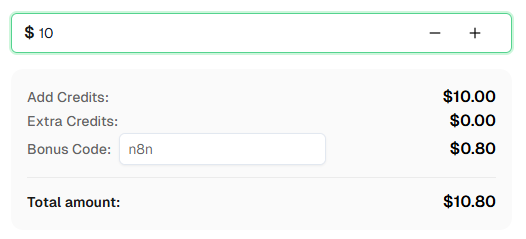
Ready to get started? Sign up for CapSolver and use bonus code n8n for an extra 8% bonus on your first recharge!
Frequently Asked Questions
How much does it cost to solve a reCAPTCHA?
Pricing varies by captcha type. reCAPTCHA v2 typically costs around $1-3 per 1,000 solves. Check the CapSolver pricing page for current rates.
How long does it take to solve a reCAPTCHA?
Most reCAPTCHA v2 challenges are solved in 5-20 seconds. reCAPTCHA v3 is typically faster since there's no image challenge involved.
Can I use these workflows with n8n Cloud?
Yes! These workflows work with both self-hosted n8n and n8n Cloud. The CapSolver node is already available as an official integration — just add your API credentials.
How do I find the reCAPTCHA site key for a website?
The easiest method is using the CapSolver browser extension — open DevTools, go to the "CapSolver Captcha Detector" tab, and trigger the captcha. The extension will display all parameters automatically. Alternatively, you can search the page source for data-sitekey or render= in the reCAPTCHA script URL.
What's the difference between reCAPTCHA v2 and v2 Invisible?
Both use the same underlying technology, but v2 shows a visible checkbox ("I'm not a robot") while v2 Invisible runs in the background without any visible widget. When solving, the only difference is setting isInvisible: true.
CapSolver returned a token but the website still rejected it — why?
Several things can cause this. First, tokens expire quickly — make sure you're submitting the token immediately. Second, verify you're sending the token to the right place: inspect the actual network request the browser makes when you submit the form (DevTools → Network tab) and confirm the field name, request method, and endpoint all match what you've configured in n8n. Third, some sites require additional parameters like enterprisePayload or specific cookies and headers — use the CapSolver extension to check if any of these apply. If the token is still rejected, contact CapSolver support for site-specific help.
More
Web ScrapingApr 22, 2026
Rust Web Scraping Architecture for Scalable Data Extraction
Learn scalable Rust web scraping architecture with reqwest, scraper, async scraping, headless browser scraping, proxy rotation, and compliant CAPTCHA handling.
Web ScrapingApr 17, 2026
How to Scrape Job Listings Without Getting Blocked
Learn the best techniques to scrape job listings without getting blocked. Master Indeed scraping, Google Jobs API, and web scraping API with CapSolver.
