How to Solve Cloudflare Turnstile Using CapSolver and n8n

Lucas Mitchell
Automation Engineer
Cloudflare Turnstile is quickly becoming the go-to CAPTCHA alternative for modern websites. Unlike traditional CAPTCHAs that force users to solve image puzzles, Turnstile runs silently in the background — making it harder to detect and bypass with standard automation tools.
What if you could solve Turnstile automatically inside your n8n workflows — whether you're building a reusable solver API, scraping a captcha-protected site, or automating a login form — all without writing a single line of traditional code?
In this guide, you'll learn how to combine n8n (a visual workflow automation tool) with CapSolver (an AI-powered captcha solving service) to solve Cloudflare Turnstile challenges on demand — either as a standalone API endpoint or as a step inside any automation workflow.
What you'll build:
Solver APIs — reusable endpoints your other tools can call:
- A Cloudflare Turnstile solver API
Direct-use workflows — CapSolver embedded as a step inside larger automations:
- A price & product scraper that solves Turnstile, fetches protected pages, and alerts on price changes
- An account login automation that solves Turnstile before submitting credentials
What is Cloudflare Turnstile?
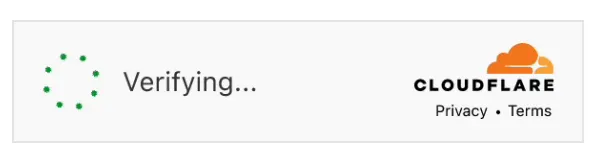
Cloudflare Turnstile is a CAPTCHA alternative that verifies visitors automatically using browser signals — no puzzles, no checkboxes. It appears as a small widget embedded in forms (login, signup, checkout) and comes in three modes: Managed, Non-Interactive, and Invisible. From a solving perspective, the mode doesn't matter — you always need the same two parameters: websiteURL and websiteKey.
Not the same as Cloudflare Challenge. If you see a full-page "Performing security verification..." screen, that's a Cloudflare Challenge, not Turnstile — it requires a different solver.
Prerequisites
Before getting started, make sure you have the following:
- An n8n instance — Either self-hosted or n8n Cloud
- A CapSolver account — Sign up here and get your API key
- The CapSolver n8n node — Already available as an official node in n8n (no installation needed)
- CapSolver browser extension (optional but recommended) — For identifying captcha parameters on target websites
Important: Make sure you have sufficient balance in your CapSolver account. Turnstile solving tasks consume credits based on usage.
Setting Up CapSolver in n8n
CapSolver is available as an official integration in n8n — no community node installation required. You can find it directly in the node panel when building your workflows.
Since it's an official integration, you need to create a credential in n8n so that the CapSolver node can authenticate with your account.
Step 1: Open the Credentials Page
Go to your n8n instance and navigate to Settings → Credentials. You'll see all your configured credentials here.

Step 2: Create the CapSolver Credential
- Click Create credential (top right)
- Search for "CapSolver" and select CapSolver API
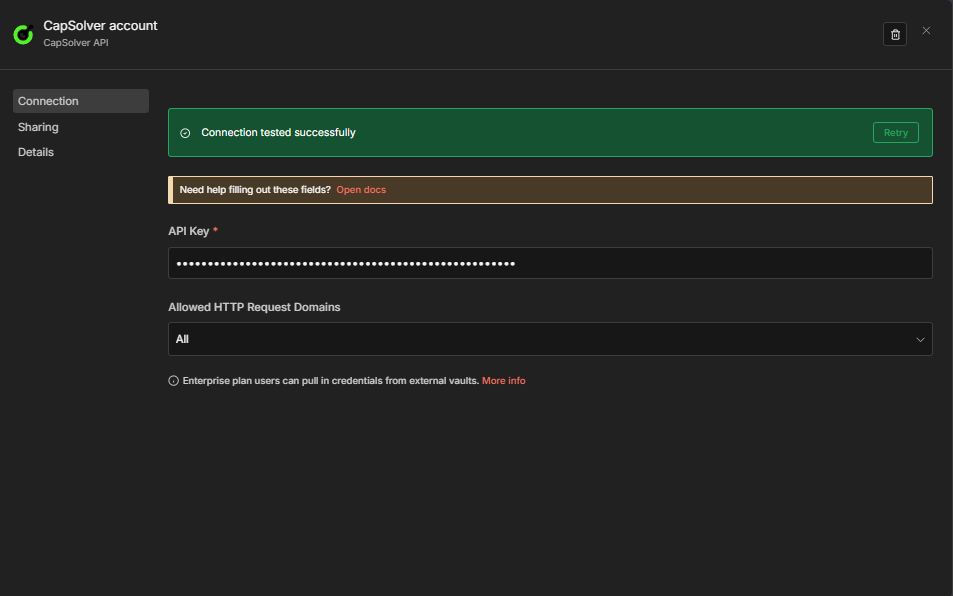
- Enter your API Key — copy it directly from the CapSolver Dashboard
- Leave Allowed HTTP Request Domains set to
All(default) - Click Save
n8n will automatically test the connection. You should see a green "Connection tested successfully" banner confirming your API key is valid.
Important: Every CapSolver node in your workflows will reference this credential. You only need to create it once — all your solver workflows will share the same credential.
Now you're ready to build your Turnstile solver workflow!
Workflow: Cloudflare Turnstile Solver API
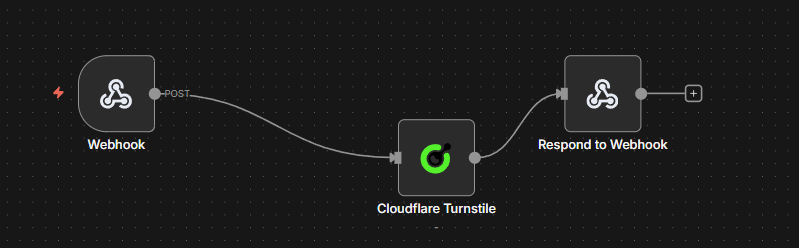
This workflow creates a POST API endpoint that accepts Turnstile parameters and returns a solved token.
How It Works
The workflow consists of four nodes:
- Webhook — Receives incoming POST requests with Turnstile parameters
- Cloudflare Turnstile — Sends the challenge to CapSolver and waits for a solution
- CapSolver Error? — IF node that branches on whether solving failed (
$json.erroris not empty) - Respond to Webhook — Returns the solution on success, or
{"error": "..."}on failure
Node Configuration
1. Webhook Node
| Setting | Value |
|---|---|
| HTTP Method | POST |
| Path | solver-turnstile |
| Respond | Response Node |
This creates an endpoint at: https://your-n8n-instance.com/webhook/solver-turnstile
2. CapSolver Cloudflare Turnstile Node
| Parameter | Value | Description |
|---|---|---|
| Operation | Cloudflare Turnstile |
Must be set to Cloudflare Turnstile |
| Type | AntiTurnstileTaskProxyLess |
This task type does not require a proxy |
| Website URL | {{ $json.body.websiteURL }} |
The URL of the page with the Turnstile widget |
| Website Key | {{ $json.body.websiteKey }} |
The Turnstile site key |
| metadata.action | (Optional) | Some sites require a specific action string for the Turnstile challenge |
| metadata.cdata | (Optional) | Custom data that some sites pass to the Turnstile widget for verification |
Some sites also require metadata.action and/or metadata.cdata — you can add these under the Optional section in the node. Also select your CapSolver credentials in this node.
3. CapSolver Error? Node (IF)
| Setting | Value |
|---|---|
| Condition | ={{ $json.error }} is not empty |
| True branch | Routes to the Error Respond to Webhook node |
| False branch | Routes to the Success Respond to Webhook node |
This makes the error path explicit on the canvas. The CapSolver node continues on error (onError: continueRegularOutput), so failures arrive here as { "error": "..." } rather than crashing the workflow.
4. Respond to Webhook Nodes
Success branch (false output of CapSolver Error?):
| Setting | Value |
|---|---|
| Respond With | JSON |
| Response Body | ={{ JSON.stringify($json.data) }} |
Test It
Send a POST request to your webhook endpoint:
bash
curl -X POST https://your-n8n-instance.com/webhook/solver-turnstile \
  -H "Content-Type: application/json" \
  -d '{
    "websiteURL": "https://example.com/login",
    "websiteKey": "0x4AAAAAAADV8V8V8V8V8V8V"
  }'
Expected Response:
json
{
  "taskId": "abc123...",
  "solution": {
    "token": "0.XXXXXXXXXXXXXXXX..."
  },
  "status": "ready"
}
Import This Workflow
Copy the JSON below and import it into n8n via Menu → Import from JSON:
Click to expand workflow JSON
json
{
  "nodes": [
    {
      "parameters": {
        "content": "## Turnstile — Solver API\n\n### How it works\n- Triggered by webhook\n- CapSolver: Cloudflare Turnstile\n- Conditional branch\n- Respond to webhook\n- Respond to webhook\n\n### Setup\n- Add your **CapSolver** API key under Settings → Credentials\n- Configure placeholder values\n- Activate the workflow",
        "height": 448,
        "width": 480
      },
      "type": "n8n-nodes-base.stickyNote",
      "typeVersion": 1,
      "position": [
        -800,
        -176
      ],
      "id": "5ffd9cef-8202-4382-b878-6c99193e85c9",
      "name": "Sticky Note"
    },
    {
      "parameters": {
        "content": "## Receive and Process Solver Request\n\nHandles incoming solver requests and processes them through Cloudflare Turnstile.",
        "height": 336,
        "width": 496,
        "color": 7
      },
      "type": "n8n-nodes-base.stickyNote",
      "typeVersion": 1,
      "position": [
        -240,
        -176
      ],
      "id": "6ad0812b-7141-41e4-96d6-e72e08a24405",
      "name": "Sticky Note1"
    },
    {
      "parameters": {
        "content": "## Evaluate Solver Response\n\nChecks for errors in the solver response and directs the flow accordingly.",
        "height": 336,
        "color": 7
      },
      "type": "n8n-nodes-base.stickyNote",
      "typeVersion": 1,
      "position": [
        352,
        -176
      ],
      "id": "8839e65a-8735-4135-9b0f-07ac081ebd70",
      "name": "Sticky Note2"
    },
    {
      "parameters": {
        "content": "## Respond to Webhook\n\nSends a response back to the webhook based on the solver's success or failure.",
        "height": 528,
        "color": 7
      },
      "type": "n8n-nodes-base.stickyNote",
      "typeVersion": 1,
      "position": [
        656,
        -256
      ],
      "id": "2fec67ea-a216-4717-8336-2aa060c352ab",
      "name": "Sticky Note3"
    },
    {
      "parameters": {
        "httpMethod": "POST",
        "path": "solver-turnstile",
        "responseMode": "responseNode",
        "options": {}
      },
      "type": "n8n-nodes-base.webhook",
      "typeVersion": 2.1,
      "position": [
        -192,
        0
      ],
      "id": "137be4f0-1762-4f0c-b993-c512d27e35de",
      "name": "Receive Solver Request",
      "webhookId": "901bdfa1-308c-4145-87fb-9c1958914751"
    },
    {
      "parameters": {
        "operation": "Cloudflare Turnstile",
        "websiteURL": "={{ $json.body.websiteURL }}",
        "websiteKey": "={{ $json.body.websiteKey }}",
        "optional": {}
      },
      "type": "n8n-nodes-capsolver.capSolver",
      "typeVersion": 1,
      "position": [
        112,
        0
      ],
      "id": "954ff1f0-d5de-4468-b0d1-fbce03676676",
      "name": "Cloudflare Turnstile",
      "credentials": {
        "capSolverApi": {
          "id": "BeBFMAsySMsMGeE9",
          "name": "CapSolver account"
        }
      }
    },
    {
      "parameters": {
        "conditions": {
          "options": {
            "caseSensitive": true,
            "leftValue": "",
            "typeValidation": "loose",
            "version": 2
          },
          "conditions": [
            {
              "id": "capsolver-err-001",
              "leftValue": "={{ $json.error }}",
              "operator": {
                "type": "string",
                "operation": "isNotEmpty",
                "singleValue": true
              }
            }
          ],
          "combinator": "and"
        },
        "options": {}
      },
      "type": "n8n-nodes-base.if",
      "typeVersion": 2.2,
      "position": [
        400,
        0
      ],
      "id": "a1b2c3d4-e5f6-7890-abcd-ef1234567890",
      "name": "CapSolver Error?"
    },
    {
      "parameters": {
        "respondWith": "json",
        "responseBody": "={{ JSON.stringify({ error: $json.error }) }}",
        "options": {}
      },
      "type": "n8n-nodes-base.respondToWebhook",
      "typeVersion": 1.5,
      "position": [
        704,
        -64
      ],
      "id": "e1f2a3b4-c5d6-7890-abcd-123456789012",
      "name": "Respond to Webhook (Error)"
    },
    {
      "parameters": {
        "respondWith": "json",
        "responseBody": "={{ JSON.stringify($json.data) }}",
        "options": {}
      },
      "type": "n8n-nodes-base.respondToWebhook",
      "typeVersion": 1.5,
      "position": [
        704,
        112
      ],
      "id": "db264e2b-48ce-4887-9b2b-2b8077993c30",
      "name": "Respond to Webhook"
    }
  ],
  "connections": {
    "Receive Solver Request": {
      "main": [
        [
          {
            "node": "Cloudflare Turnstile",
            "type": "main",
            "index": 0
          }
        ]
      ]
    },
    "Cloudflare Turnstile": {
      "main": [
        [
          {
            "node": "CapSolver Error?",
            "type": "main",
            "index": 0
          }
        ]
      ]
    },
    "CapSolver Error?": {
      "main": [
        [
          {
            "node": "Respond to Webhook (Error)",
            "type": "main",
            "index": 0
          }
        ],
        [
          {
            "node": "Respond to Webhook",
            "type": "main",
            "index": 0
          }
        ]
      ]
    }
  },
  "pinData": {},
  "meta": {
    "instanceId": "962ff0267b713be0344b866fa54daae28de8ed2144e2e6867da355dae193ea1f"
  }
}
API Parameter Reference
The Turnstile solver API endpoint accepts the following parameters:
| Parameter | Required | Description |
|---|---|---|
websiteURL |
Yes | The URL of the page hosting the Turnstile widget |
websiteKey |
Yes | The Turnstile site key |
metadata.action |
No | Action string required by some sites for the Turnstile challenge |
metadata.cdata |
No | Custom data passed to the Turnstile widget by some sites |
Tip: You can identify the
websiteURLandwebsiteKeyby inspecting the page source or using the CapSolver browser extension.
Compared to reCAPTCHA, Turnstile is simpler — you only need two required parameters. Some sites may also require the optional metadata.action or metadata.cdata fields — add these in the node's Optional section if the token isn't being accepted.
Workflow: Submitting a Turnstile Token to a Website
The API workflow above shows how to get a solved Turnstile token. But what do you actually do with it?
In real-world automation, solving the challenge is only half the job. You need to submit the token to the target website — exactly as a browser would — to unlock the data or action behind the Turnstile protection.
Here's the general pattern:
- Solve the challenge → Get the token from CapSolver
- Submit the token → Send it to the target website via an HTTP Request (usually as a
cf-turnstile-responseform field) - Verify the response → Check if the website accepted the token
- Process the result → Extract the data you need
Example: Solving & Submitting Turnstile
Example: https://example.com/ — A Turnstile-protected website
Workflow Flow
Manual Trigger → CapSolver Turnstile → HTTP POST Request → IF (check success) → Edit Fields (extract data)How It Works
- Manual Trigger — Starts the workflow manually (click "Execute workflow"). You can replace this with any trigger — Webhook, Schedule, App Event, etc.
- CapSolver Cloudflare Turnstile — Solves the Turnstile challenge:
- Operation:
Cloudflare Turnstile - Website URL:
https://example.com/login - Website Key:
0x4AAAAAAA...(find it by inspecting the page source — see How to Identify Turnstile Parameters
- Operation:
- HTTP POST Request — Submits the solved token to the target website:
- The token is sent in the
cf-turnstile-responseform field - Include any other form fields the site expects (e.g.,
username,password) - This is what a browser does when you submit the form after Turnstile validates you
- The token is sent in the
- IF Node — Checks if the response indicates success (e.g., a redirect, a success message, or specific JSON fields)
- Edit Fields — Extracts the data you need from the response. In a real scenario, this is where you'd parse the HTML using the HTML node to pull out specific elements (e.g., user data, product listings, dashboard content) and map them to your output fields
Key concept: Every website handles token submission differently. In this example, the token goes in a
cf-turnstile-responseform field via POST — but other sites may expect it in a different field name, as a JSON body, as a header, or through a completely different endpoint. Always inspect the site's actual form submission (using DevTools Network tab) to see exactly how the token needs to be sent.
Workflow: Use-Case Examples
The solver API and scraping example above show the core pattern: solve the Turnstile, submit the token, process the result. The following workflows extend this pattern to production-ready use cases — each with dual triggers (schedule + webhook), persistent state tracking, and structured output.
| Workflow | Purpose |
|---|---|
Turnstile Scraping — Price & Product Details — CapSolver + Schedule + Webhook |
Scrapes price and product name every 6 hours, compares against previous values stored in staticData, alerts on changes |
Turnstile Account Login — CapSolver + Schedule + Webhook |
Logs into your own account on a captcha-protected site by solving first, then POSTing credentials with the token |
Example 1: Scraping
This workflow scrapes a product page every 6 hours (schedule) or on demand (webhook), extracts the price using the HTML node, and compares it against the previously stored value.
Schedule path:
Every 6 Hours → Solve Captcha → Fetch Product Page → Extract Data
  → Compare Data → Data Changed? → Build Alert / No Change
Key behaviors:
- The token is sent as a
cf-turnstile-responseheader (adapt to your site's expected format — some sites may use a different field name) - The HTML node extracts price and product name via CSS selectors (
.product-price,h1) $workflow.staticData.lastPricepersists the previous price across executions- Price comparison detects both drops (severity:
deal) and increases (severity:info)
Click to expand full workflow JSON (17 nodes)
json
{
"nodes": [
{
"parameters": {
"content": "## Turnstile Scraping — Price & Product Details — CapSolver + Schedule + Webhook\n\n### How it works\n- Triggered by scheduleTrigger\n- Triggered by webhook\n- Sets: websiteURL, websiteKey\n- CapSolver: Cloudflare Turnstile\n- GET request\n- HTML extract\n- Custom code\n\n### Setup\n- Add your **CapSolver** API key under Settings → Credentials\n- Configure placeholder values\n- Activate the workflow",
"height": 928,
"width": 480
},
"type": "n8n-nodes-base.stickyNote",
"typeVersion": 1,
"position": [
-1312,
-272
],
"id": "e7600f37-30e2-414c-8482-136e850c7767",
"name": "Sticky Note"
},
{
"parameters": {
"content": "## Scheduled Scraping Setup\n\nTriggers scraping process every 6 hours and configures target settings.",
"height": 288,
"width": 496,
"color": 7
},
"type": "n8n-nodes-base.stickyNote",
"typeVersion": 1,
"position": [
-752,
-160
],
"id": "b5976b58-4e25-4db2-8968-b918d51ae3db",
"name": "Sticky Note1"
},
{
"parameters": {
"content": "## Scheduled Scraping Execution\n\nSolves Turnstile, fetches product page, extracts and compares data for scheduled trigger.",
"height": 464,
"width": 1456,
"color": 7
},
"type": "n8n-nodes-base.stickyNote",
"typeVersion": 1,
"position": [
-144,
-272
],
"id": "81ae9453-8fac-49c8-906e-f6054a1d5311",
"name": "Sticky Note2"
},
{
"parameters": {
"content": "## Webhook Scraping Setup\n\nInitiates scraping process via webhook trigger and solves Turnstile.",
"height": 304,
"width": 528,
"color": 7
},
"type": "n8n-nodes-base.stickyNote",
"typeVersion": 1,
"position": [
-752,
304
],
"id": "5b9d6820-6036-43d4-8d47-1c207864256e",
"name": "Sticky Note3"
},
{
"parameters": {
"content": "## Webhook Scraping Execution\n\nFetches product page, extracts and compares data, and responds to webhook.",
"height": 496,
"width": 1520,
"color": 7
},
"type": "n8n-nodes-base.stickyNote",
"typeVersion": 1,
"position": [
-160,
224
],
"id": "4260afbb-4a3a-4a18-9d01-f3724c390d4e",
"name": "Sticky Note4"
},
{
"parameters": {
"rule": {
"interval": [
{
"field": "hours",
"hoursInterval": 6
}
]
}
},
"type": "n8n-nodes-base.scheduleTrigger",
"typeVersion": 1.3,
"position": [
-704,
-32
],
"id": "ts-s-901",
"name": "Every 6 Hours"
},
{
"parameters": {
"assignments": {
"assignments": [
{
"id": "cfg-001",
"name": "websiteURL",
"value": "https://YOUR-TARGET-SITE.com/product-page",
"type": "string"
},
{
"id": "cfg-002",
"name": "websiteKey",
"value": "YOUR_SITE_KEY_HERE",
"type": "string"
}
]
},
"options": {}
},
"type": "n8n-nodes-base.set",
"typeVersion": 3.4,
"position": [
-400,
-32
],
"id": "ts-s-900",
"name": "Set Target Config [Schedule]"
},
{
"parameters": {
"operation": "Cloudflare Turnstile",
"websiteURL": "={{ $json.websiteURL }}",
"websiteKey": "={{ $json.websiteKey }}",
"optional": {}
},
"type": "n8n-nodes-capsolver.capSolver",
"typeVersion": 1,
"position": [
-96,
0
],
"id": "ts-s-902",
"name": "Solve Turnstile",
"credentials": {
"capSolverApi": {
"id": "BeBFMAsySMsMGeE9",
"name": "CapSolver account"
}
}
},
{
"parameters": {
"url": "={{ $('Set Target Config [Schedule]').first().json.websiteURL }}",
"sendHeaders": true,
"headerParameters": {
"parameters": [
{
"name": "user-agent",
"value": "Mozilla/5.0 (Windows NT 10.0; Win64; x64) AppleWebKit/537.36 (KHTML, like Gecko) Chrome/125.0.0.0 Safari/537.36"
},
{
"name": "cf-turnstile-response",
"value": "={{ $json.data.solution.token }}"
}
]
},
"options": {
"response": {
"response": {}
}
}
},
"type": "n8n-nodes-base.httpRequest",
"typeVersion": 4.3,
"position": [
208,
0
],
"id": "ts-s-903",
"name": "Fetch Product Page"
},
{
"parameters": {
"operation": "extractHtmlContent",
"extractionValues": {
"values": [
{
"key": "price",
"cssSelector": ".product-price, [data-price], .price"
},
{
"key": "productName",
"cssSelector": "h1, .product-title"
}
]
},
"options": {}
},
"type": "n8n-nodes-base.html",
"typeVersion": 1.2,
"position": [
512,
0
],
"id": "ts-s-904",
"name": "Extract Data"
},
{
"parameters": {
"jsCode": "const staticData = $workflow.staticData;\nconst currentPrice = $input.first().json.price;\nconst previousPrice = staticData.lastPrice;\nconst productName = $input.first().json.productName || 'Product';\nconst parsePrice = (str) => { if (!str) return null; const match = str.match(/[\\d,]+\\.?\\d*/); return match ? parseFloat(match[0].replace(',', '')) : null; };\nconst currentNum = parsePrice(currentPrice);\nconst previousNum = parsePrice(previousPrice);\nstaticData.lastPrice = currentPrice;\nstaticData.lastChecked = new Date().toISOString();\nconst changed = previousNum !== null && currentNum !== null && currentNum !== previousNum;\nconst direction = changed ? (currentNum < previousNum ? 'dropped' : 'increased') : 'unchanged';\nconst diff = changed ? Math.abs(currentNum - previousNum).toFixed(2) : '0';\nreturn [{ json: { productName, currentPrice, previousPrice: previousPrice || 'first check', changed, direction, diff: changed ? `$${diff}` : null, checkedAt: new Date().toISOString() } }];"
},
"type": "n8n-nodes-base.code",
"typeVersion": 2,
"position": [
688,
0
],
"id": "ts-s-905",
"name": "Compare Data"
},
{
"parameters": {
"conditions": {
"options": {
"caseSensitive": true,
"leftValue": "",
"typeValidation": "strict",
"version": 2
},
"conditions": [
{
"id": "if-1",
"leftValue": "={{ $json.changed }}",
"operator": {
"type": "boolean",
"operation": "true",
"singleValue": true
}
}
],
"combinator": "and"
},
"options": {}
},
"type": "n8n-nodes-base.if",
"typeVersion": 2.2,
"position": [
864,
0
],
"id": "ts-s-906",
"name": "Data Changed?"
},
{
"parameters": {
"assignments": {
"assignments": [
{
"id": "a1",
"name": "alert",
"value": "=Price {{ $json.direction }} for {{ $json.productName }}: {{ $json.previousPrice }} → {{ $json.currentPrice }}",
"type": "string"
},
{
"id": "a2",
"name": "severity",
"value": "={{ $json.direction === 'dropped' ? 'deal' : 'info' }}",
"type": "string"
},
{
"id": "a3",
"name": "checkedAt",
"value": "={{ $json.checkedAt }}",
"type": "string"
}
]
},
"options": {}
},
"type": "n8n-nodes-base.set",
"typeVersion": 3.4,
"position": [
1152,
-192
],
"id": "ts-s-907",
"name": "Build Alert"
},
{
"parameters": {
"assignments": {
"assignments": [
{
"id": "n1",
"name": "status",
"value": "no_change",
"type": "string"
},
{
"id": "n2",
"name": "currentPrice",
"value": "={{ $json.currentPrice }}",
"type": "string"
},
{
"id": "n3",
"name": "checkedAt",
"value": "={{ $json.checkedAt }}",
"type": "string"
}
]
},
"options": {}
},
"type": "n8n-nodes-base.set",
"typeVersion": 3.4,
"position": [
1168,
32
],
"id": "ts-s-908",
"name": "No Change"
},
{
"parameters": {
"httpMethod": "POST",
"path": "price-monitor-turnstile",
"responseMode": "responseNode",
"options": {}
},
"type": "n8n-nodes-base.webhook",
"typeVersion": 2.1,
"position": [
-704,
432
],
"id": "ts-s-909",
"name": "Webhook Trigger",
"webhookId": "28b7ba21-7608-45c2-8552-ec91b8ce7c9b"
},
{
"parameters": {
"operation": "Cloudflare Turnstile",
"websiteURL": "={{ $json.body.websiteURL }}",
"websiteKey": "={{ $json.body.websiteKey }}",
"optional": {}
},
"type": "n8n-nodes-capsolver.capSolver",
"typeVersion": 1,
"position": [
-368,
432
],
"id": "ts-s-910",
"name": "Solve Turnstile [Webhook]",
"credentials": {
"capSolverApi": {
"id": "BeBFMAsySMsMGeE9",
"name": "CapSolver account"
}
}
},
{
"parameters": {
"url": "={{ $('Webhook Trigger').item.json.body.websiteURL }}",
"sendHeaders": true,
"headerParameters": {
"parameters": [
{
"name": "user-agent",
"value": "Mozilla/5.0 (Windows NT 10.0; Win64; x64) AppleWebKit/537.36 (KHTML, like Gecko) Chrome/125.0.0.0 Safari/537.36"
},
{
"name": "cf-turnstile-response",
"value": "={{ $json.data.solution.token }}"
}
]
},
"options": {
"response": {
"response": {}
}
}
},
"type": "n8n-nodes-base.httpRequest",
"typeVersion": 4.3,
"position": [
-80,
432
],
"id": "ts-s-911",
"name": "Fetch Product Page [Webhook]"
},
{
"parameters": {
"operation": "extractHtmlContent",
"extractionValues": {
"values": [
{
"key": "price",
"cssSelector": ".product-price, [data-price], .price"
},
{
"key": "productName",
"cssSelector": "h1, .product-title"
}
]
},
"options": {}
},
"type": "n8n-nodes-base.html",
"typeVersion": 1.2,
"position": [
208,
432
],
"id": "ts-s-912",
"name": "Extract Data [Webhook]"
},
{
"parameters": {
"jsCode": "const staticData = $workflow.staticData;\nconst currentPrice = $input.first().json.price;\nconst previousPrice = staticData.lastPrice;\nconst productName = $input.first().json.productName || 'Product';\nconst parsePrice = (str) => { if (!str) return null; const match = str.match(/[\\d,]+\\.?\\d*/); return match ? parseFloat(match[0].replace(',', '')) : null; };\nconst currentNum = parsePrice(currentPrice);\nconst previousNum = parsePrice(previousPrice);\nstaticData.lastPrice = currentPrice;\nstaticData.lastChecked = new Date().toISOString();\nconst changed = previousNum !== null && currentNum !== null && currentNum !== previousNum;\nconst direction = changed ? (currentNum < previousNum ? 'dropped' : 'increased') : 'unchanged';\nconst diff = changed ? Math.abs(currentNum - previousNum).toFixed(2) : '0';\nreturn [{ json: { productName, currentPrice, previousPrice: previousPrice || 'first check', changed, direction, diff: changed ? `$${diff}` : null, checkedAt: new Date().toISOString() } }];"
},
"type": "n8n-nodes-base.code",
"typeVersion": 2,
"position": [
512,
432
],
"id": "ts-s-913",
"name": "Compare Data [Webhook]"
},
{
"parameters": {
"conditions": {
"options": {
"caseSensitive": true,
"leftValue": "",
"typeValidation": "strict",
"version": 2
},
"conditions": [
{
"id": "if-2",
"leftValue": "={{ $json.changed }}",
"operator": {
"type": "boolean",
"operation": "true",
"singleValue": true
}
}
],
"combinator": "and"
},
"options": {}
},
"type": "n8n-nodes-base.if",
"typeVersion": 2.2,
"position": [
704,
432
],
"id": "ts-s-914",
"name": "Data Changed? [Webhook]"
},
{
"parameters": {
"assignments": {
"assignments": [
{
"id": "a4",
"name": "alert",
"value": "=Price {{ $json.direction }} for {{ $json.productName }}: {{ $json.previousPrice }} → {{ $json.currentPrice }}",
"type": "string"
},
{
"id": "a5",
"name": "severity",
"value": "={{ $json.direction === 'dropped' ? 'deal' : 'info' }}",
"type": "string"
},
{
"id": "a6",
"name": "checkedAt",
"value": "={{ $json.checkedAt }}",
"type": "string"
}
]
},
"options": {}
},
"type": "n8n-nodes-base.set",
"typeVersion": 3.4,
"position": [
960,
240
],
"id": "ts-s-915",
"name": "Build Alert [Webhook]"
},
{
"parameters": {
"assignments": {
"assignments": [
{
"id": "n4",
"name": "status",
"value": "no_change",
"type": "string"
},
{
"id": "n5",
"name": "currentPrice",
"value": "={{ $json.currentPrice }}",
"type": "string"
},
{
"id": "n6",
"name": "checkedAt",
"value": "={{ $json.checkedAt }}",
"type": "string"
}
]
},
"options": {}
},
"type": "n8n-nodes-base.set",
"typeVersion": 3.4,
"position": [
992,
496
],
"id": "ts-s-916",
"name": "No Change [Webhook]"
},
{
"parameters": {
"respondWith": "json",
"responseBody": "={{ JSON.stringify($json) }}",
"options": {}
},
"type": "n8n-nodes-base.respondToWebhook",
"typeVersion": 1.5,
"position": [
1248,
384
],
"id": "ts-s-917",
"name": "Respond to Webhook"
}
],
"connections": {
"Every 6 Hours": {
"main": [
[
{
"node": "Set Target Config [Schedule]",
"type": "main",
"index": 0
}
]
]
},
"Set Target Config [Schedule]": {
"main": [
[
{
"node": "Solve Turnstile",
"type": "main",
"index": 0
}
]
]
},
"Solve Turnstile": {
"main": [
[
{
"node": "Fetch Product Page",
"type": "main",
"index": 0
}
]
]
},
"Fetch Product Page": {
"main": [
[
{
"node": "Extract Data",
"type": "main",
"index": 0
}
]
]
},
"Extract Data": {
"main": [
[
{
"node": "Compare Data",
"type": "main",
"index": 0
}
]
]
},
"Compare Data": {
"main": [
[
{
"node": "Data Changed?",
"type": "main",
"index": 0
}
]
]
},
"Data Changed?": {
"main": [
[
{
"node": "Build Alert",
"type": "main",
"index": 0
}
],
[
{
"node": "No Change",
"type": "main",
"index": 0
}
]
]
},
"Webhook Trigger": {
"main": [
[
{
"node": "Solve Turnstile [Webhook]",
"type": "main",
"index": 0
}
]
]
},
"Solve Turnstile [Webhook]": {
"main": [
[
{
"node": "Fetch Product Page [Webhook]",
"type": "main",
"index": 0
}
]
]
},
"Fetch Product Page [Webhook]": {
"main": [
[
{
"node": "Extract Data [Webhook]",
"type": "main",
"index": 0
}
]
]
},
"Extract Data [Webhook]": {
"main": [
[
{
"node": "Compare Data [Webhook]",
"type": "main",
"index": 0
}
]
]
},
"Compare Data [Webhook]": {
"main": [
[
{
"node": "Data Changed? [Webhook]",
"type": "main",
"index": 0
}
]
]
},
"Data Changed? [Webhook]": {
"main": [
[
{
"node": "Build Alert [Webhook]",
"type": "main",
"index": 0
}
],
[
{
"node": "No Change [Webhook]",
"type": "main",
"index": 0
}
]
]
},
"Build Alert [Webhook]": {
"main": [
[
{
"node": "Respond to Webhook",
"type": "main",
"index": 0
}
]
]
},
"No Change [Webhook]": {
"main": [
[
{
"node": "Respond to Webhook",
"type": "main",
"index": 0
}
]
]
}
},
"pinData": {},
"meta": {
"instanceId": "962ff0267b713be0344b866fa54daae28de8ed2144e2e6867da355dae193ea1f"
}
}Example 2: Account Login
This workflow automates login to a captcha-protected site. A Set Login Config node centralizes all parameters — [Schedule] for the schedule path and [Webhook] for the on-demand webhook path. Edit the appropriate config node to configure each path.
Schedule path:
Every 24 Hours → Set Login Config → Solve Captcha → Submit Login
  → Login Successful? → Mark Login Success / Mark Login Failed
Key behaviors:
- Defaults to Cloudflare Turnstile — change the
Operationin the Solve Captcha node for other captcha types - Body parameters are hardcoded:
email,password, andcf-turnstile-response(edit the Submit Login node directly to match your site's field names) - The Login Successful? check evaluates both
statusCode < 400and the presence of a configurablesuccessMarkerin the response body - Webhook path uses Set Login Config [Webhook] with the same hardcoded placeholder values — edit that node to configure the webhook on-demand path
- Webhook path returns the result as JSON via Respond to Webhook
Click to expand full workflow JSON (15 nodes)
json
{
"nodes": [
{
"parameters": {
"content": "## Turnstile Account Login — CapSolver + Schedule + Webhook\n\n### How it works\n- Triggered by scheduleTrigger\n- Triggered by webhook\n- Sets: websiteURL, websiteKey, successMarker\n- CapSolver: Cloudflare Turnstile\n- POST request\n- Conditional branch\n- Sets: status, checkedAt\n\n### Setup\n- Add your **CapSolver** API key under Settings → Credentials\n- Configure placeholder values\n- Activate the workflow",
"height": 768,
"width": 480
},
"type": "n8n-nodes-base.stickyNote",
"typeVersion": 1,
"position": [
-1168,
-128
],
"id": "887d0c97-af49-4830-99a3-8dd04a78ec10",
"name": "Sticky Note"
},
{
"parameters": {
"content": "## Scheduled Login Process\n\nHandles login process triggered every 24 hours",
"height": 416,
"width": 1920,
"color": 7
},
"type": "n8n-nodes-base.stickyNote",
"typeVersion": 1,
"position": [
-608,
-128
],
"id": "3fac5b95-ad9c-4029-ac4b-c99952659970",
"name": "Sticky Note1"
},
{
"parameters": {
"content": "## Webhook Triggered Login Process\n\nHandles login process triggered by a webhook",
"height": 384,
"width": 2288,
"color": 7
},
"type": "n8n-nodes-base.stickyNote",
"typeVersion": 1,
"position": [
-624,
336
],
"id": "08fa3f86-8373-44ab-abb1-1358cbb3f963",
"name": "Sticky Note2"
},
{
"parameters": {
"rule": {
"interval": [
{
"field": "hours",
"hoursInterval": 24
}
]
}
},
"type": "n8n-nodes-base.scheduleTrigger",
"typeVersion": 1.3,
"position": [
-560,
48
],
"id": "ts-l-01",
"name": "Every 24 Hours"
},
{
"parameters": {
"assignments": {
"assignments": [
{
"id": "l1",
"name": "websiteURL",
"value": "https://YOUR-LOGIN-PAGE.com",
"type": "string"
},
{
"id": "l2",
"name": "websiteKey",
"value": "YOUR_SITE_KEY_HERE",
"type": "string"
},
{
"id": "l3",
"name": "successMarker",
"value": "account-dashboard",
"type": "string"
},
{
"id": "l4",
"name": "userAgent",
"value": "Mozilla/5.0 (Windows NT 10.0; Win64; x64) AppleWebKit/537.36 (KHTML, like Gecko) Chrome/125.0.0.0 Safari/537.36",
"type": "string"
}
]
},
"options": {}
},
"type": "n8n-nodes-base.set",
"typeVersion": 3.4,
"position": [
-240,
48
],
"id": "ts-l-02",
"name": "Set Login Config [Schedule]"
},
{
"parameters": {
"operation": "Cloudflare Turnstile",
"websiteURL": "={{ $json.websiteURL }}",
"websiteKey": "={{ $json.websiteKey }}",
"optional": {}
},
"type": "n8n-nodes-capsolver.capSolver",
"typeVersion": 1,
"position": [
256,
48
],
"id": "ts-l-03",
"name": "Solve Turnstile [Schedule]",
"credentials": {
"capSolverApi": {
"id": "BeBFMAsySMsMGeE9",
"name": "CapSolver account"
}
}
},
{
"parameters": {
"method": "POST",
"url": "={{ $('Set Login Config [Schedule]').item.json.websiteURL }}/login",
"sendHeaders": true,
"headerParameters": {
"parameters": [
{
"name": "content-type",
"value": "application/x-www-form-urlencoded"
},
{
"name": "user-agent",
"value": "={{ $('Set Login Config [Schedule]').item.json.userAgent }}"
}
]
},
"sendBody": true,
"contentType": "form-urlencoded",
"bodyParameters": {
"parameters": [
{
"name": "email",
"value": "your-email@example.com"
},
{
"name": "password",
"value": "YOUR_ACCOUNT_PASSWORD"
},
{
"name": "cf-turnstile-response",
"value": "={{ $json.data.solution.token }}"
}
]
},
"options": {
"response": {
"response": {
"fullResponse": true,
"neverError": true
}
}
}
},
"type": "n8n-nodes-base.httpRequest",
"typeVersion": 4.3,
"position": [
576,
48
],
"id": "ts-l-04",
"name": "Submit Login [Schedule]"
},
{
"parameters": {
"conditions": {
"options": {
"version": 2,
"leftValue": "",
"caseSensitive": false,
"typeValidation": "strict"
},
"conditions": [
{
"id": "lif1",
"leftValue": "={{ $json.statusCode < 400 && String($json.body || $json.data || '').includes($('Set Login Config [Schedule]').item.json.successMarker) }}",
"operator": {
"type": "boolean",
"operation": "true",
"singleValue": true
}
}
],
"combinator": "and"
},
"options": {}
},
"type": "n8n-nodes-base.if",
"typeVersion": 2.2,
"position": [
896,
48
],
"id": "ts-l-05",
"name": "Login OK? [Schedule]"
},
{
"parameters": {
"assignments": {
"assignments": [
{
"id": "s1",
"name": "status",
"value": "success",
"type": "string"
},
{
"id": "s2",
"name": "checkedAt",
"value": "={{ new Date().toISOString() }}",
"type": "string"
}
]
},
"options": {}
},
"type": "n8n-nodes-base.set",
"typeVersion": 3.4,
"position": [
1168,
-48
],
"id": "ts-l-06",
"name": "Mark Success"
},
{
"parameters": {
"assignments": {
"assignments": [
{
"id": "f1",
"name": "status",
"value": "failed",
"type": "string"
},
{
"id": "f2",
"name": "statusCode",
"value": "={{ $json.statusCode }}",
"type": "number"
},
{
"id": "f3",
"name": "checkedAt",
"value": "={{ new Date().toISOString() }}",
"type": "string"
}
]
},
"options": {}
},
"type": "n8n-nodes-base.set",
"typeVersion": 3.4,
"position": [
1168,
128
],
"id": "ts-l-07",
"name": "Mark Failed"
},
{
"parameters": {
"httpMethod": "POST",
"path": "account-login-turnstile",
"responseMode": "responseNode",
"options": {}
},
"type": "n8n-nodes-base.webhook",
"typeVersion": 2.1,
"position": [
-560,
448
],
"id": "ts-l-08",
"name": "Webhook Trigger",
"webhookId": "9c7a53a4-d3ee-495b-9381-3a9425bb1b36"
},
{
"parameters": {
"operation": "Cloudflare Turnstile",
"websiteURL": "={{ $json.body.websiteURL }}",
"websiteKey": "={{ $json.body.websiteKey }}",
"optional": {}
},
"type": "n8n-nodes-capsolver.capSolver",
"typeVersion": 1,
"position": [
256,
448
],
"id": "ts-l-09",
"name": "Solve Turnstile [Webhook]",
"credentials": {
"capSolverApi": {
"id": "BeBFMAsySMsMGeE9",
"name": "CapSolver account"
}
}
},
{
"parameters": {
"method": "POST",
"url": "={{ $('Webhook Trigger').item.json.body.loginActionURL }}",
"sendHeaders": true,
"headerParameters": {
"parameters": [
{
"name": "content-type",
"value": "application/x-www-form-urlencoded"
},
{
"name": "user-agent",
"value": "={{ $('Webhook Trigger').item.json.body.userAgent || 'Mozilla/5.0 (Windows NT 10.0; Win64; x64) AppleWebKit/537.36 (KHTML, like Gecko) Chrome/125.0.0.0 Safari/537.36' }}"
}
]
},
"sendBody": true,
"contentType": "form-urlencoded",
"bodyParameters": {
"parameters": [
{
"name": "={{ $('Webhook Trigger').item.json.body.usernameField || 'email' }}",
"value": "={{ $('Webhook Trigger').item.json.body.usernameValue }}"
},
{
"name": "={{ $('Webhook Trigger').item.json.body.passwordField || 'password' }}",
"value": "={{ $('Webhook Trigger').item.json.body.passwordValue }}"
},
{
"name": "cf-turnstile-response",
"value": "={{ $json.data.solution.token }}"
}
]
},
"options": {
"response": {
"response": {
"fullResponse": true,
"neverError": true
}
}
}
},
"type": "n8n-nodes-base.httpRequest",
"typeVersion": 4.3,
"position": [
576,
448
],
"id": "ts-l-10",
"name": "Submit Login [Webhook]"
},
{
"parameters": {
"conditions": {
"options": {
"version": 2,
"leftValue": "",
"caseSensitive": false,
"typeValidation": "strict"
},
"conditions": [
{
"id": "lif2",
"leftValue": "={{ $json.statusCode < 400 && String($json.body || $json.data || '').includes($('Webhook Trigger').item.json.body.successMarker) }}",
"operator": {
"type": "boolean",
"operation": "true",
"singleValue": true
}
}
],
"combinator": "and"
},
"options": {}
},
"type": "n8n-nodes-base.if",
"typeVersion": 2.2,
"position": [
896,
448
],
"id": "ts-l-11",
"name": "Login OK? [Webhook]"
},
{
"parameters": {
"assignments": {
"assignments": [
{
"id": "ws1",
"name": "status",
"value": "success",
"type": "string"
},
{
"id": "ws2",
"name": "checkedAt",
"value": "={{ new Date().toISOString() }}",
"type": "string"
}
]
},
"options": {}
},
"type": "n8n-nodes-base.set",
"typeVersion": 3.4,
"position": [
1168,
352
],
"id": "ts-l-12",
"name": "Mark Success [W]"
},
{
"parameters": {
"assignments": {
"assignments": [
{
"id": "wf1",
"name": "status",
"value": "failed",
"type": "string"
},
{
"id": "wf2",
"name": "statusCode",
"value": "={{ $json.statusCode }}",
"type": "number"
},
{
"id": "wf3",
"name": "checkedAt",
"value": "={{ new Date().toISOString() }}",
"type": "string"
}
]
},
"options": {}
},
"type": "n8n-nodes-base.set",
"typeVersion": 3.4,
"position": [
1168,
544
],
"id": "ts-l-13",
"name": "Mark Failed [W]"
},
{
"parameters": {
"respondWith": "json",
"responseBody": "={{ JSON.stringify($json) }}",
"options": {}
},
"type": "n8n-nodes-base.respondToWebhook",
"typeVersion": 1.5,
"position": [
1504,
448
],
"id": "ts-l-14",
"name": "Respond to Webhook"
}
],
"connections": {
"Every 24 Hours": {
"main": [
[
{
"node": "Set Login Config [Schedule]",
"type": "main",
"index": 0
}
]
]
},
"Set Login Config [Schedule]": {
"main": [
[
{
"node": "Solve Turnstile [Schedule]",
"type": "main",
"index": 0
}
]
]
},
"Solve Turnstile [Schedule]": {
"main": [
[
{
"node": "Submit Login [Schedule]",
"type": "main",
"index": 0
}
]
]
},
"Submit Login [Schedule]": {
"main": [
[
{
"node": "Login OK? [Schedule]",
"type": "main",
"index": 0
}
]
]
},
"Login OK? [Schedule]": {
"main": [
[
{
"node": "Mark Success",
"type": "main",
"index": 0
}
],
[
{
"node": "Mark Failed",
"type": "main",
"index": 0
}
]
]
},
"Webhook Trigger": {
"main": [
[
{
"node": "Solve Turnstile [Webhook]",
"type": "main",
"index": 0
}
]
]
},
"Solve Turnstile [Webhook]": {
"main": [
[
{
"node": "Submit Login [Webhook]",
"type": "main",
"index": 0
}
]
]
},
"Submit Login [Webhook]": {
"main": [
[
{
"node": "Login OK? [Webhook]",
"type": "main",
"index": 0
}
]
]
},
"Login OK? [Webhook]": {
"main": [
[
{
"node": "Mark Success [W]",
"type": "main",
"index": 0
}
],
[
{
"node": "Mark Failed [W]",
"type": "main",
"index": 0
}
]
]
},
"Mark Success [W]": {
"main": [
[
{
"node": "Respond to Webhook",
"type": "main",
"index": 0
}
]
]
},
"Mark Failed [W]": {
"main": [
[
{
"node": "Respond to Webhook",
"type": "main",
"index": 0
}
]
]
}
},
"pinData": {},
"meta": {
"instanceId": "962ff0267b713be0344b866fa54daae28de8ed2144e2e6867da355dae193ea1f"
}
}Conclusion
You've learned how to build a Cloudflare Turnstile-solving API and production-ready scraping workflows using n8n and CapSolver — no traditional coding required.
In this guide, we covered:
- An API solver endpoint for Cloudflare Turnstile using a webhook-based workflow
- Use-case examples — scraping and account login — showing how to submit solved tokens and process protected data
- How to identify Turnstile parameters by inspecting the page source
- Best practices for token handling, error management, and production use
The key takeaway: solving the Turnstile challenge is only half the job — you also need to submit the token to the target website to unlock the protected data.
Tip: These workflows use Schedule + Webhook triggers, but you can swap the trigger node to any n8n trigger — manual, app event, form submission, etc. After fetching data, use n8n's built-in nodes to save results to Google Sheets, databases, cloud storage, or send alerts via Telegram/Slack/Email.
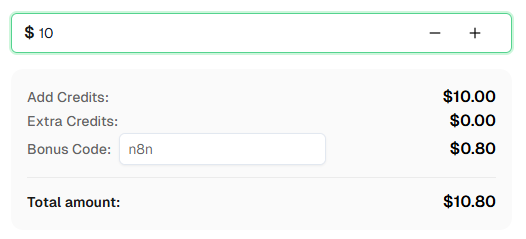
Ready to get started? Sign up for CapSolver and use bonus code n8n for an extra 8% bonus on your first recharge!
Frequently Asked Questions
What is Cloudflare Turnstile?
Cloudflare Turnstile is a CAPTCHA alternative that verifies visitors without requiring them to solve puzzles. It runs in the background using browser signals and behavioral analysis to determine if a visitor is human.
How much does it cost to solve a Turnstile challenge?
Pricing varies based on usage. Check the CapSolver pricing page for current Turnstile rates.
How long does it take to solve a Turnstile challenge?
Turnstile challenges are typically solved in a few seconds since there are no image challenges involved.
Can I use this workflow with n8n Cloud?
Yes! This workflow works with both self-hosted n8n and n8n Cloud. The CapSolver node is already available as an official integration — just add your API credentials.
How do I find the Turnstile site key for a website?
Search the page source for data-sitekey in the HTML or look for turnstile.render() in the JavaScript. You can also open DevTools (F12) → Network tab and filter by turnstile to find the site key in requests. For a detailed guide, see the CapSolver documentation.
CapSolver returned a token but the website still rejected it — why?
Several things can cause this. First, tokens expire quickly — make sure you're submitting the token immediately. Second, verify you're sending the token to the right place: inspect the actual network request the browser makes when you submit the form (DevTools → Network tab) and confirm the field name (cf-turnstile-response is typical but not universal), request method, and endpoint all match what you've configured in n8n. Third, some sites require metadata.action or metadata.cdata parameters — use the CapSolver extension to check if any of these apply. If the token is still rejected, contact CapSolver support for site-specific help.
More
Web ScrapingApr 22, 2026
Rust Web Scraping Architecture for Scalable Data Extraction
Learn scalable Rust web scraping architecture with reqwest, scraper, async scraping, headless browser scraping, proxy rotation, and compliant CAPTCHA handling.
Web ScrapingApr 17, 2026
How to Scrape Job Listings Without Getting Blocked
Learn the best techniques to scrape job listings without getting blocked. Master Indeed scraping, Google Jobs API, and web scraping API with CapSolver.
