🎉NEWCapSolver for AI agents-MCP, agent tools, and SDK integrations

Lucas Mitchell
Automation Engineer
Published May 26, 2026
Updated May 26, 2026 · min read
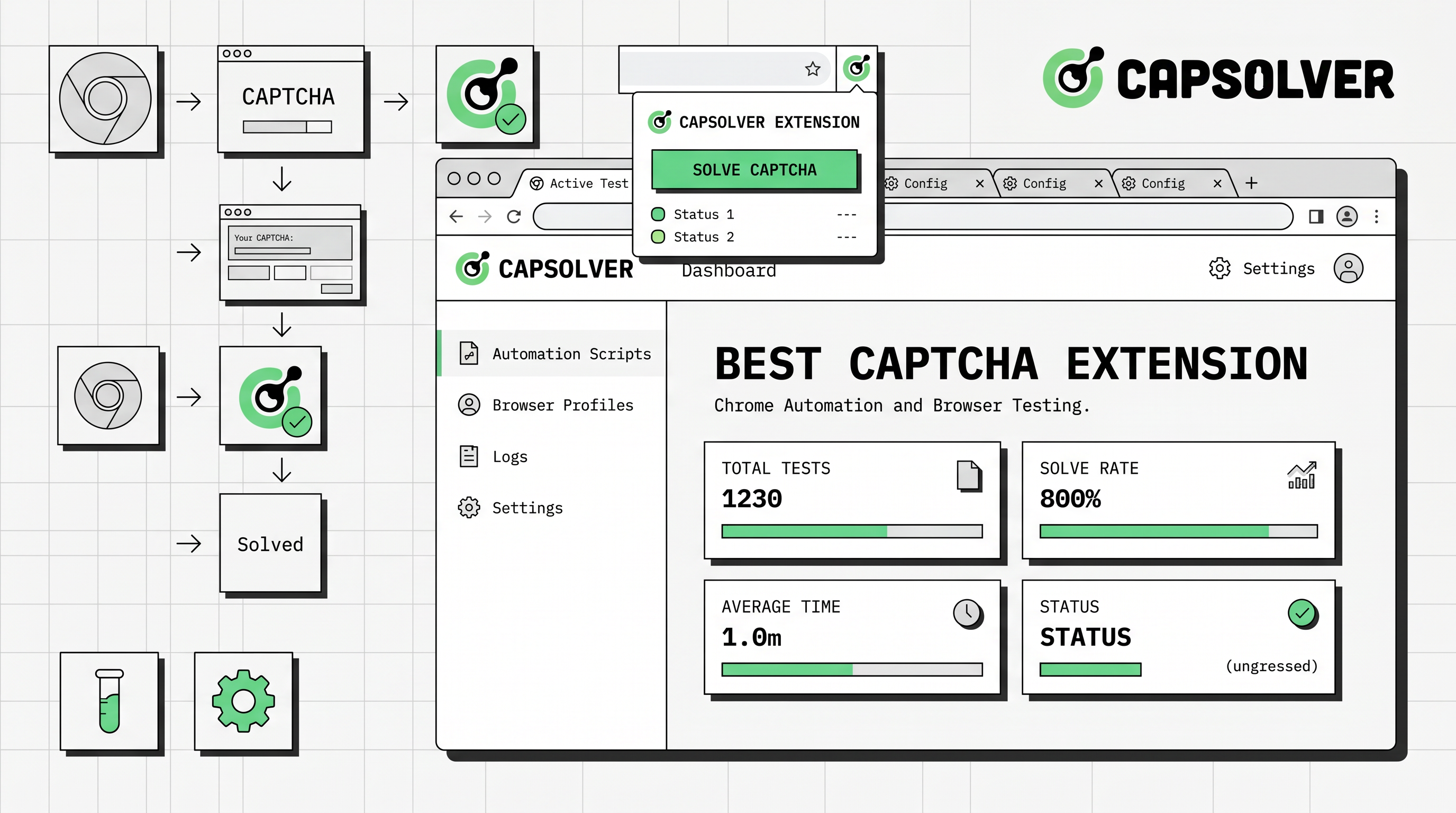
The best captcha extension is not just the one that solves a visible challenge quickly. It helps an authorized user detect the right CAPTCHA type, test in a real browser, keep the workflow observable, and graduate to an API when the browser path becomes too manual. For developers and QA teams, the CapSolver extension is a practical starting point because it connects browser-based solving with the broader CapSolver ecosystem used for API integrations.
A browser extension is often the fastest way to answer: “Can this approved workflow recover from a CAPTCHA without custom integration?” Once the answer is yes, the team can decide whether to keep the extension for testing, use it with browser automation, or move the solving step into an API-first service. This guide explains how to evaluate a CAPTCHA extension, why CapSolver is a strong choice, and how to use it responsibly.
A CAPTCHA extension runs inside the browser and helps detect or handle challenges that interrupt a page flow. Instead of forcing every user to write code on day one, the extension provides a browser-level layer for challenge recognition, settings, and solving behavior. That makes it especially useful for testing, debugging, and low-volume workflows where visual inspection matters.
The Cloudflare Learning Center defines CAPTCHA as a public Turing test intended to tell computers and humans apart, while also noting drawbacks such as poor user experience and accessibility barriers. The W3C CAPTCHA accessibility note similarly explains that CAPTCHA design can create barriers for people with disabilities. A good extension workflow should therefore be used to reduce friction in authorized processes, not to create abusive traffic.
| Extension capability | Why it matters | What to verify |
|---|---|---|
| Challenge detection | The extension must recognize what appeared on the page | reCAPTCHA, Turnstile, text/image CAPTCHA, AWS WAF, and related families |
| Browser compatibility | Teams often test in real user environments | Chrome support first, with Firefox support when needed |
| Settings control | Real workflows need delay, retry, proxy, and blacklist options | Confirm settings before running automation |
| API key handling | Solving requires authenticated service access | Keep keys out of shared screenshots and repositories |
| Migration path | Browser testing may become production automation | Confirm that equivalent API task types exist |
This is why the best captcha extension should be evaluated as a workflow tool rather than a standalone shortcut.
CapSolver’s official extension documentation explains that the extension is designed for users who want to use CapSolver’s CAPTCHA-solving service without writing code first. It supports Chrome and Firefox paths, requires a CapSolver dashboard API key, and includes settings that matter in real workflows, such as solve delay, retry behavior, manual solving mode, proxy import, blacklist control, and solved callback configuration.
The extension is also useful because it covers the CAPTCHA families that automation teams encounter most often. CapSolver’s documentation and related articles discuss reCAPTCHA v2/v3, Cloudflare Turnstile, text or image CAPTCHA, and AWS WAF CAPTCHA. That breadth matters because a workflow may begin on one challenge type and later encounter another after a site update.
CapSolver’s guide on how to install the CAPTCHA solver extension is a helpful onboarding resource. Teams working specifically with browser automation can also read the guide on using the CapSolver extension with Puppeteer to understand how extension-based solving can fit into scripted browser tests.
Choosing the best captcha extension starts with the challenge types you actually face. A narrow workflow may only need one CAPTCHA family. A QA or automation team usually needs broader coverage because test environments, login pages, account flows, checkout flows, and public pages can use different verification systems.
The Google reCAPTCHA v3 documentation explains that v3 returns a risk score without user friction, while Cloudflare describes Turnstile as an alternative to traditional CAPTCHA. Those models show why a modern extension cannot be judged only by whether it can read distorted text. It must understand token workflows, invisible verification, action context, and page validation.
| Criterion | Good sign | Risk sign |
|---|---|---|
| CAPTCHA coverage | Supports the challenge families your workflow uses | Only handles one visible puzzle type |
| Browser realism | Works in a normal browser where you can inspect behavior | Requires opaque automation with little debugging visibility |
| Configuration | Offers delay, retry, proxy, blacklist, and callback controls | Forces the same behavior on every site |
| Documentation | Provides official setup and troubleshooting guidance | Relies on scattered examples or unclear settings |
| Production path | Has API equivalents for scaling beyond the browser | Leaves teams stuck in manual extension testing |
CapSolver performs well on these criteria because the extension is connected to the broader CapSolver documentation, dashboard, and API ecosystem.
A practical extension workflow begins with a controlled test page or an approved target. Install the extension, add the CapSolver API key, enable the relevant CAPTCHA type, and run one browser flow while watching the page. The goal is not simply to “make it pass.” The goal is to observe whether the extension detects the challenge, whether solving starts at the right moment, whether the page accepts the result, and whether failures are understandable.
The CapSolver article on identifying CAPTCHA parameters with the extension is especially useful when a test fails because the page fields are unclear. For Cloudflare-specific browser testing, the Cloudflare Turnstile extension guide provides a focused example of how extension settings and page context interact.
| Step | What to do | Success signal |
|---|---|---|
| Install | Add the extension from the supported browser path | Extension icon and settings are visible |
| Configure | Enter the API key and enable relevant challenge types | Settings match the test workflow |
| Observe | Run the approved page flow in a normal browser | Challenge is detected at the expected point |
| Validate | Confirm that the page accepts the result | The intended form, login, or test step continues |
| Document | Save the task type, settings, and outcome | Another engineer can reproduce the test |
This method makes the extension a repeatable QA artifact rather than a one-time manual workaround.
The best captcha extension can take a team a long way, but it is not always the final architecture. Browser extensions are excellent for visual debugging, single-user workflows, and lower-volume tests. API integration is better when the workflow is scheduled, server-side, parallelized, audited, or shared across a team.
CapSolver’s API documentation gives teams the path from browser validation to programmatic solving. The extension helps identify whether the workflow is feasible. The API then centralizes secrets, rate limits, retries, error handling, and logs.
| Use the extension when | Move to API when |
|---|---|
| You need visual debugging in Chrome or Firefox | You need server-side or scheduled execution |
| You are validating a new CAPTCHA family | You need centralized secret handling |
| A QA engineer needs a reproducible browser test | Multiple workers or jobs need the same solving path |
| Low-volume testing is enough | Audit logs, metrics, and rate limits are required |
A mature team often keeps both. The extension remains the diagnostic tool, while the API becomes the production solving layer.
Using a CAPTCHA extension requires the same responsibility as any other automation tool. CAPTCHA systems exist because websites need protection against abusive traffic. Before using an extension, confirm that your workflow is permitted, that you are not violating site rules, and that the automation is not being used for credential abuse, spam, unauthorized account creation, or high-volume scraping against prohibited targets.
The OWASP Automated Threats project describes unwanted automation patterns that can harm web applications. The practical lesson is straightforward: make authorization, rate limits, and stop conditions part of the workflow before solving begins.
| Guardrail | Recommended practice |
|---|---|
| Authorization | Run only on owned, staged, client-approved, or otherwise permitted targets |
| Rate control | Keep traffic low and aligned with documented expectations |
| Privacy | Do not expose raw tokens, API keys, personal data, or sensitive page content |
| Accessibility | Treat CAPTCHA friction as a product and QA concern, not only an automation obstacle |
| Stop rules | Stop on unclear scope, login ambiguity, payment steps, or sensitive data |
CapSolver’s terms and documentation should be read alongside the target site’s rules. Responsible automation is more reliable because it avoids workflows that should not run in the first place.
Redeem Your CapSolver Bonus Code
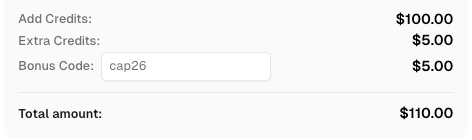
Boost your automation budget instantly. Use bonus code CAP26 when topping up your CapSolver account to get an extra 5% bonus on every recharge, with no limits.
Redeem it now in your CapSolver Dashboard
A good first setup is simple. Install the extension, add your API key from the dashboard, enable only the CAPTCHA families you expect, set conservative delay and retry values, and run one approved browser flow. If the page is Cloudflare-protected, start with the Cloudflare-specific guide. If the page uses reCAPTCHA, review the CapSolver pages for reCAPTCHA v2 and reCAPTCHA v3 concepts before scaling the workflow.
For teams that use browser automation, the extension can be loaded into a test browser while the script runs. This is useful in Puppeteer, Playwright, and Selenium environments where the team wants a realistic browser state before investing in pure API integration. The CapSolver blog on CAPTCHA solving in web scraping gives a broader view of how extension testing fits into data workflows.
The best captcha extension for Chrome automation and browser testing is the one that combines broad CAPTCHA coverage, clear settings, real-browser debugging, API migration, and responsible use controls. CapSolver’s extension is a strong choice because it connects browser-based testing with official documentation, dashboard configuration, Cloudflare and reCAPTCHA resources, and a scalable API path. If your team is building authorized QA, RPA, browser testing, or approved automation workflows, start with the CapSolver extension and document each step before moving to production.
The best captcha extension for Chrome testing is one that supports your challenge types, offers clear settings, works in a real browser, and provides a path to API integration. CapSolver is a strong option for teams that need browser testing plus scalable automation.
No. The extension is designed for users who want to start without writing code. Developers can later move to the CapSolver API when they need repeatable server-side automation.
A good extension should support the challenge types your workflow uses, commonly including reCAPTCHA v2/v3, Cloudflare Turnstile, text or image CAPTCHA, and AWS WAF CAPTCHA.
Use the API when you need scheduled jobs, parallel workers, centralized secrets, better logs, rate limits, or production-grade error handling. Use the extension for visual debugging and browser-based validation.
Use it only on owned, staged, client-approved, or otherwise permitted workflows. Review site terms, keep request volume low, protect API keys and tokens, and stop when authorization or page context is unclear.
Lucas Mitchell
Automation Engineer
Helping browser automation recover and continue.
ABOUT THE AUTHOR
Discover CapSolver, the premier no-code CAPTCHA solver for AI automation in 2026, to streamline workflows and enhance data collection without coding. Learn about its key features, benefits, and ethical use.

Discover the best auto CAPTCHA solver Chrome extensions in 2026. Compare CapSolver, NopeCHA, and SolveCaptcha by speed, supported types, and privacy to find the right fit.