
🎉NEWCapSolver for AI agents-MCP, agent tools, and SDK integrations

Nikolai Smirnov
Software Development Lead
Published Sep 22, 2026
Updated Sep 22, 2026 · min read
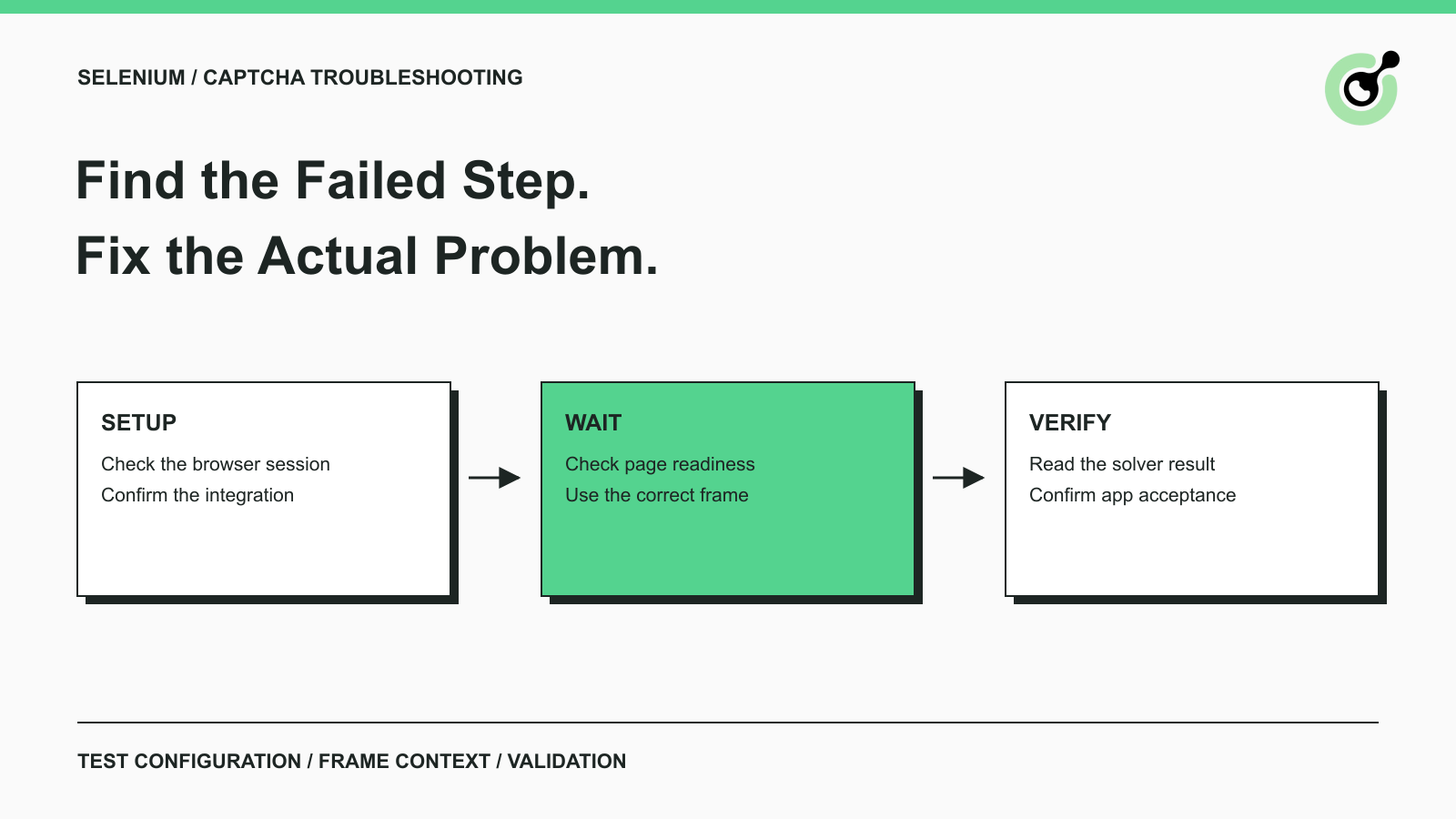
Start with the first observable failure: the browser does not launch, the widget does not load, the solver does not start, or the application rejects the result. These symptoms point to different fixes. Treating every failure as a solver problem usually sends the investigation in the wrong direction.
A CAPTCHA adds a verification step to an application workflow. Selenium controls the browser, while a CAPTCHA service such as CapSolver handles supported challenge tasks. The application still decides whether to accept the result and complete the requested action.
For example, suppose an approved browser job reads a public service-status report. The browser reaches a verification screen, but the report never appears. First determine whether a challenge was detected and a task was submitted. If no task exists, investigate the browser integration. If a task is ready, investigate how the result reached the application and what the page did next. This is an example diagnostic scenario, not a reported customer deployment.
Keep the failing run small: one browser session, one page, and one intended operation. Change one setting at a time so that a successful rerun tells you which change helped.
Ordinary application tests become harder to diagnose when they depend on an external challenge that is unrelated to the behavior under test. If you own the application, start by choosing a deterministic testing configuration.
The Selenium guidance on CAPTCHA testing recommends disabling CAPTCHAs in a test environment or providing a testing hook. That allows a form-validation test to focus on form validation instead of repeatedly evaluating a real challenge.
Where the provider offers test facilities, use them according to its documentation. For example, Cloudflare's Turnstile testing documentation provides dummy sitekeys and corresponding testing secrets for predictable outcomes. Configure both sides of an owned test integration together; changing only the browser widget does not establish that server validation uses the matching test setup.
Include successful and unsuccessful validation paths. A test that always passes the challenge cannot tell you whether the application presents a useful error when validation fails. Keep test credentials and test-only behavior out of production configuration.
Separate live solver evaluation into its own permitted test. Give that evaluation a supported challenge type, a clear stopping condition, and an application-level success check. Passing a dummy-key test demonstrates the application's test behavior; it does not measure a solver's real-world success rate.
A manual browser and a Selenium-launched browser may have different extensions, configuration, and session state. Compare the actual automated session before changing the solver provider.
If your integration uses an extension, inspect whether that extension is present and enabled in the browser Selenium launched. Check the configured extension location or installation method, the browser distribution, and the current extension instructions. An extension in your everyday browser profile is not evidence that a separate automated session loaded it.
CapSolver's Selenium extension walkthrough illustrates the extension integration approach. Use it alongside current documentation for your browser and extension release. Older launch flags and sample settings should not be assumed to work unchanged across every browser version.
If your integration uses the API instead, extension installation is not the relevant check. Confirm that the worker actually reaches the task-creation step and records the response category. A browser screenshot alone cannot show whether a backend request ran.
For a local-versus-CI discrepancy, compare a short list of concrete facts: browser version, driver version, headed or headless mode, extension availability, configuration delivery, and access to required services. Keep credentials out of screenshots and shared logs. The existing Selenium integration security guide covers credential and session handling in more detail.
Selenium can finish navigation before a dynamically loaded CAPTCHA widget is ready. Wait for the specific condition your next operation requires instead of treating navigation completion as page readiness.
The official Selenium waits documentation explains the distinction between document loading and later JavaScript changes. It also warns against mixing implicit and explicit waits because the resulting wait times can be unpredictable.
Choose the condition based on the failure. If a frame has not appeared, wait for the frame. If your application displays a status after server validation, wait for that status. A generic pause may conceal the issue on a fast machine and still fail on a slower worker.
Keep these checkpoints separate:
| Checkpoint | What it establishes | What it does not establish |
|---|---|---|
| Navigation completed | The navigation reached its configured readiness condition | Every dynamic widget is initialized |
| Widget or frame appeared | The expected challenge surface is present | The challenge has been solved |
| Button became clickable | Selenium can interact with the button | Server-side CAPTCHA validation passed |
| Application confirmation appeared | The application exposed the expected outcome | Every unrelated background task succeeded |
Avoid increasing every timeout at once. Record which condition failed and how long that condition was allowed to wait. If the expected widget never initializes, a longer delay may only postpone the same error.
Redeem Your CapSolver Bonus Code
Boost your automation budget instantly!
Use bonus code CAP26 when topping up your CapSolver account to get an extra 5% bonus on every recharge — with no limits.
Redeem it now in your CapSolver Dashboard
Frame context determines where Selenium looks for elements. A locator can be correct for an iframe and still fail when the driver is searching the top-level document.
Follow the Selenium frame-switching documentation when your permitted inspection requires an element inside a frame. Wait for the intended frame, switch to it, and return to the top-level document before interacting with the surrounding application.
This distinction matters after a challenge step as well. A script may successfully inspect a widget and then fail to find the application's submit button because it never left the frame. That is a browser-context error, not proof of a failed solver result.
Do not use a broad “first iframe” selector unless the page actually guarantees that structure. Advertising, embedded media, and application widgets can introduce unrelated frames. Identify the intended frame from the observed page and recheck it after navigation or a page update.
Some solver integrations inspect the page independently of your Selenium locator context. Changing frames in Selenium therefore does not automatically fix the solver's own detection. Keep the browser interaction and the selected integration's input requirements distinct.
A task ID identifies a submitted task; it is not the solved challenge response. Read the documented response before deciding whether the browser can continue.
CapSolver's task creation interface distinguishes task creation from the result flow. Depending on the task type, a solution may be returned directly or retrieved through the task result interface. Follow the task's documented completion behavior instead of assuming every successful HTTP response contains a usable solution.
Check the task type and required inputs against the current guide. For example, a reCAPTCHA v2 task has its own required page parameters and response structure. A request copied from a different challenge type may be valid JSON but still be the wrong request.
When the API returns an error, retain the error code and consult the official error reference. Correct a rejected input or credential problem before retrying. Do not create more tasks merely because a worker has not yet received a ready result for an existing task.
For an extension-based integration, use its documented status and diagnostics instead of inventing a backend polling loop alongside it. Two independently configured handlers can make it harder to determine which result belongs to the current page.
A solver result and application acceptance are separate events. Check whether the result belongs to the current operation and whether the application's verification step actually ran.
For reCAPTCHA, Google's server-side verification documentation states that response tokens are valid for two minutes and can be verified only once. A token saved from an earlier run is therefore not a reusable test fixture for future submissions.
In an application you own, inspect the validation response and the application event that follows it. A browser may have the response value while a callback, form handler, or server request has not completed. Likewise, a clickable submit button is only an interaction condition; it is not evidence that the server accepted the challenge.
If the browser has navigated or the intended operation has changed, reconcile that state before using the pending result. Do not attach a result from another worker or an earlier page to the current request. For a third-party application, use only the diagnostics and workflow that you are authorized to access; unresolved rejection may require stopping for review.
A useful troubleshooting record identifies the first failed stage and the next justified check. The following table can keep a team from repeatedly testing the same assumptions.
| Symptom | Check next |
|---|---|
| A routine owned-app test intermittently shows a challenge | Confirm the intended test keys or test hook |
| Manual browser works, automated browser does not | Compare extension availability and actual launch configuration |
| Widget lookup fails immediately after navigation | Inspect readiness condition and frame context |
| A task was created but no result is available yet | Follow the documented result flow for that task ID |
| A ready result does not complete the operation | Inspect application validation and current page state |
Keep a compact record of the environment, selected integration, observed stage, safe error category, and change made. Then rerun the smallest relevant test. CapSolver fits the supported challenge-handling step; browser readiness and final application confirmation remain checks your automation must make.
Q: Should Selenium solve a real CAPTCHA in every test?
No. For an application you own, use documented testing facilities or a test hook for ordinary application tests. Evaluate live challenge handling separately so its failures do not obscure unrelated test results.
Q: Why does a solver extension work in Chrome but not in my Selenium session?
The automated session may not have the same extension or configuration. Inspect the browser Selenium actually launched and compare it with the working environment before changing providers or adding retries.
Q: Does a clickable submit button mean the CAPTCHA is solved?
No. Clickability establishes that Selenium can interact with the button. Confirm challenge acceptance through the application's documented validation outcome and expected next state.
Q: Can I reuse a reCAPTCHA response token in another test?
No. Google documents reCAPTCHA tokens as single-use and valid for two minutes. Use the appropriate test configuration for repeatable tests rather than saving production tokens as fixtures.
Q: What should I include when reporting a Selenium CAPTCHA integration problem?
Include browser and driver versions, the integration method, the first failed stage, and a redacted error category. Share a minimal reproduction on a permitted test surface when possible; exclude API keys, complete tokens, cookies, and private page content.
Nikolai Smirnov
Software Development Lead
Building dependable software for complex automation.
ABOUT THE AUTHOR
Choose the CapSolver Python Core SDK or direct HTTP API by task support, page access, response handling, and the responsibilities your application owns.

Build search intent drift monitoring with Search Console data, controlled SERP observations, intent labels, confidence gates, evidence, and safe automation.
