Fixing the Cloudflare Challenge Error in Browser Use Agents

Lucas Mitchell
Automation Engineer
TL;DR
- Fixing the Cloudflare Challenge error in Browser Use starts with classifying the page as challenge, Turnstile, rate limit, or hard block.
- Browser Use agents need a clear blocked state instead of continuing normal page actions.
- Stable browser context, precise waits, and bounded retries reduce repeated challenge loops.
- Solver integration is appropriate only for lawful, authorized automation and should not override access restrictions.
Introduction
Fixing the Cloudflare Challenge error in Browser Use means teaching the agent to stop treating the challenge page as the target page. Browser Use agents can operate a browser, but Cloudflare may insert a validation page, Turnstile widget, or hard block before the destination content appears. CapSolver is relevant when the automation is authorized and a challenge result is needed. The reliable fix is a state-aware workflow: detect the challenge, preserve context, wait for the right transition, solve only when appropriate, and stop when the site denies access.
Classify the Challenge First
Fixing the Cloudflare Challenge error in Browser Use starts with classification. Cloudflare explains its challenge platform in Cloudflare Challenge documentation and documents Turnstile separately in Turnstile documentation. A Browser Use agent should record the page title, final URL, iframe sources, visible widget, HTTP status when available, and whether the target page eventually loads.
Do not ask the agent to “try again” without a state change. The agent should know whether it is waiting, solving, blocked, or done.
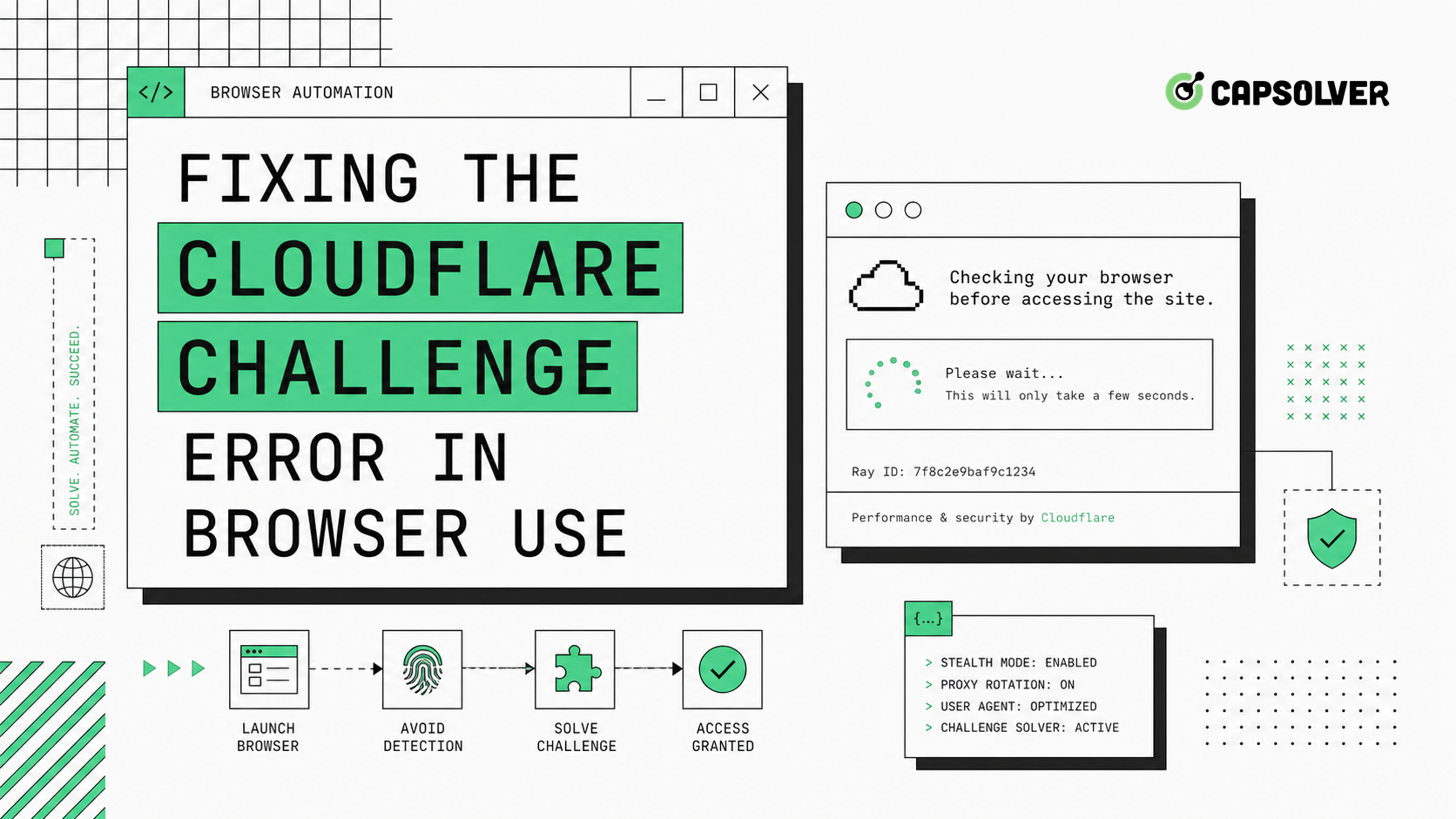
Browser Use Recovery Flow
| Step | Purpose | Failure signal |
|---|---|---|
| Detect challenge | Avoid normal page actions on validation pages | Same challenge URL repeats |
| Preserve context | Keep token and browser state aligned | Token accepted nowhere |
| Wait precisely | Avoid premature clicks and submits | Page changes after action |
| Solve when allowed | Complete authorized validation | Missing site key or widget data |
| Stop safely | Respect hard blocks and policies | 403 or repeated rejection |
Browser Use workflows often fail because challenge handling is treated as a generic page action. If the page exposes a Turnstile workflow, keep the widget context and browser session together. If the workflow runs inside a real browser, a Cloudflare in browser setup or Chrome CAPTCHA auto solver approach can be evaluated for authorized tasks. Public-data jobs should still follow a web scraping CAPTCHA guide and keep the same responsible limits used in web scraping with Python.
Fix Waits and Session Drift
Fixing the Cloudflare Challenge error in Browser Use often requires better waits. Playwright’s actionability model is a useful reference because it waits for visibility, stability, and enabled state before actions. Even if Browser Use abstracts the browser, your orchestration should wait for a post-challenge selector or a known destination URL, not a fixed timer.
Session drift is the second major cause. If the agent changes proxy, browser profile, cookies, user agent, or viewport between challenge and submit, the validation result may fail. Keep the same context until the protected action completes.
Redeem Your CapSolver Bonus Code
Boost your automation budget instantly!
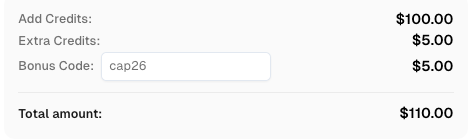
Use bonus code CAP26 when topping up your CapSolver account to get an extra 5% bonus on every recharge — with no limits.
Redeem it now in your CapSolver Dashboard
Add Responsible Stop Rules
Fixing the Cloudflare Challenge error in Browser Use does not mean forcing every protected page. A hard 403, account restriction, robots policy concern, or missing authorization should stop the workflow. Technical ability does not grant permission to access private, restricted, sensitive, or unauthorized data.
Store minimal diagnostics: challenge type, URL, retry count, and high-level browser context. Avoid raw tokens, credentials, and private page data.
Adapt Browser Use Prompts to Challenge States
Fixing the Cloudflare Challenge error in Browser Use often starts in the system prompt. The agent should know that Cloudflare pages are not ordinary pages to summarize or click through blindly. Add an instruction that says: if a Cloudflare Challenge, Turnstile widget, repeated verification page, hard 403, or rate limit appears, stop normal browsing and return a structured state. This prevents the agent from wasting steps on “continue,” “verify,” or “reload” actions that do not change the underlying risk decision.
Browser Use workflows should also define allowed domains and task purpose. If the target is your own site, the right fix may be Cloudflare configuration for a QA environment. If the target is a partner workflow, use the approved account, traffic rate, and challenge procedure. If the target is not authorized, stop. The Cloudflare supported browsers reference is useful when validating whether your browser environment is compatible with challenge flows.
For this Browser Use article, vary the CapSolver internal links toward browser and Turnstile content: Cloudflare in your browser, Cloudflare Turnstile, Chrome CAPTCHA auto solver, extension for Chrome and Mozilla, Turnstile-style Cloudflare challenge in Node.js, and CAPTCHA while web scraping. This keeps the link profile distinct from the Selenium and reCAPTCHA pieces.
Preserve the Browser Context Across Tool Calls
Browser Use agents often break Cloudflare validation by splitting one browser workflow into many disconnected tool calls. The agent opens a page, sees a challenge, calls another tool, resumes in a new context, and then submits a token or action from the wrong session. Fixing the Cloudflare Challenge error in Browser Use requires a session owner. One browser context should own cookies, local storage, proxy route, viewport, and user agent until the protected request is complete.
This is especially important for Turnstile. Cloudflare’s Turnstile client-side rendering docs describe a widget-driven token flow. If the widget parameters are collected in one context and the result is submitted in another, rejection is expected. The agent should keep the page open, collect parameters only when needed, submit promptly, and wait for a post-challenge selector.
Build a Decision Table for Browser Use
Fixing the Cloudflare Challenge error in Browser Use benefits from a decision table that the agent cannot ignore. If the URL contains a known challenge path and the target page is absent, classify as cloudflare_challenge. If a Turnstile iframe or widget is present, classify as turnstile_widget. If the HTTP layer returns 403, classify as hard_block. If the page changes after a waiting period and the destination content appears, classify as challenge_passed. If none of these states match, return unknown_block and ask for review.
Decision tables are better than natural-language guesses because they are testable. You can create fixtures for each state and assert that Browser Use returns the expected classification. You can also log how often each state appears and whether the recovery path works. If unknown_block grows over time, update the detector rather than increasing retry counts.
Avoid Prompt-Level Workarounds
Do not try to fix Cloudflare by telling the agent to “act human” in vague terms. That creates unpredictable behavior and can push the model toward unsafe actions. Use concrete engineering controls instead: stable sessions, explicit waits, limited concurrency, policy checks, and a solver step only when the workflow is authorized. The Playwright network documentation is a helpful reference for observing requests and responses when Browser Use is backed by a Playwright-like browser stack.
When the protected site is yours, use Cloudflare logs and rules to understand why the challenge is firing. When the site is not yours, avoid assumptions and respect the site’s access boundaries. A Browser Use agent should be able to finish useful tasks, but it should also know when the correct answer is “blocked.”
Test Browser Use With Challenge Fixtures
Fixing the Cloudflare Challenge error in Browser Use should include fixture testing. Build small pages or recorded sessions that represent a normal page, a Turnstile widget, a Cloudflare waiting page, a 403 block, and a rate-limit response. Then assert that the agent returns the correct state for each fixture. This catches prompt regressions, detector drift, and browser-tool changes before they affect production tasks.
Fixtures are also useful for evaluating model upgrades. A new model may be more proactive, but proactivity is not always good on protected pages. The expected behavior is precise: identify the challenge, preserve state, follow the approved path, or stop. If the new model clicks more aggressively or invents unsupported recovery steps, the test should fail.
Use Browser Use for the Right Layer
Browser Use is strong when the workflow needs page-level interaction, but not every Cloudflare error should be solved at the browser layer. If you own the site, inspect Cloudflare events and rules first. If you need monitoring, prefer APIs or synthetic endpoints when available. If the task is a partner integration, ask for an approved automation path. Browser automation should be reserved for cases where a real browser workflow is necessary and permitted.
This distinction reduces operational risk. A Browser Use agent that handles every block as a browser problem will waste time and may violate policy. A Browser Use agent that knows when to hand off to configuration, API integration, human review, or a solver step is more reliable.
Conclusion
Fixing the Cloudflare Challenge error in Browser Use requires state classification, stable browser context, precise waits, and bounded retries. Use solver tooling only inside authorized workflows and stop when the site signals denial. For permitted automation that needs Cloudflare or CAPTCHA challenge handling, CapSolver can be integrated as one controlled step.
FAQ
Why does Browser Use keep acting on a Cloudflare page?
The agent likely sees the challenge page as normal page content. Add challenge detection and return a blocked or solving state.
Is a Cloudflare Challenge always Turnstile?
No. Turnstile is one Cloudflare product, while Cloudflare Challenge pages can include different validation flows.
What should I log for Browser Use Cloudflare errors?
Log final URL, page title, challenge indicators, retry count, and browser context ID. Do not log secrets or personal data.
Should Browser Use keep retrying after a 403?
No. A hard 403 should be treated as a stop condition unless you control the site and are testing your own configuration.
More
AutomationJun 04, 2026
Why Is Your Automation Triggering CAPTCHAs?
Learn why automation triggering CAPTCHAs happens, from browser state and token timing to proxy consistency, retries, and responsible CAPTCHA handling.

CloudflareJun 05, 2026
Cloudflare Blocking Your AI Agent? Here's the Solution
Cloudflare blocking your AI agent? Learn why it happens, how to diagnose Cloudflare challenges, and how CapSolver helps authorized automation recover.